For the Hisense GE series with Android 14, we provide a customized sklera Player app.
Prerequisites
- Hisense GE series with current firmware (OTA available)
- Internet connection
- sklera 4.6.1 or later is required for full functionality
Preparation
Hisense GE series use REST API calls to the hardware.
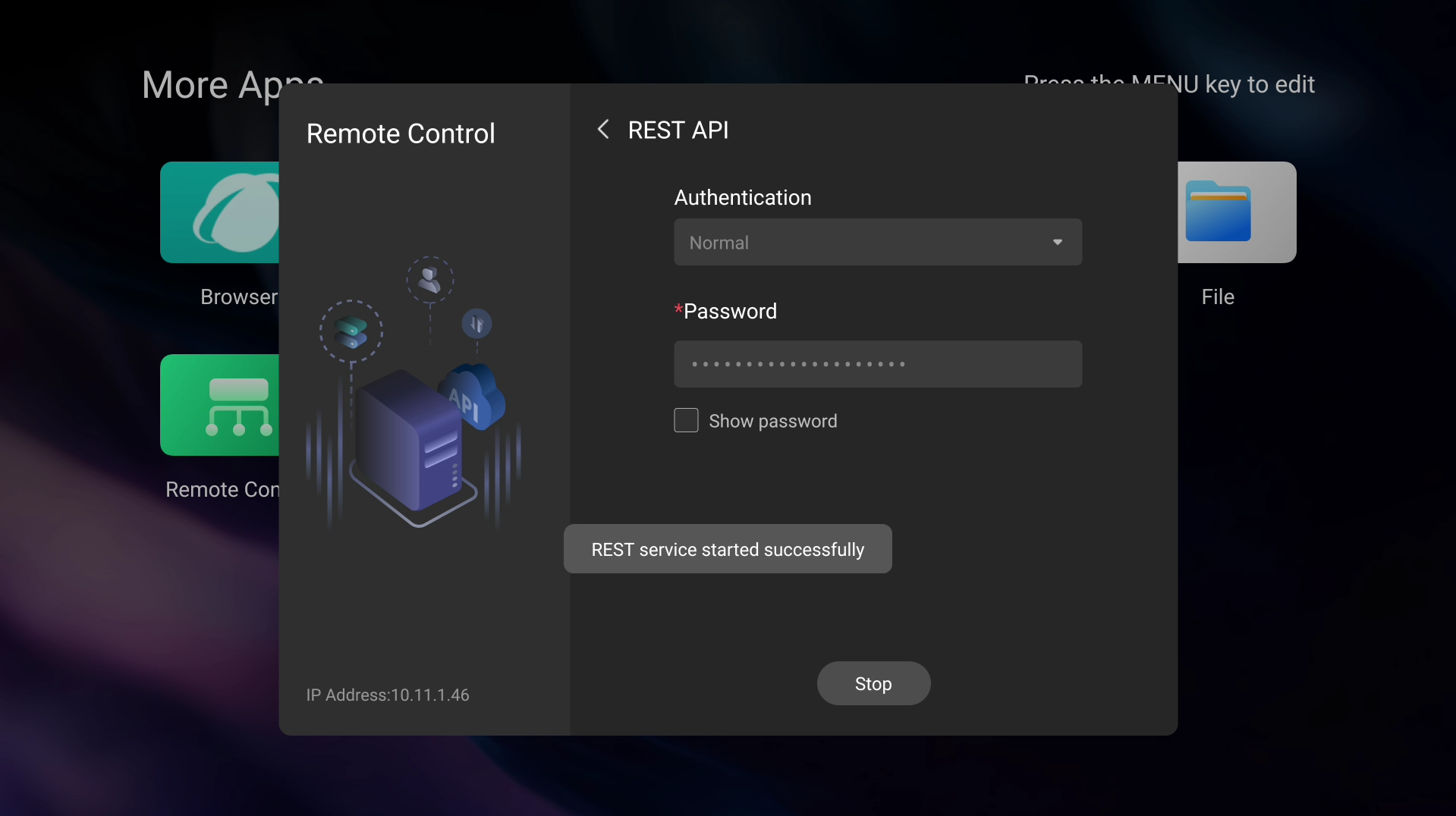
In order for the device to work properly, REST service must be enabled.
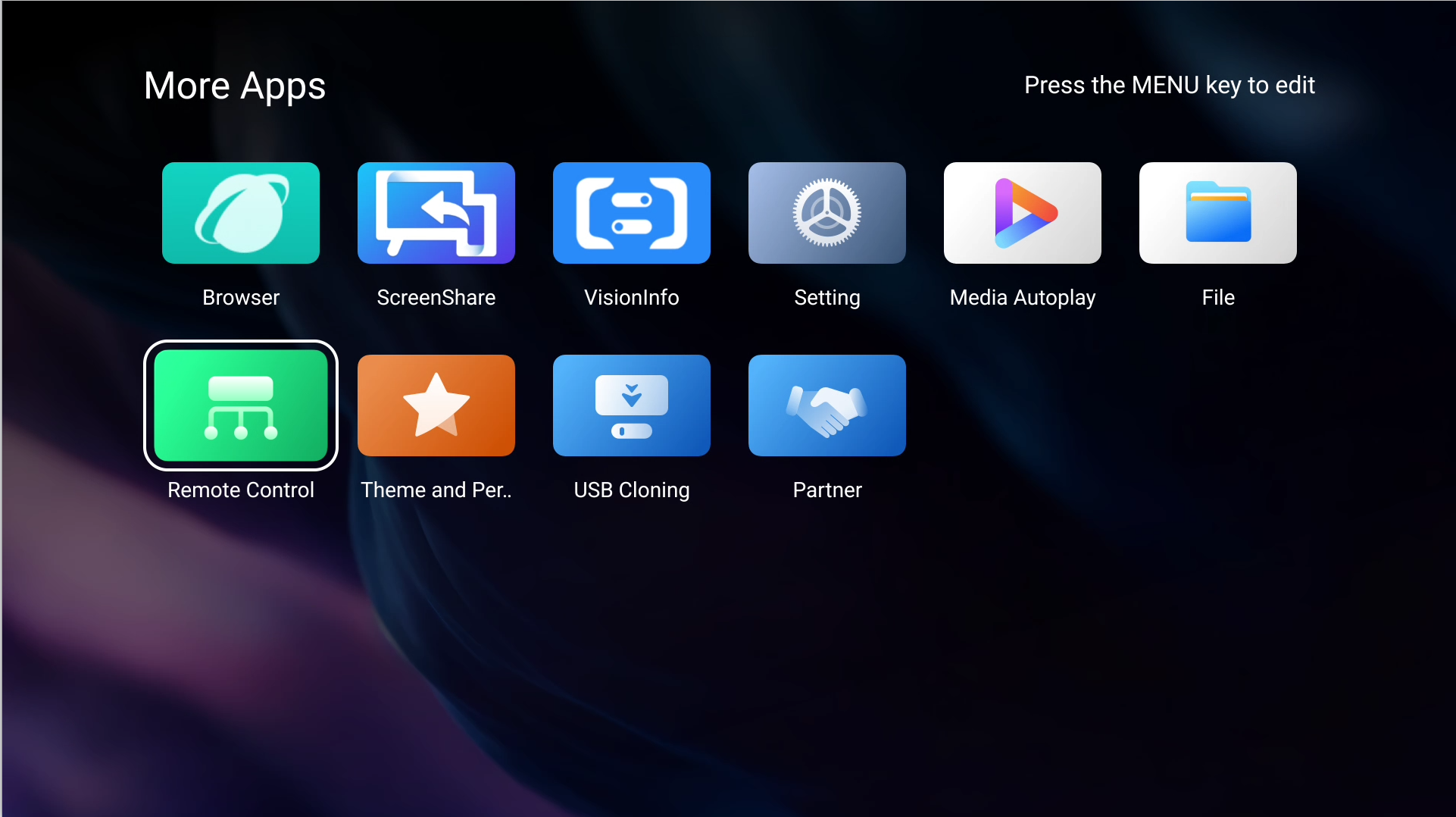
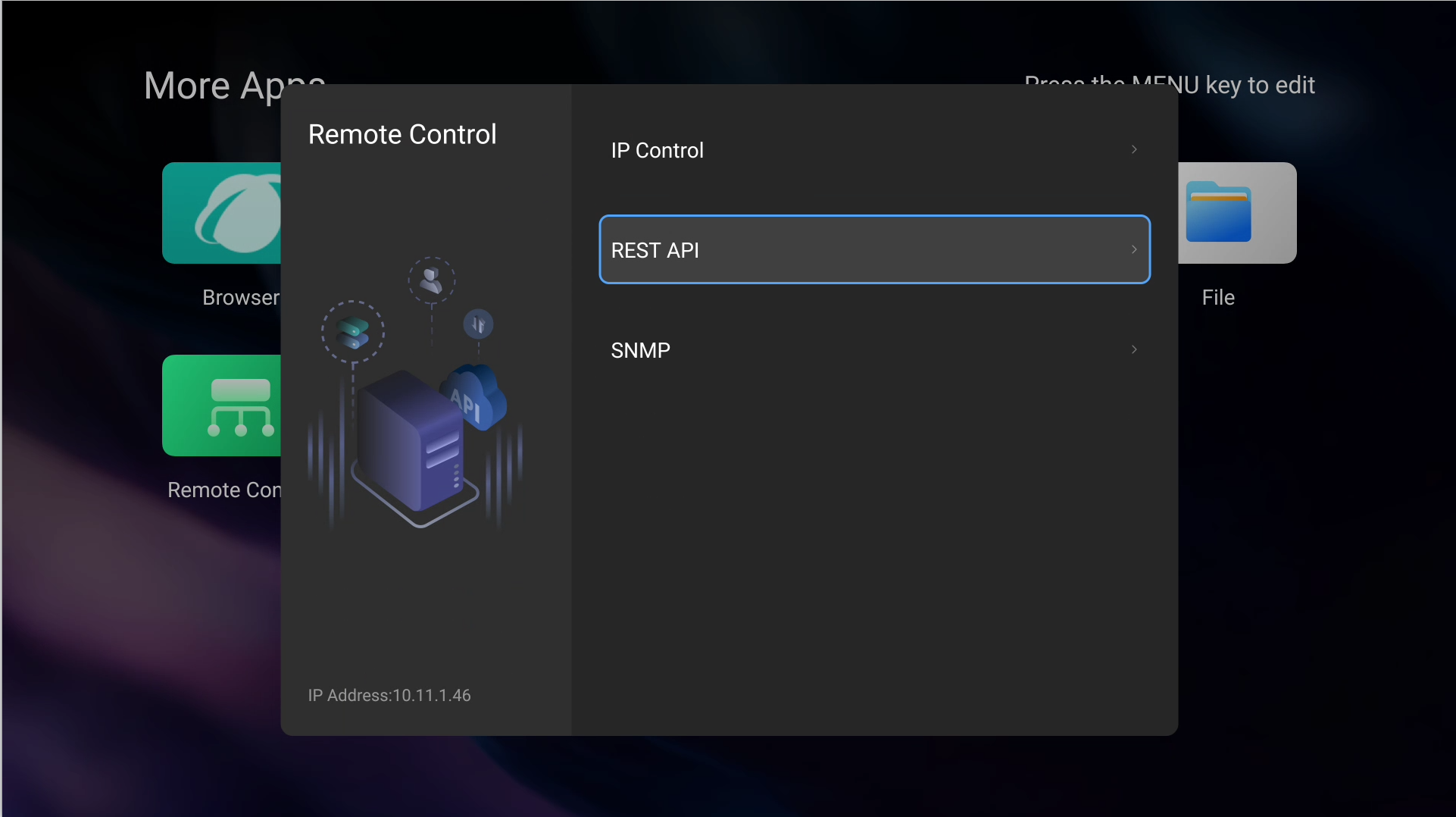
- To enable REST service, open “Remote Control”, and select "REST API".
- Select authentication type “Normal” (recommended) or “None” (not recommended).
If selected “Normal”, create a strong password. Once set, press on “Start” to start the service.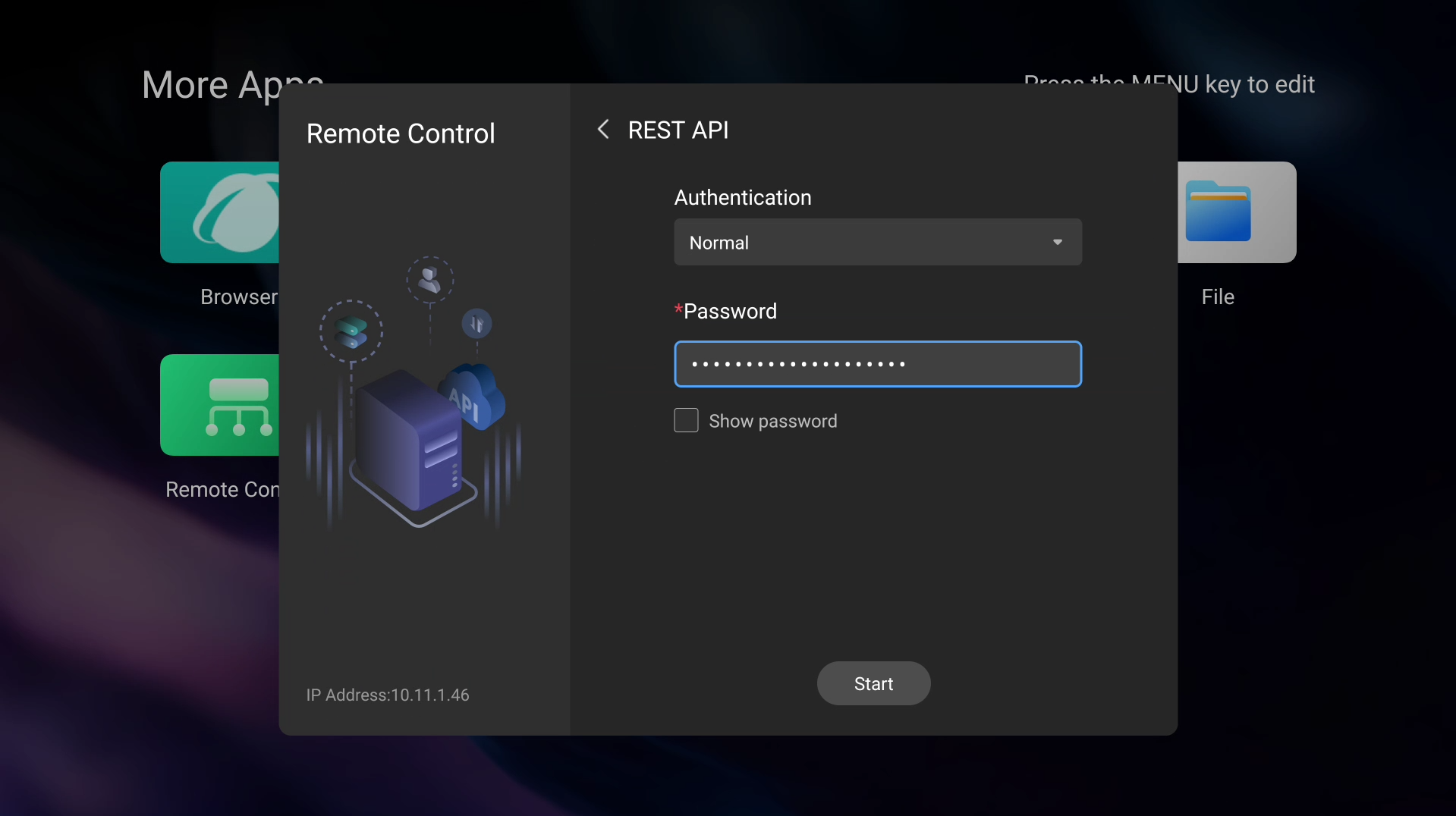
Player App Installation
There are two ways to install the sklera Player app on the device:
Option A: Using a USB stick
Option B: Direct download of the app via internet
Option A: Using a USB Stick
- Download the latest version of the Sklera Player app
https://start.sklera.tv/app/android7/hisense-ge/download - Save the file to a USB stick.
Make sure the USB stick is formatted in FAT (FAT32), otherwise the display may not recognize it. - Insert the USB stick into the Hisense device and then navigate to "All Apps" > "File Manager".
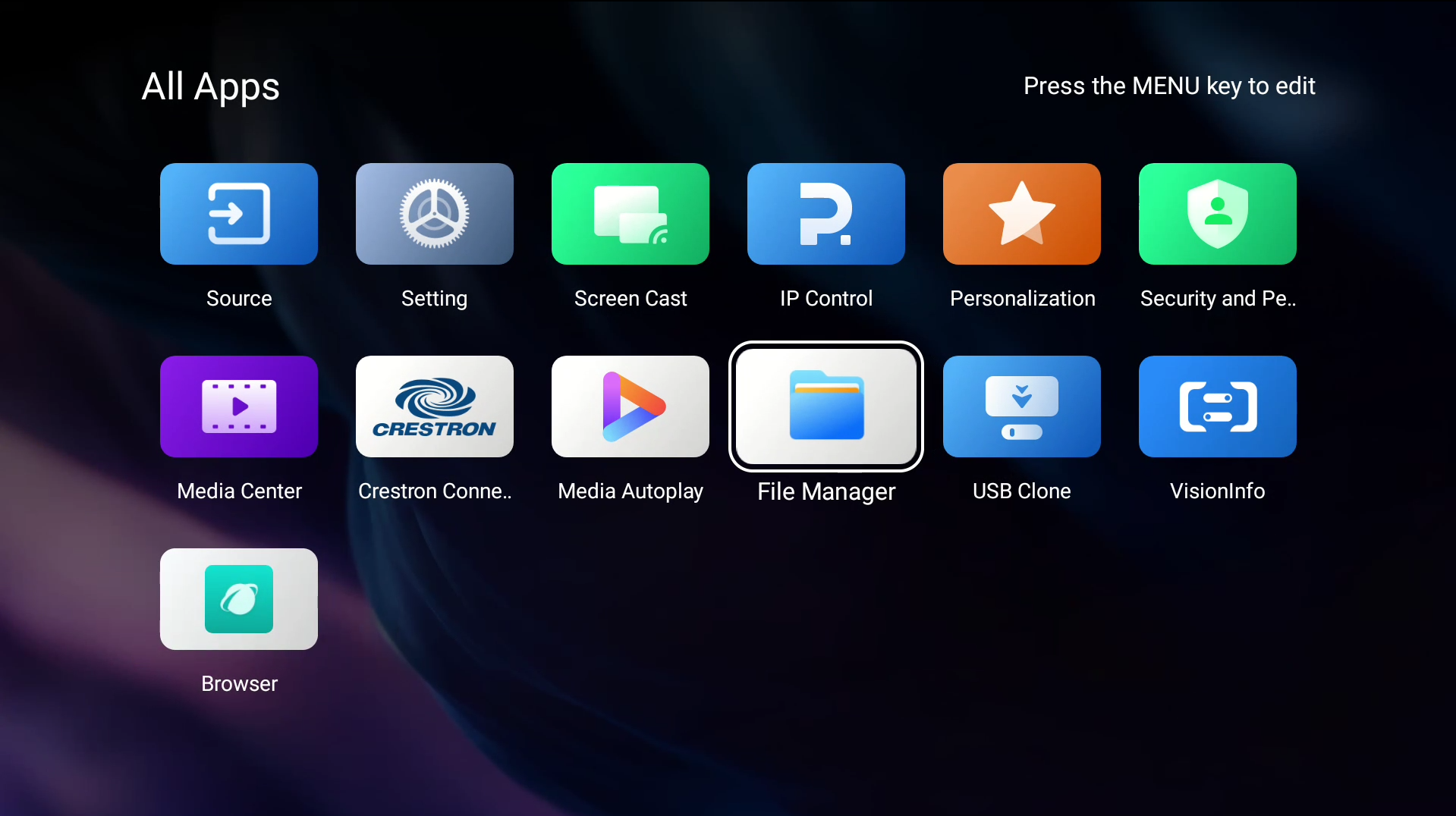
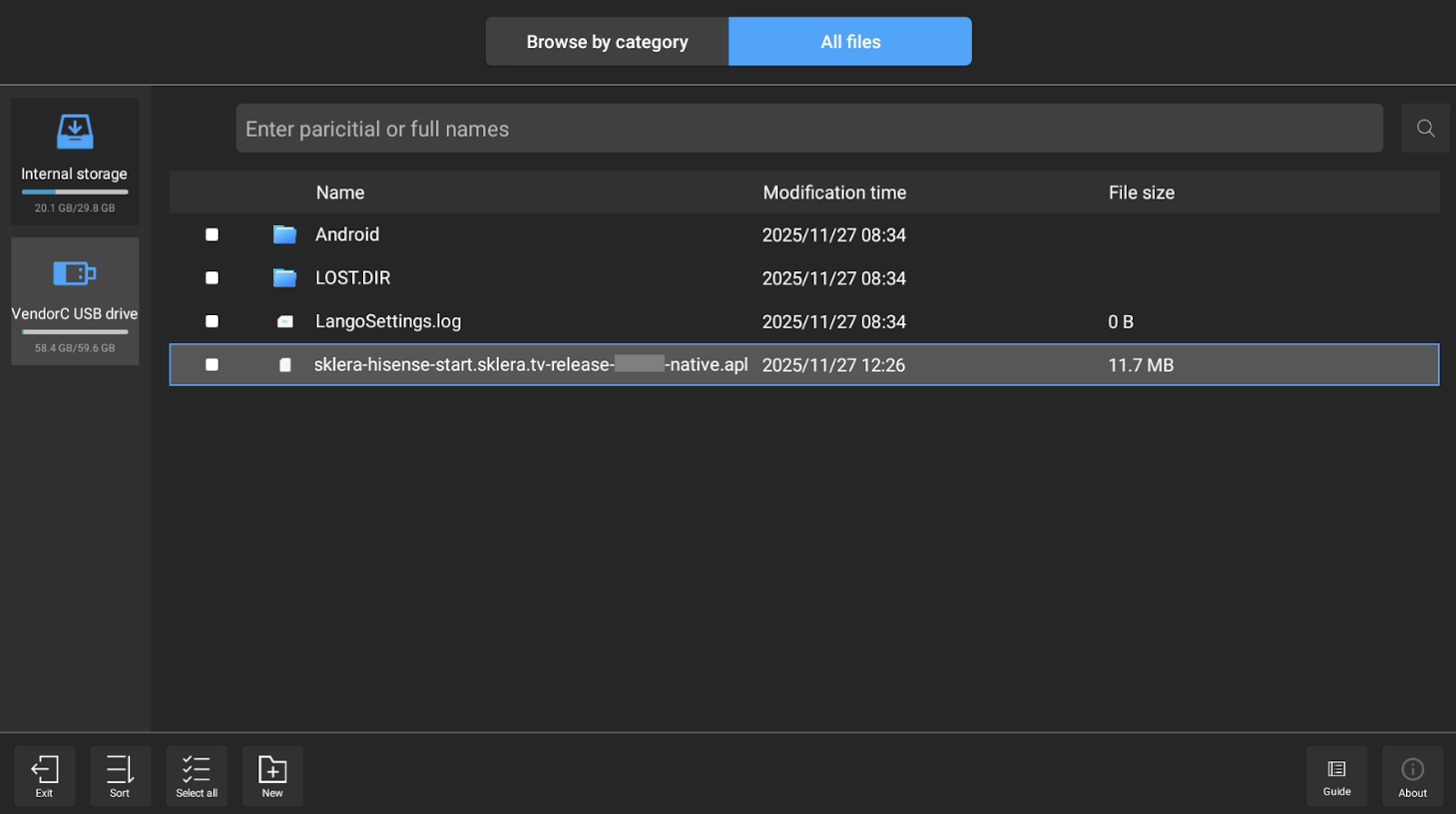
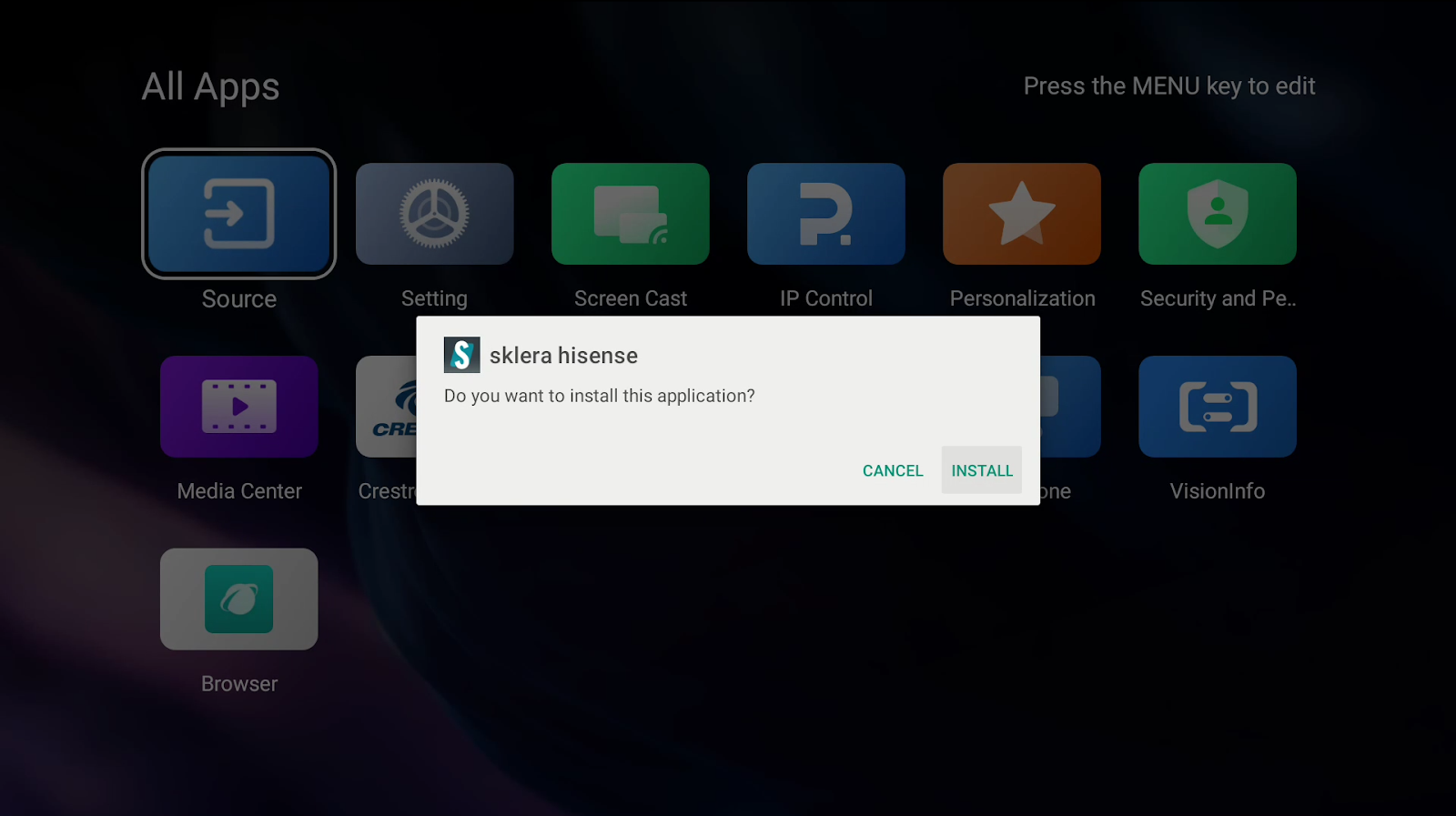
- Navigate to the USB drive and select the downloaded app. The app will then be installed.
Option B: Direct download of the app via internet
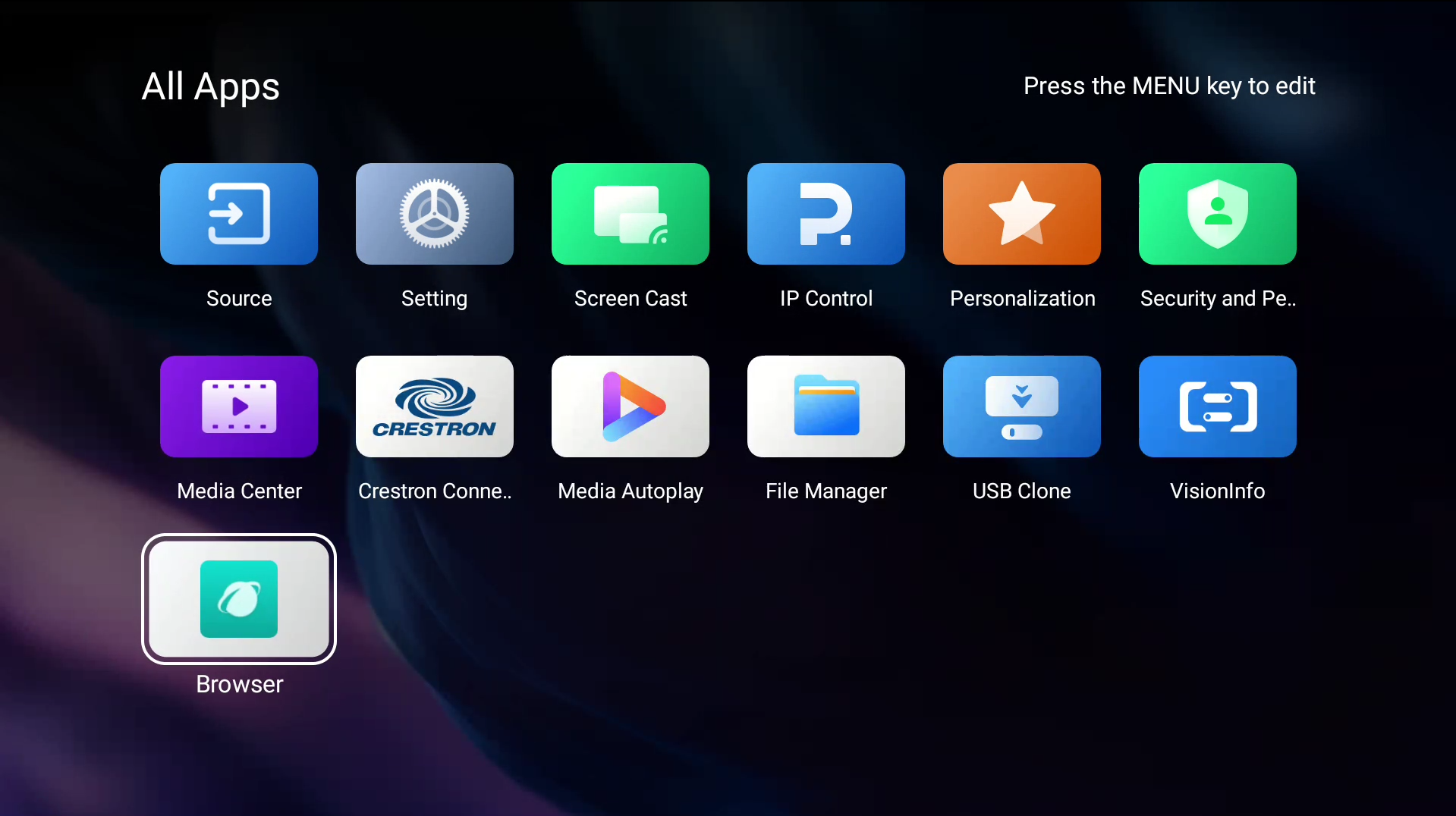
- Navigate to "All Apps" > "Browser".
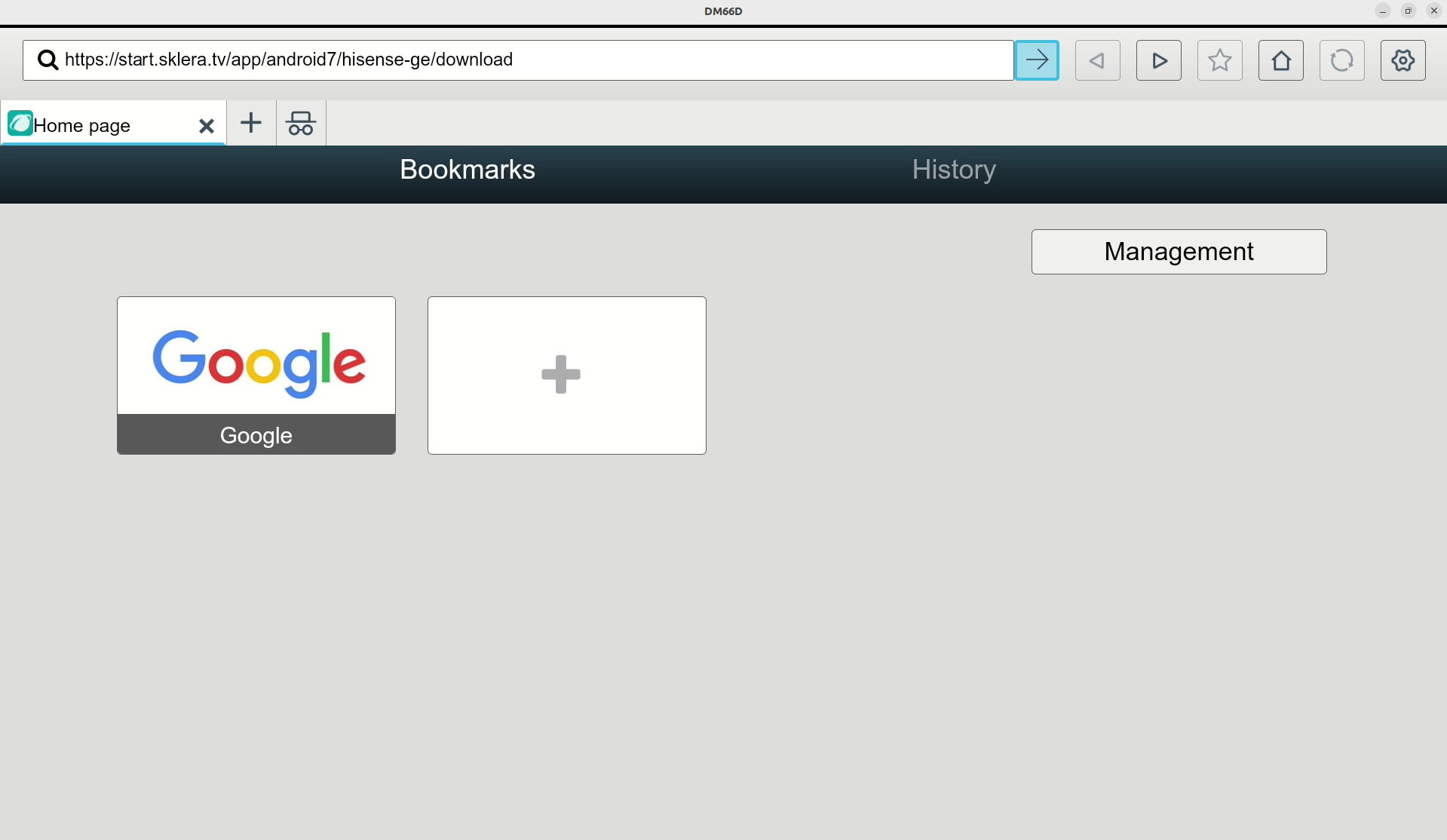
- Go to https://start.sklera.tv/app/android7/hisense-ge/download. The app will be downloaded automatically.
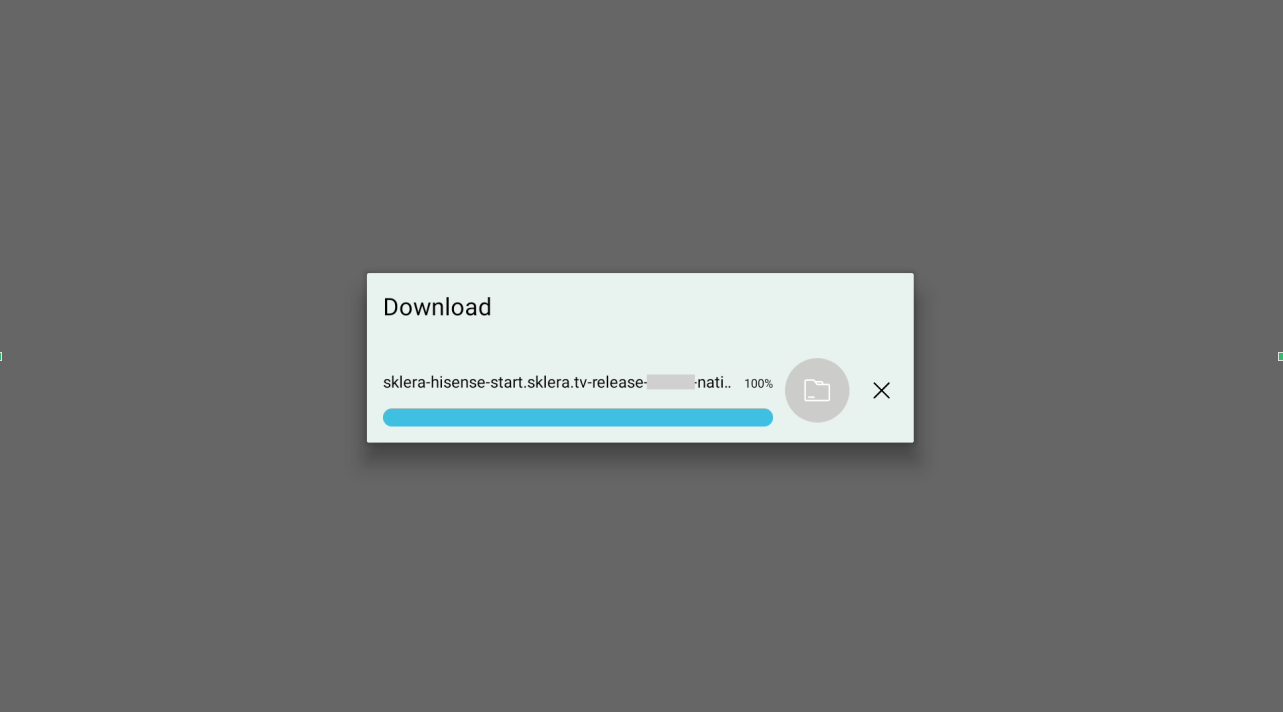
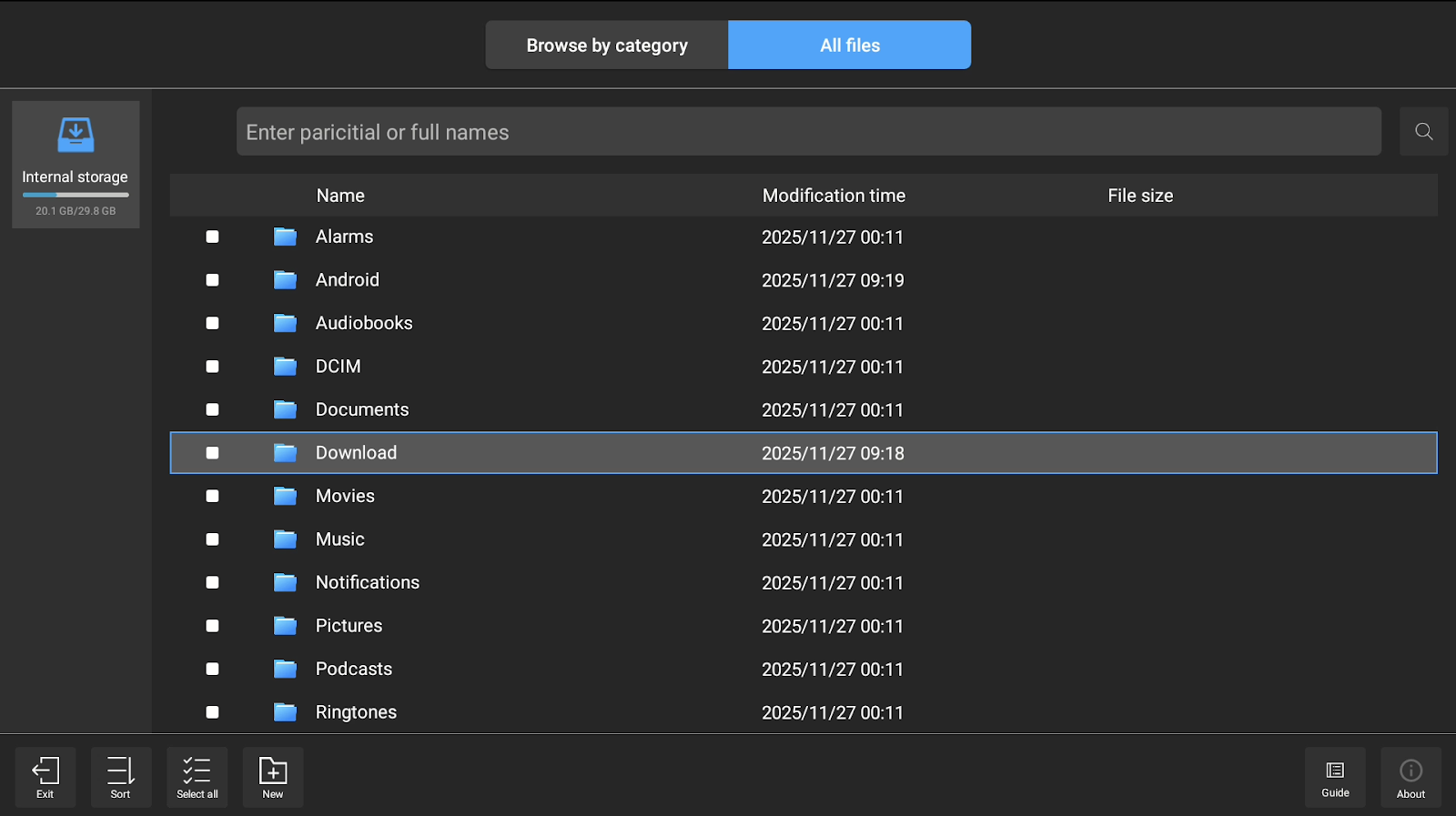
- Navigate back to "All Apps" > "File Manager".
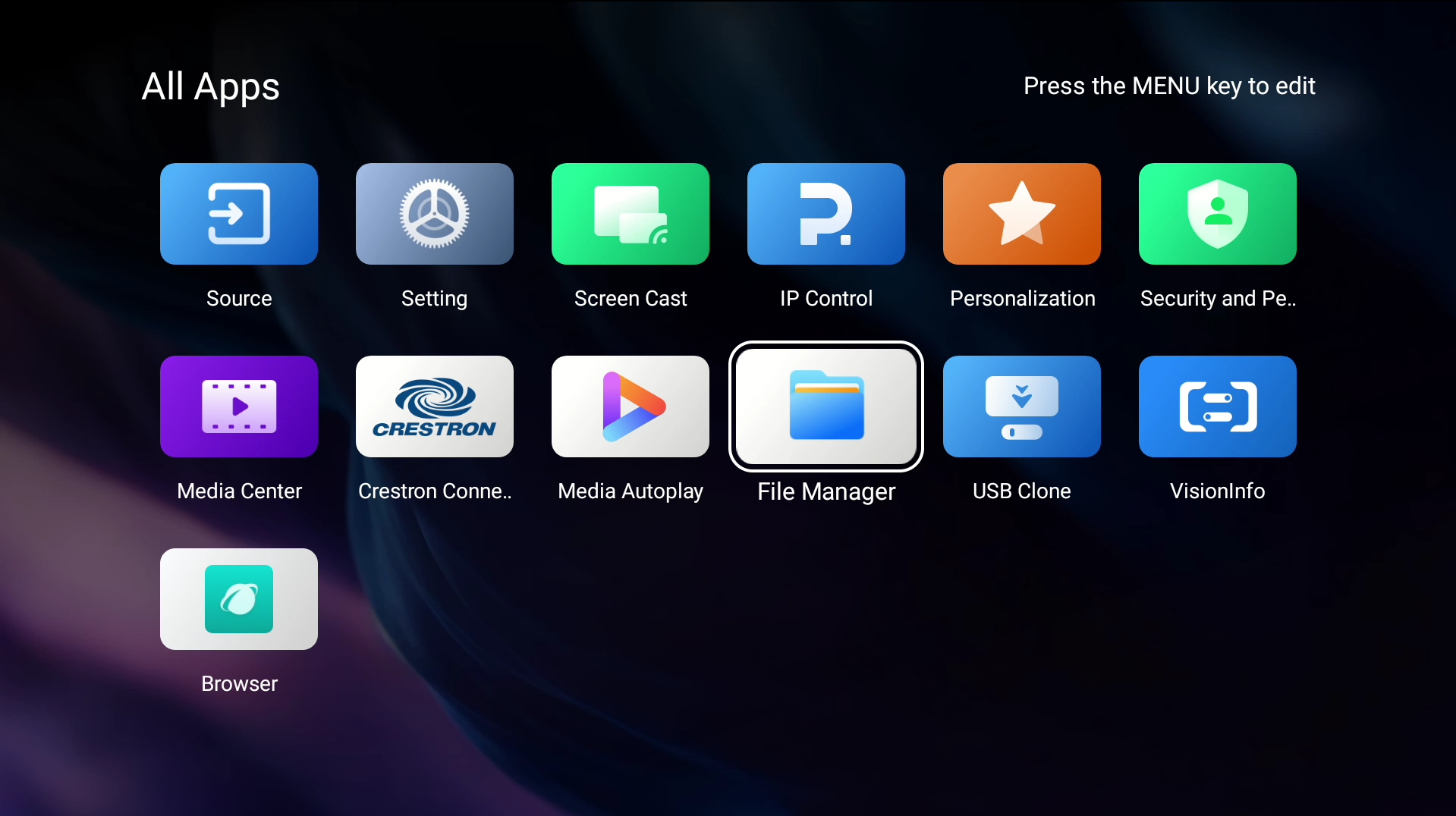
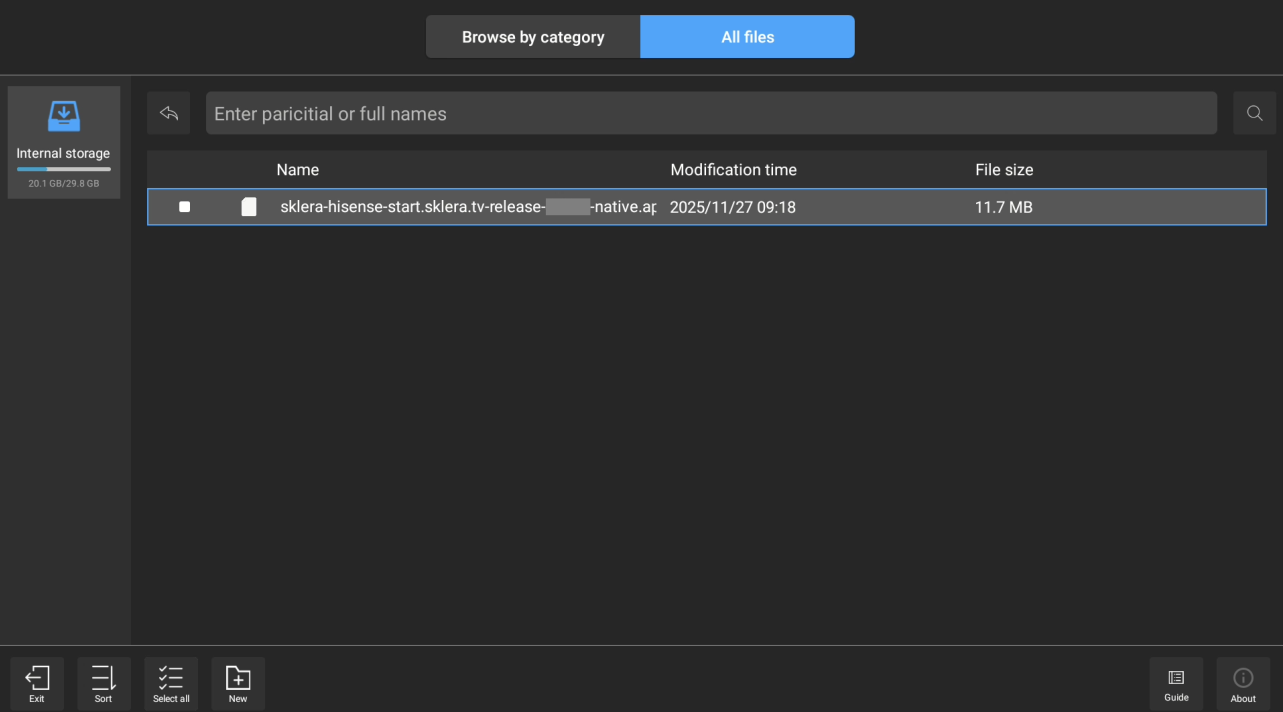
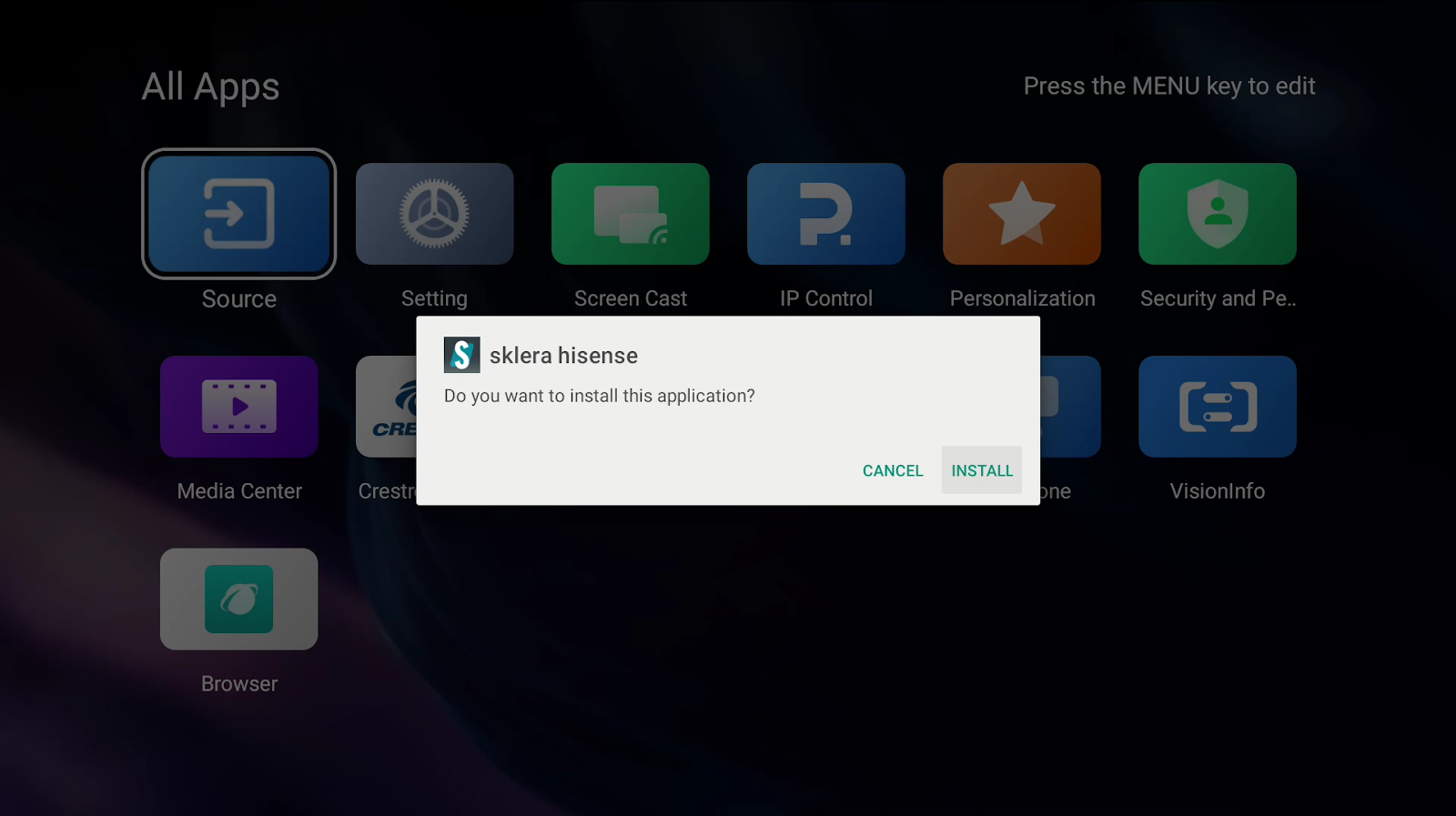
- Navigate to the "Download" folder and select the downloaded app. The application will then be installed.
Start the app
- Launch the sklera Player app.
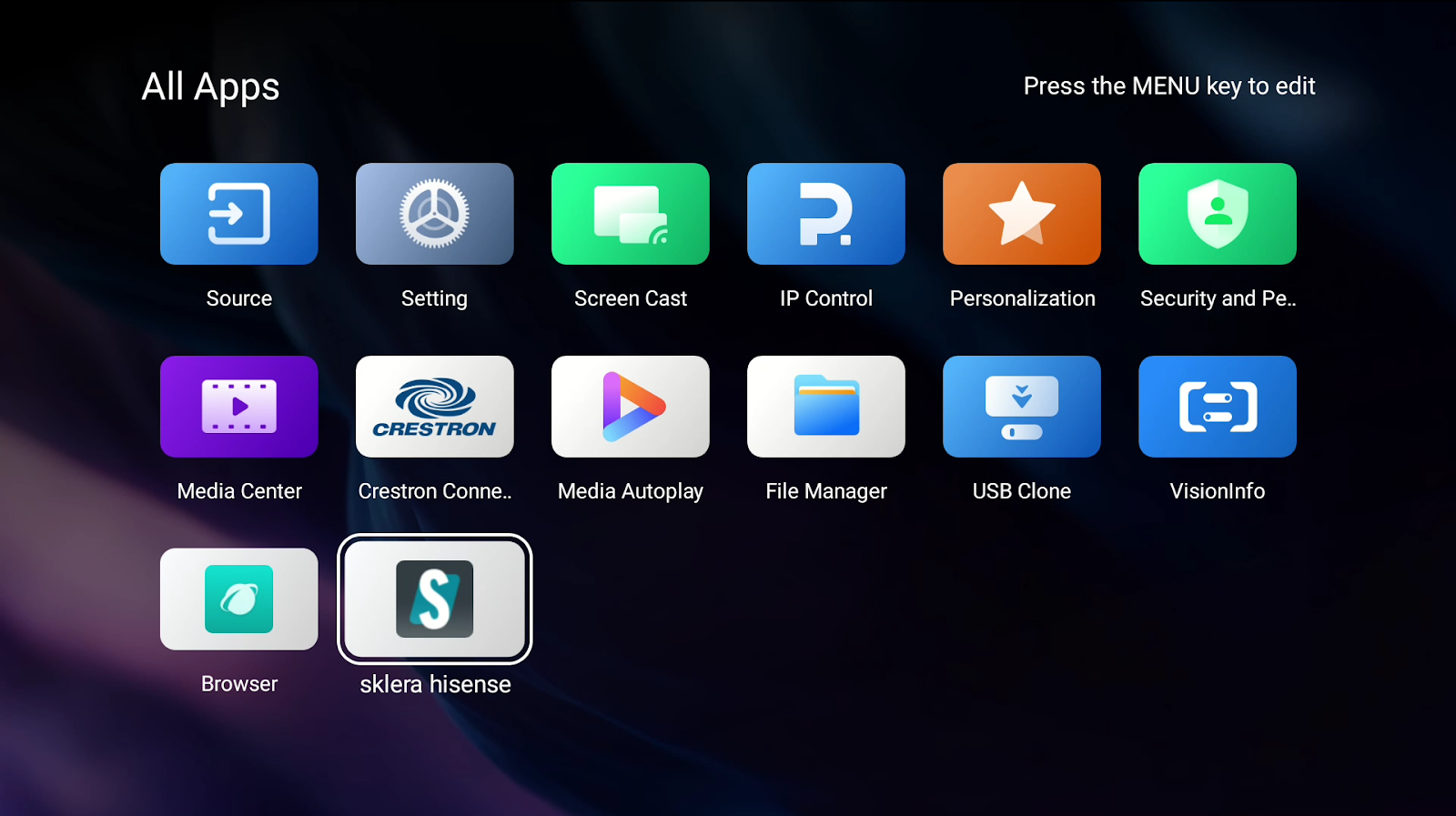
- During first launch, app may require special device permissions – they are used to provide improved user experience such as app auto-start, writing data to external storage, etc. It is recommended to allow them all.
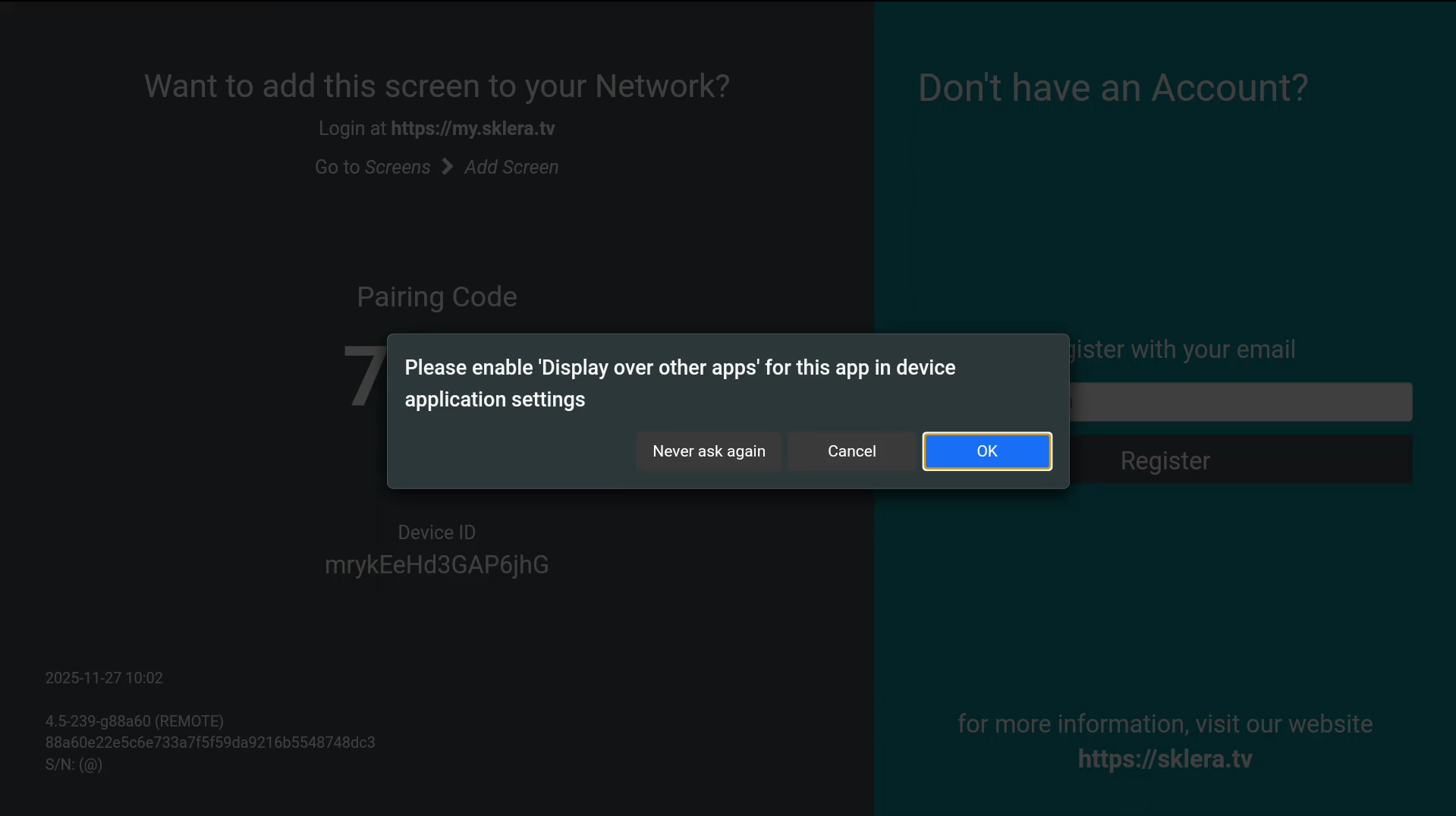
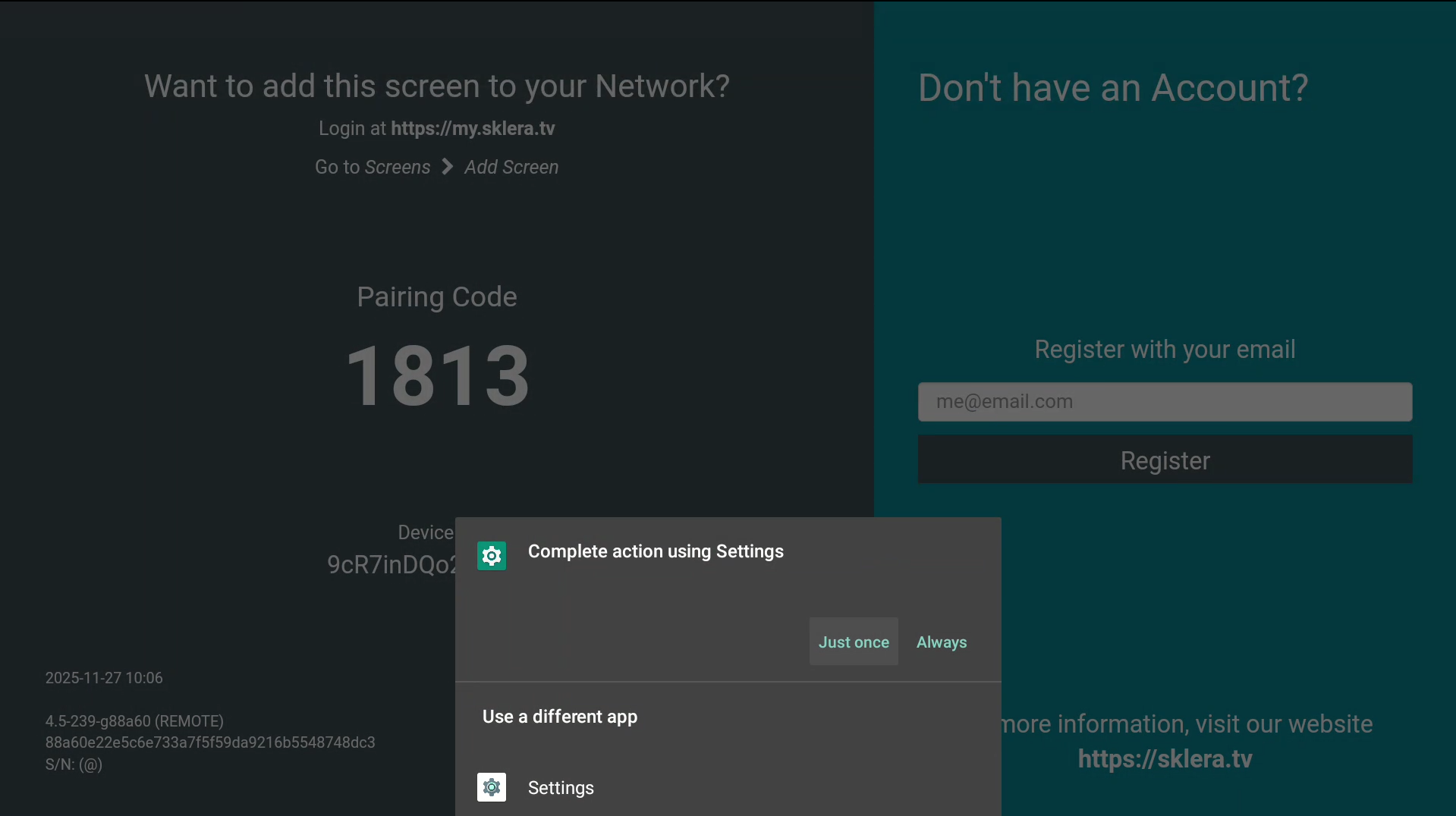
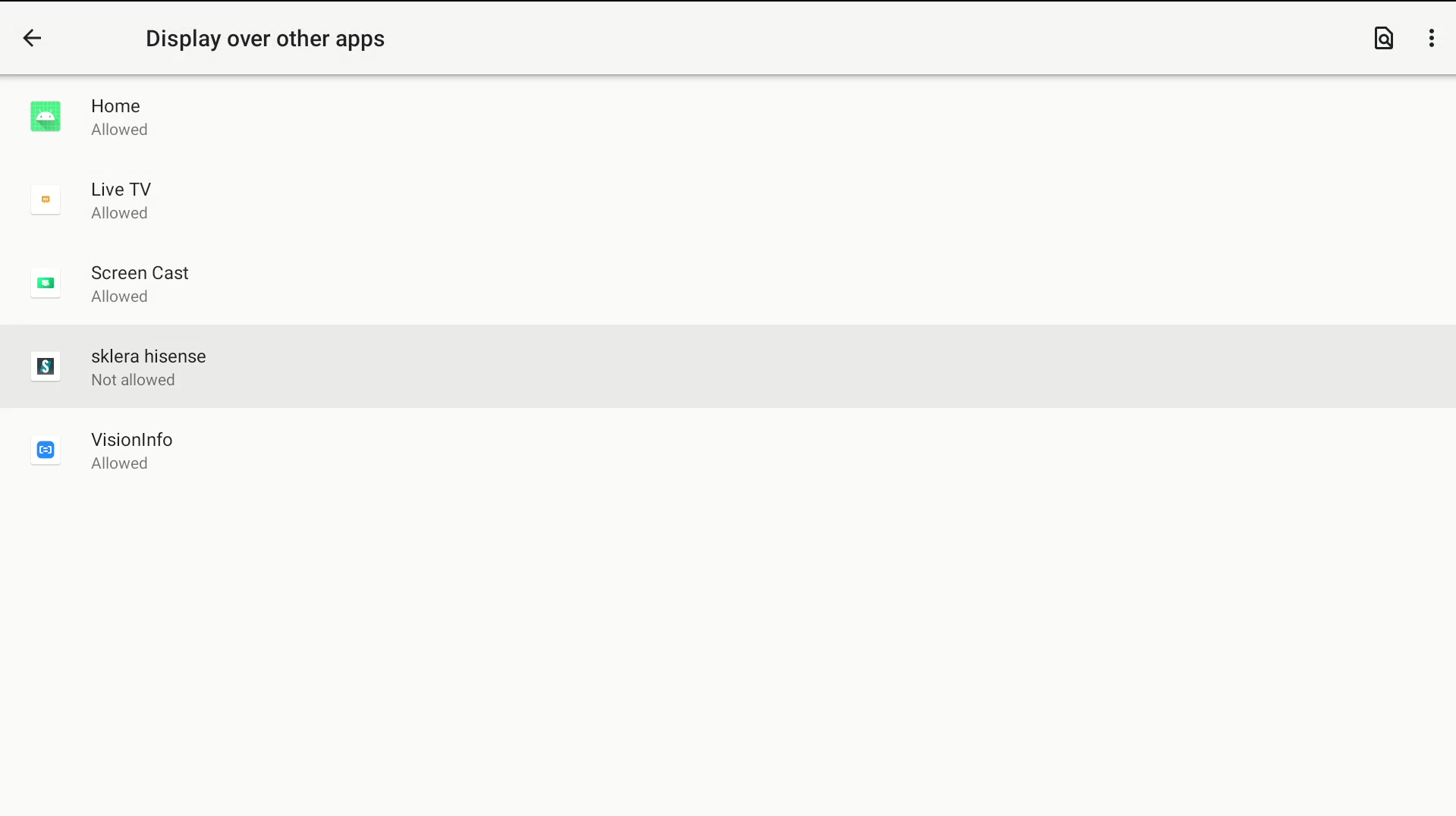
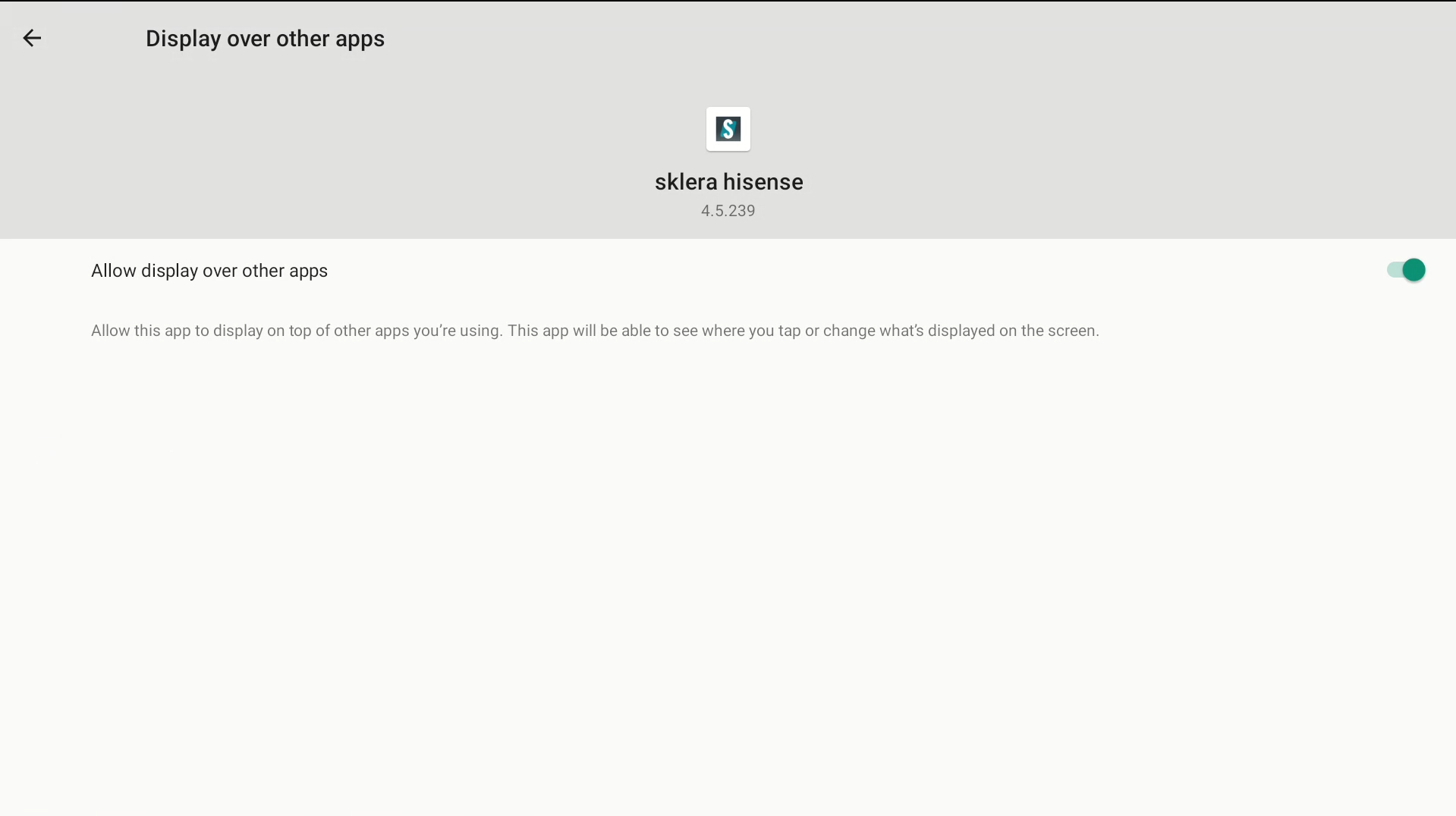
- Restart the sklera Player app. Follow the on-screen instructions to add the player to your channel.
- If the REST API authentication method was set to “Normal”, you have to provide the password in the CMS.
To do this, click on “Edit Screen” in the Sklera CMS, select the “Settings” tab and enter the password in the field “Pre-Shared Key”.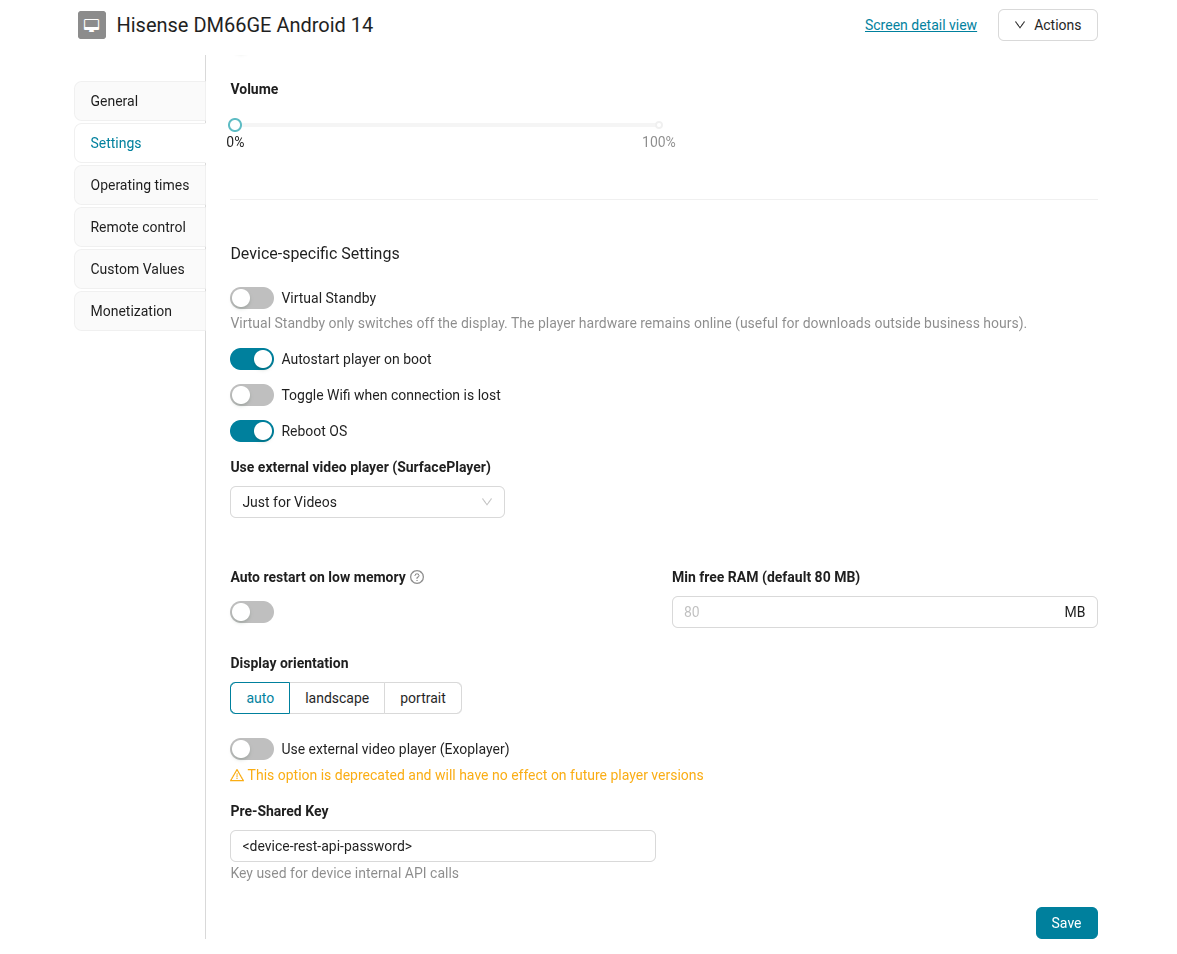
Post Installation
- Make sure time and local timezone is configured correctly
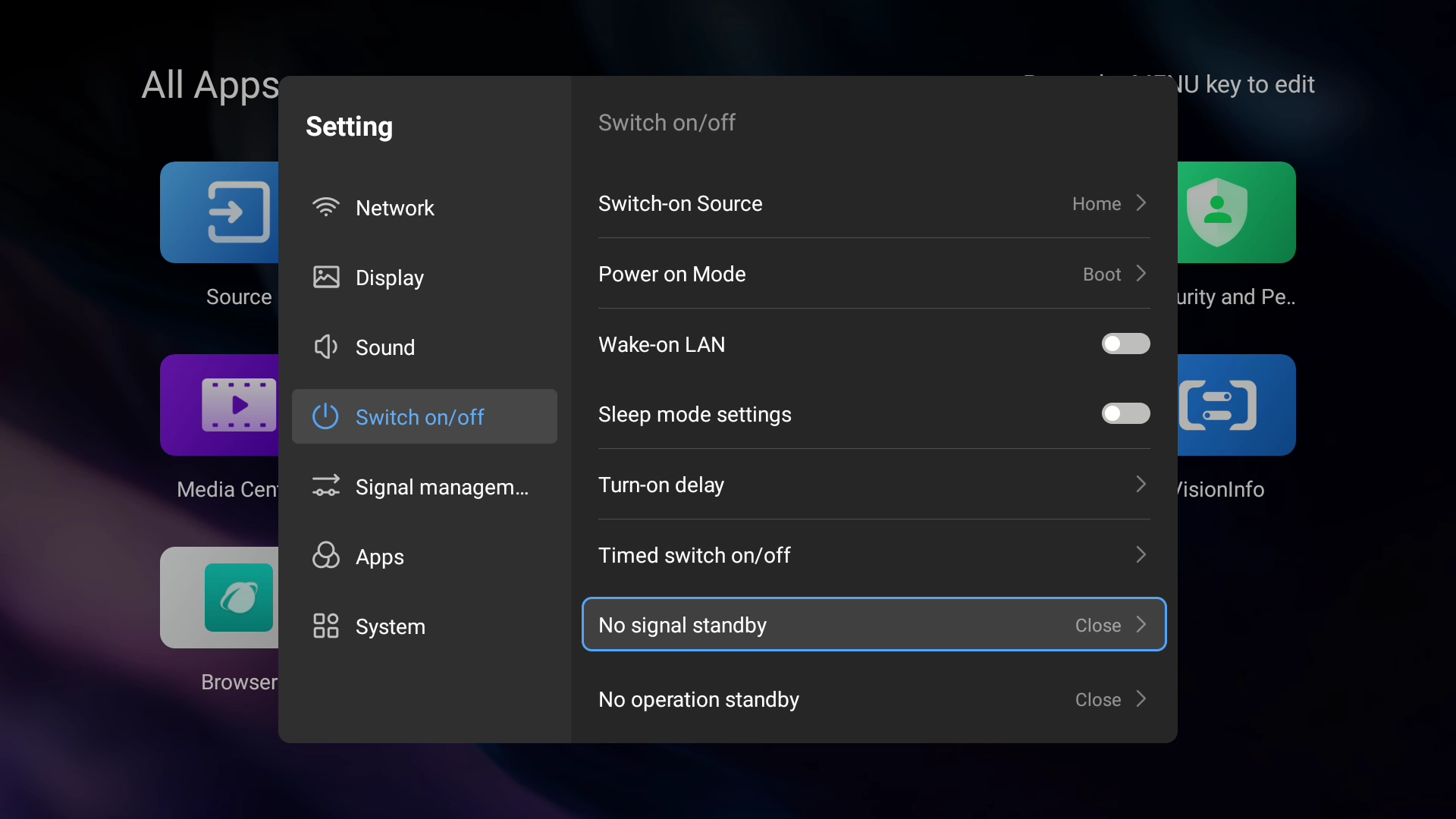
- Make sure “No signal standby” and “No operation standby” are disabled (set to “Close”). It can be set under Settings > Switch on/off.