
In order to use sklera in Chrome OS devices a additional Google "Kiosk & Signage Upgrade" is required per player device.. For further information see: https://chromeos.google/products/device-management/
Setting up sklera on Chrome OS devices can be achieved in few steps within the Google CDM portal:
As logging in device admin user in the CDM go to:
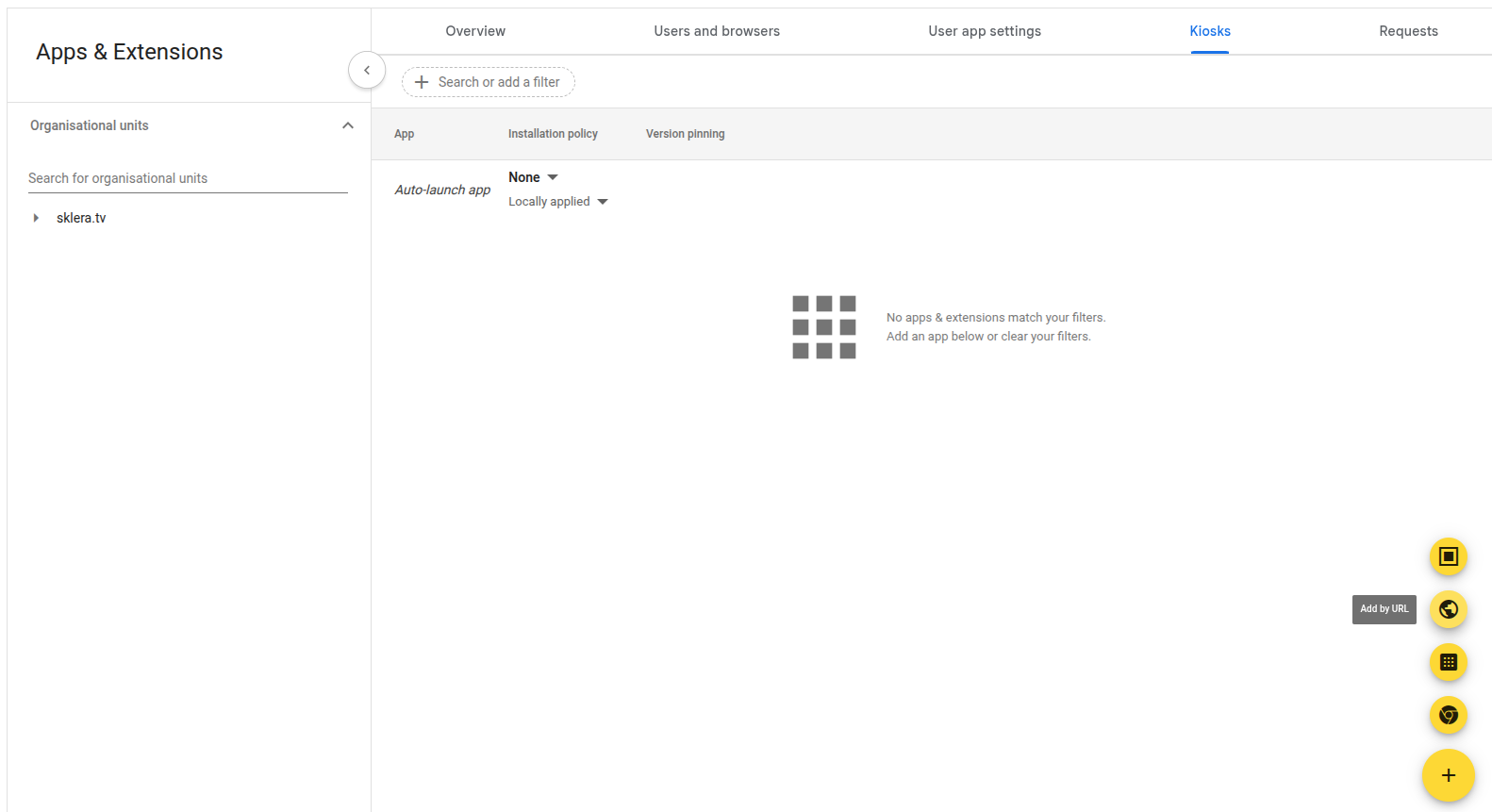
Devices -> Chrome -> Apps & Extensions -> Kiosks
Select the organisational unit and add a new PWA app by clicking on "add by URL":
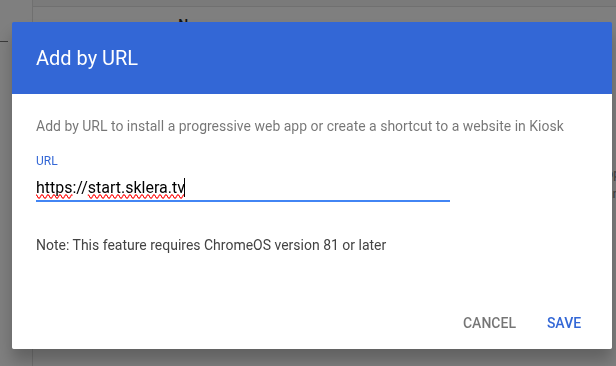
Use as URL our Player Server address for your environment. If you are using our public cloud service enter: https://start.sklera.tv
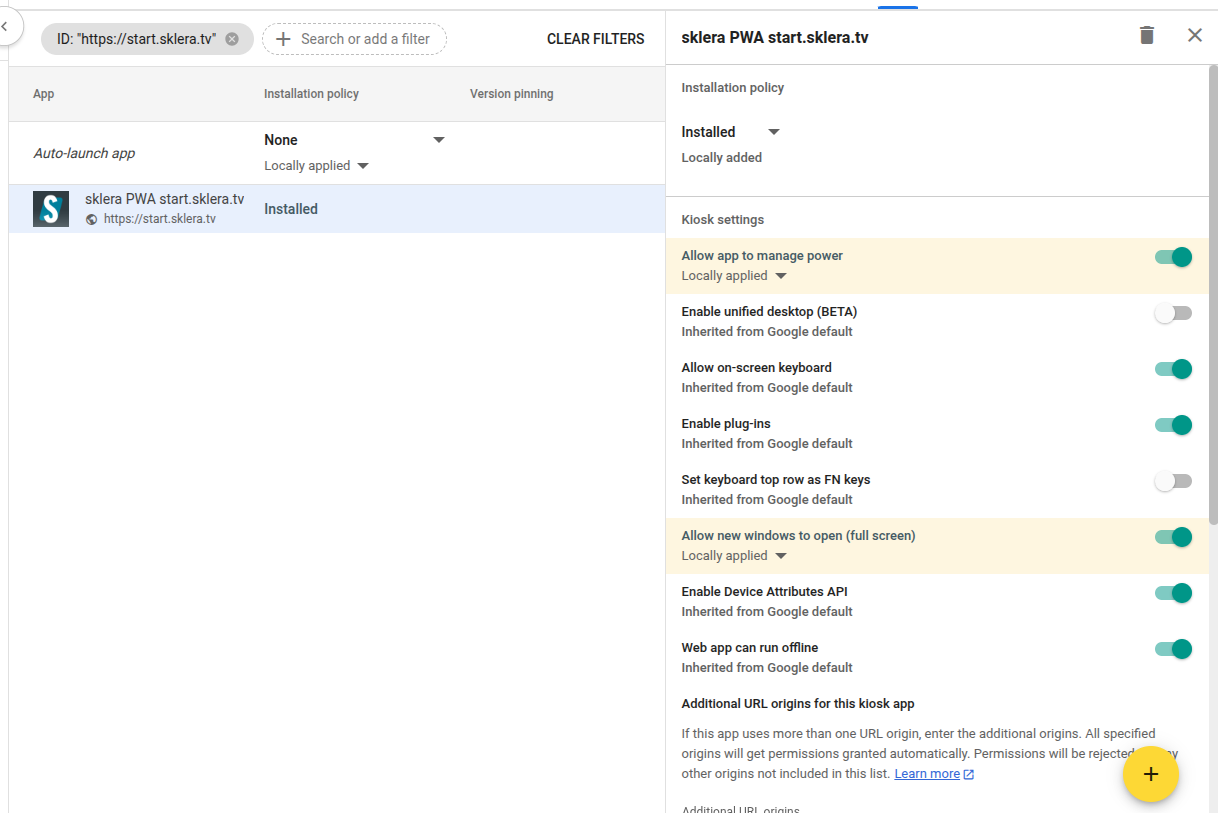
Allow additional App Permissions:
- "Allow App to manage power" and
- "Allow new windows to open (full screen)"
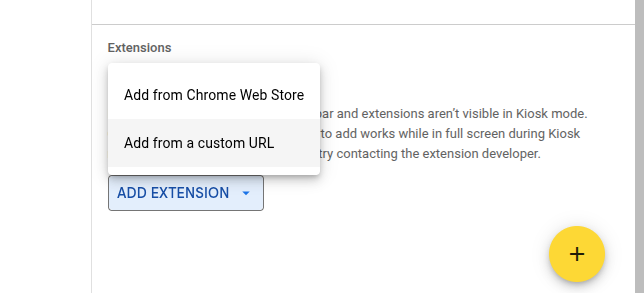
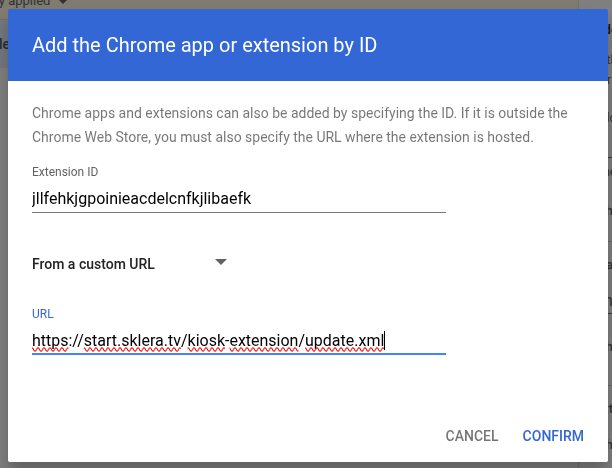
Add the Kiosk Compagnion Extension by a custom URL - replace PLAYER_URL with your corresponding player URL:
ID: jllfehkjgpoinieacdelcnfkjlibaefk
URL: https://PLAYER_URL/kiosk-extension/update.xml
Example: https://start.sklera.tv/kiosk-extension/update.xml
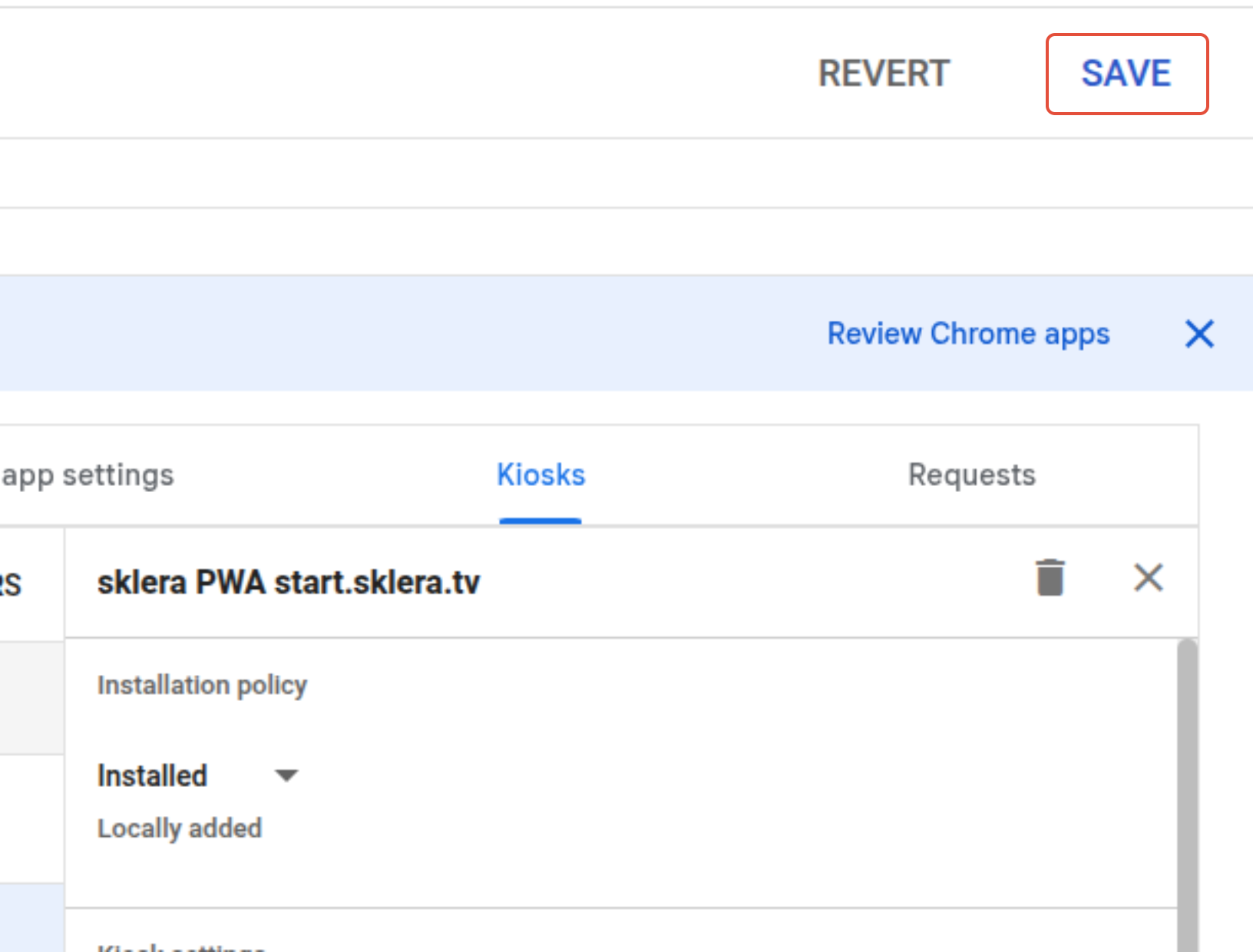
Make sure to save your changes (top right)!
Required CDM Policies
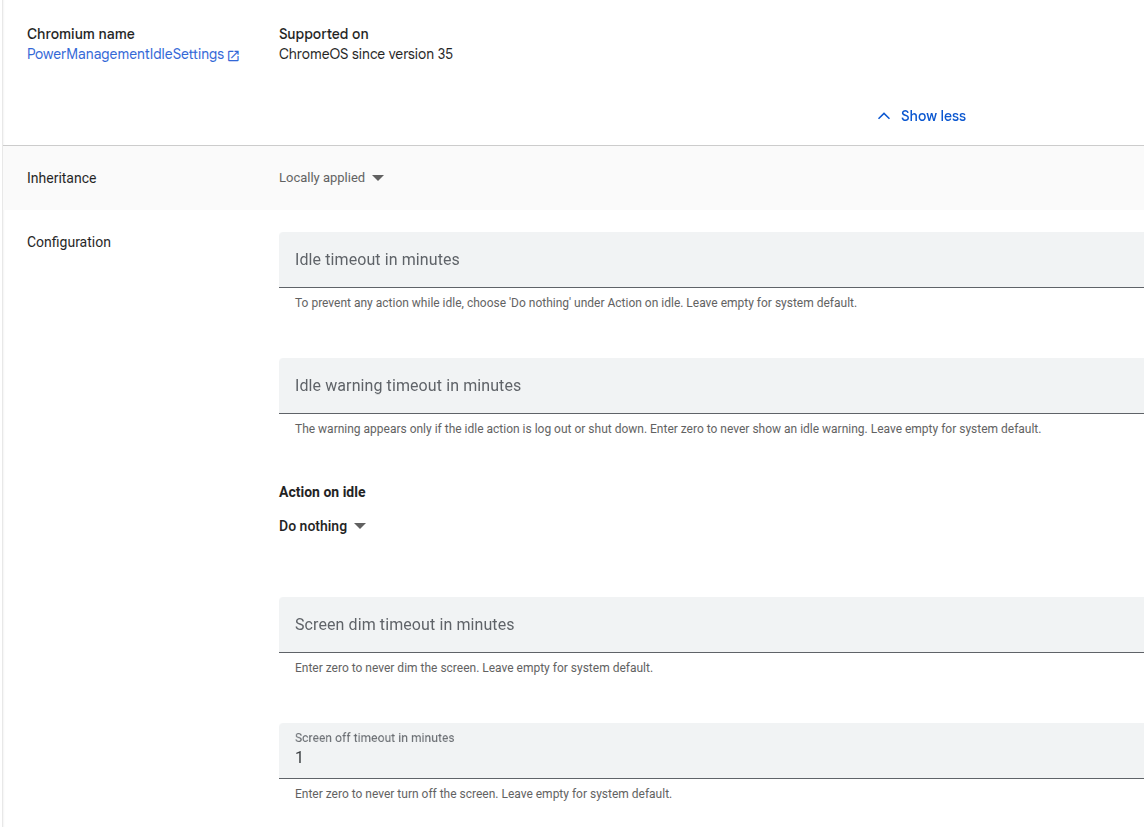
- Enable Power Management Policy: allows controlling setting external displays in standby:
https://admin.google.com/ac/chrome/settings/device/details/kiosk_ac_power_settings_category_item
Action on idle: Do nothing
Screen off timeout in minutes: 1
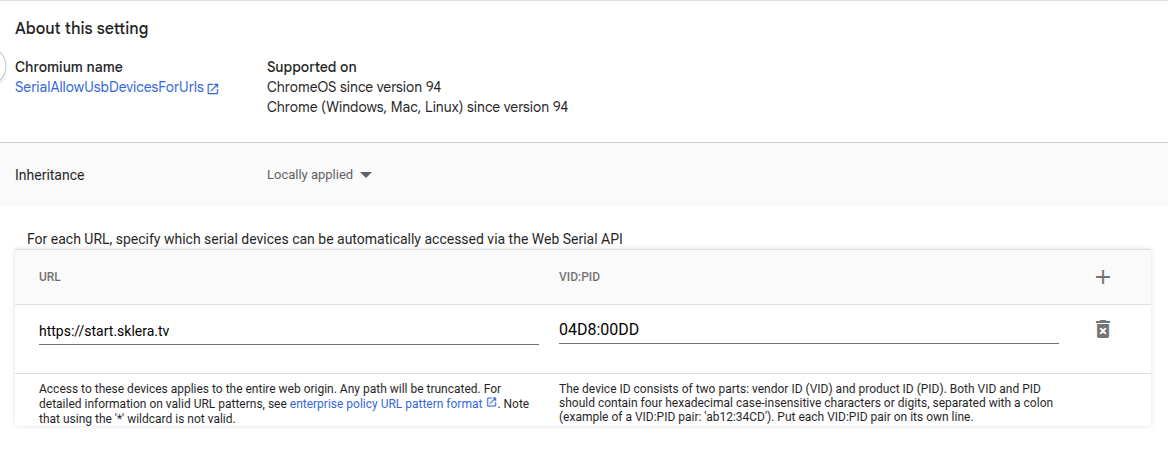
- Optional: Grant device permissions for accessing the serial port (requires exact Hardware IDs and grants per URL).
Example for enabling LED Control access for ProDVX IPPC-10SLB Hardware Chrome OS Flex):
VID:PID = 04D8:00DD
Important Note:
Please ensure that you only assign exactly one sklera PWA App to your device(s). Simultaneous parallel installations for multiple player servers are not supported.
If you mistakenly assigned multiple sklera PWA apps to your device launching the sklera player will take an unexpectedly long time, and you'll see an error message on screen that an extension was unable to be loaded.