
On Hisense DM series devices running Android 11, the sklera Android Watchdog app can be installed as an optional add-on.
The sklera Android Watchdog is designed to monitor the sklera Player app.
If the Player app stops running or crashes, the Watchdog will automatically restart it.
In addition, the Watchdog can regularly check for updates to the sklera Android app and install them automatically.
Note
The sklera Player app already includes a built-in auto-update feature and can update itself on Hisense DM series devices.
The Watchdog is only needed to ensure the app is running correctly. It is not required for automatic updates on DM series devices.
The sklera Player app already includes a built-in auto-update feature and can update itself on Hisense DM series devices.
The Watchdog is only needed to ensure the app is running correctly. It is not required for automatic updates on DM series devices.
Requirements
- USB mouse & keyboard
App Installation
There are two ways to install the sklera Watchdog app on the device:
- Option A: Using a USB flash drive
- Option B: Direct download of the app via the internet
Option A: Using a USB Flash Drive
- Download the latest version of the sklera Watchdog app.
https://sklera.tv/android/watchdog/sklera_watchdog_2.4.0.apk - Save the file to a USB flash drive.
Make sure the USB drive is formatted in FAT (FAT32), otherwise the display may not recognize it. - Insert the USB flash drive into the Hisense device. Then navigate to “All Apps” > “File Manager.”
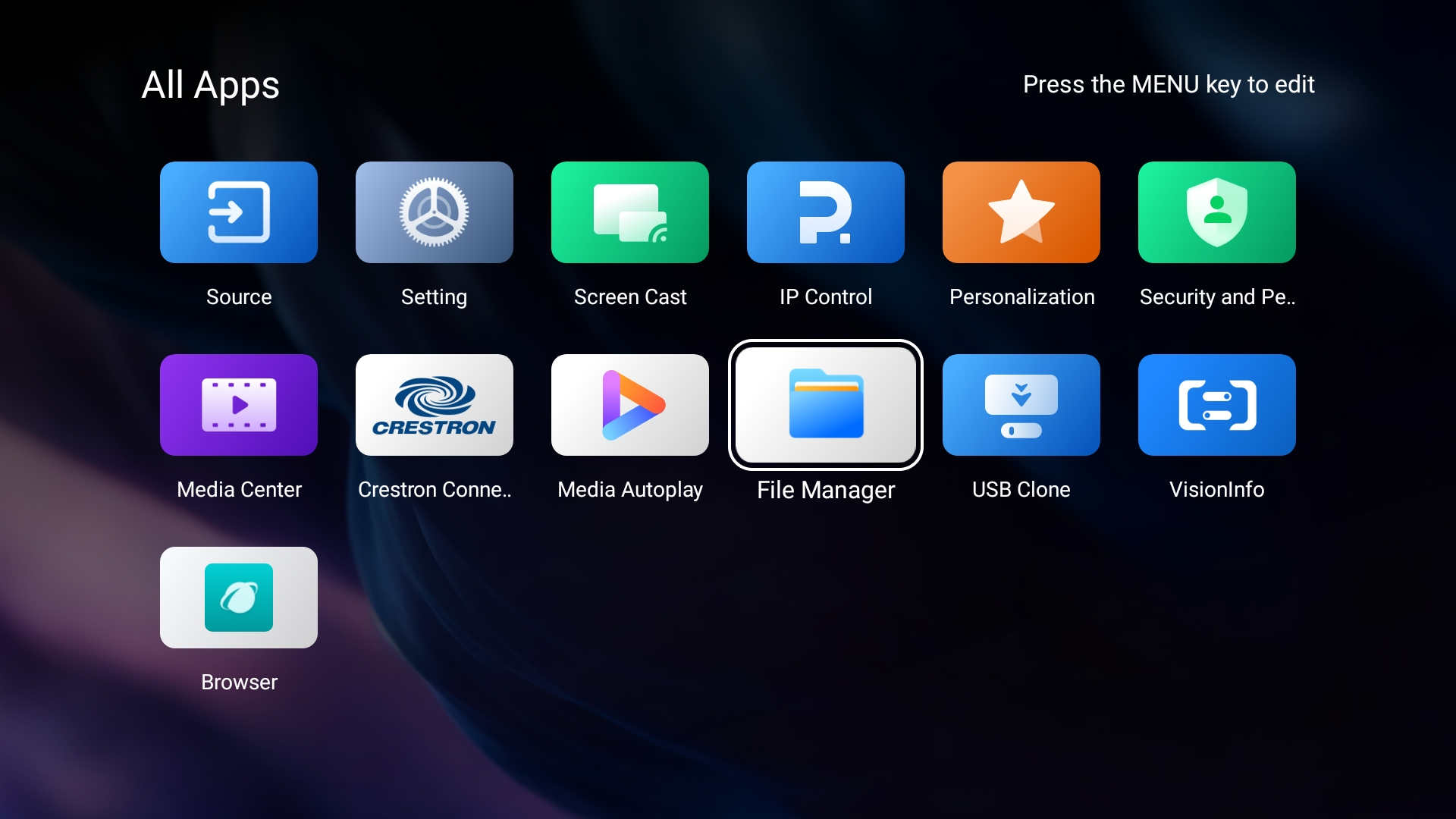
- Navigate to the USB drive and select the downloaded app.
The app will then be installed automatically.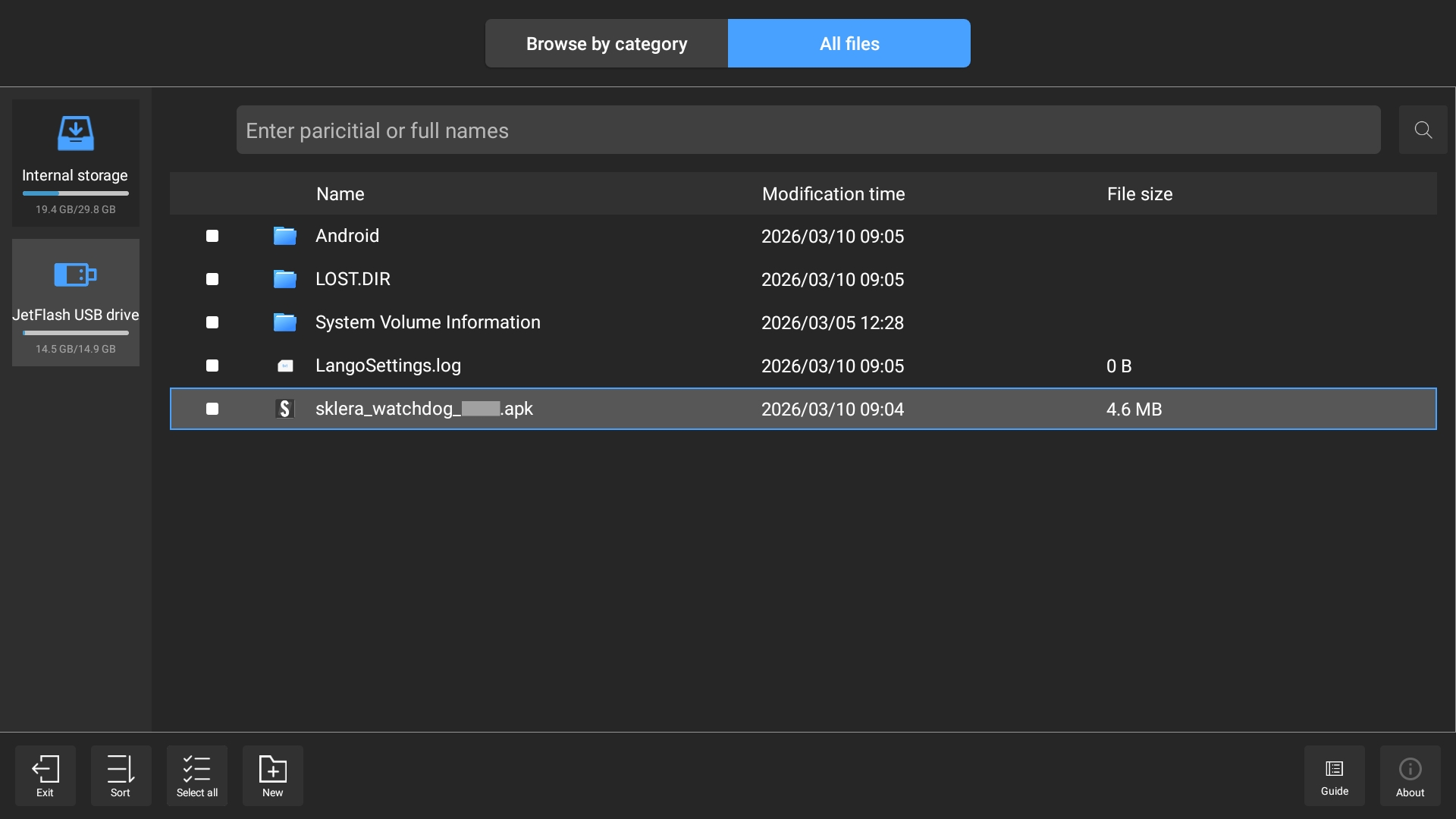
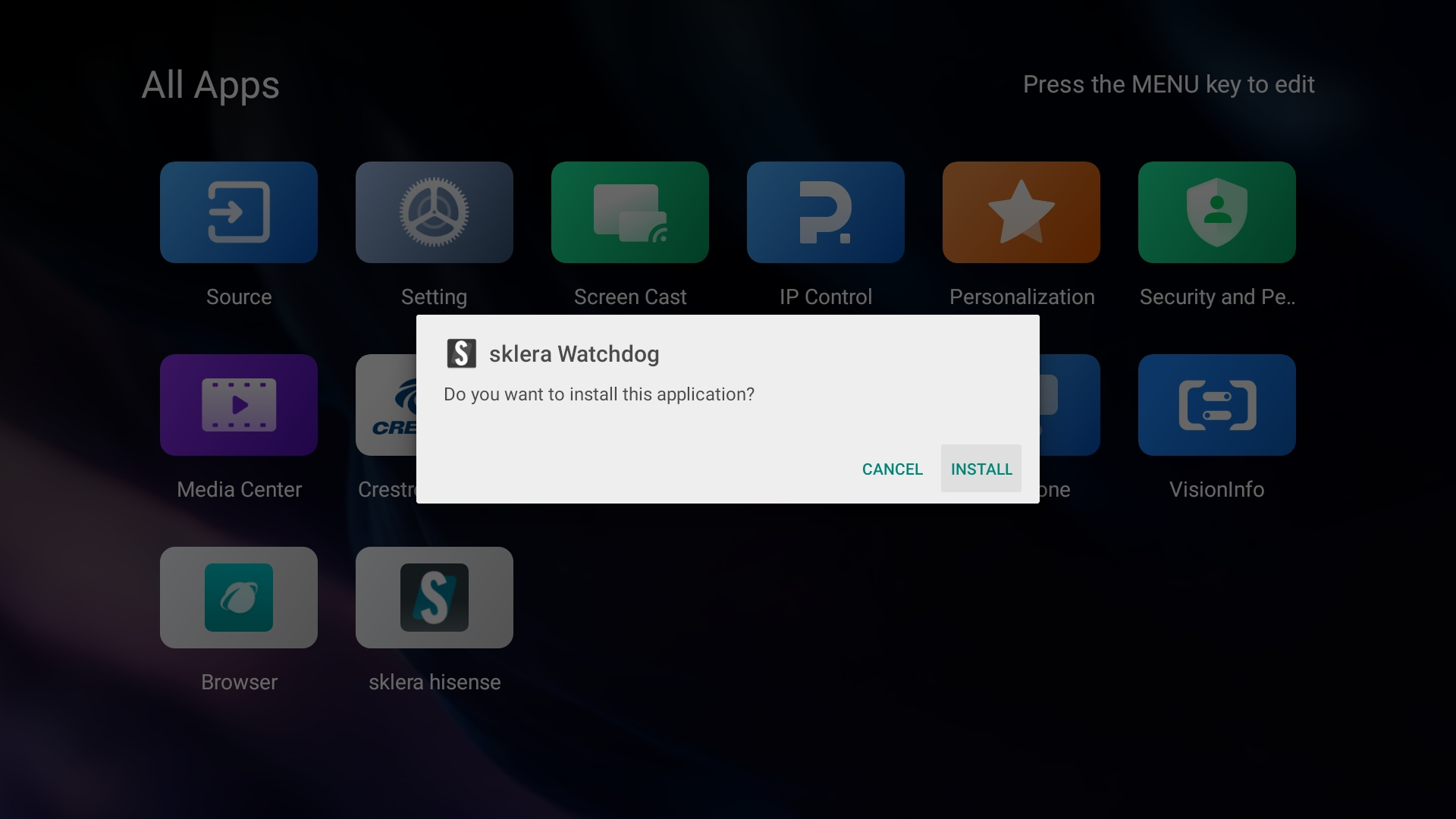
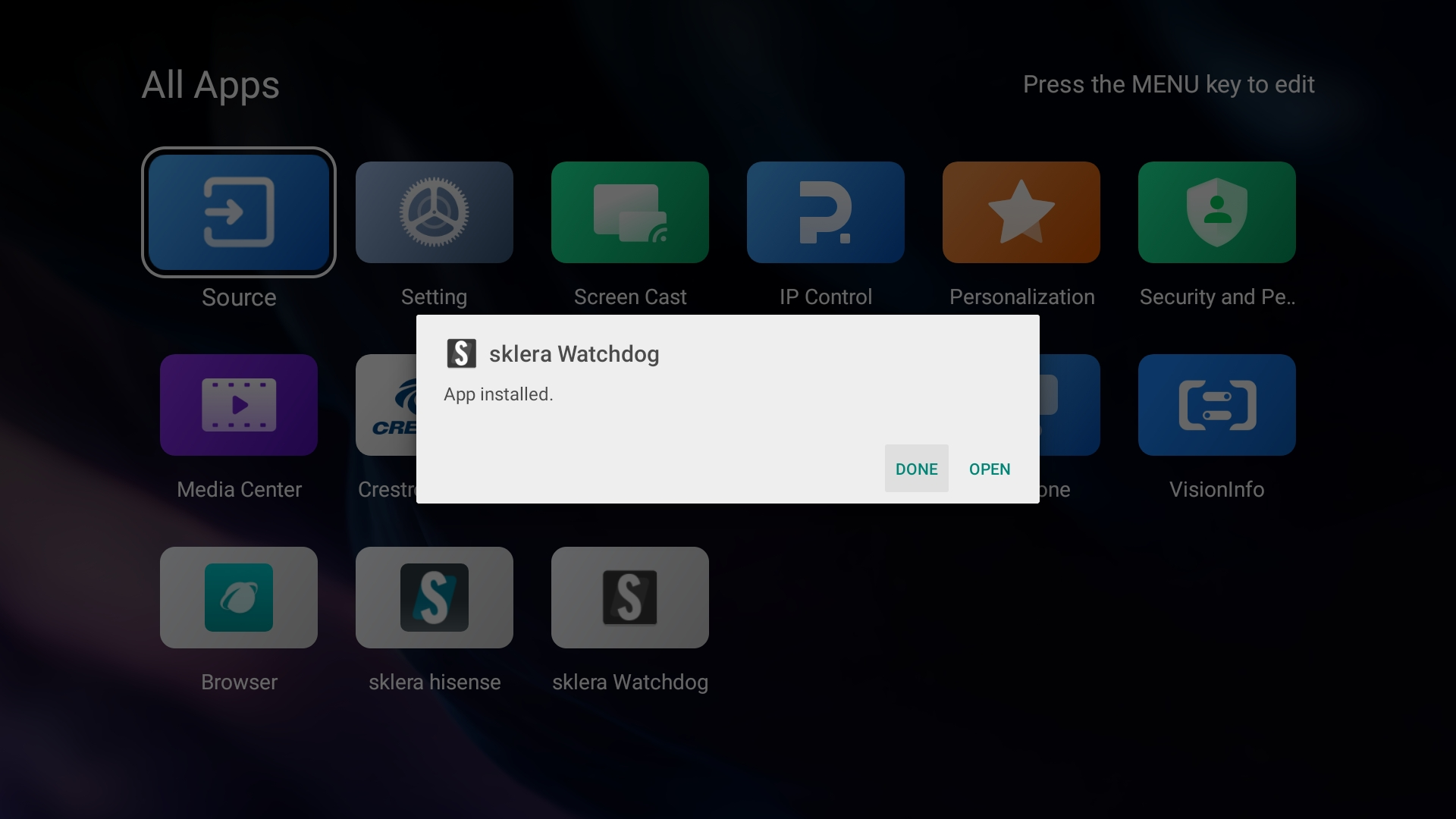
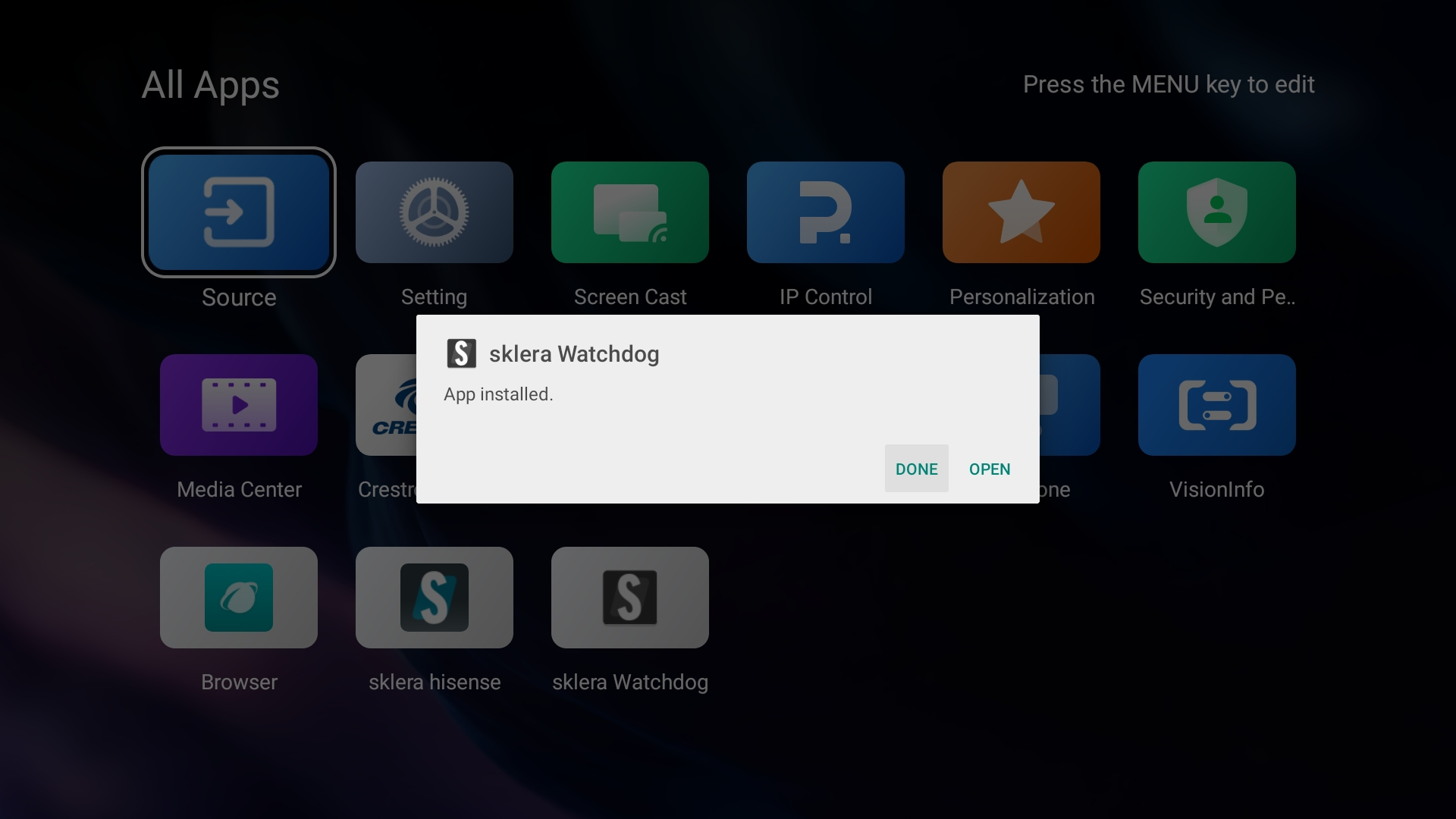
- Click "DONE".
Option B: Direct Download of the App via the Internet
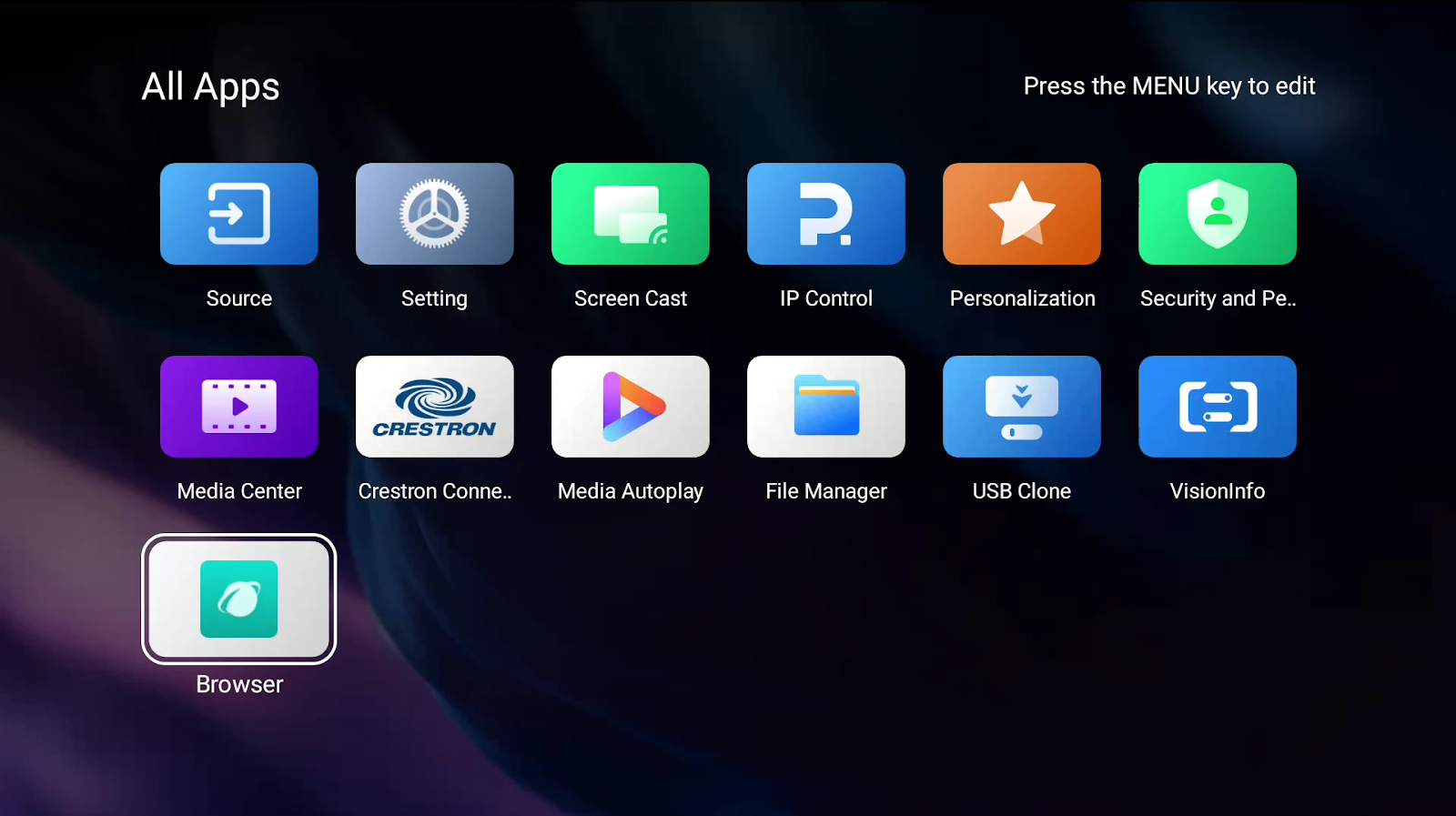
- Navigate to "All Apps" > "Browser".
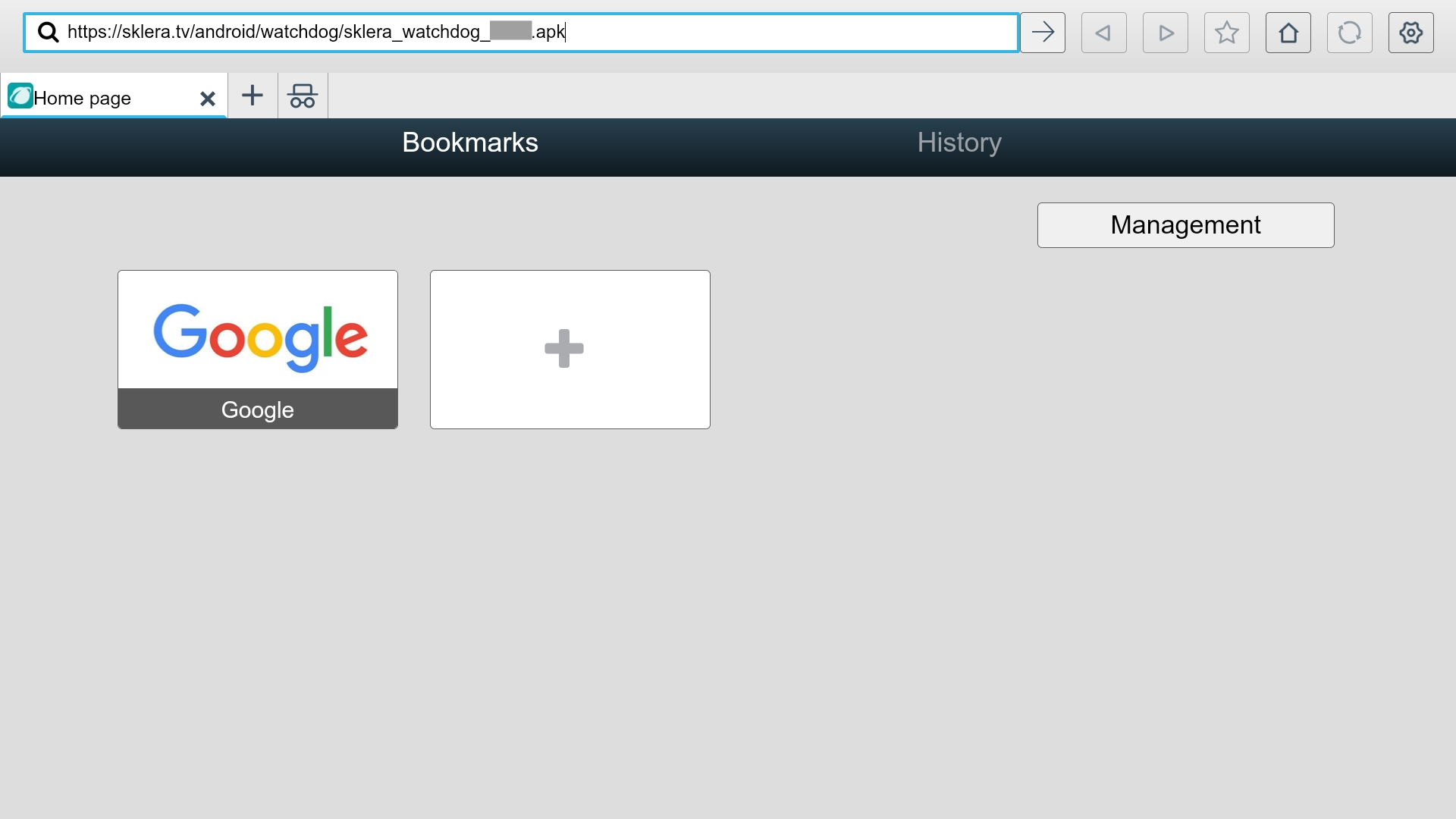
- Go to https://sklera.tv/android/watchdog/sklera_watchdog_2.4.0.apk. The app will download automatically.
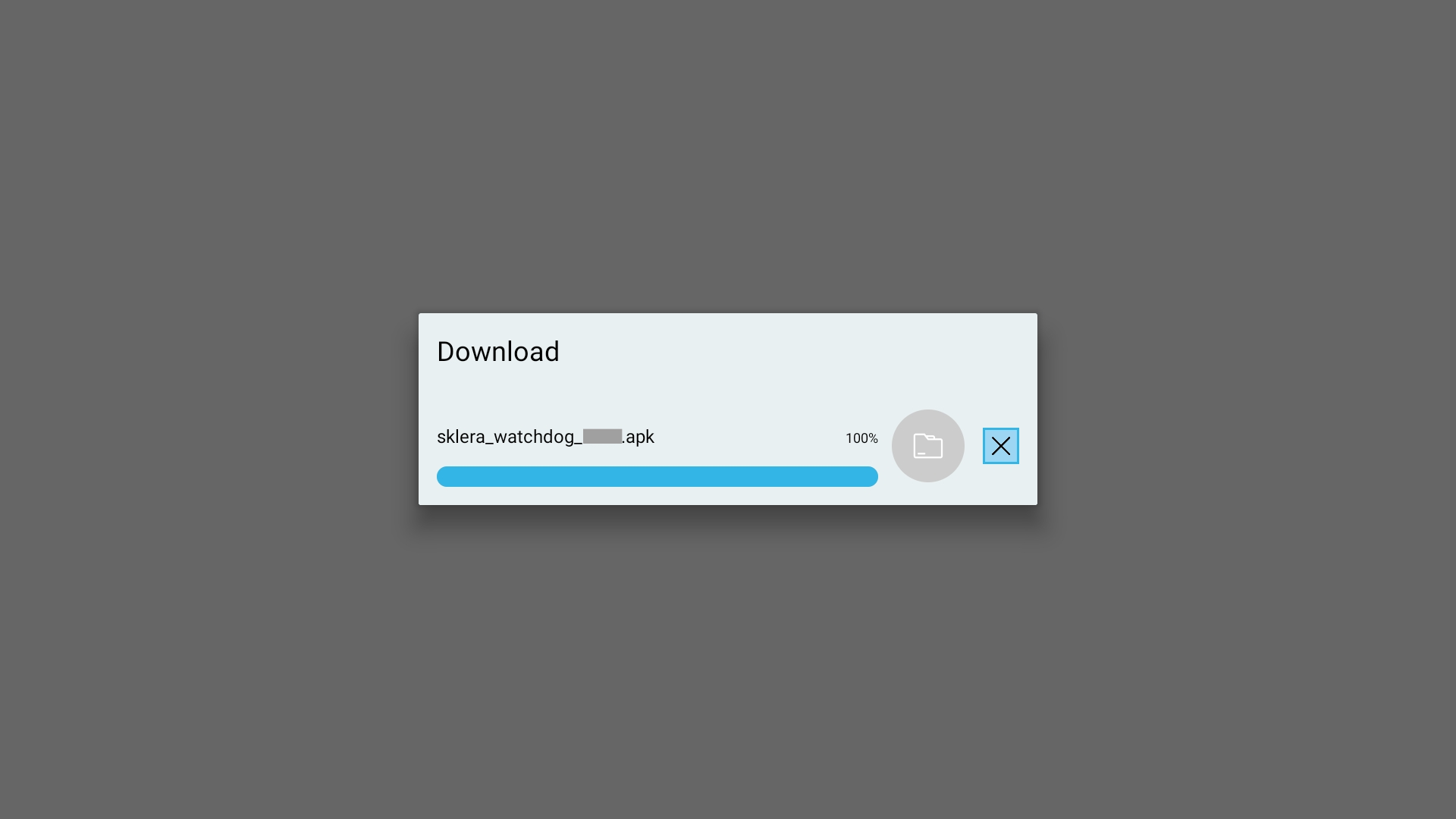
- Navigate back to "All Apps" > "File Manager".
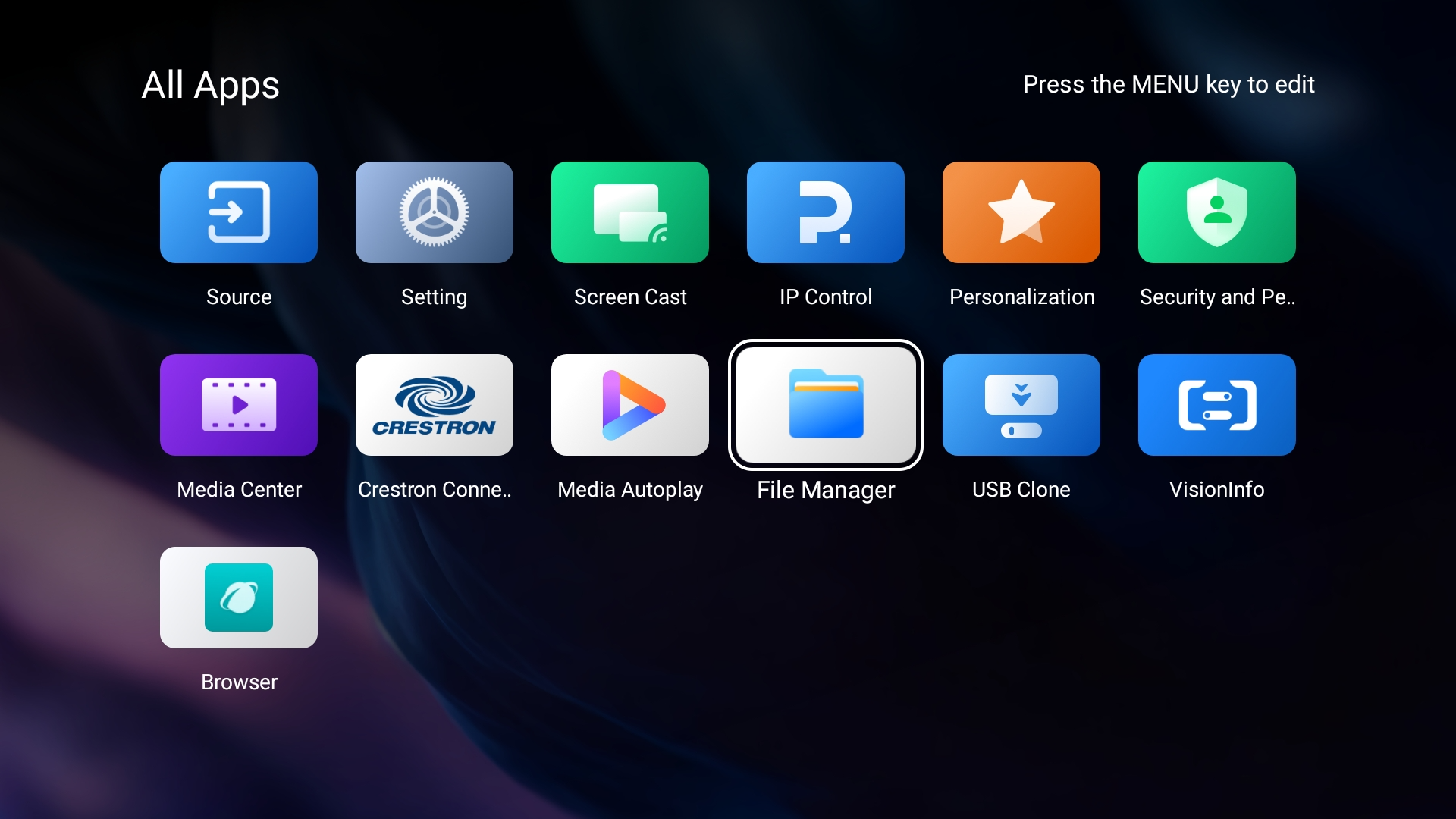
- Navigate to the "Download" folder and select the downloaded app. The application will then be installed.
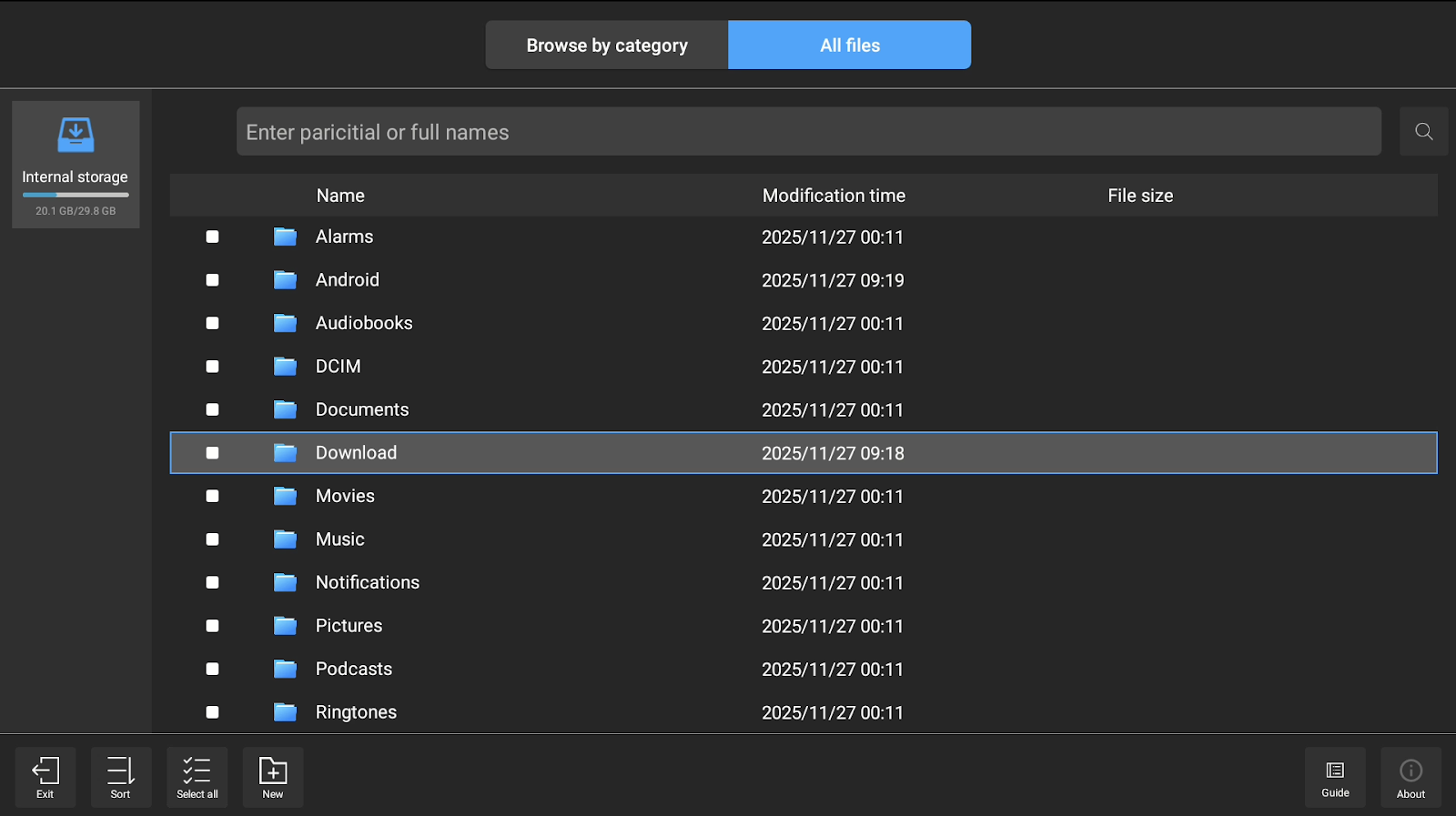
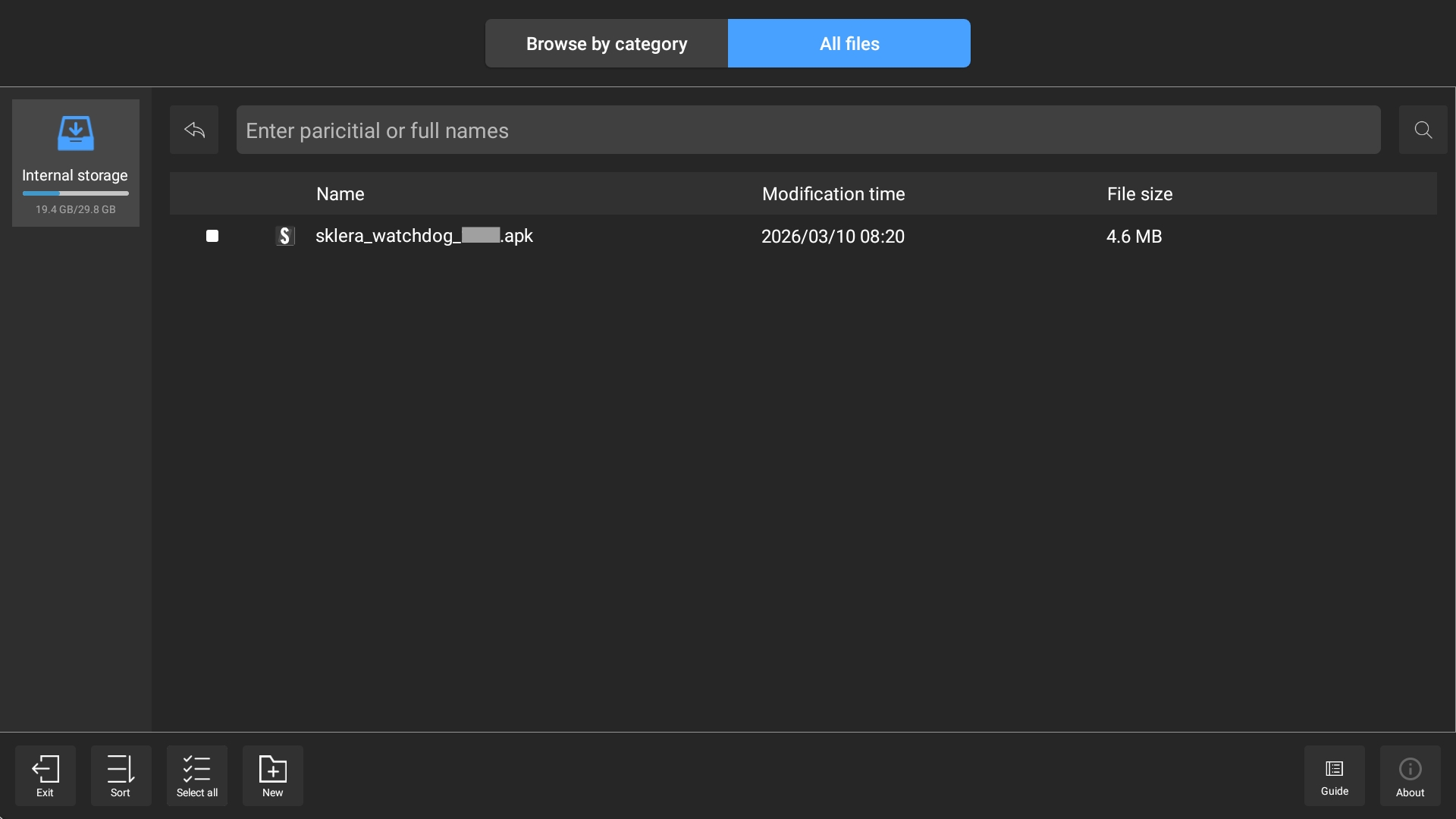
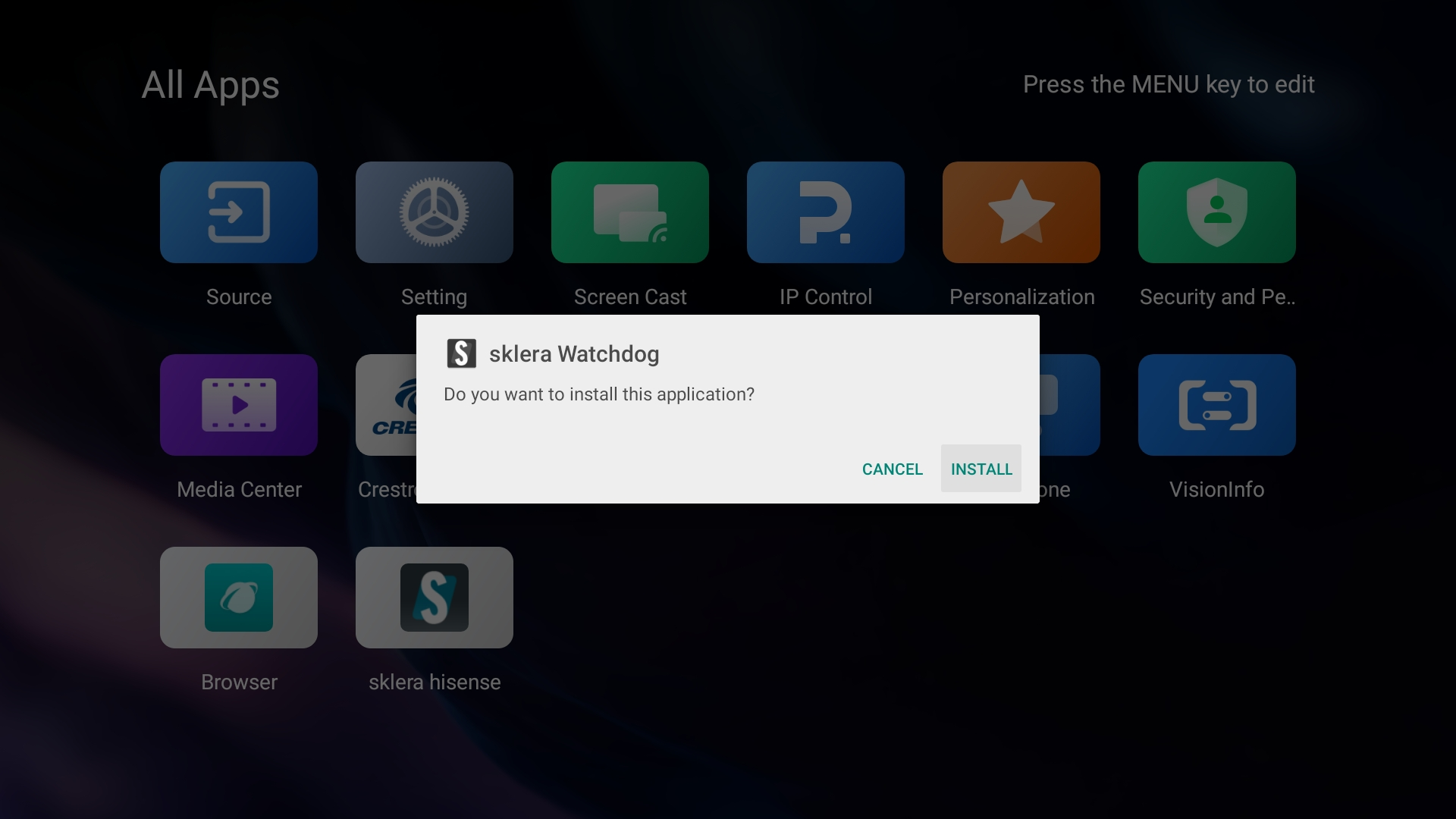
- Click "DONE".
Start the app
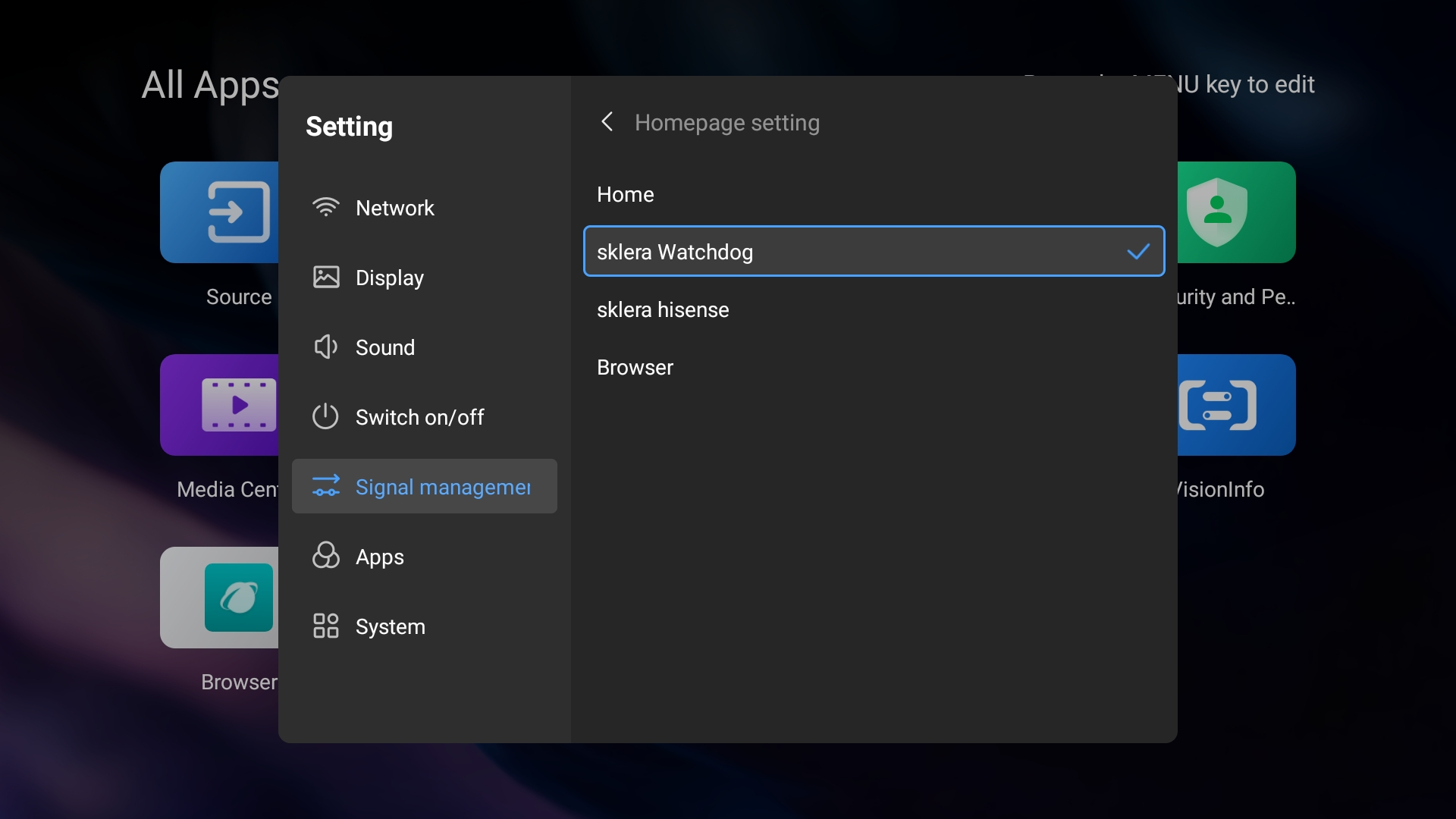
- Navigate to "Setting" > "Signal management" > "Homepage setting" and select "sklera Watchdog." This will start the sklera Watchdog and set it to launch automatically when the Hisense device boots up.
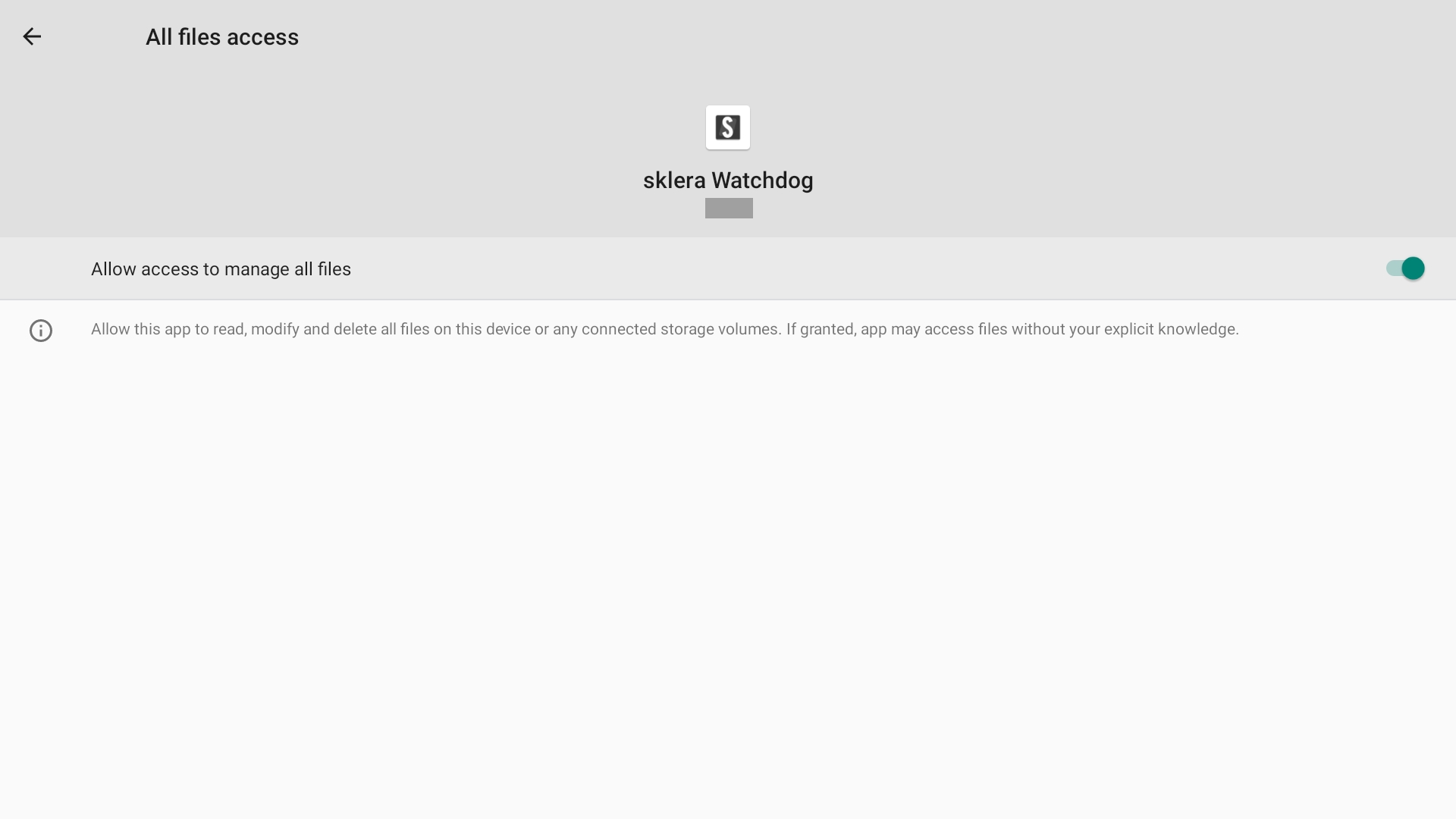
- When the app starts for the first time, it will request certain permissions. These are necessary for the app to function properly, for example, to write data to external storage. Please grant all requested permissions.
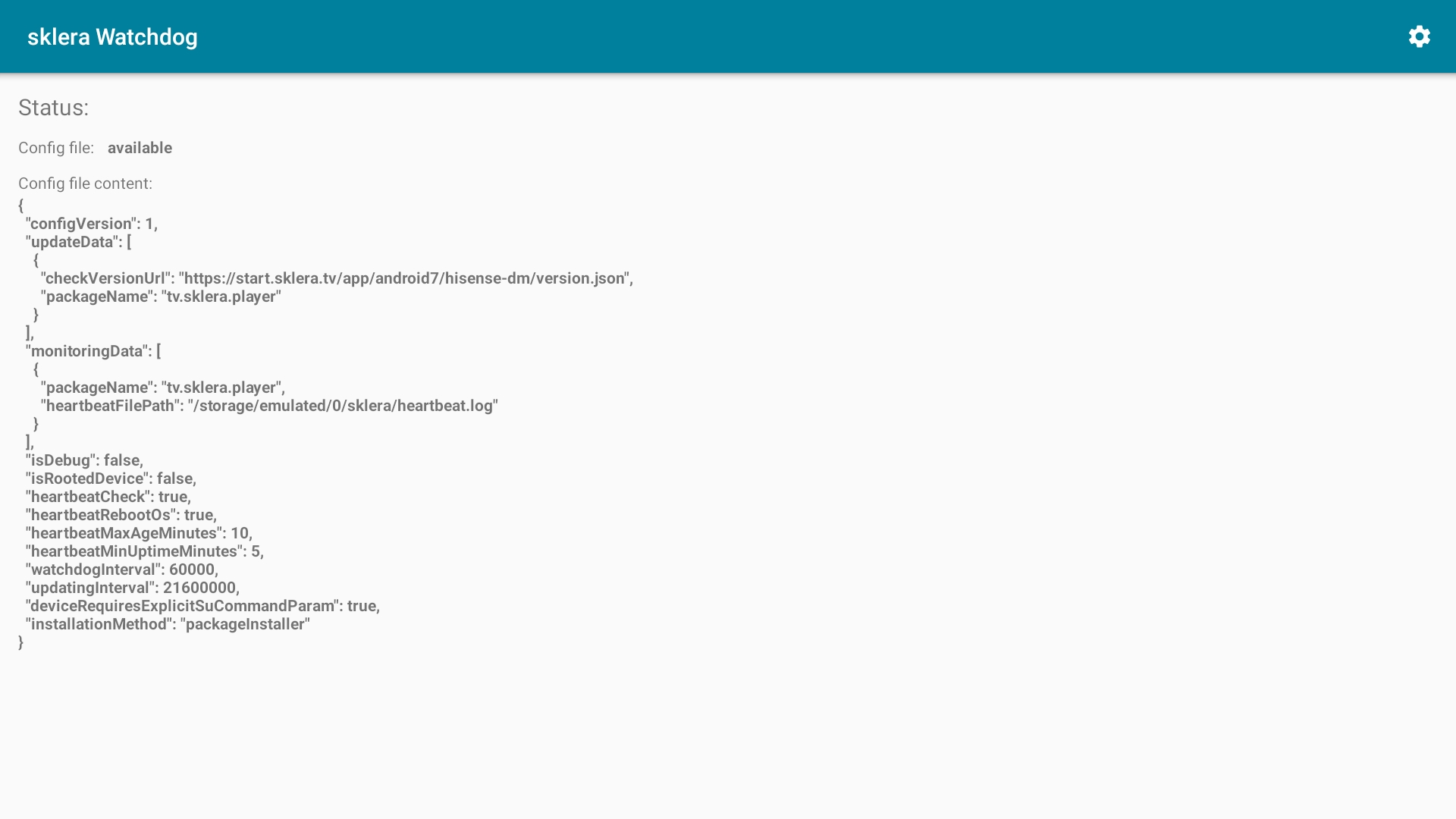
- Click the gear icon in the top right corner to open the Watchdog settings.
- Configure the following settings.Debug ModedeaktiviertRooted DevicedeaktiviertExplicit Command ParameteraktiviertAuto update installation methodpackageInstallerPlayer nametv.sklera.playerHeartbeat checkaktiviertHeartbeat: Reboot OSaktiviertHeartbeat: Max Age10Heartbeat: Start delay5Auto updater config urlAuto updater time interval6 hWatchdog time interval1 min
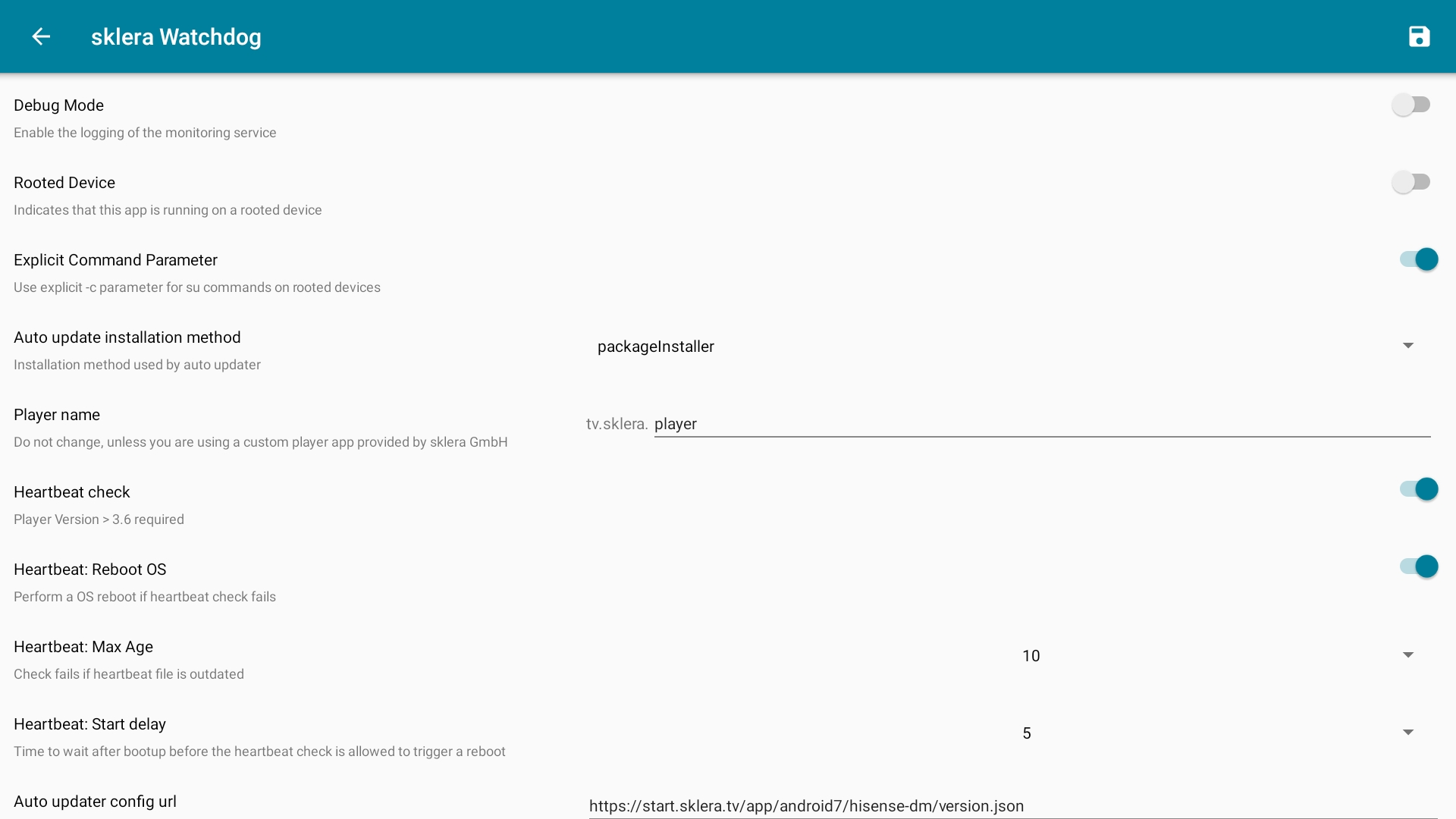

- Save the settings by clicking the disk icon in the top right corner, then restart the device.