
For AlphaX Player, we provide a customized sklera Player app.
Prerequisites
- Internet connection
- (Optional) USB Mouse & Keyboard
Preparation
- Disable “Play Protect”.
To allow the sklera player app to perform automatic updates, “Play Protect” must be disabled on the device.Navigate to "Apps" > "Play Store".
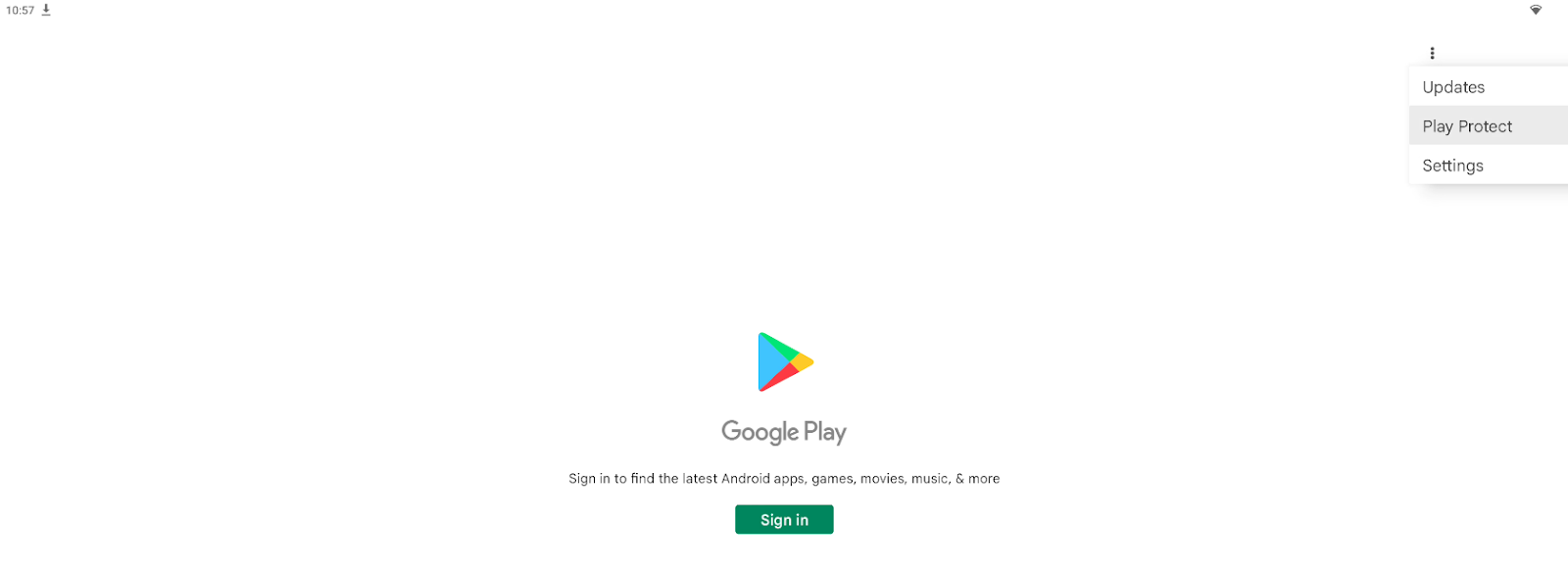
Click the three-dot menu in the top-right corner of the screen. Select “Play Protect”.
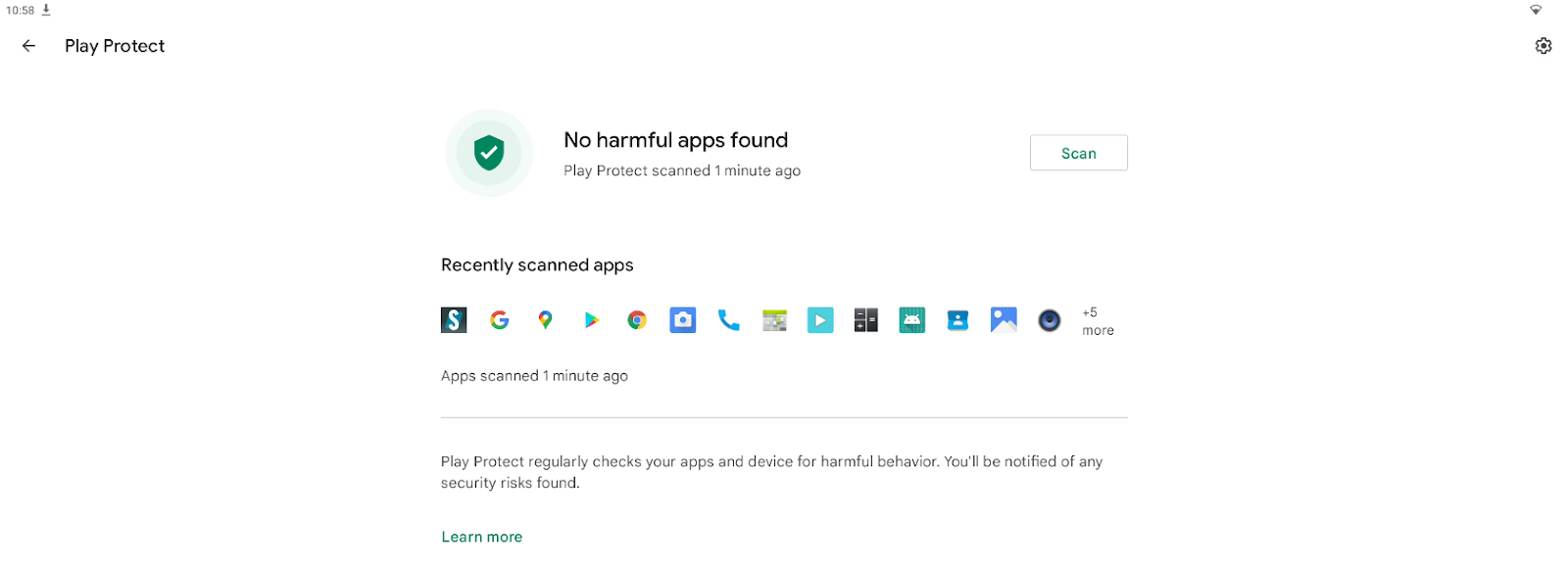
Click the settings icon (gear icon) in the top-right corner of the displayed screen.
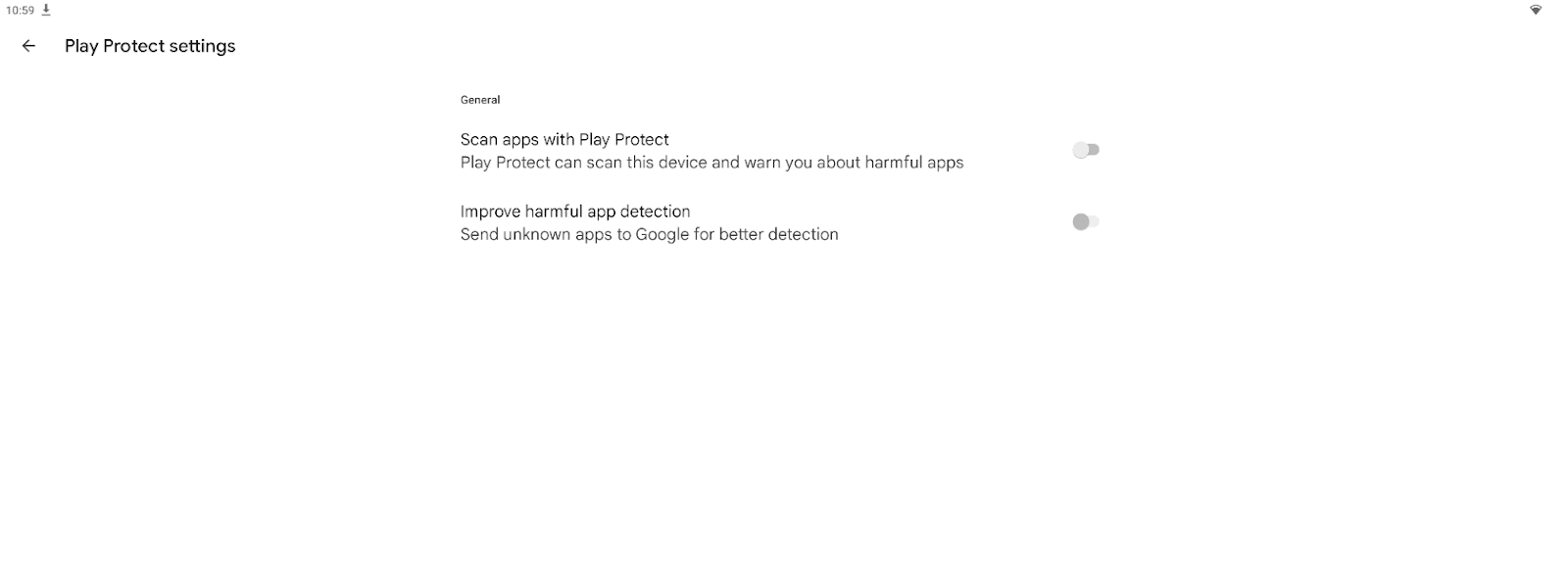
Turn off both toggles in the Play Protect settings.
Ensure that the time and local time zone are set correctly and enable time synchronization.
Go to "OS Tools" > "System Settings" and set the following values:Use network synchronization time enable Use network synchronization time zone disable System Time Zone select your time zone Use 24-hour clock enable 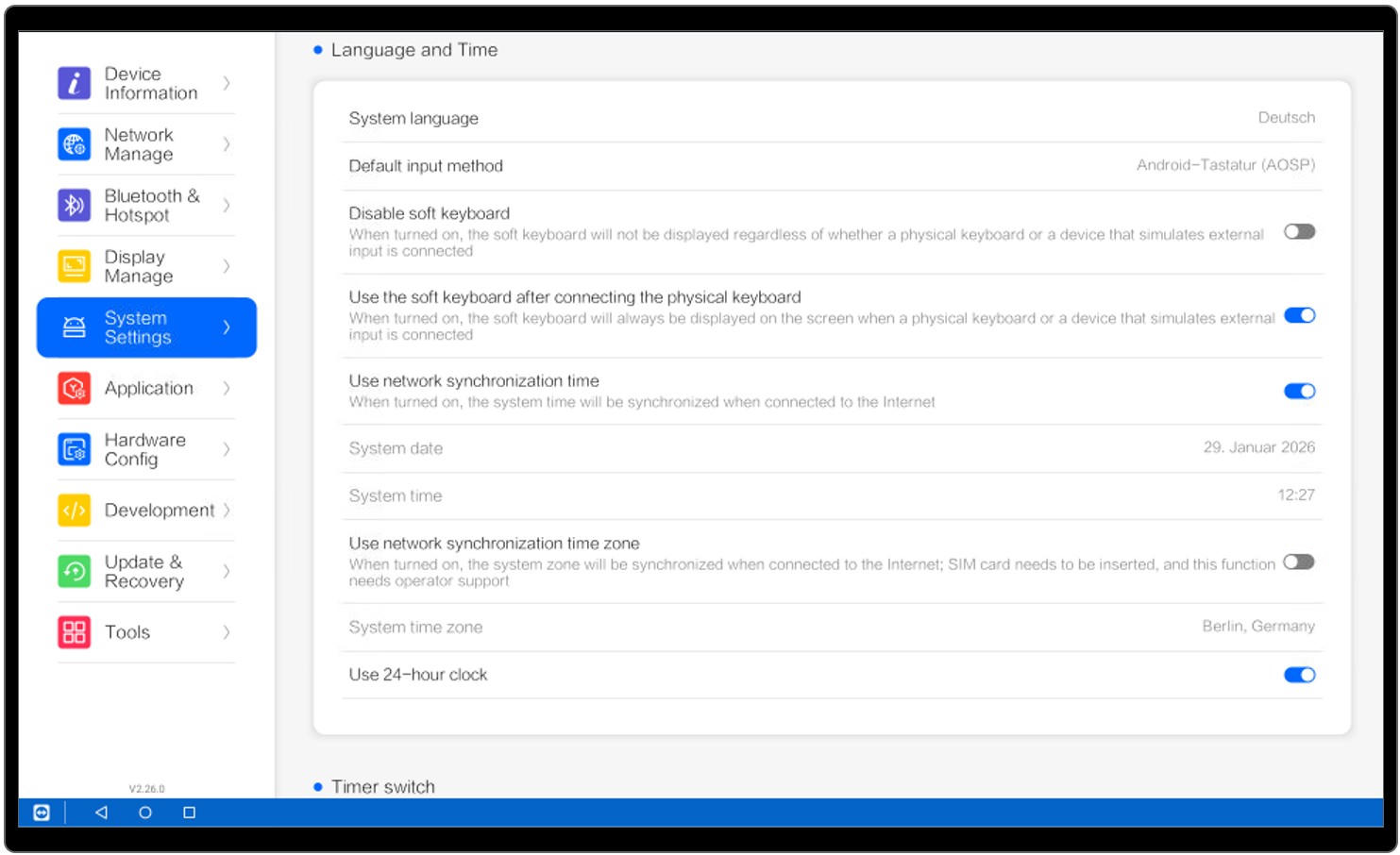
- (Optional) The operating system allows the installation of the TeamViewer Host app for Android. A TeamViewer account is required. The latest TeamViewer Host .apk file can be downloaded from the official TeamViewer website.
App Installation
There are two ways to install the sklera Player app on the device:
Option A: Using a USB stick
Option B: Direct download of the app via internet
Option A: Using a USB Stick
Download the latest version of the sklera Player app.
https://start.sklera.tv/app/android7/shimeta/downloadSave the file on a USB drive.
Make sure the USB drive is formatted in FAT format (FAT32), otherwise the display may not recognize it.Connect the USB drive to the AlphaX device and navigate to "Apps" > "Document" > "USB".

Click on the .apk file. The app will be installed.

Option B: Direct download of the app via internet
Navigate to "Apps" > "Browser".

Go to https://start.sklera.tv/app/android7/shimeta/download. The app will be downloaded automatically.

Navigate to Apps > Document > Internal Memory > Download and click on the downloaded .apk file. The app will be installed.

Start the app
- After installation, the app starts automatically. If it does not start, run the app manually.
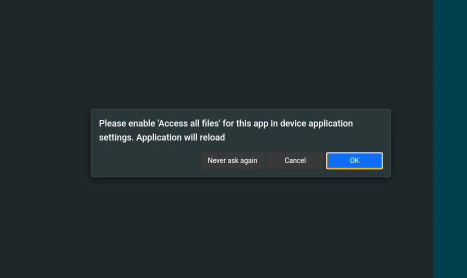
- When the app is launched for the first time, it will request certain permissions. These are required for the app to function properly, for example to write data to external storage. Please grant all requested permissions.

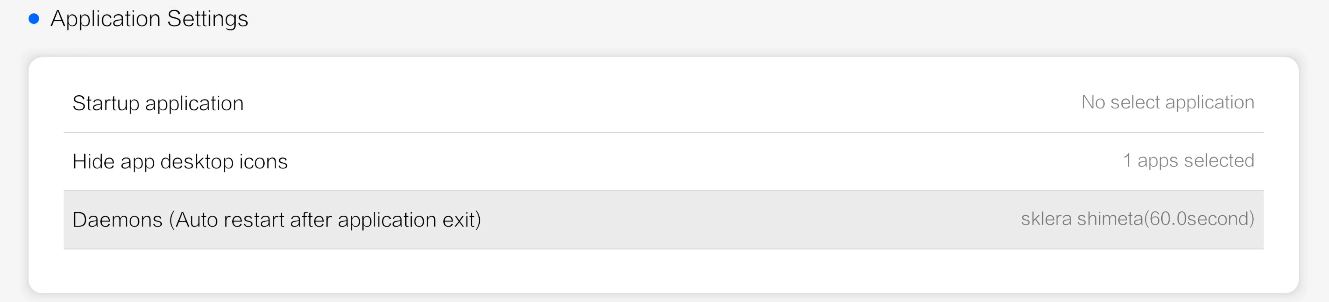
- Enable automatic app restart. This allows the system to monitor the app and automatically restart it if it is not running.
Navigate to "OS Tools" > "Application" and select “Daemons (Auto restart after application exit)”.
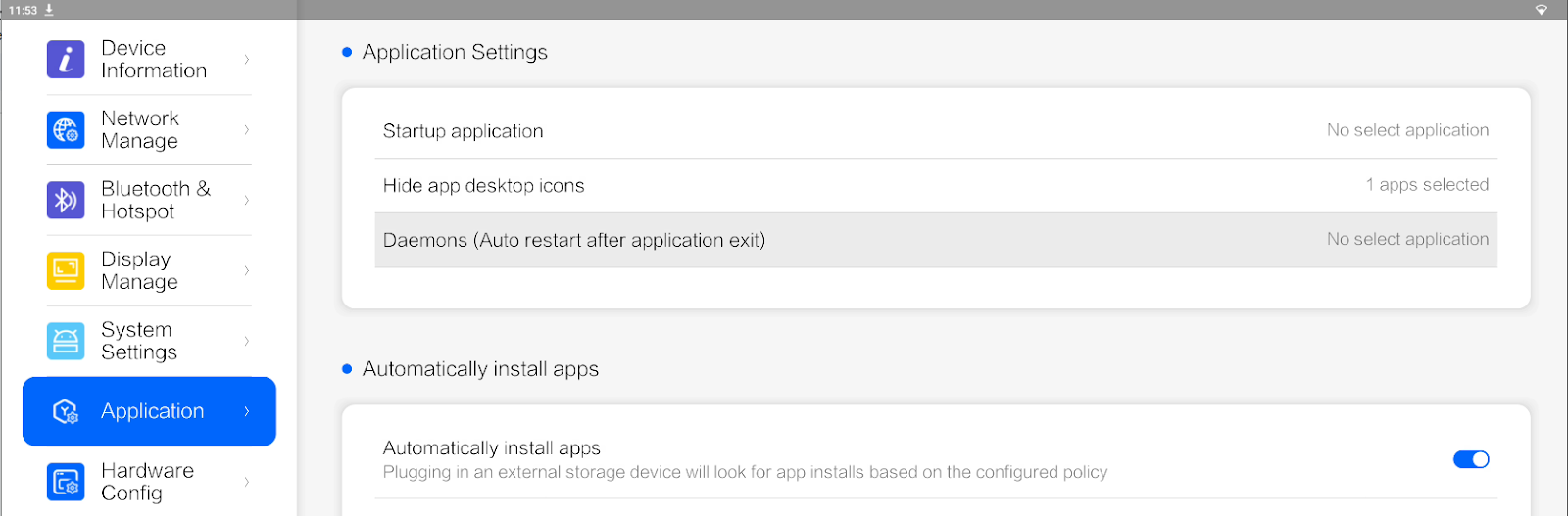
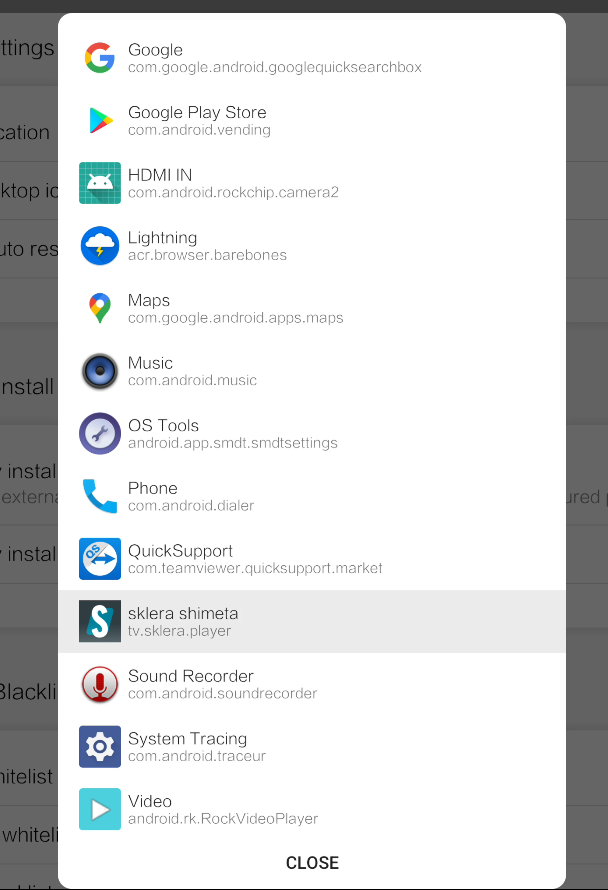
- Select the sklera Player app from the list of apps.
- Set the timeout after which the app will be restarted if it is closed. Make sure to set a sufficient duration.
Recommended value: 60 seconds.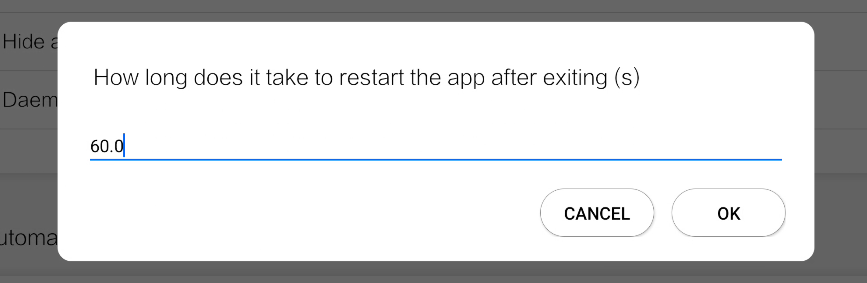
If the automatic restart is set up correctly, the app name and timeout will be displayed.
Restart the sklera Player. Follow the instructions on the display to add the player to your channel.
Post Installation remarks
- (Optional) Enable 4K support
AlphaX devices support HDMI output of content in 4K resolution (3840 × 2160).
Note: Visual artifacts can occur in detail-rich areas. This can happen especially when transition effects are enabled or when an image is displayed immediately after a video spot.
To enable native 4K output, open the screen settings in the sklera CMS and click “Enable HDMI 4k output”.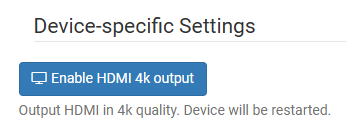
*This feature is supported only by the following models.
Supported models:
3576E
3588A
AIoT-3588A