
For the Hisense DM66 series with Android 11, we provide a customized sklera Player app.
Prerequisites
- Internet connection
- (Optional) USB Mouse & Keyboard
Preparation
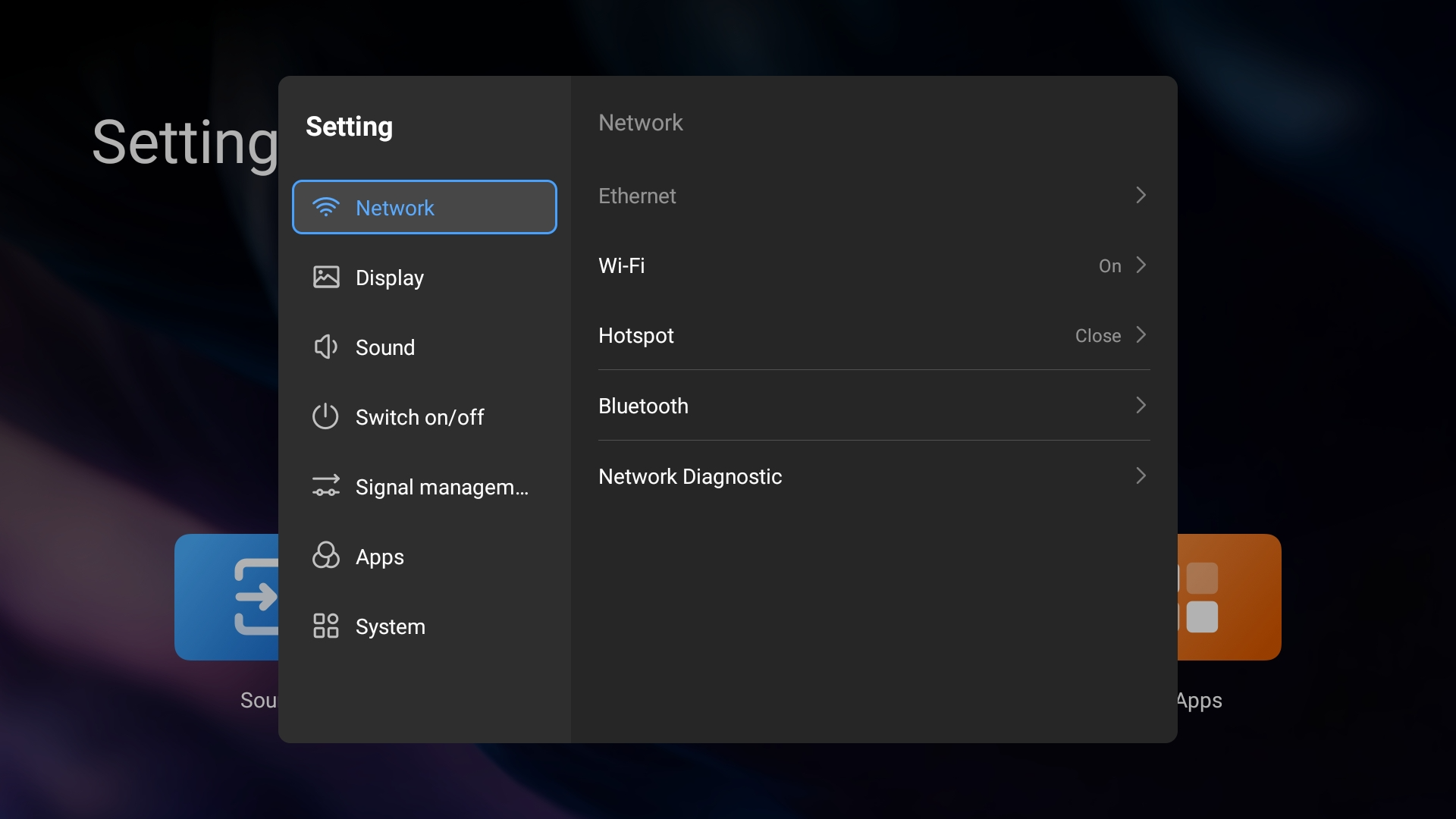
- Connect the Hisense display to the Internet. Network settings can be found under "Setting" > "Network".
- Check if a firmware update is available, and install it.
"Setting" > "System" > "Upgrade and Update" > "Device upgrade" > "Manual check"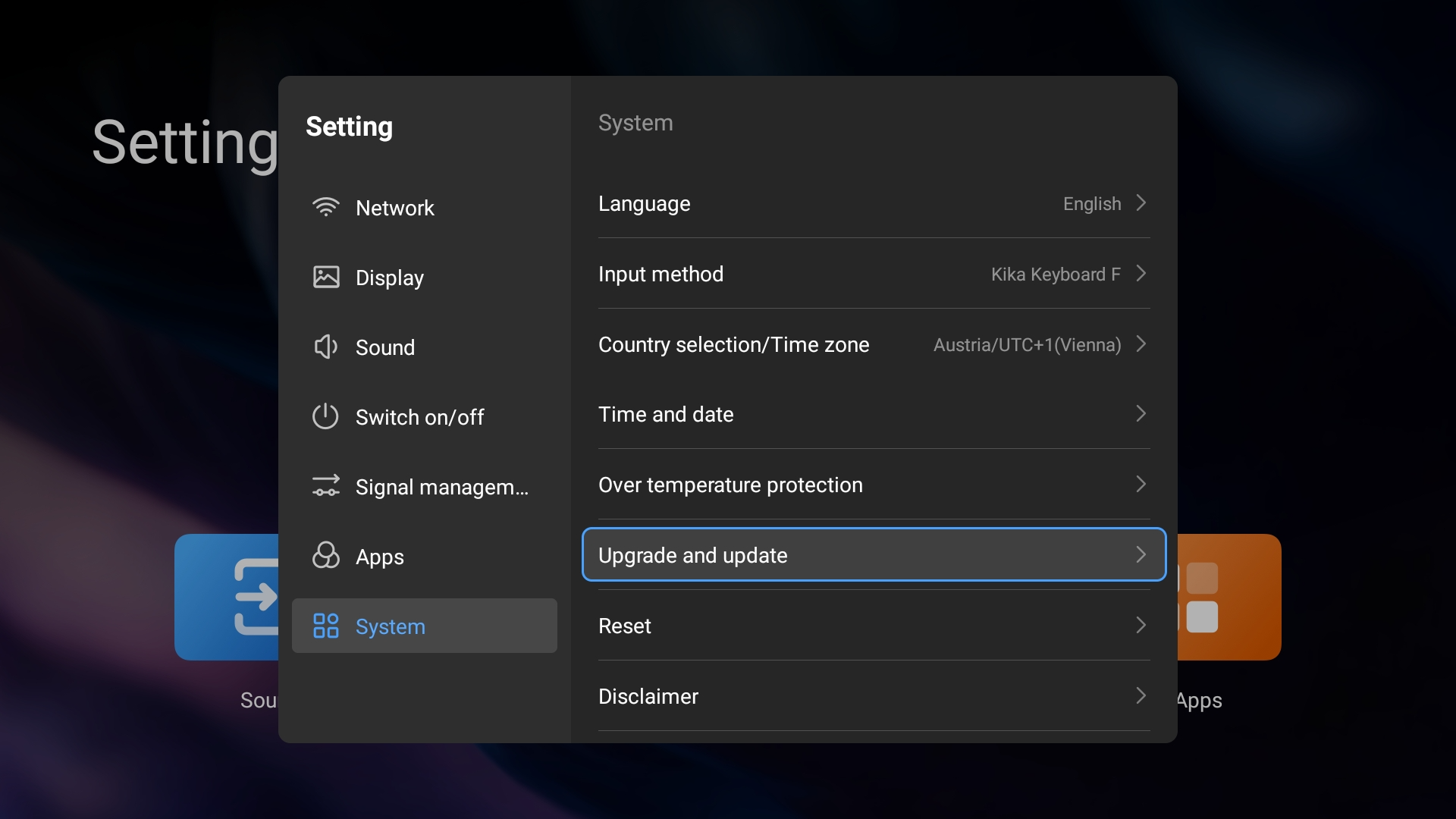
- Make sure the time and local time zone are set correctly and enable time synchronization.
Go to "Setting" > "System" and set the following values:
- "Country selection/Time zone" > select your time zone
- "Time and date" > "Network synchronization" > enable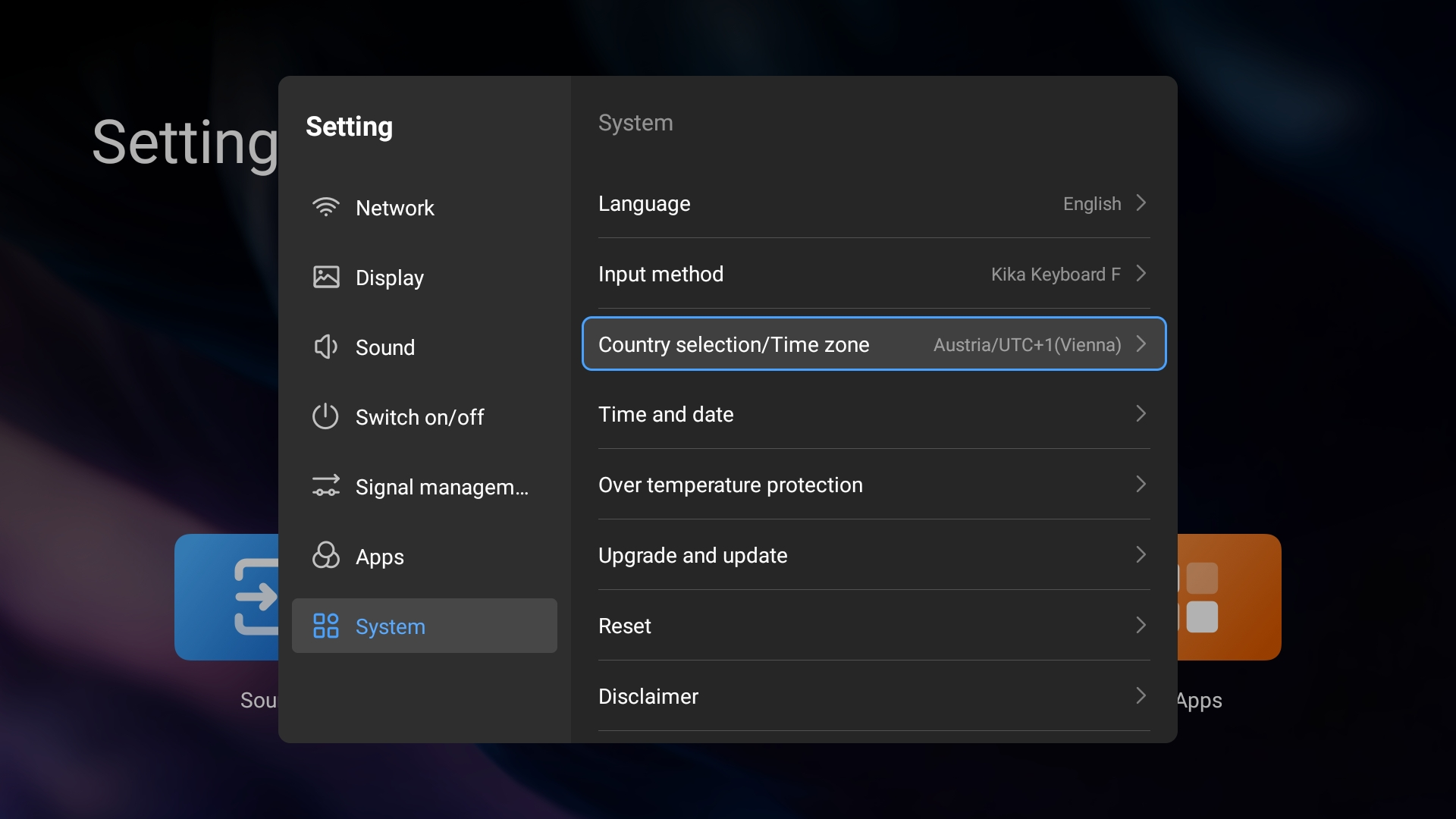
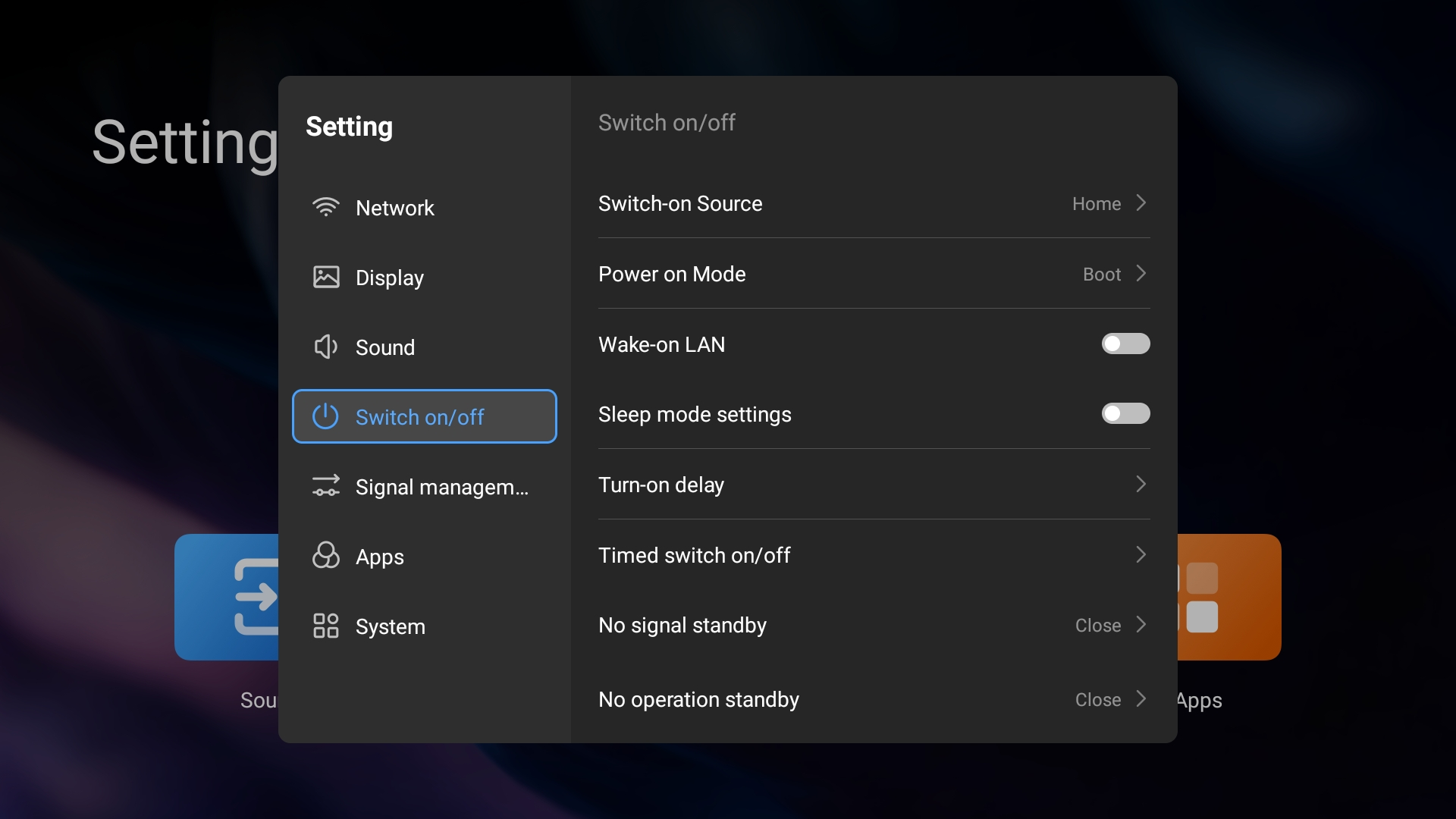
- Make sure that "No signal standby" and "No operation standby" are disabled (set to "Close"). This can be configured under "Setting" > "Switch on/off".
Player App Installation
There are two ways to install the sklera Player app on the device:
Option A: Using a USB stick
Option B: Direct download of the app via internet
Option A: Using a USB Stick
- Download the latest version of the Sklera Player app
https://start.sklera.tv/app/android7/hisense-dm/download - Save the file to a USB stick.
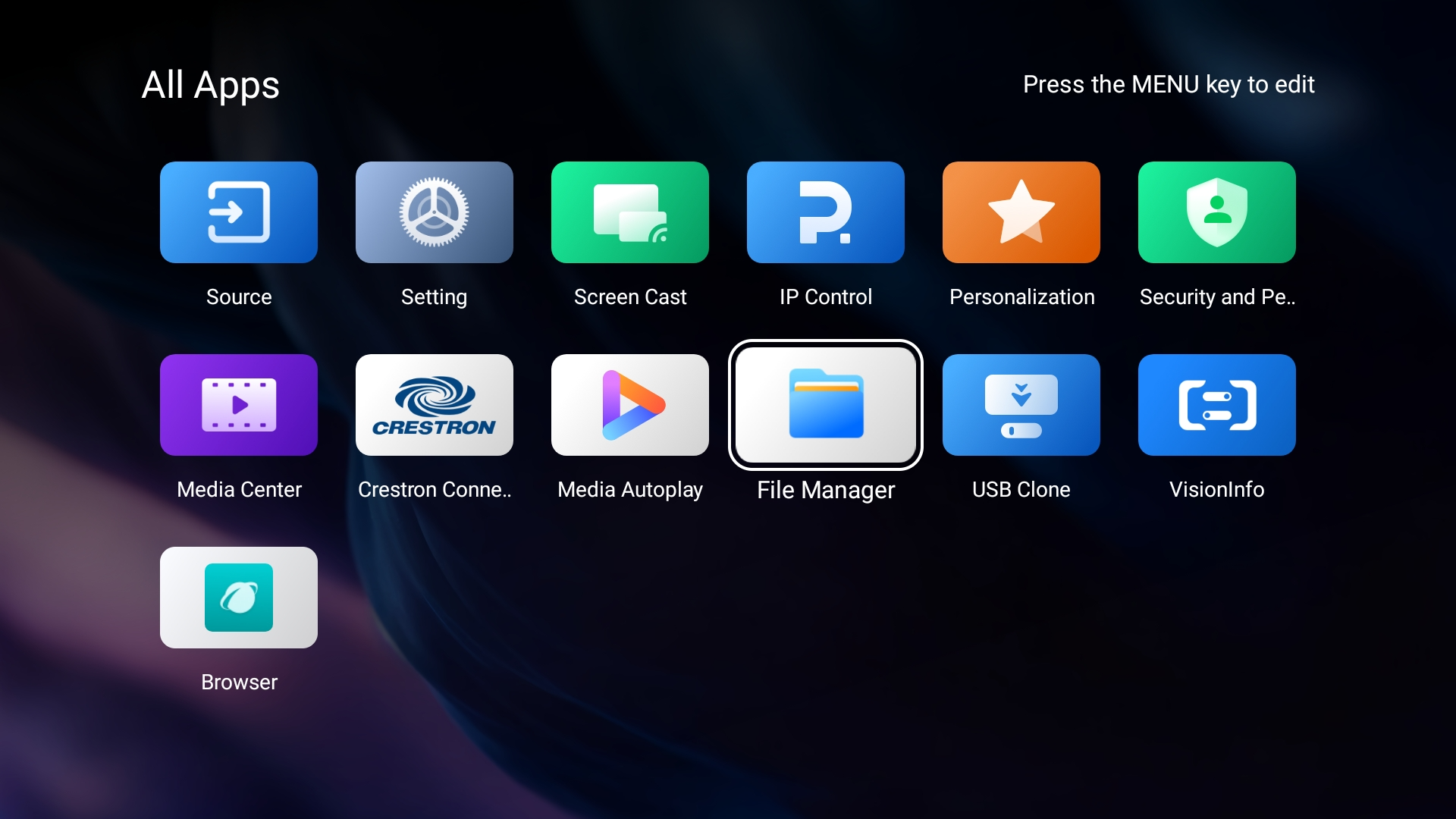
Make sure the USB stick is formatted in FAT (FAT32), otherwise the display may not recognize it. - Insert the USB stick into the Hisense device and then navigate to "All Apps" > "File Manager".
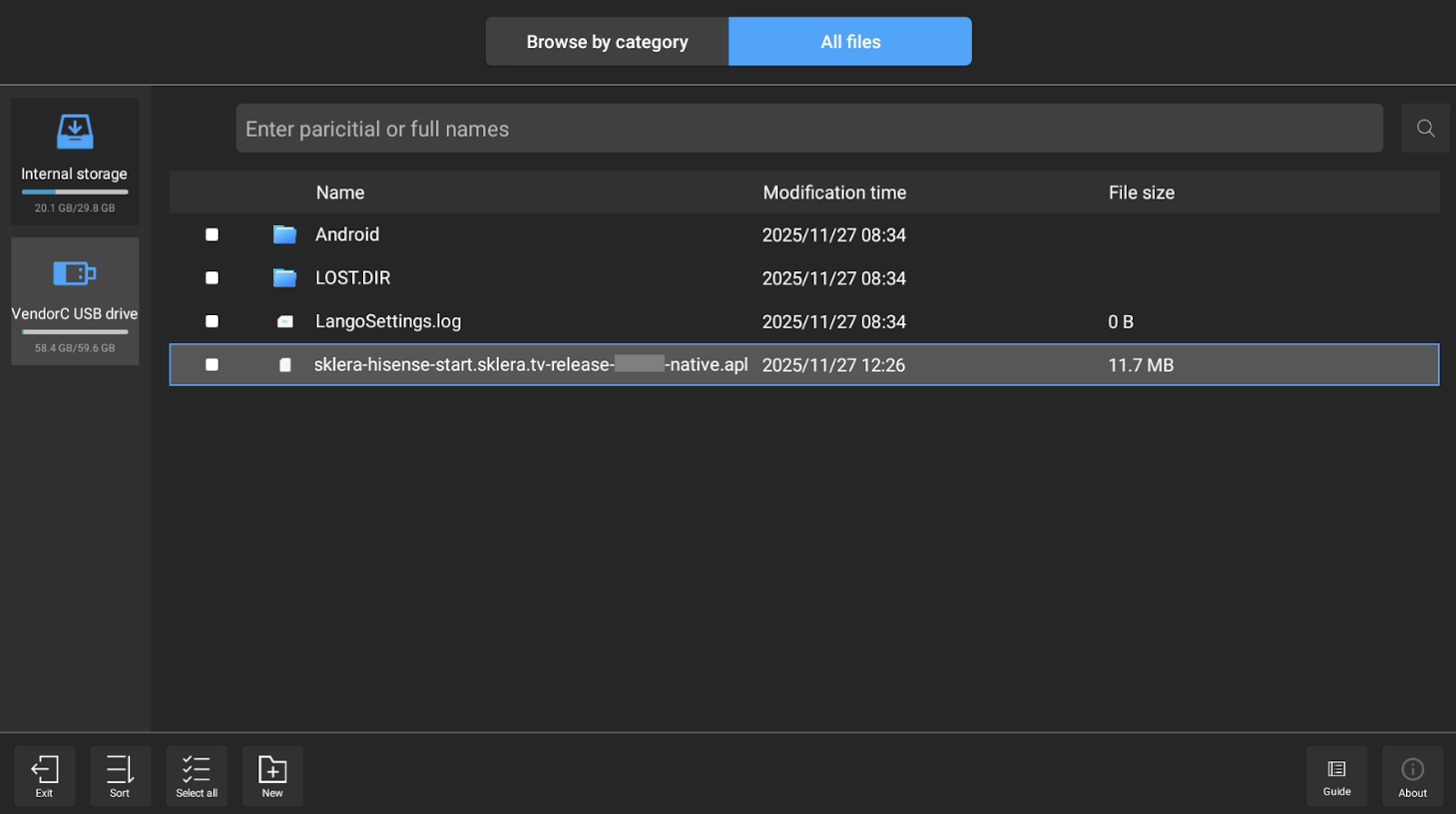
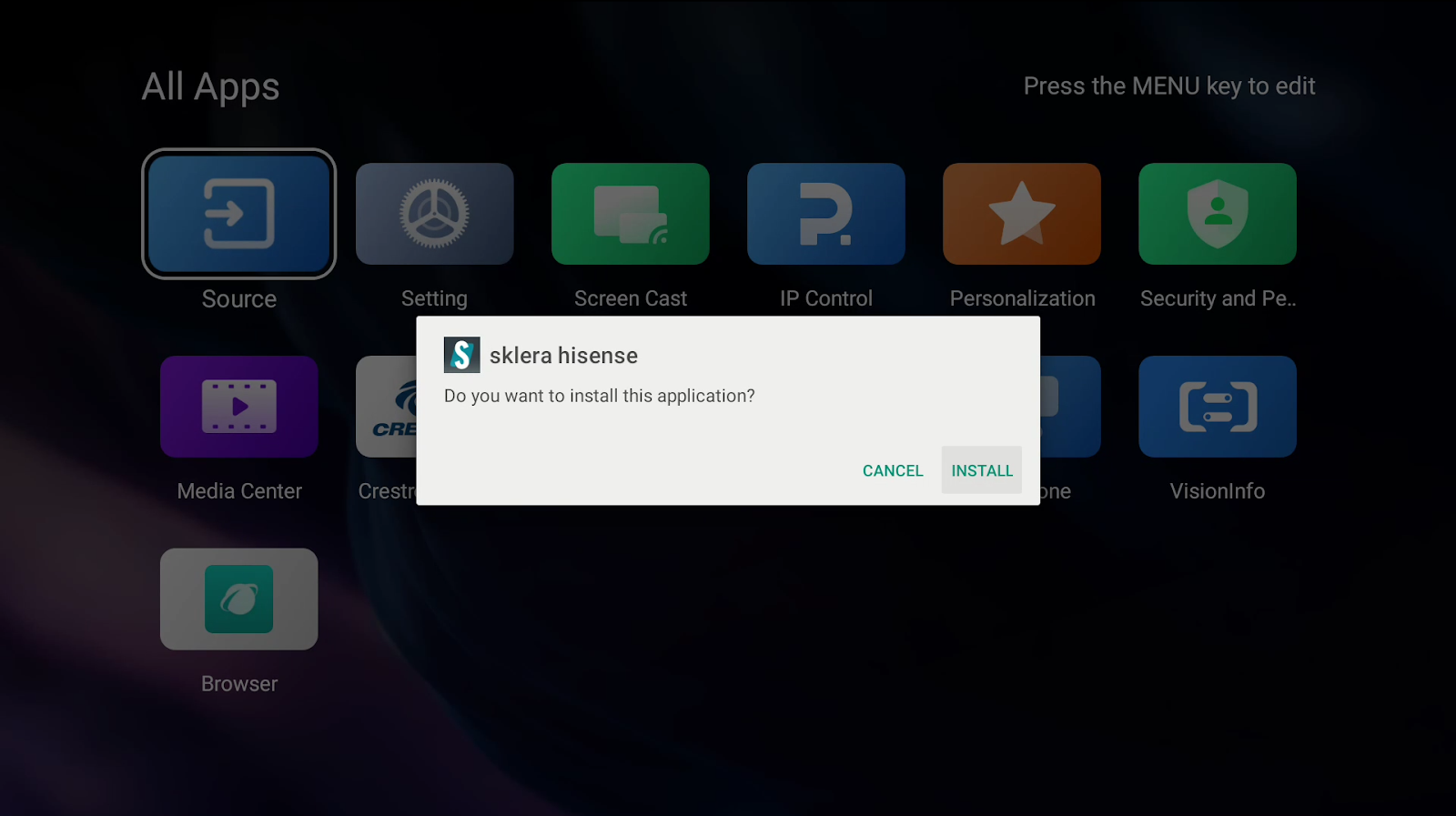
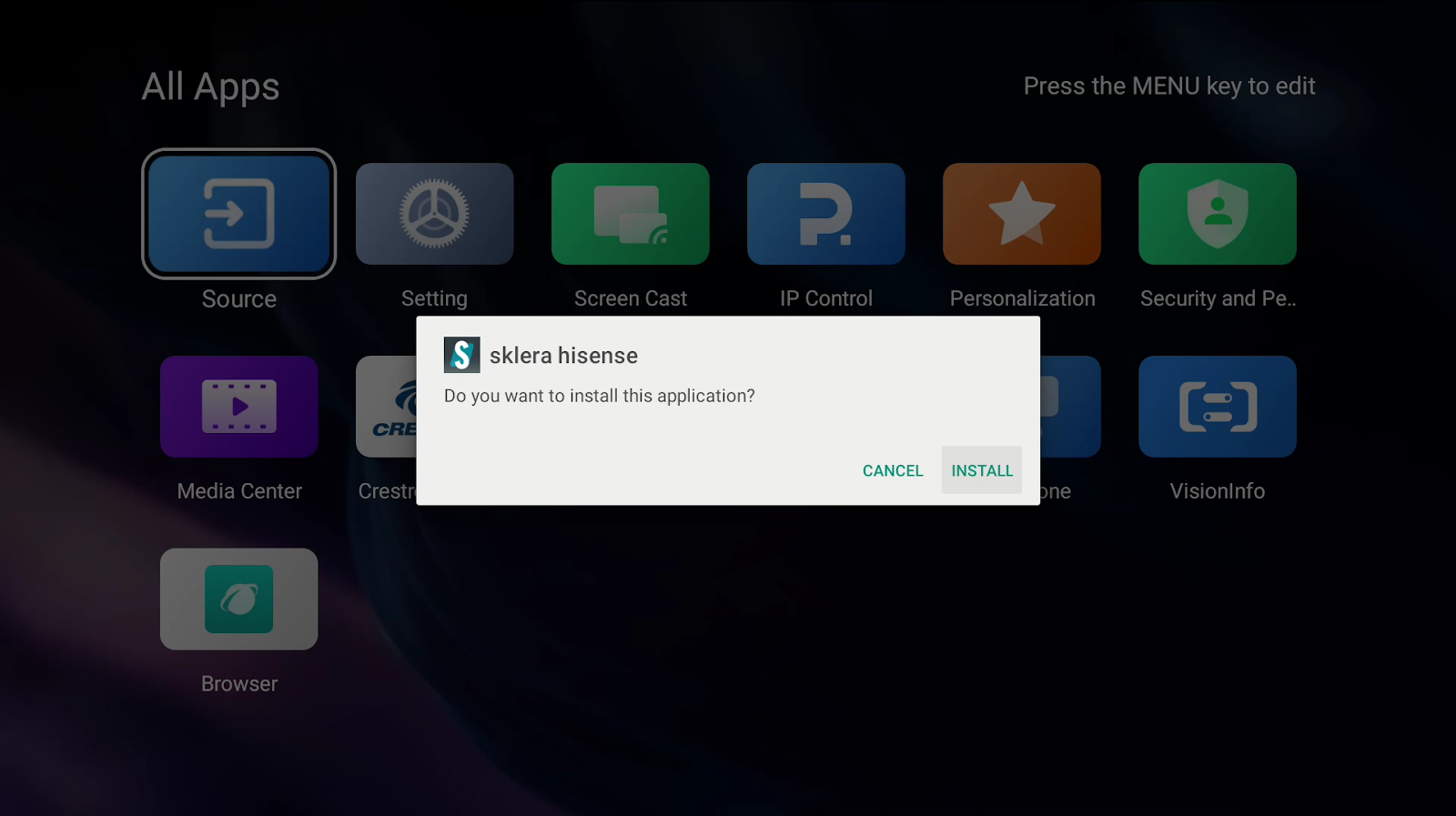
- Navigate to the USB drive and select the downloaded app. The app will then be installed.
Option B: Direct download of the app via internet
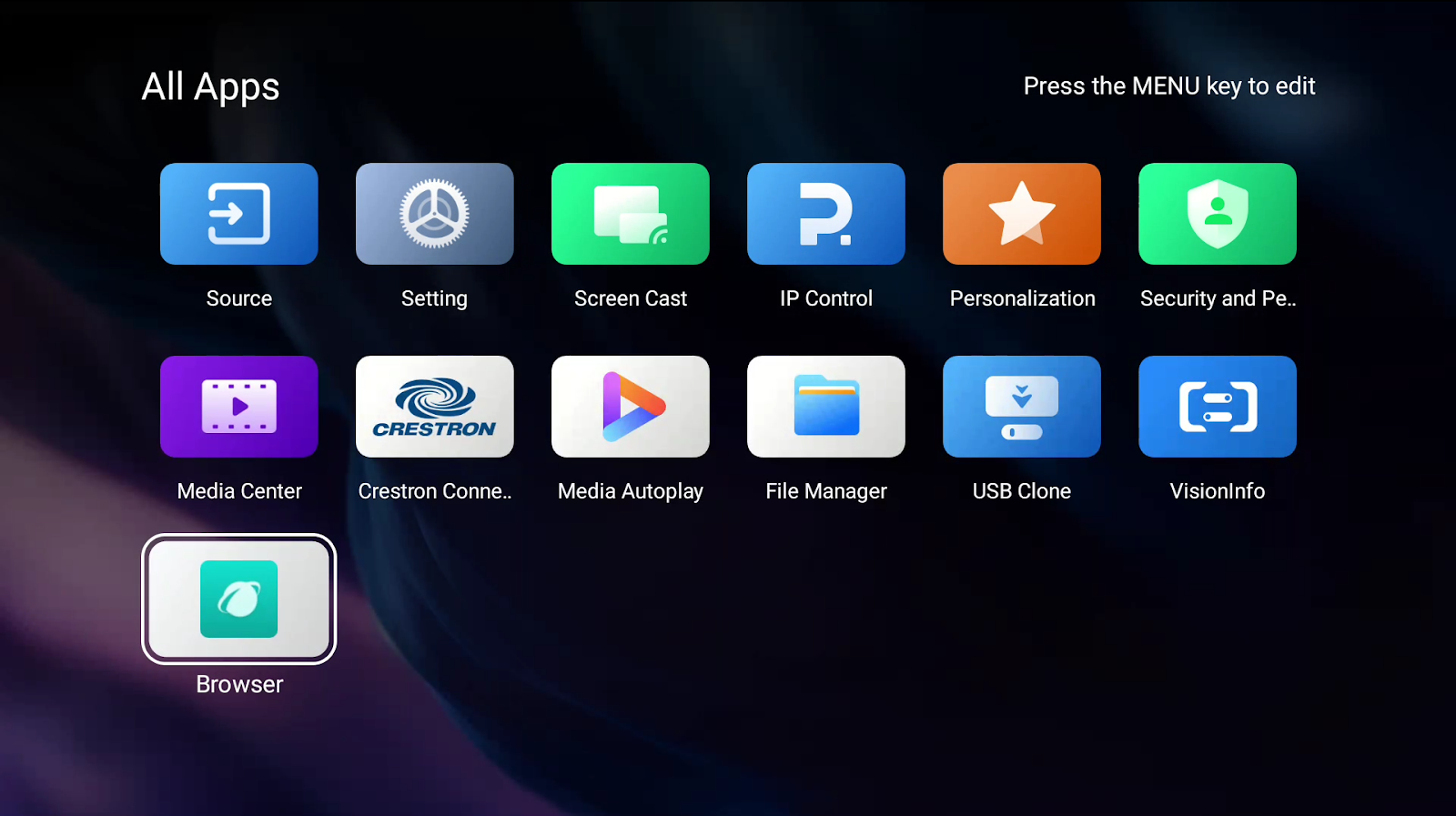
- Navigate to "All Apps" > "Browser".
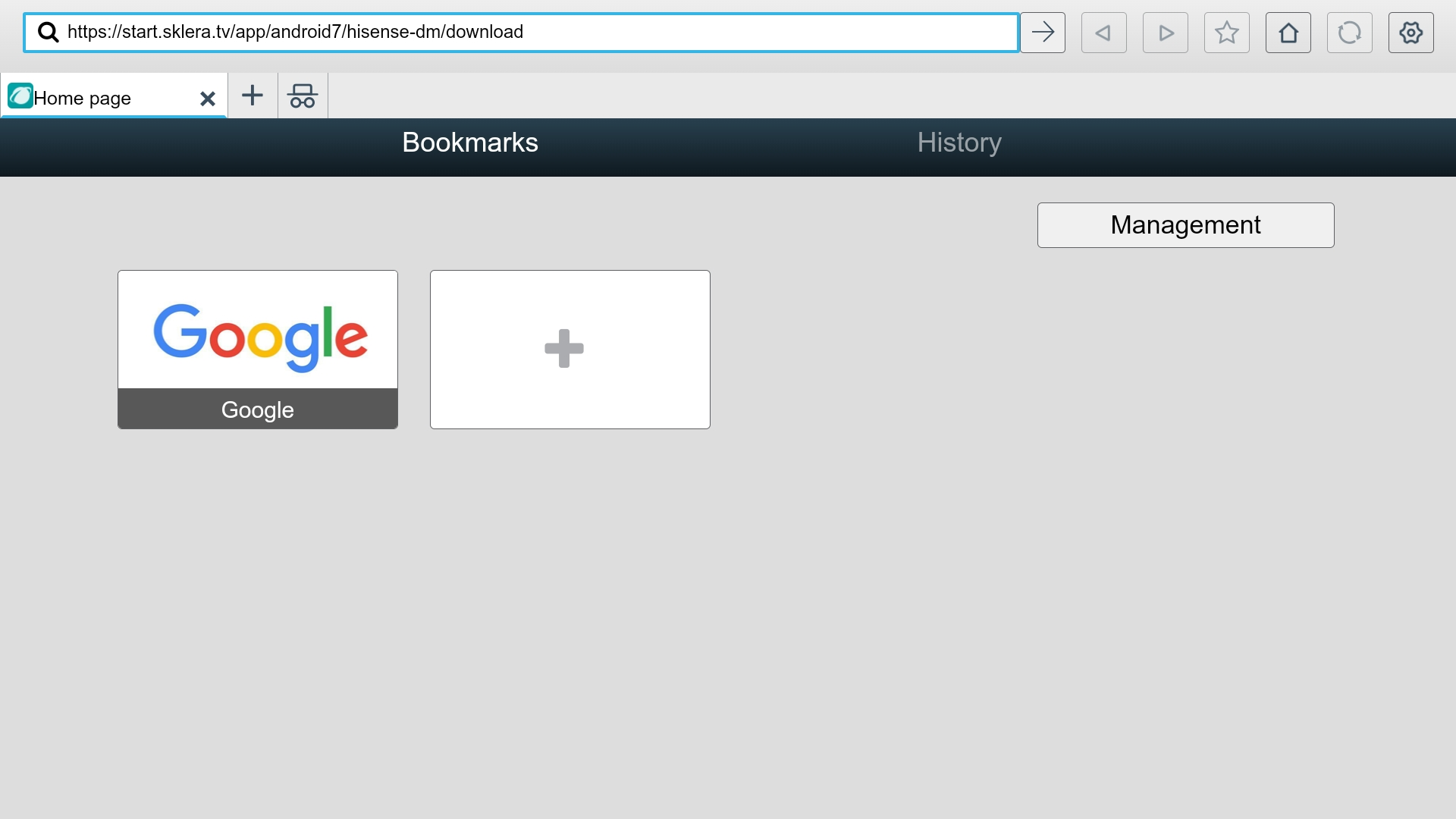
- Go to https://start.sklera.tv/app/android7/hisense-dm/download. The app will be downloaded automatically.
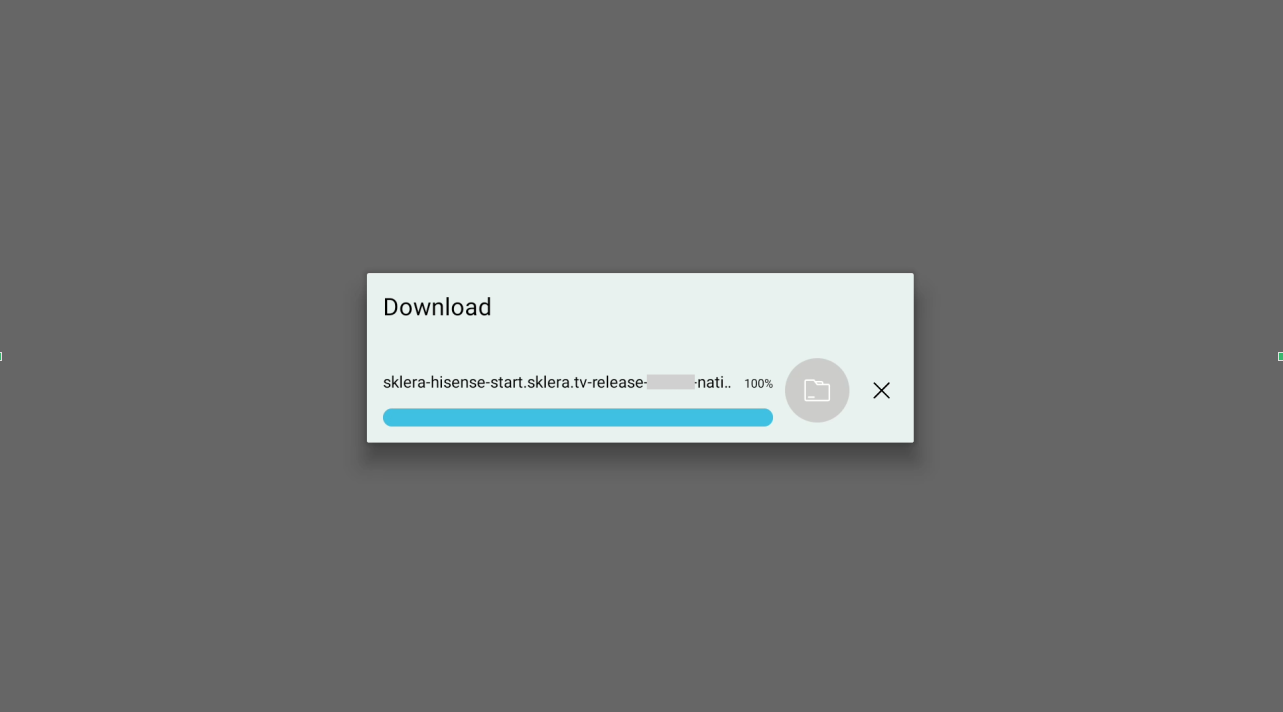
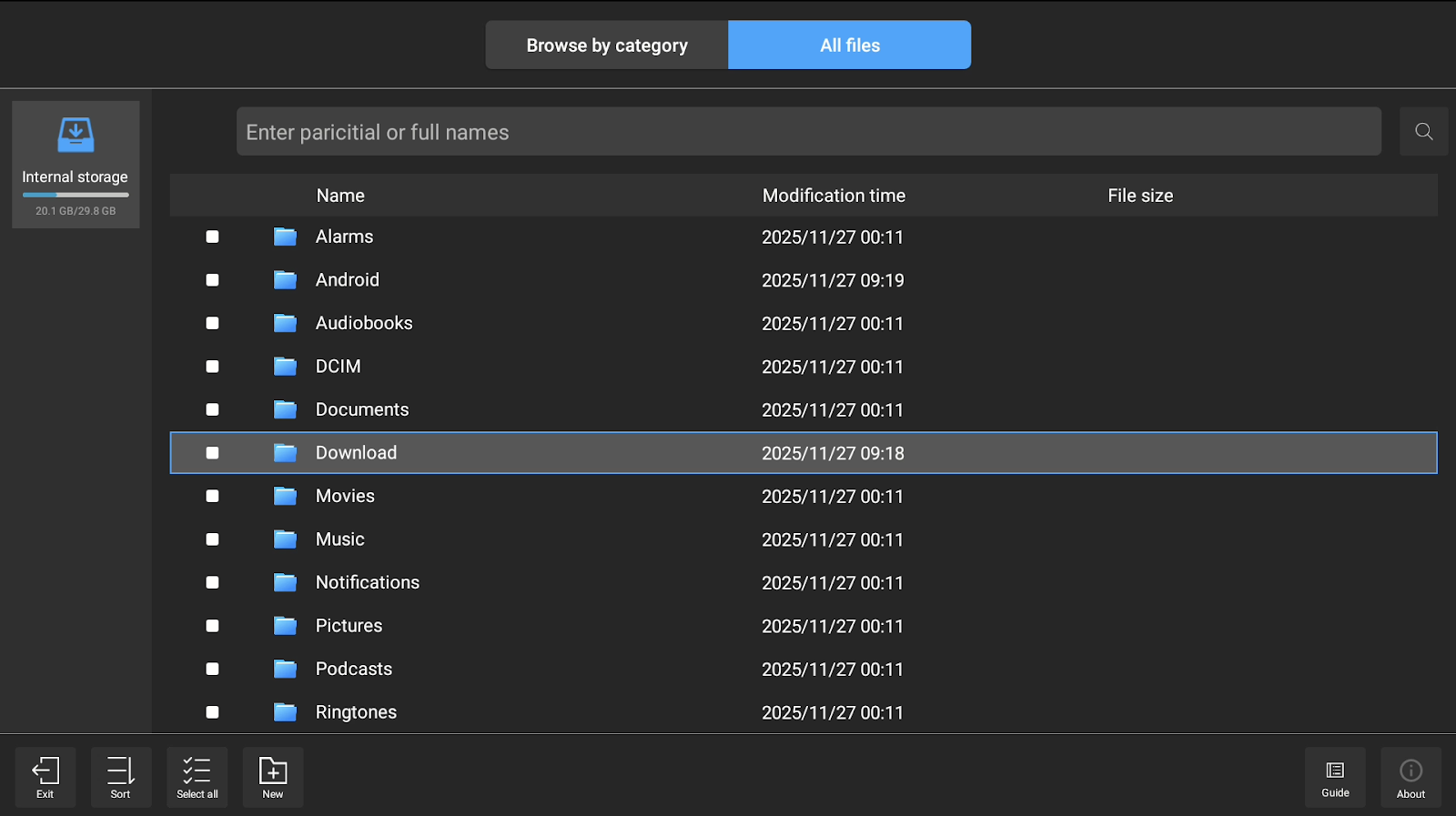
- Navigate back to "All Apps" > "File Manager".
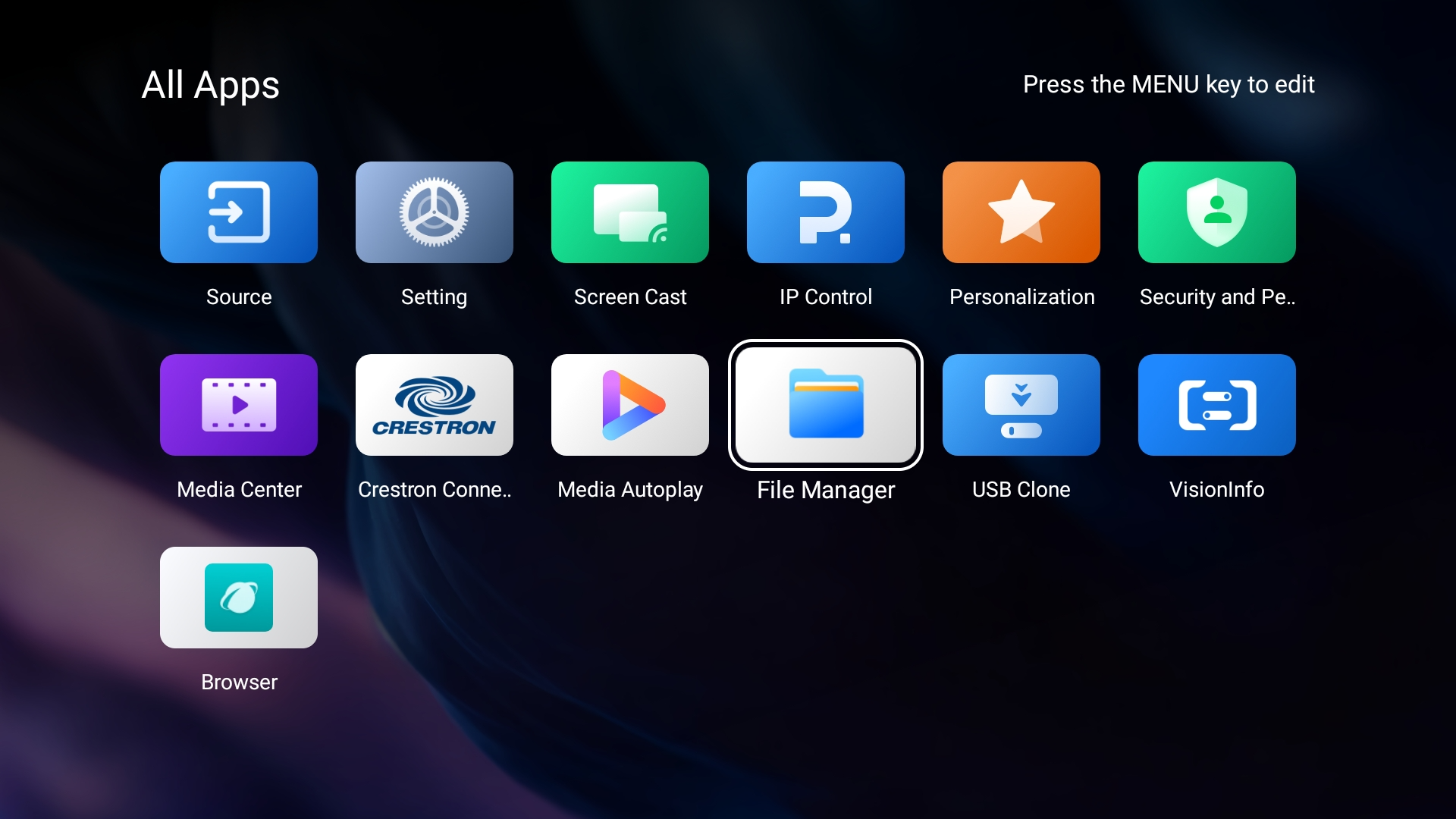
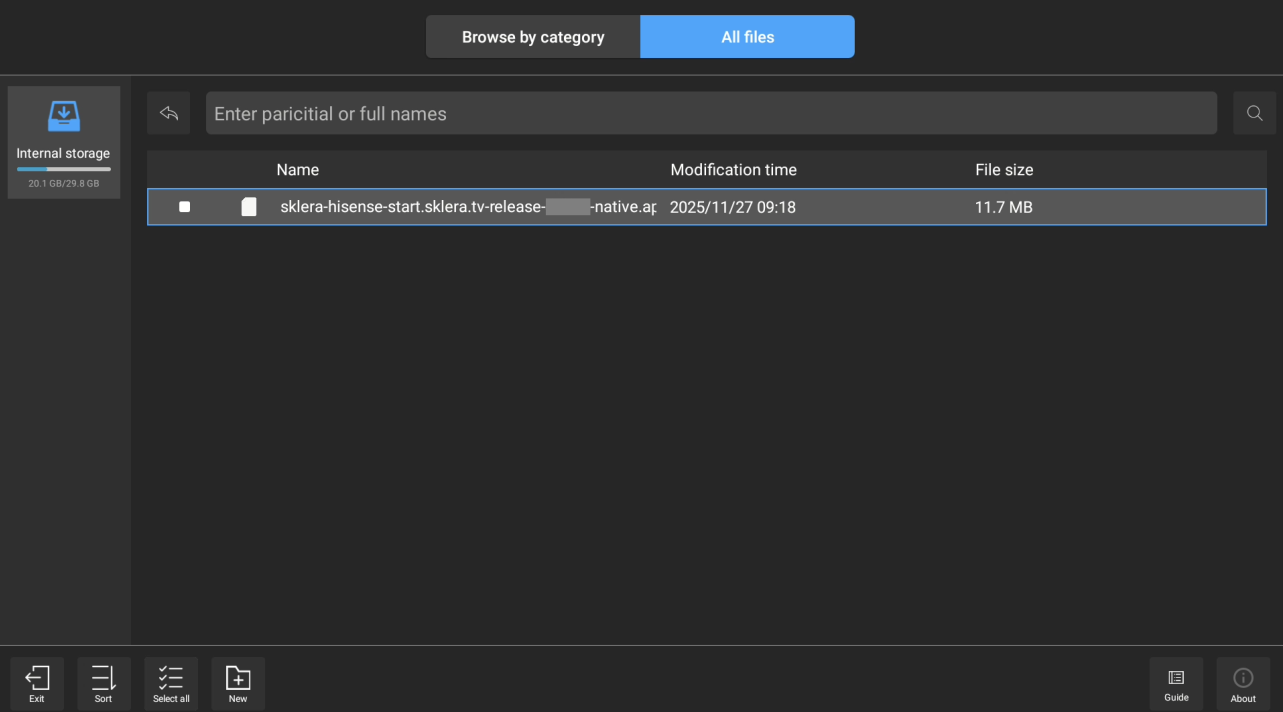
- Navigate to the "Download" folder and select the downloaded app. The application will then be installed.
Start the app
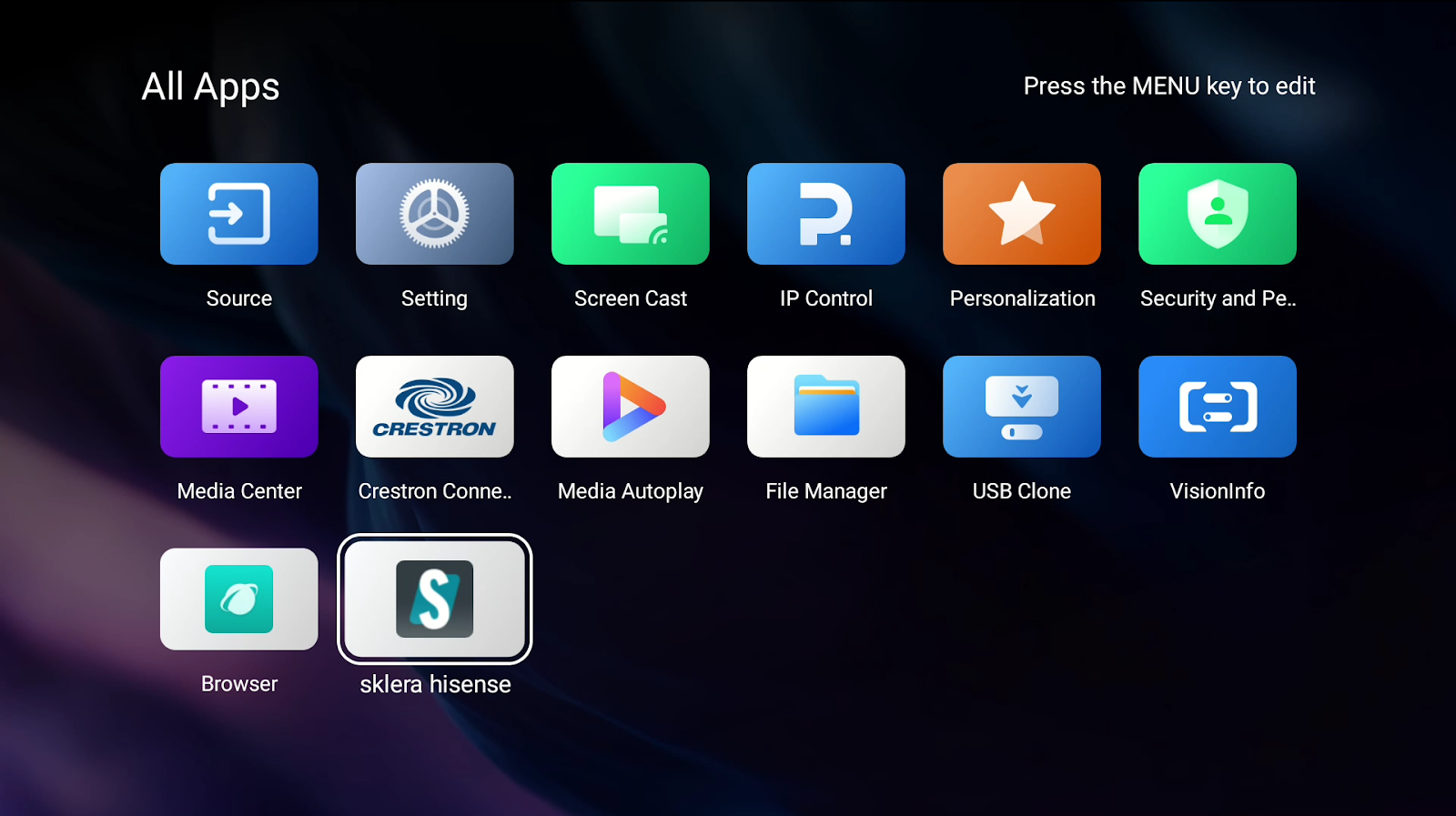
- Launch the sklera Player app.
- When the app is launched for the first time, it will request certain permissions. These are required for the app to function properly, for example to enable automatic startup or write data to external storage. Please grant all requested permissions.
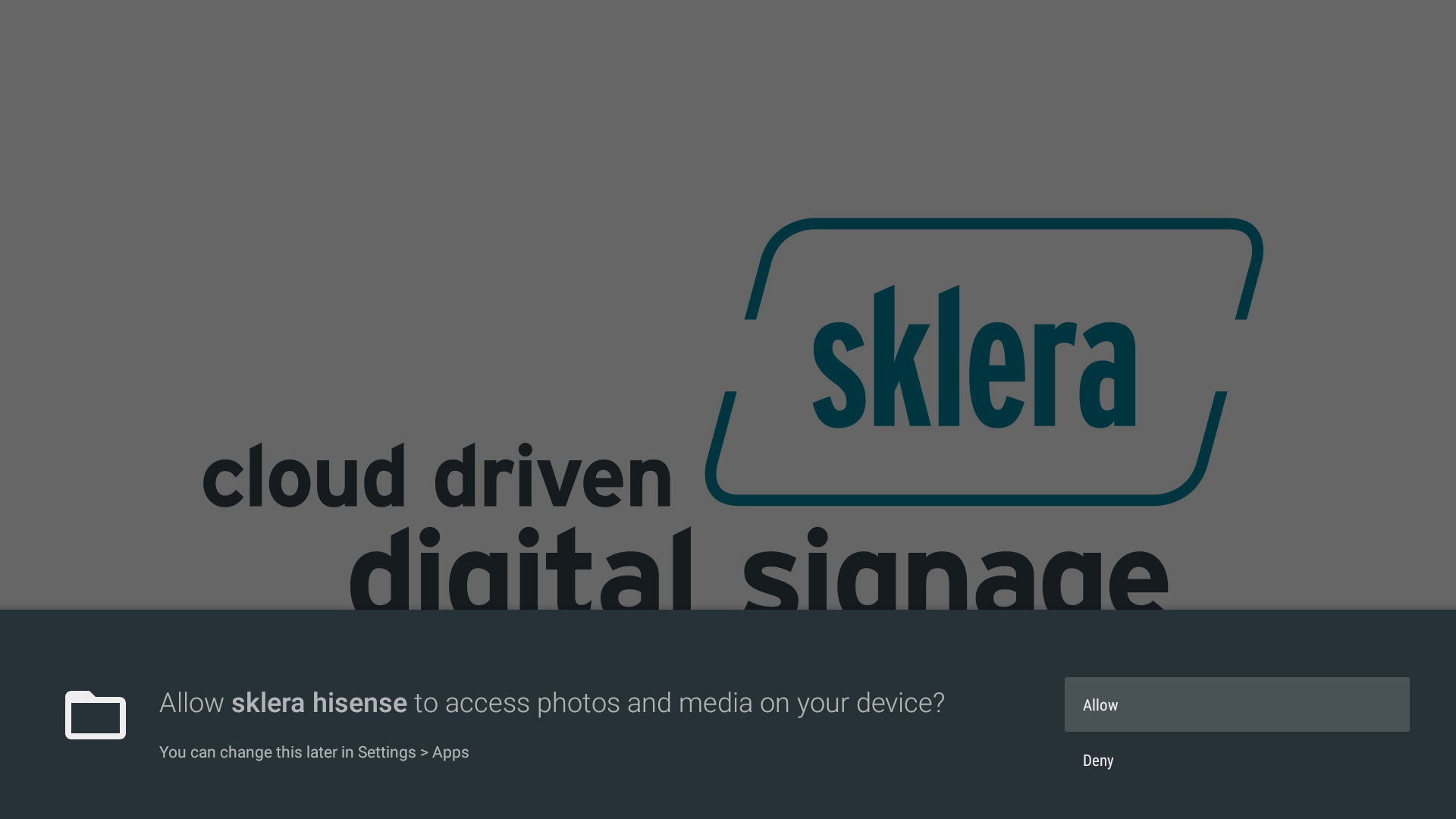
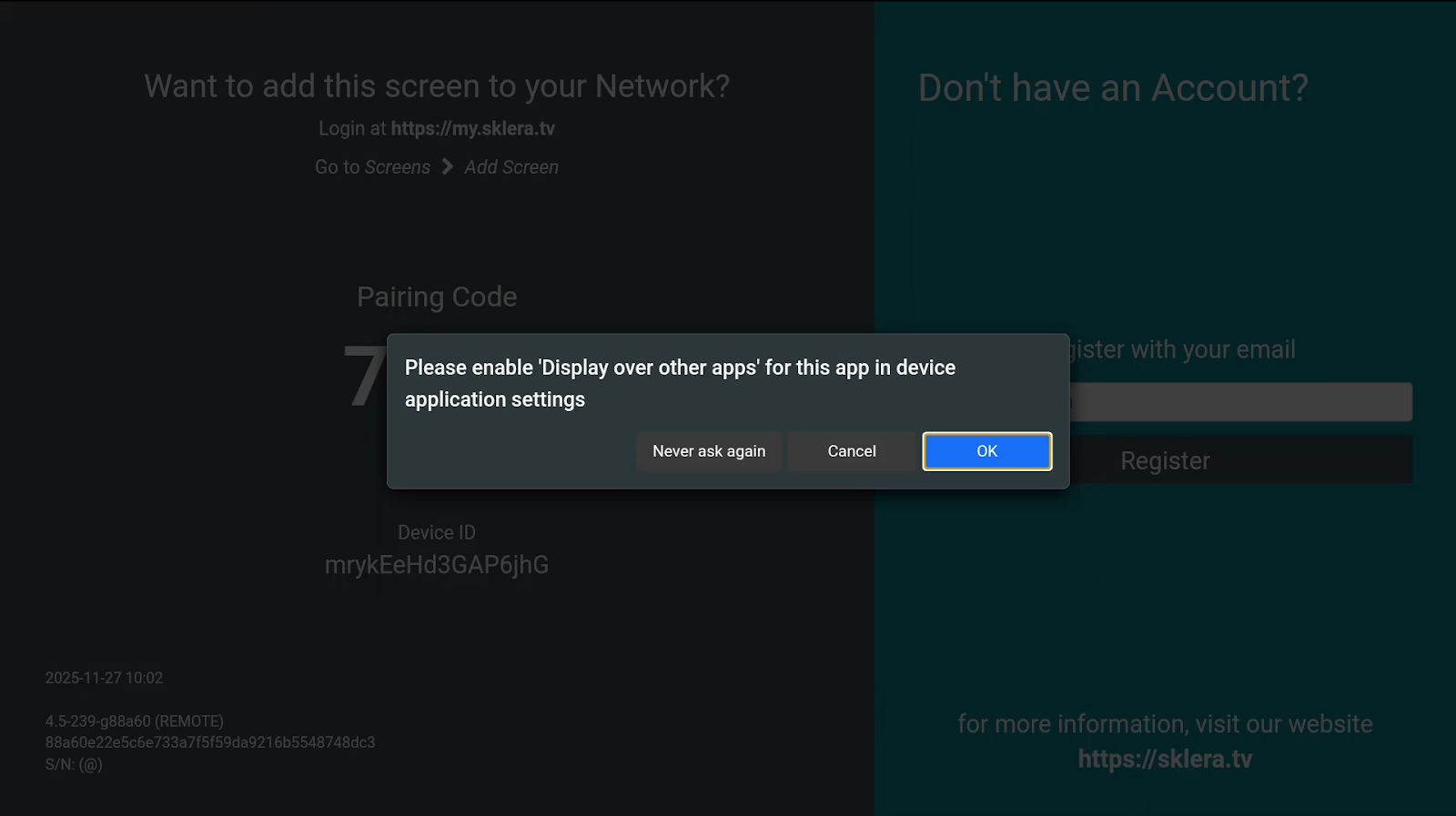
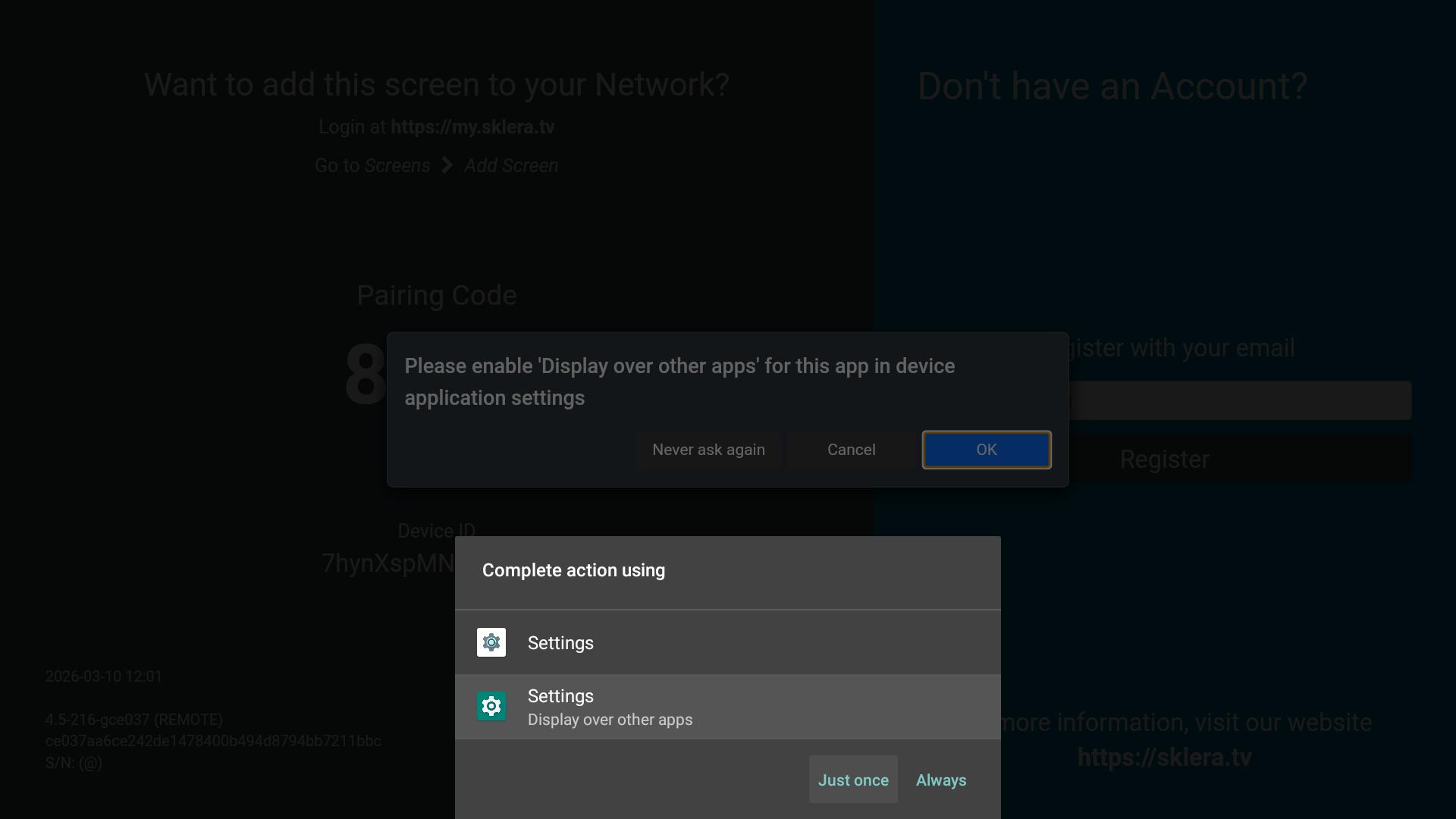
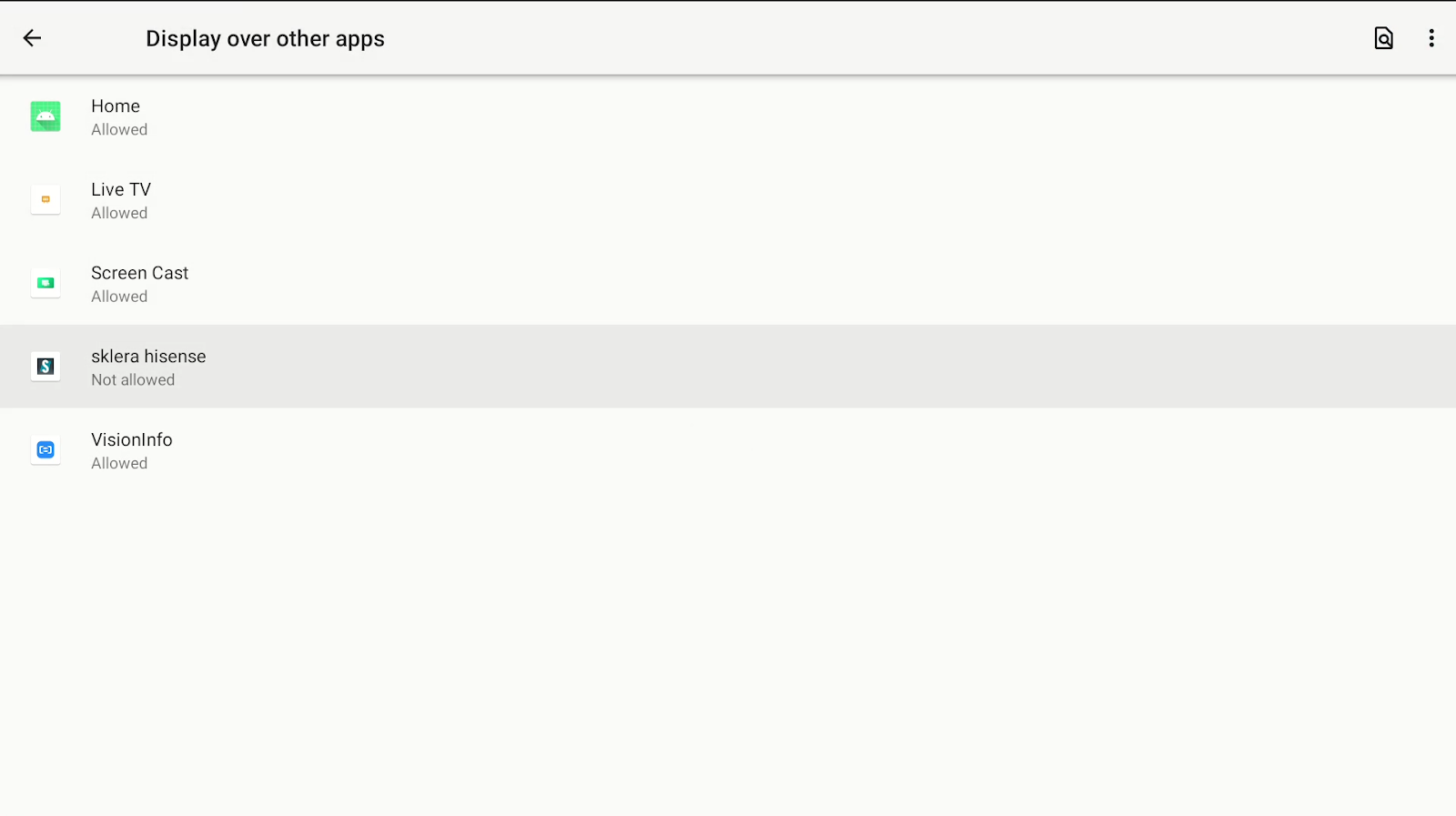
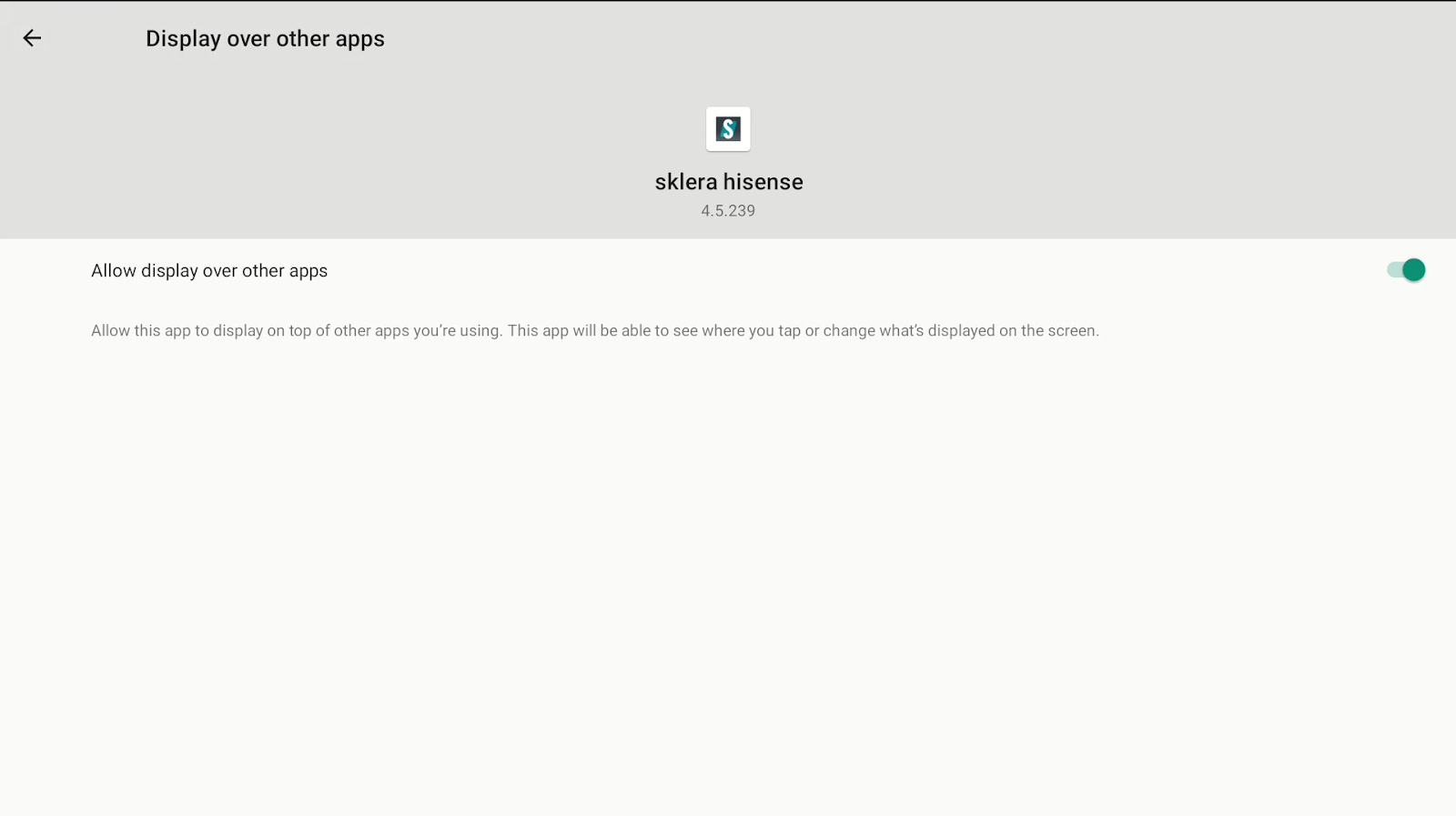
- Restart the sklera Player app. Follow the on-screen instructions to add the player to your channel.
Post Installation
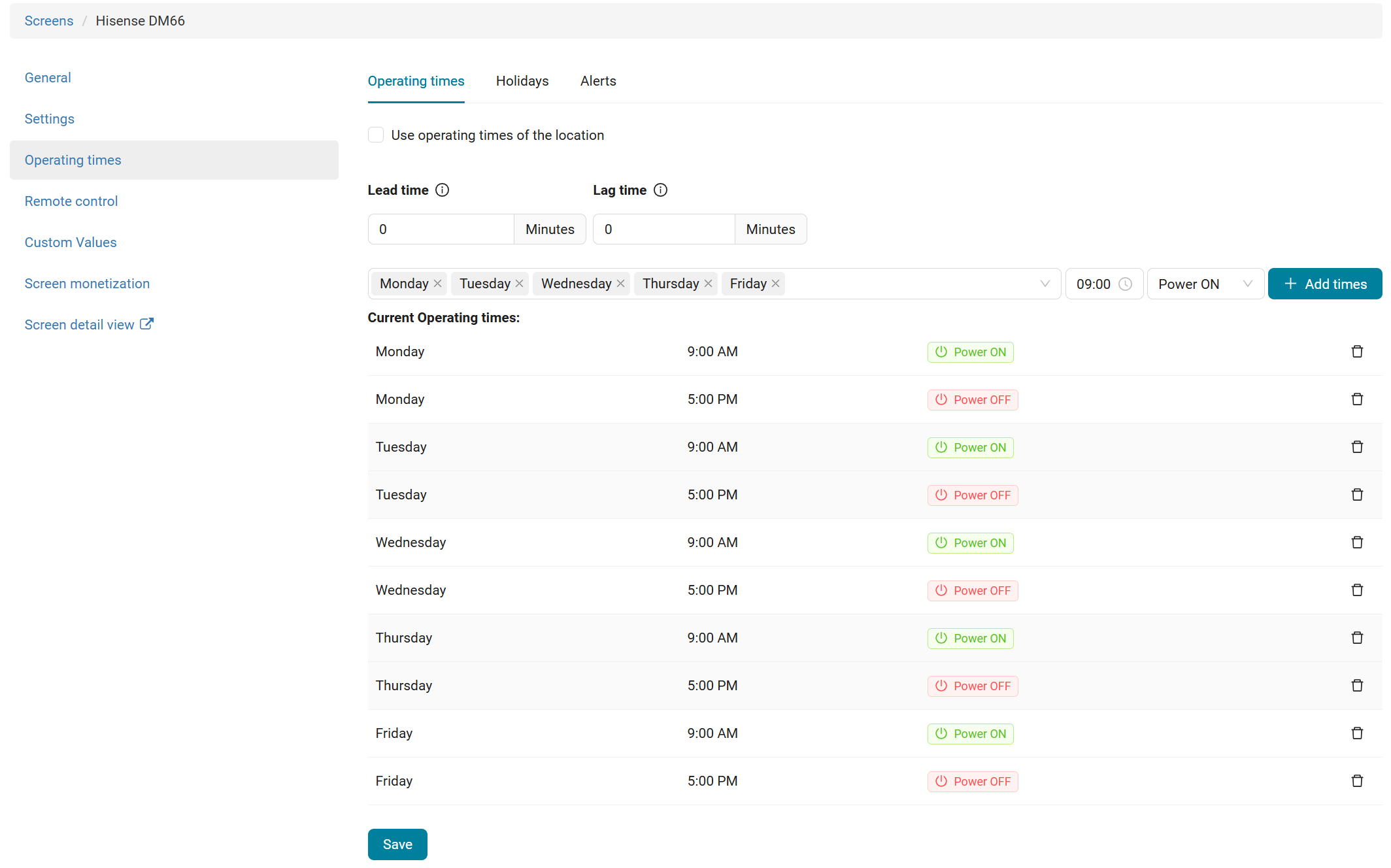
- It is recommended to define operating times for the display in the sklera CMS. This ensures that the sklera Player app is automatically restarted at the beginning of the operating times if it was previously terminated unexpectedly.
(Optional) Enable 4K support
The Hisense DM series supports output of content in 4K resolution (3840 × 2160).
To enable native 4K output, open the display settings in the sklera CMS and turn on the slider "Use external video player (SurfacePlayer)".
Limitations:
- No transition effects are possible.
- Short black screens may occur when switching spots .
- (Optional) Install the sklera Watchdog App
The sklera Android Watchdog is an optional add-on application that monitors the sklera Player App.
If the app is not running or stops unexpectedly, the Watchdog automatically restarts it.
The Watchdog can also regularly check for updates to the sklera Android App and install them automatically.
https://sklera.freshdesk.com/a/solutions/articles/8000126884?lang=en
Info: The sklera Player App includes a built-in auto-update feature and can update itself automatically on Hisense DM series devices. The Watchdog is only used to monitor whether the app is running properly and to restart it if it stops. It is not required for the auto-update function on DM series devices.