
1. Prerequisites
- Samsung E-Paper EMDX
- Smartphone
2. Initial Setup
2.1 Getting the app
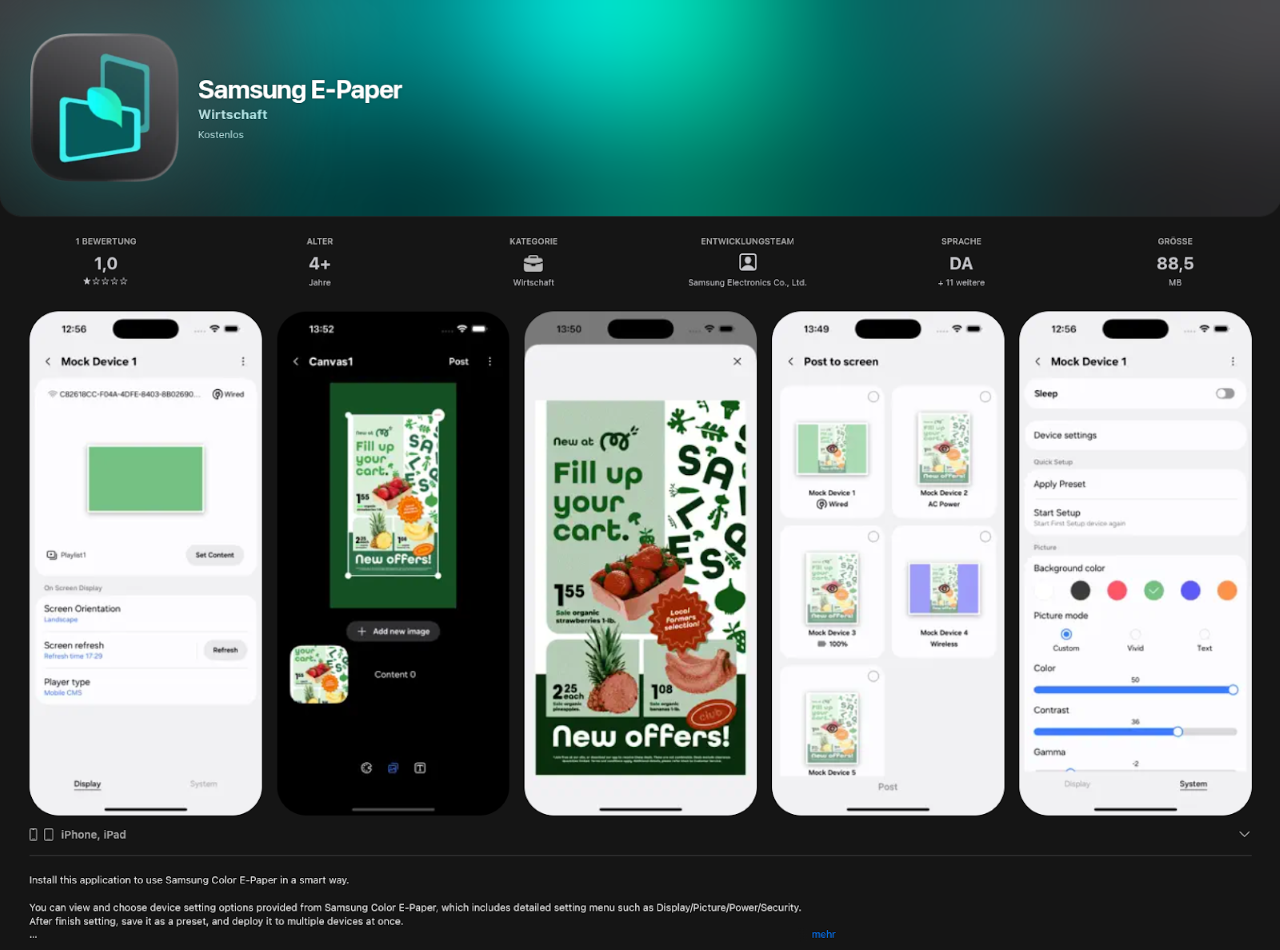
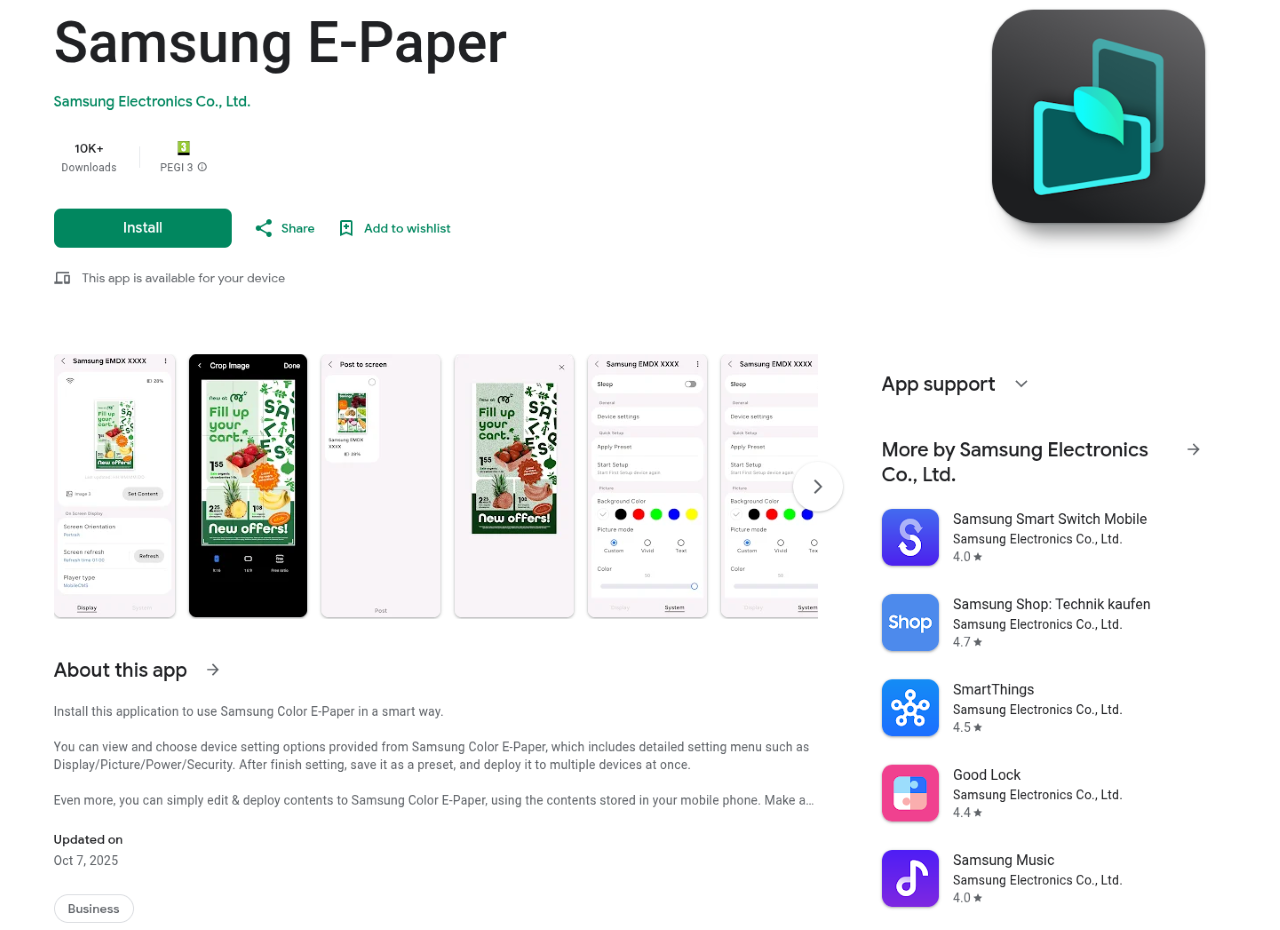
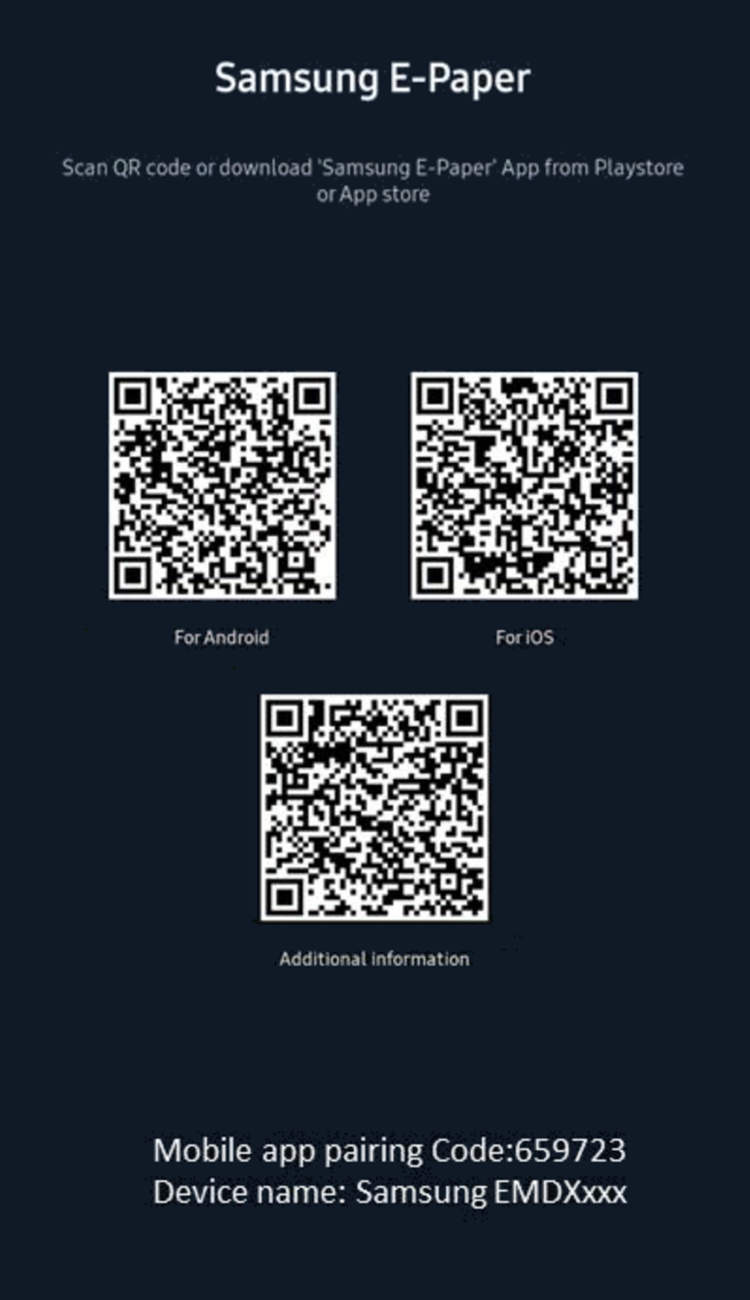
Download the official Samsung E-Paper app from Google Play / Apple Store or by scanning QR-code, displayed on the pairing screen.
 |  |
2.2 Adding the device
Method 1:
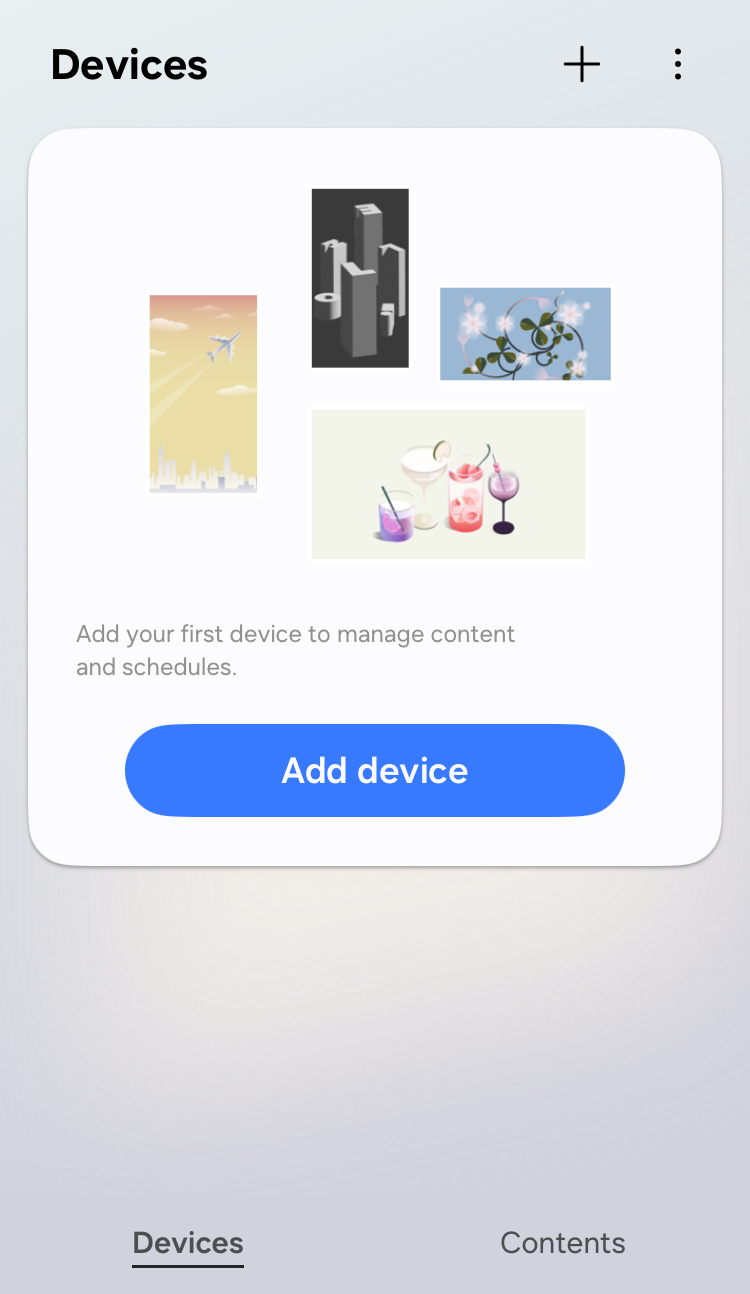
- Open the mobile app and press on "Add device".
- Scan the QR-code, displayed on the E-Paper device. The Pairing QR-code is placed below QR-codes for app download.
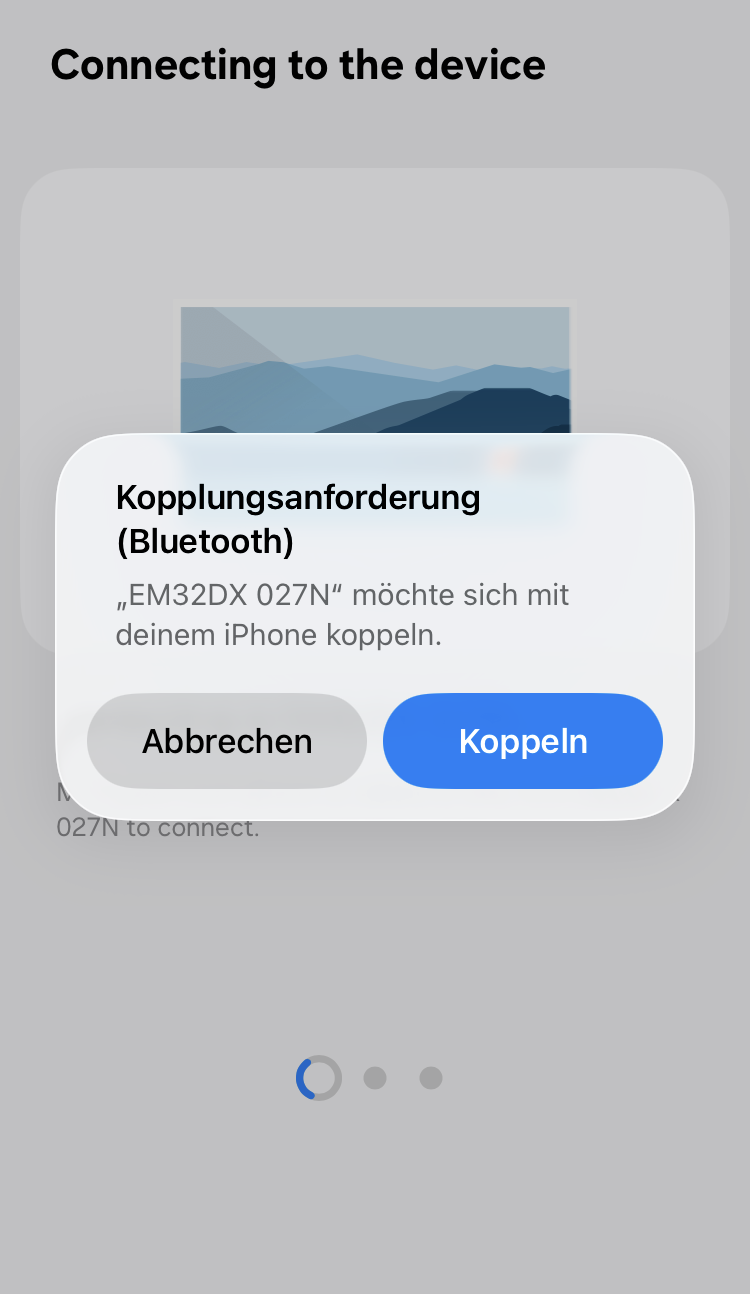
- After scanning the QR-code, accept the pairing request.
Method 2:
- Open mobile app and press on "Add device".
- Press the button "Scan nearby".
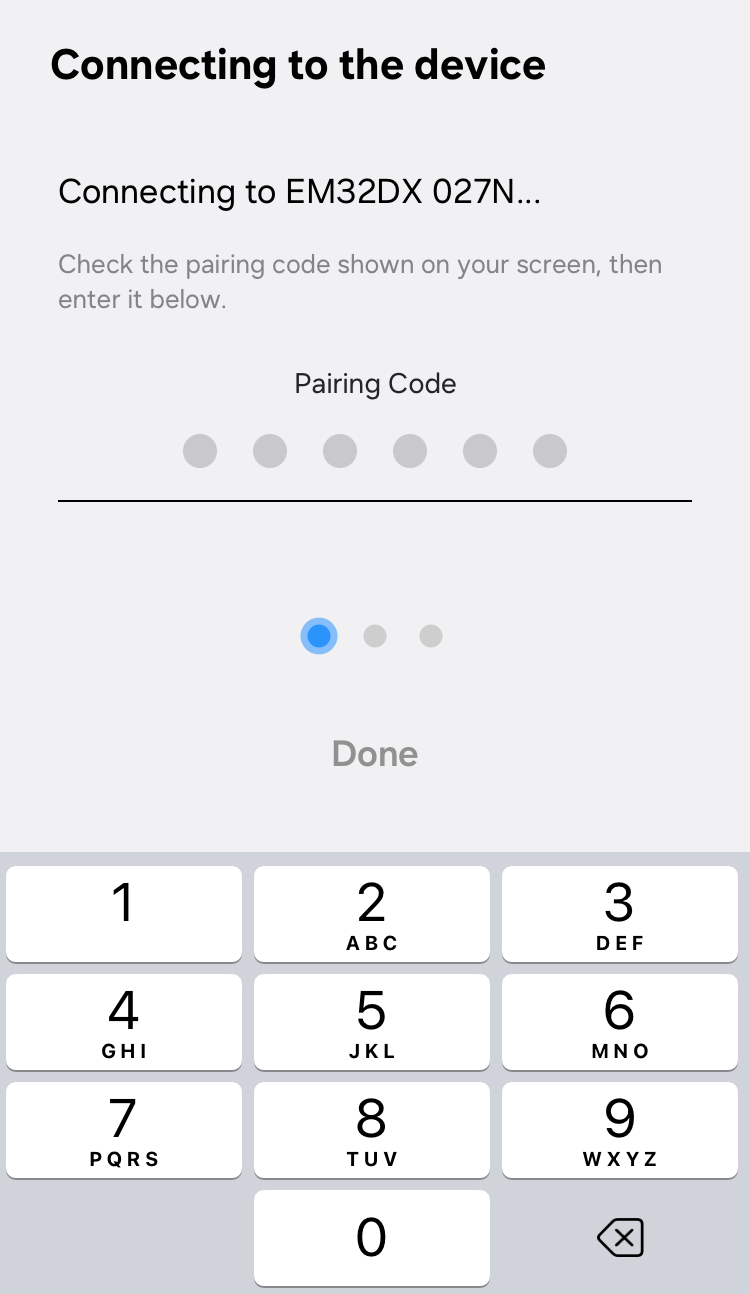
- When the device is discovered, select it, accept the pairing request and enter the pairing code, displayed on the E-Paper device.
 |  |  |  |
3. Configuration
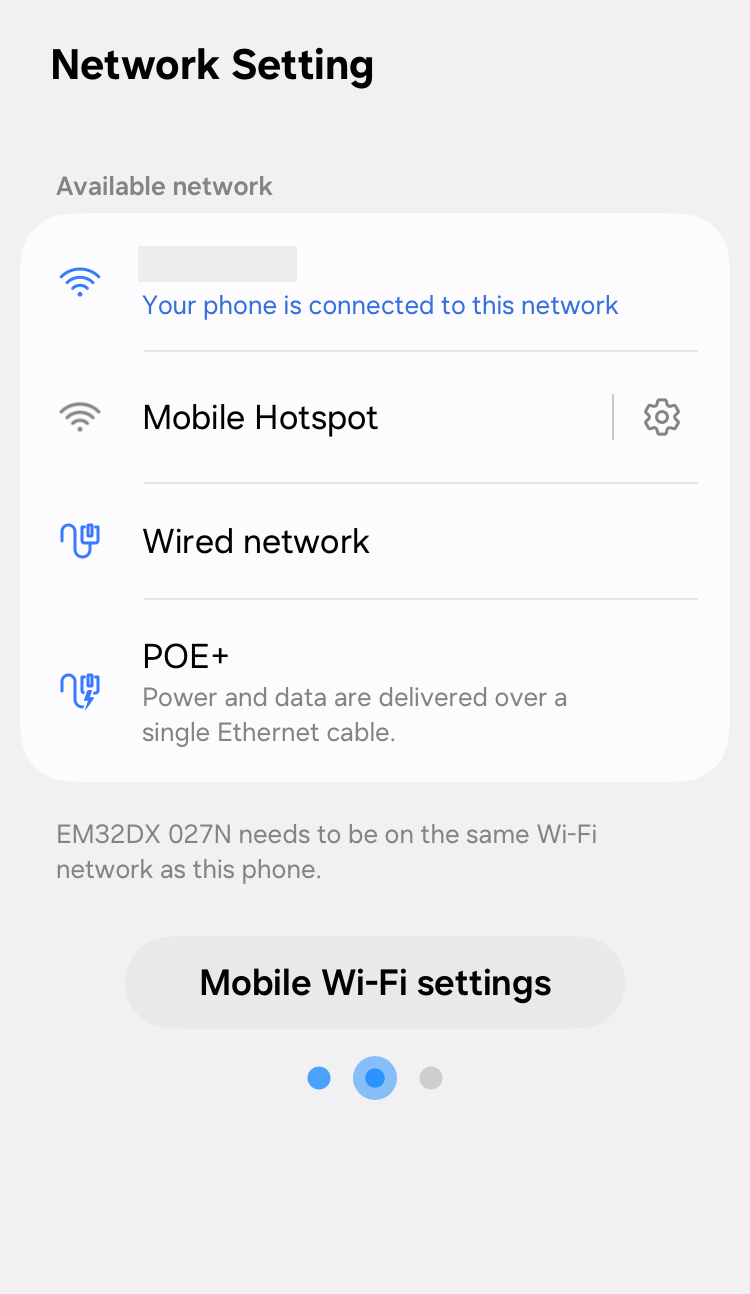
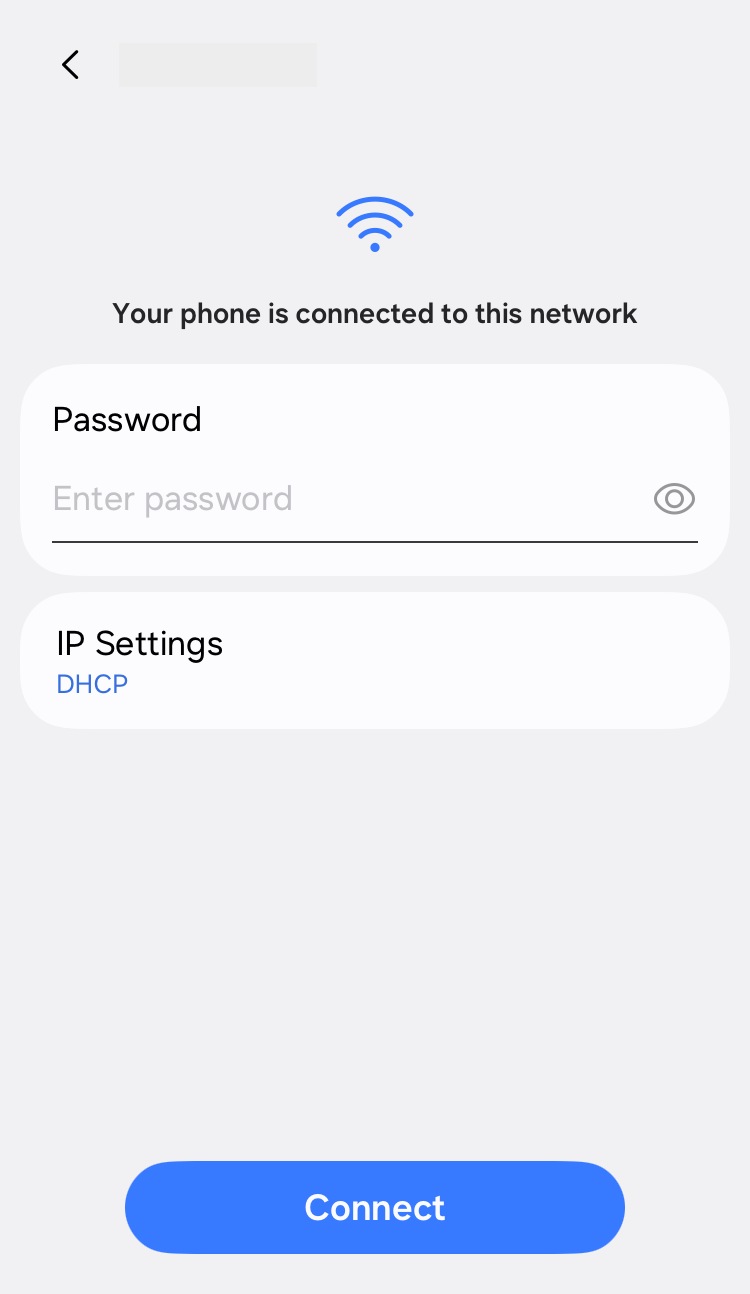
- Select the Wi-Fi network which your mobile device is connected to and enter the password.
- Select the content source. If the option “Custom” is not available, select any other option, for example “Mobile”.
The source must be changed to "Custom" after configuring the device.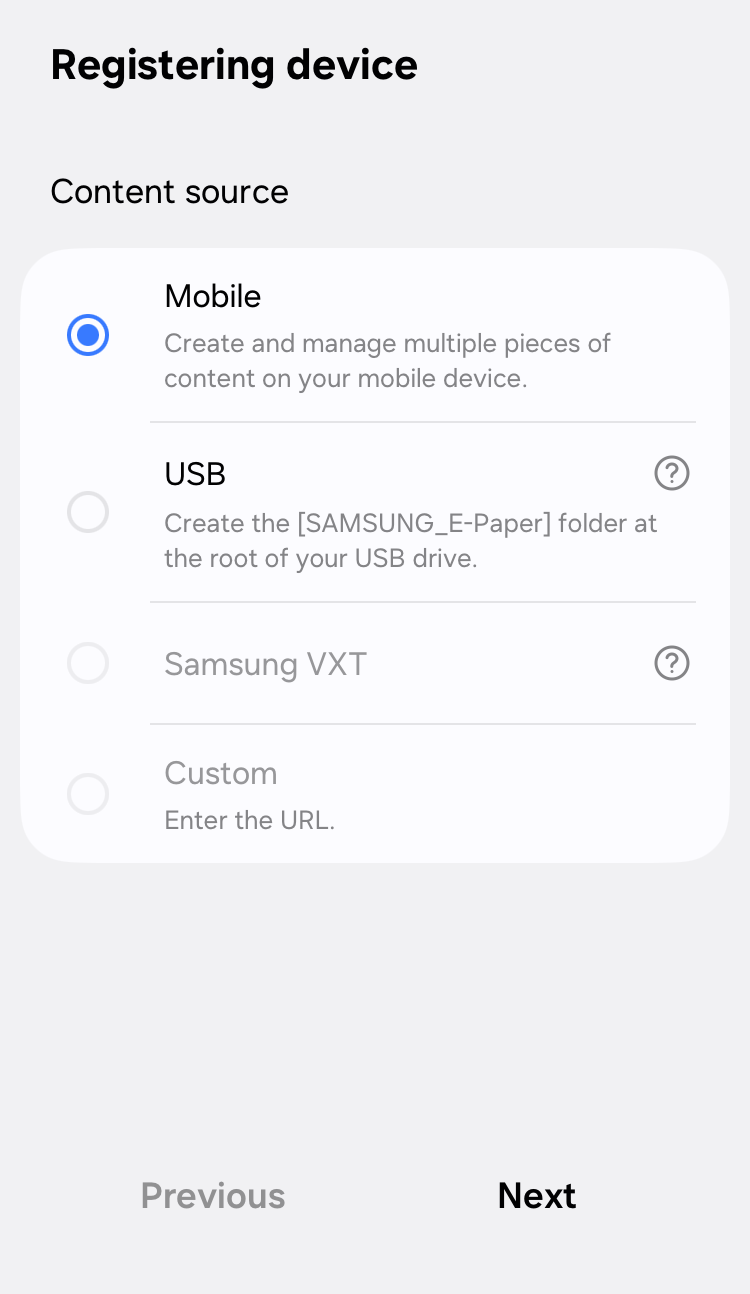
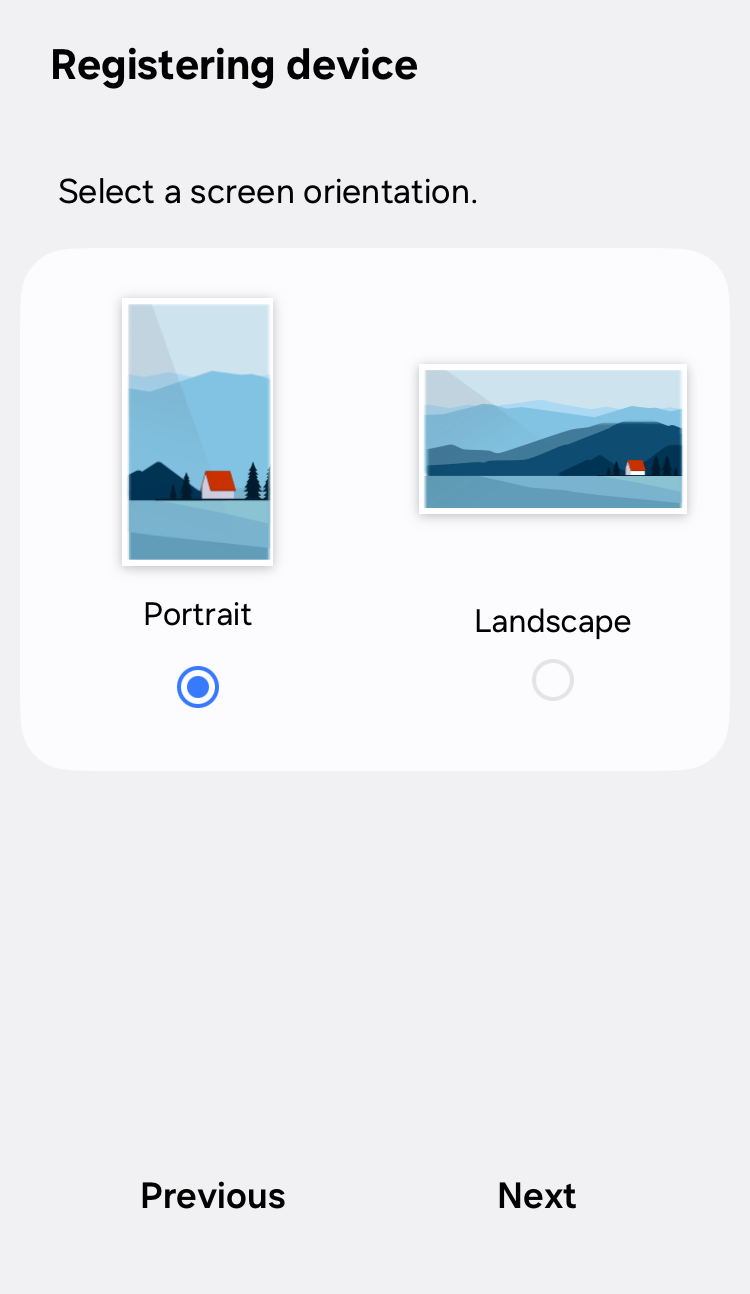
- Select a screen rotation. You can always change it later either via CMS or the app.
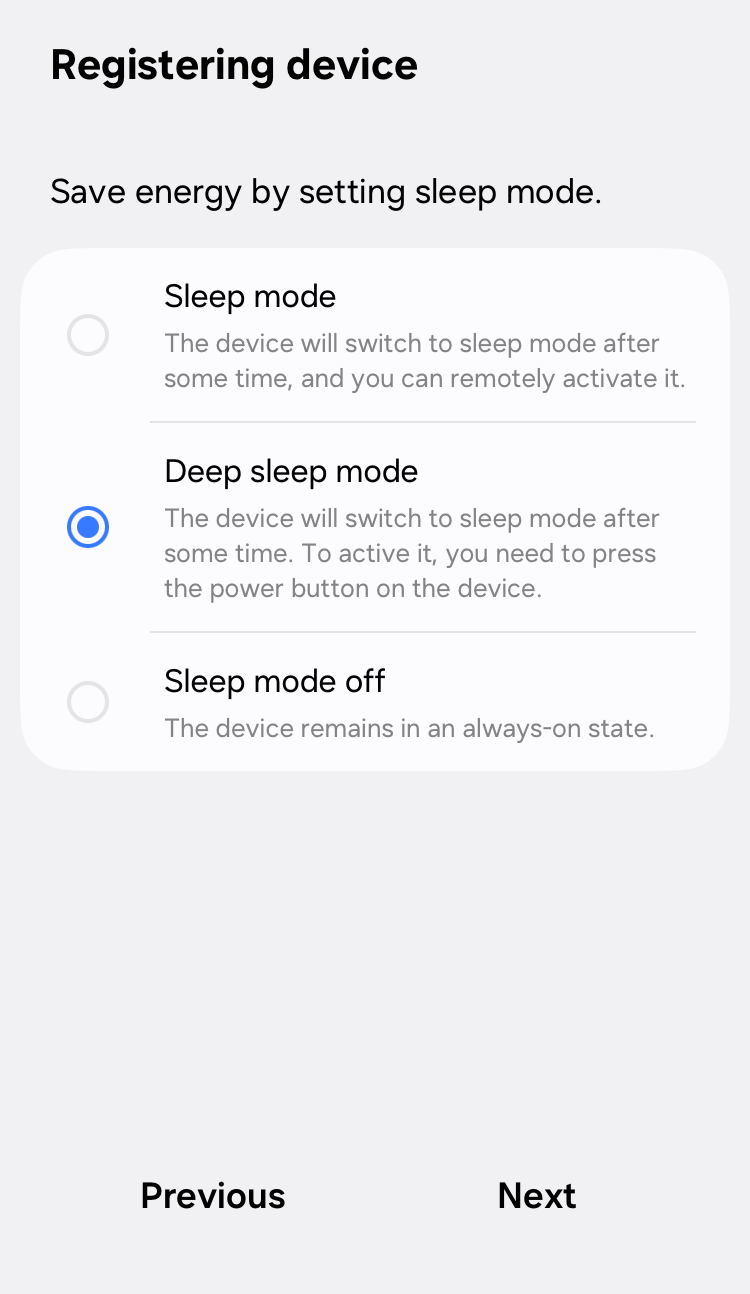
- Select "Deep sleep mode". In this mode the device can work longer on the battery without recharging. You can always change the mode later via CMS or the app.
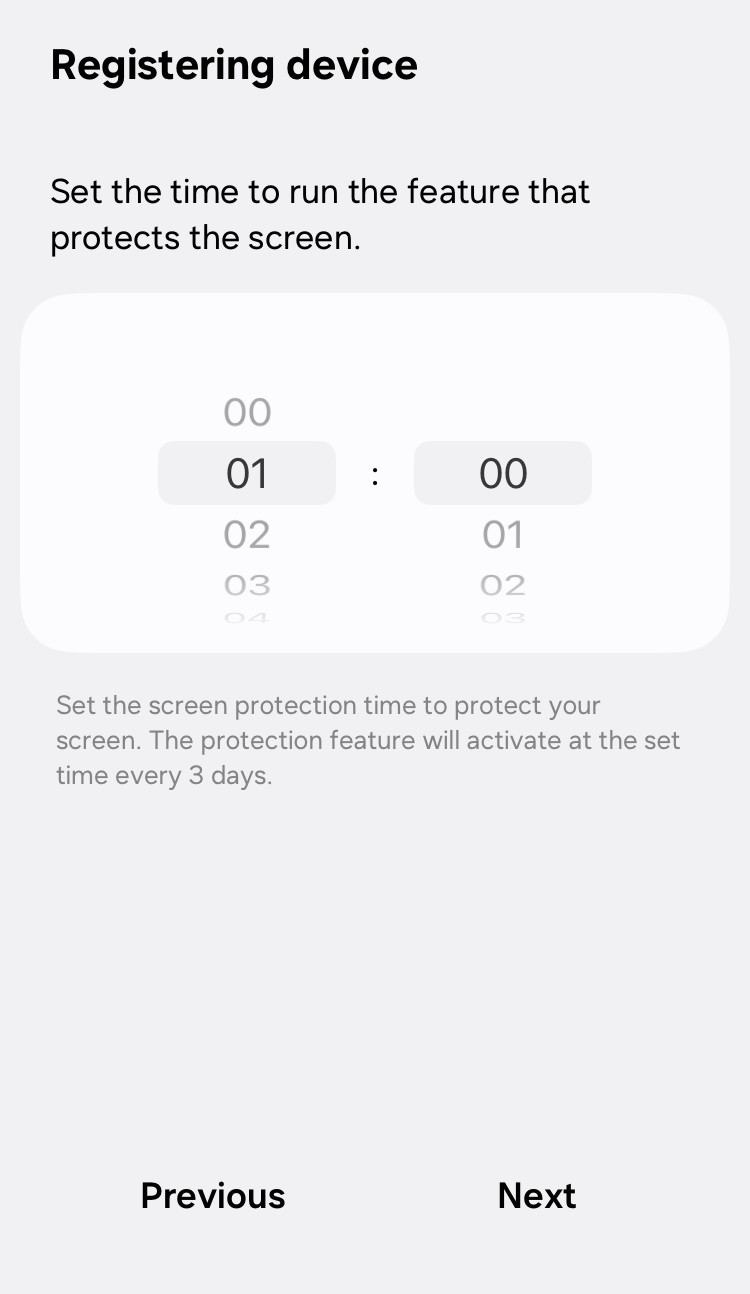
- Set the screen protection time. We recommend to set it out of working hours.
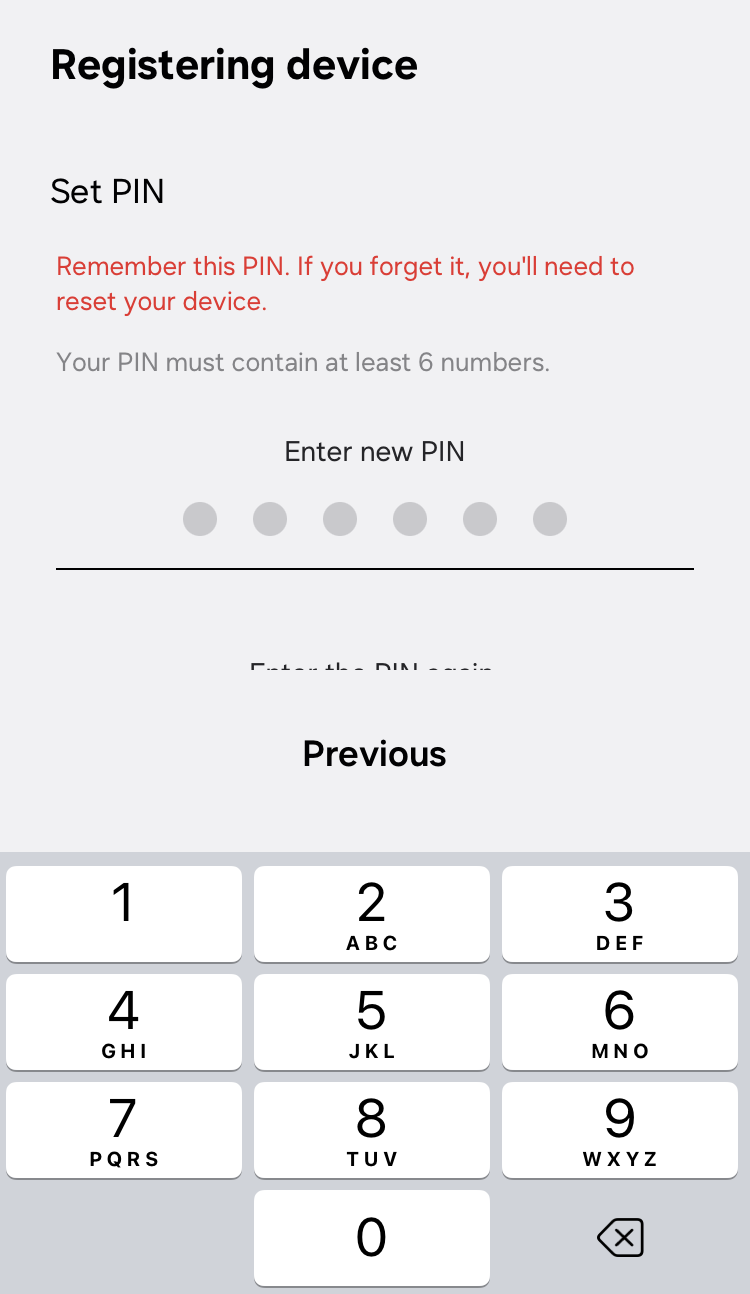
- Set device PIN
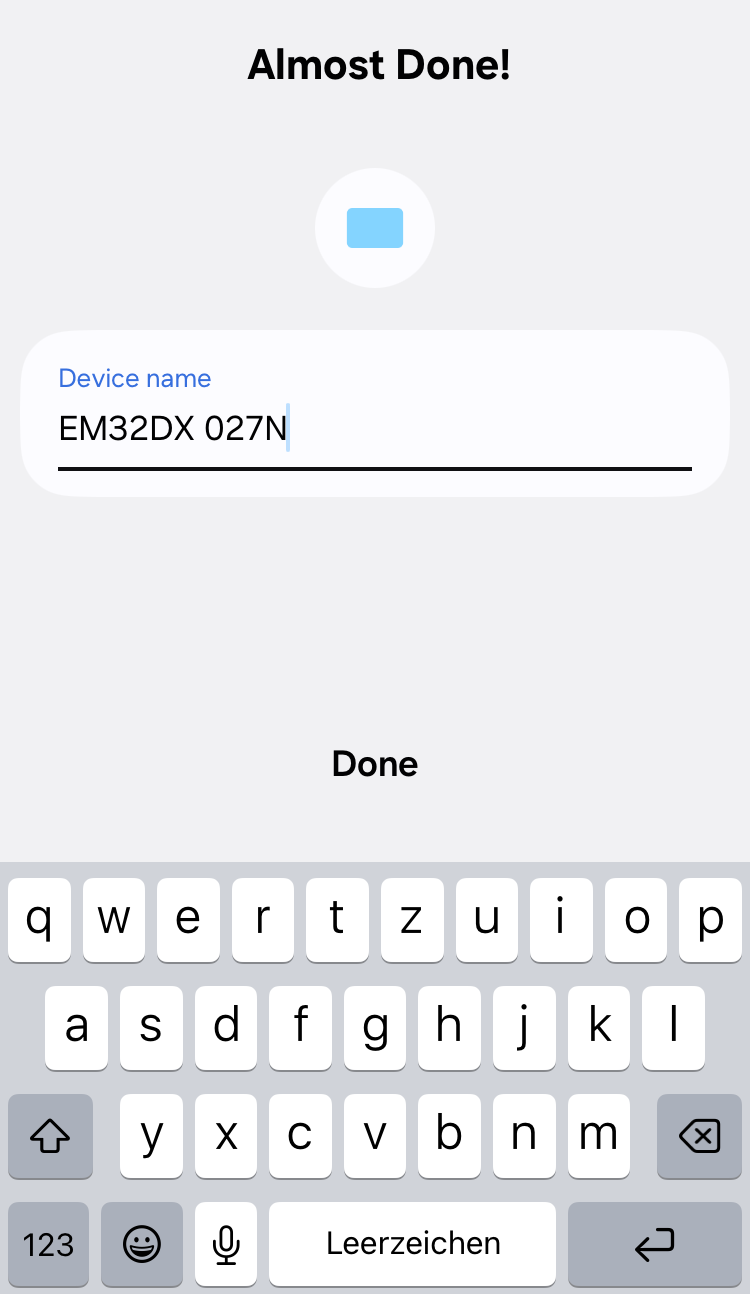
- Set a device name. This name will be used internally by the mobile app.
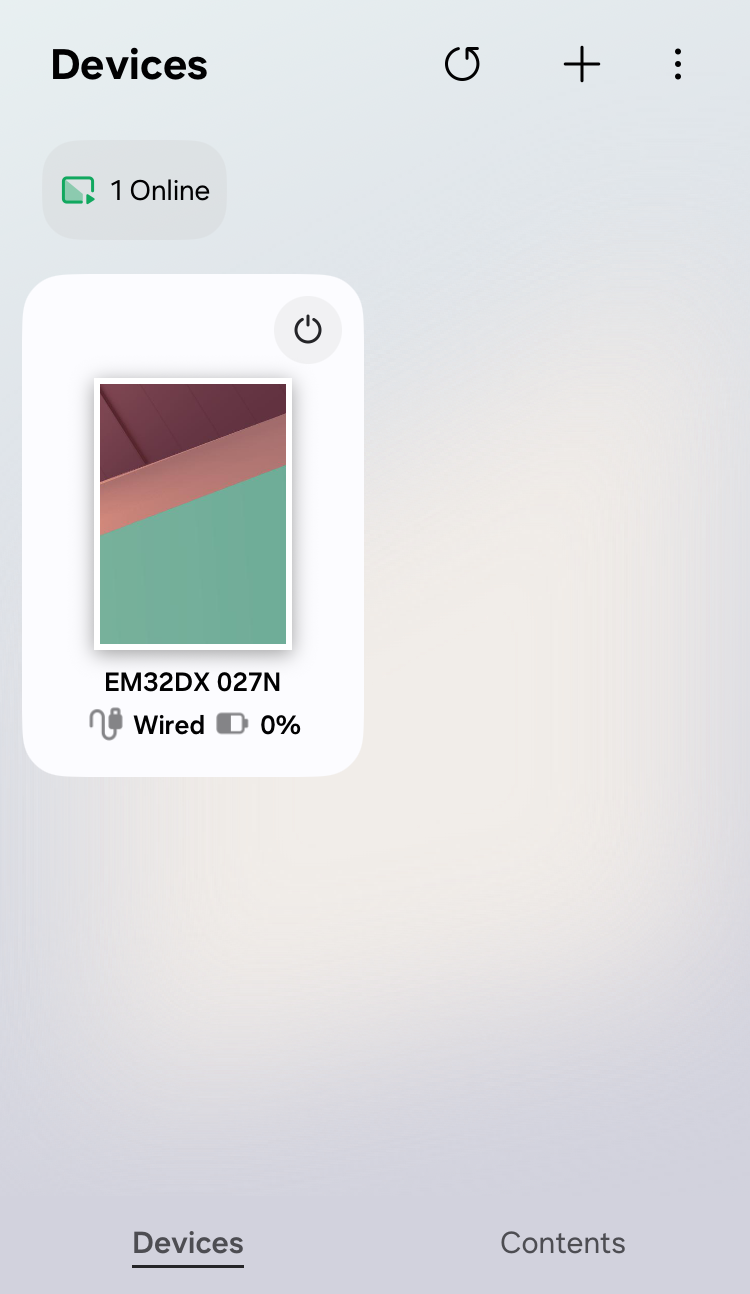
- Once set up, the e-paper will be visible in the app at the "Devices" screen.
- Open the newly added device and select "Content Source > Custom".
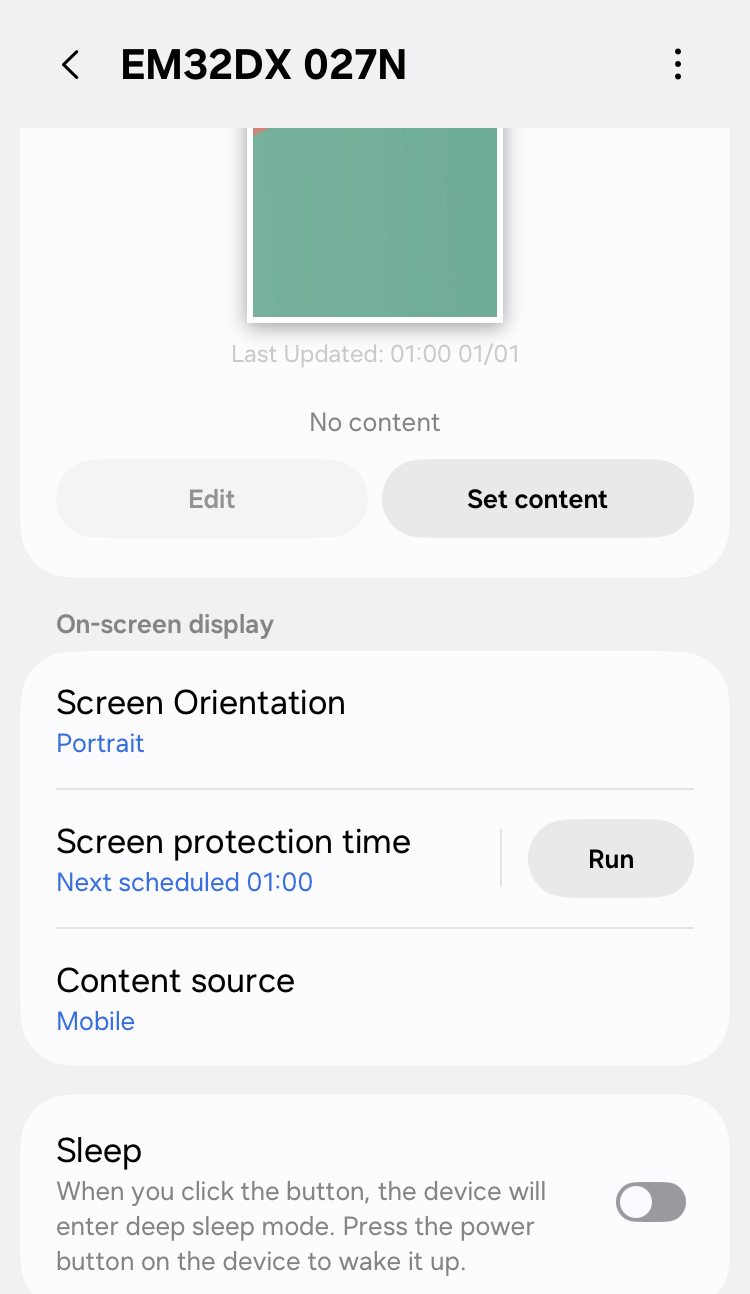
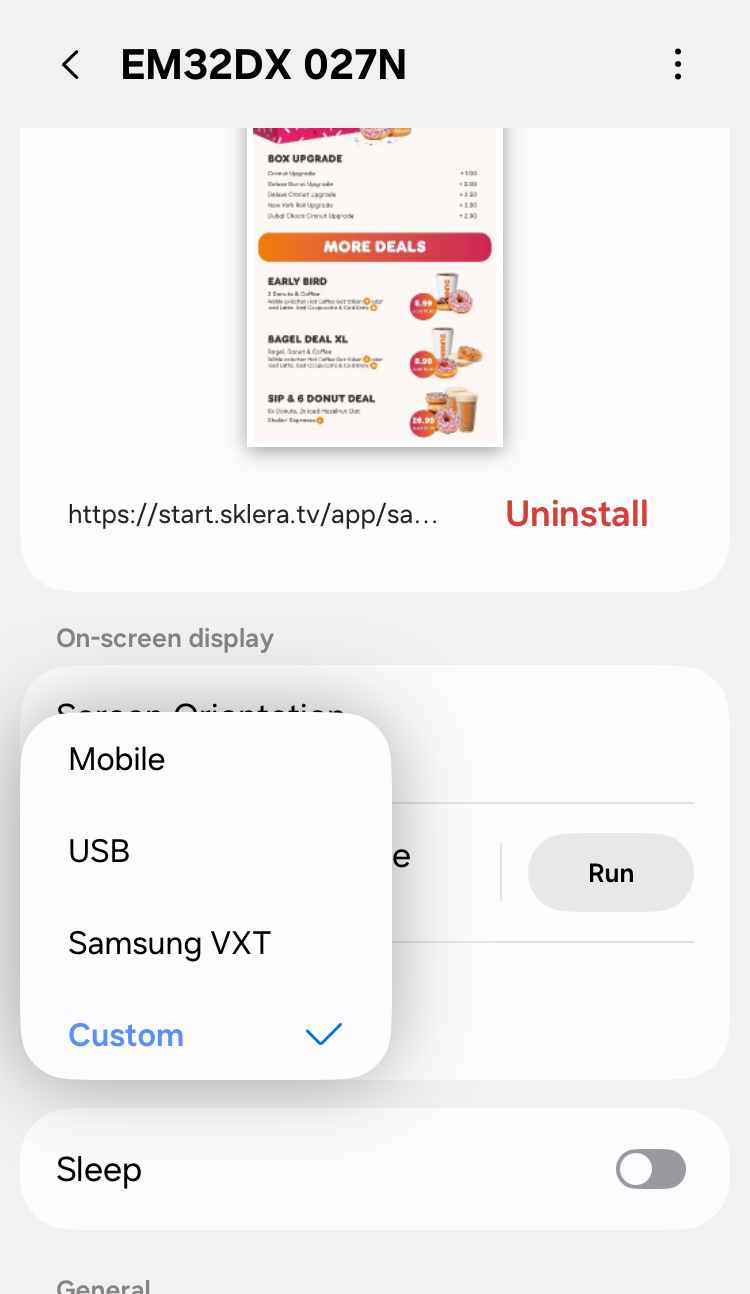
* If the option “Custom” is not available, please go to “Device Settings > Terms & Privacy” and accept the terms.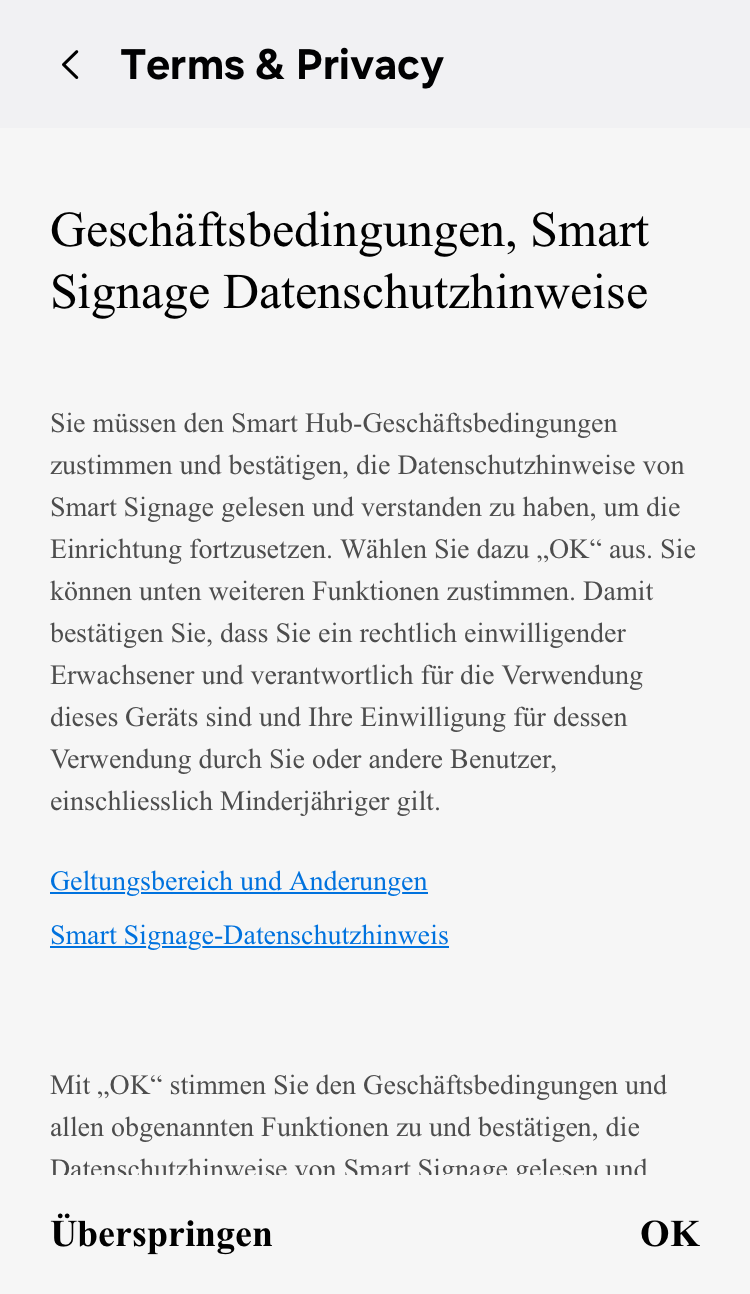
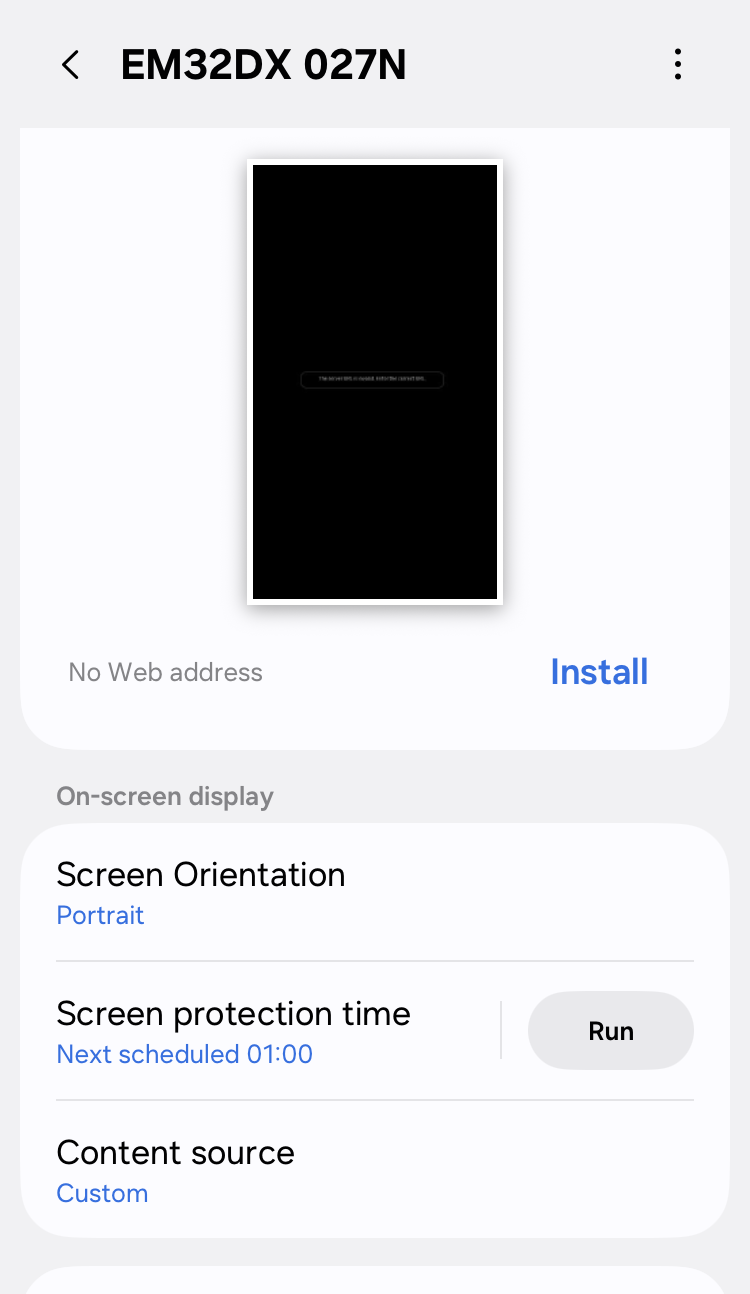
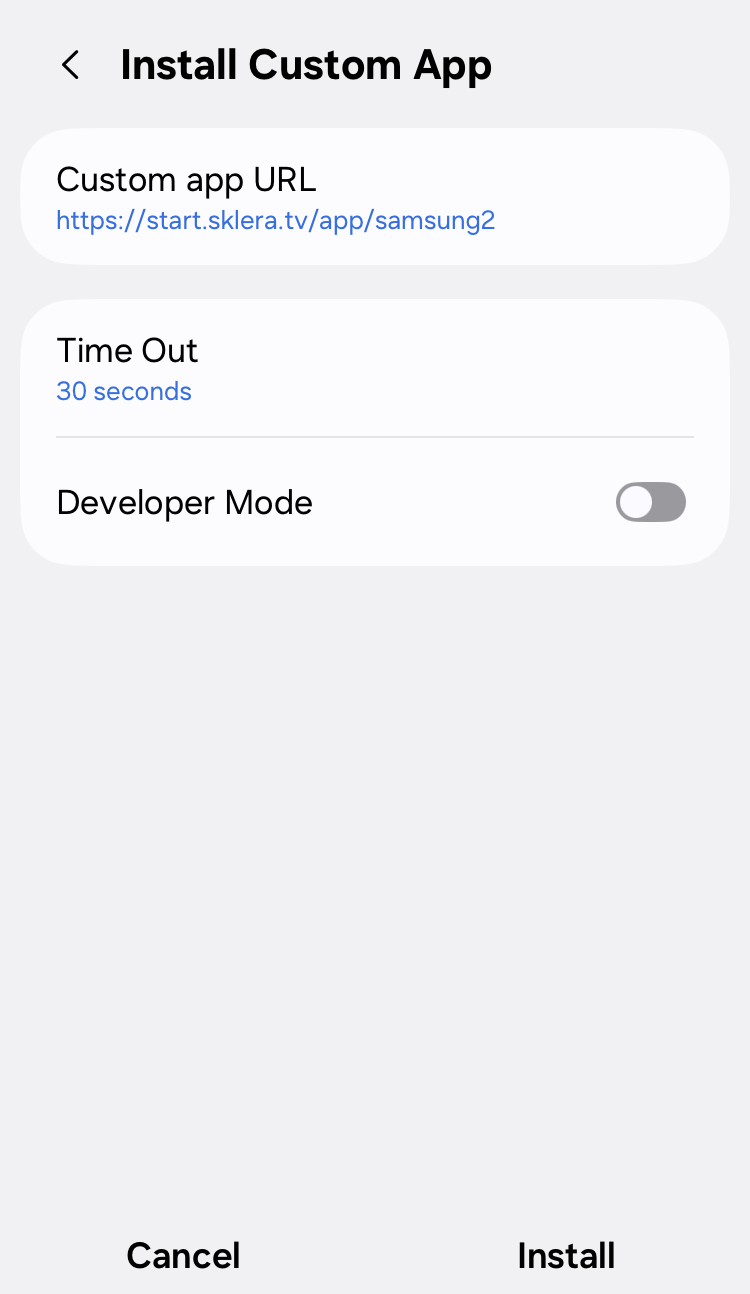
- Once the content source is set to "Custom", click the “Install"button under the preview of the device.
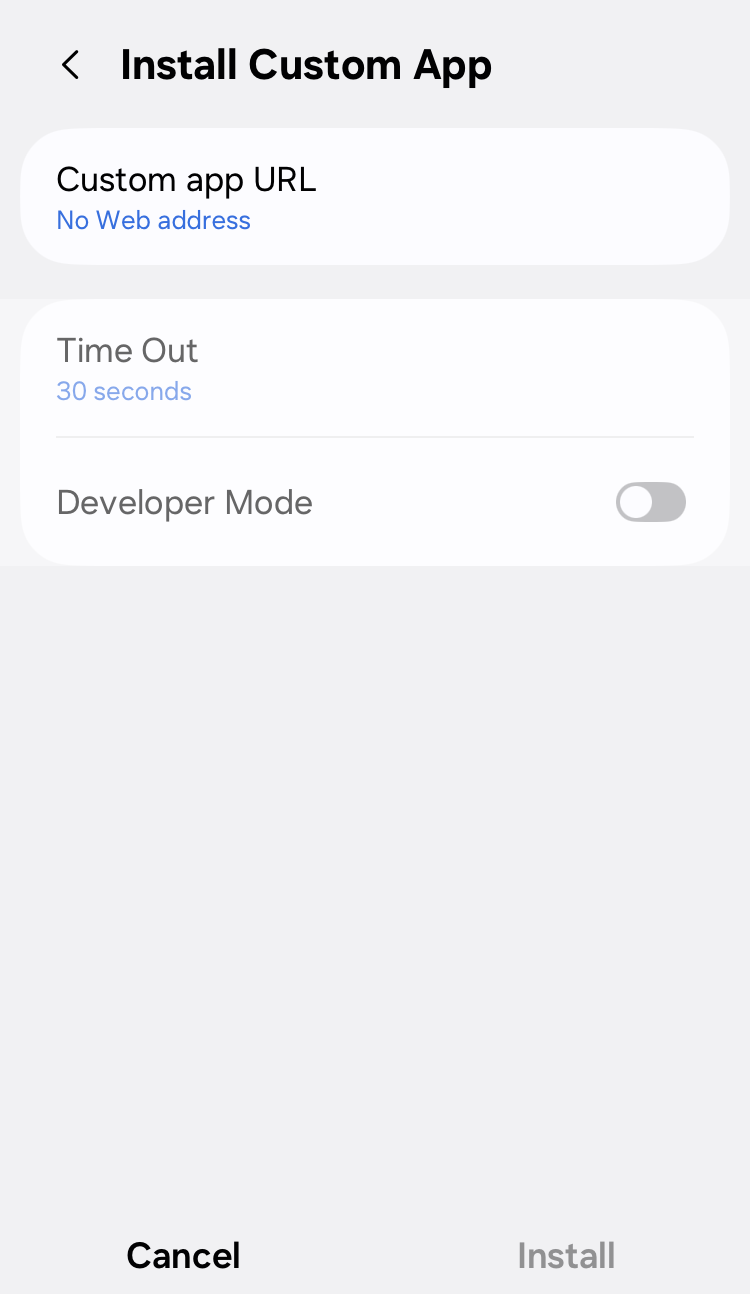
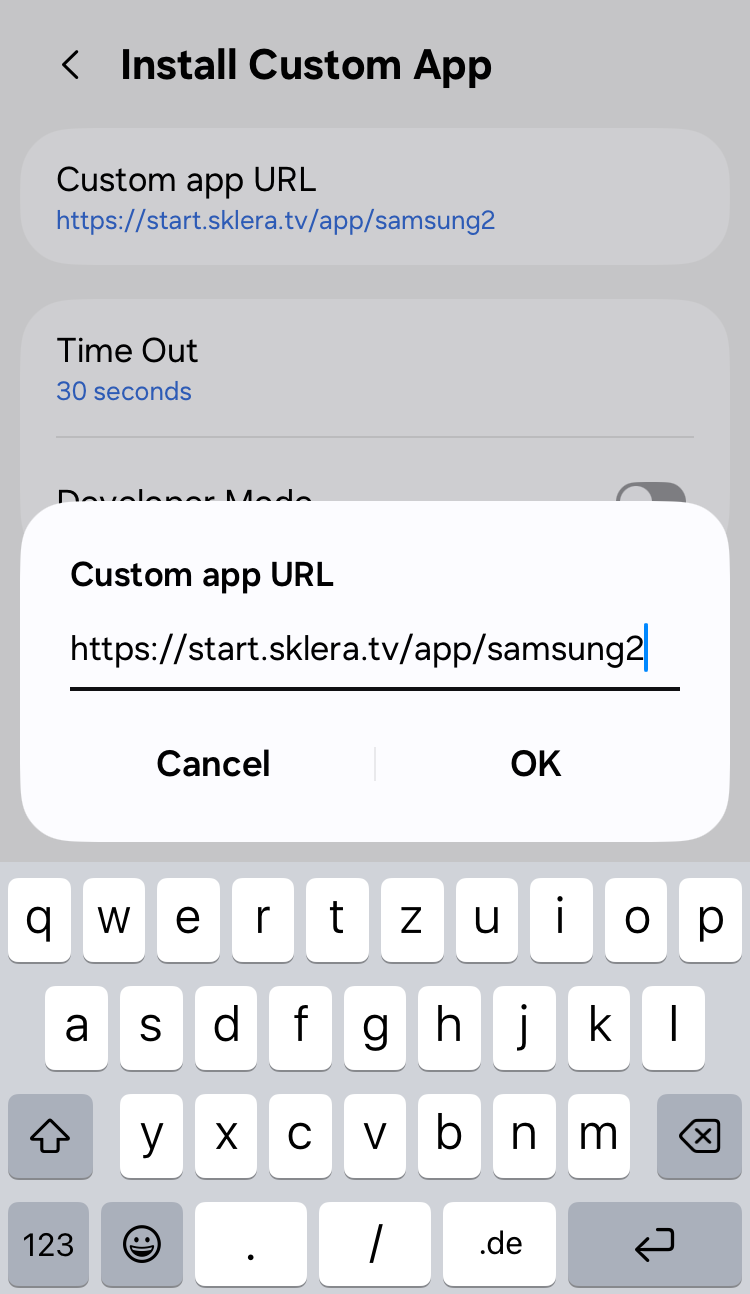
- Select option "Custom app URL", enter https://start.sklera.tv/app/samsung2, save it and press "Install".
4. Connecting to sklera CMS
After the sklera app has been installed, it starts automatically and will show a 4 digit pairing code.
Follow instructions on the display to add the screen to your channel using this pairing code.
4.1 Settings in sklera CMS regarding wake up times
To extend the device's operating time on battery power, we recommend keeping the device in Sleep mode (standby) most of the time.
In this mode, power consumption is reduced. However, the device is offline during this time, and immediate content updates via the sklera CMS are not possible.
To restore the connection with the sklera CMS and receive updates, the device must be woken up.
This can be achieved using one of the following methods:
- Via programmed wake-up times.
- Using the mobile App.
- By pressing the physical button "ON" on the device.
We recommend to enable power saving mode (Deep Sleep). In this mode device power consumption is decreased to minimal.
Wake-up times, as well as other device-related settings, can be set up the sklera CMS in screen settings ("Screen > Edit screen > Settings").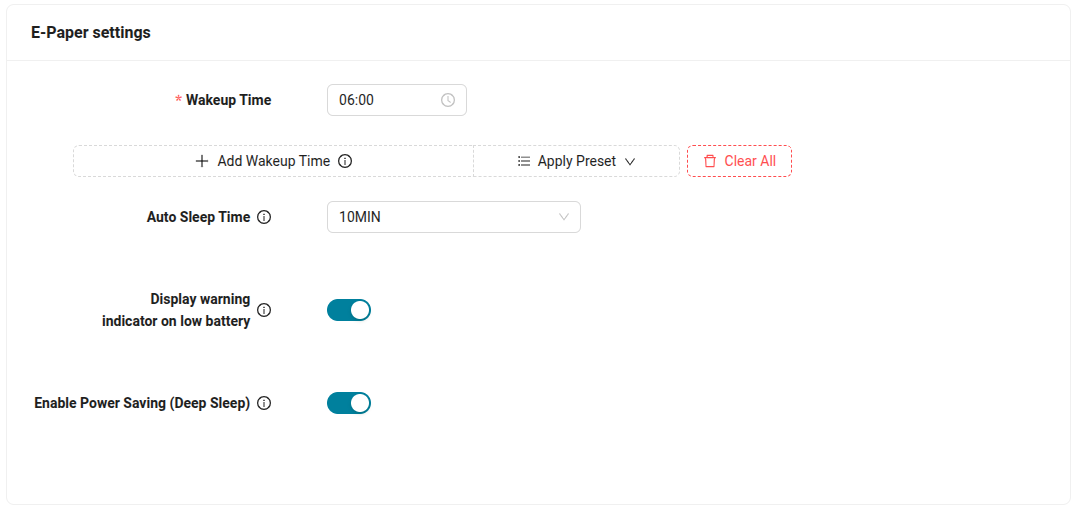
| Setting | Description |
| Wakeup Time | A daily list of the times (hours and minutes) when the device has to "wake up" from standby mode. We recommend to set one wake-up time per day in order to keep the system up to date. |
| Auto Sleep Time | The amount of time after which the device switches into standby mode (e.g. 10 minutes). |
| Display warning indicator on low battery | Specifies whether an indicator is displayed on the device when the battery level is low. |
| Enable Power Saving (Deep Sleep) | Enable power saving mode (Deep Sleep). |
5. Configuring device with a preset config file
The device can be set up without a phone app using a configuration preset file. This approach is particularly useful for quick setting up of multiple devices.
The option is available for E-Paper devices with firmware version 1090.4 and higher.
To get more details, contact the manufacturer.