For Sony devices, we provide a customized version of the sklera Android app.
Prerequisites
- Firmware-Version 6.8112 oder newer.
- Sony Bravia model with support for "Pro mode".
Current models BZL-Serie BZ30L / BZ35L / BZ40L / BZ50L / BZ53L BZJ-Serie BZ30J (only 32") EOL models BZJ-Serie BZ30J (other than 32") / BZ35J / BZ40J BZH-Serie BZ40H
Installation
Create installation medium
- Download the latest version of the sklera Player APK file using the following link:
https://start.sklera.tv/app/android7/download - Copy the downloaded APK file to a USB drive.
Switch to "Pro settings mode"
In Pro settings mode, you configure the settings for Pro mode, in which the sklera Player app will be running.
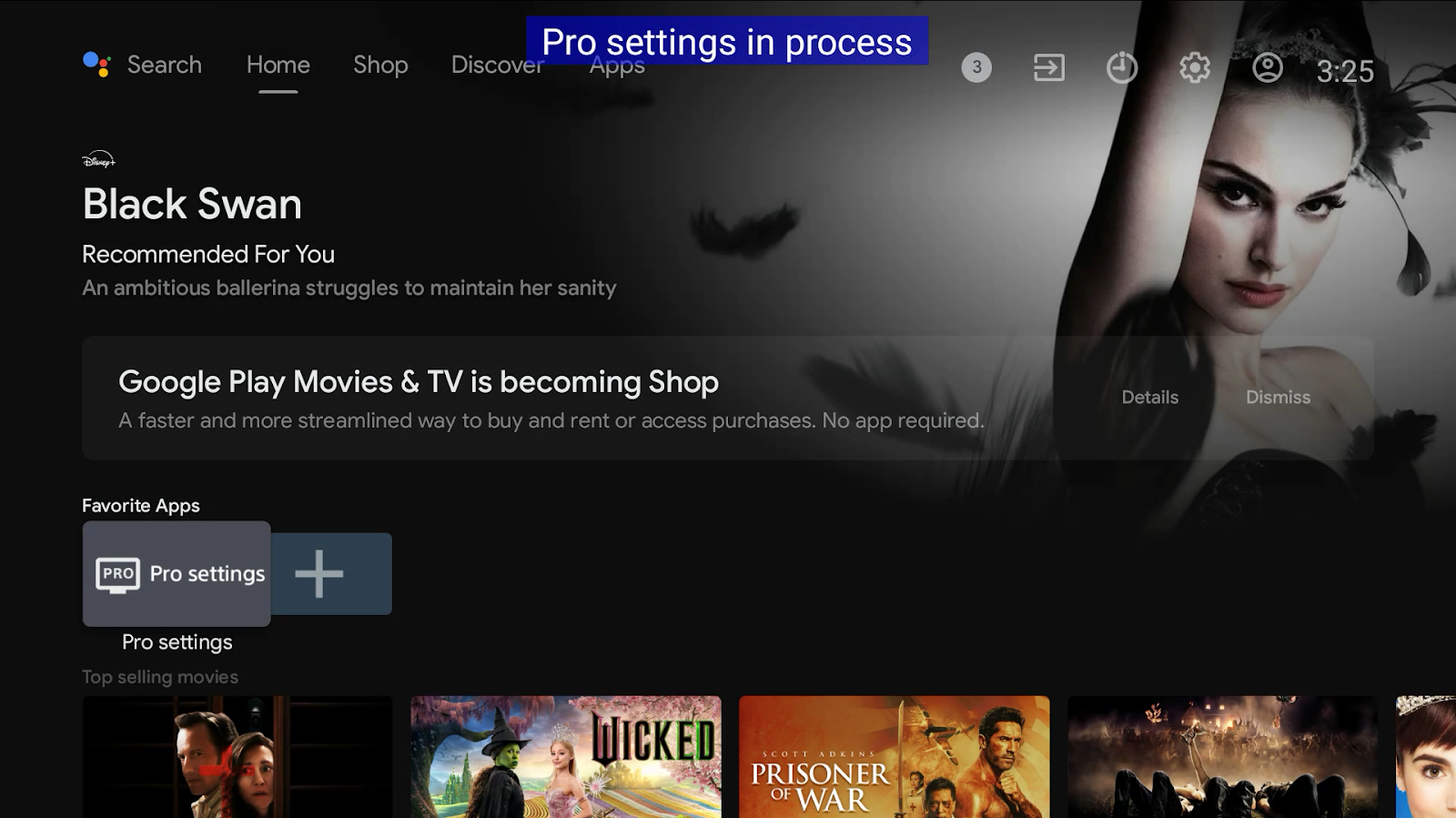
- Open the "Pro Settings" app by navigating to Apps > Pro Settings.
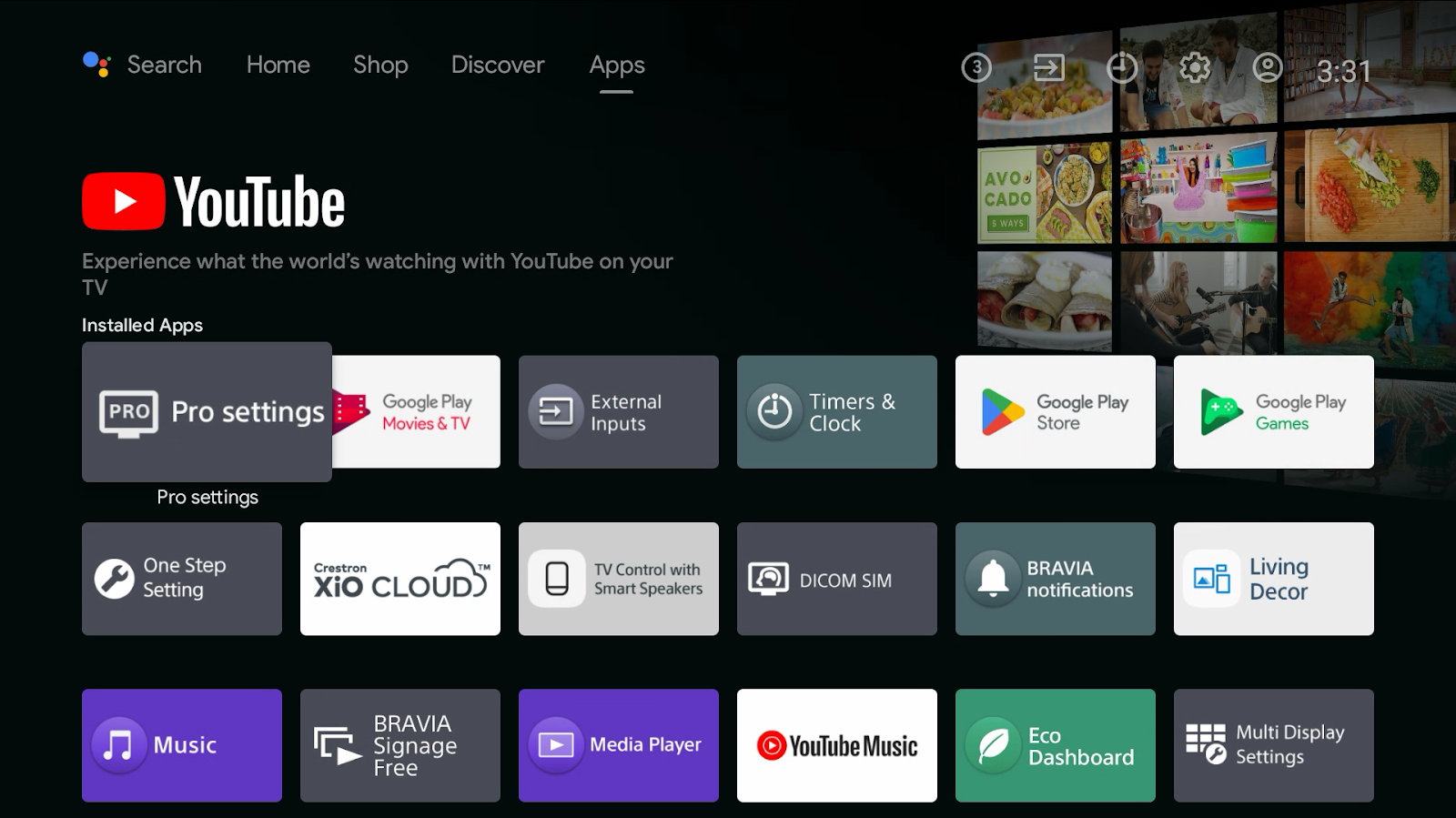
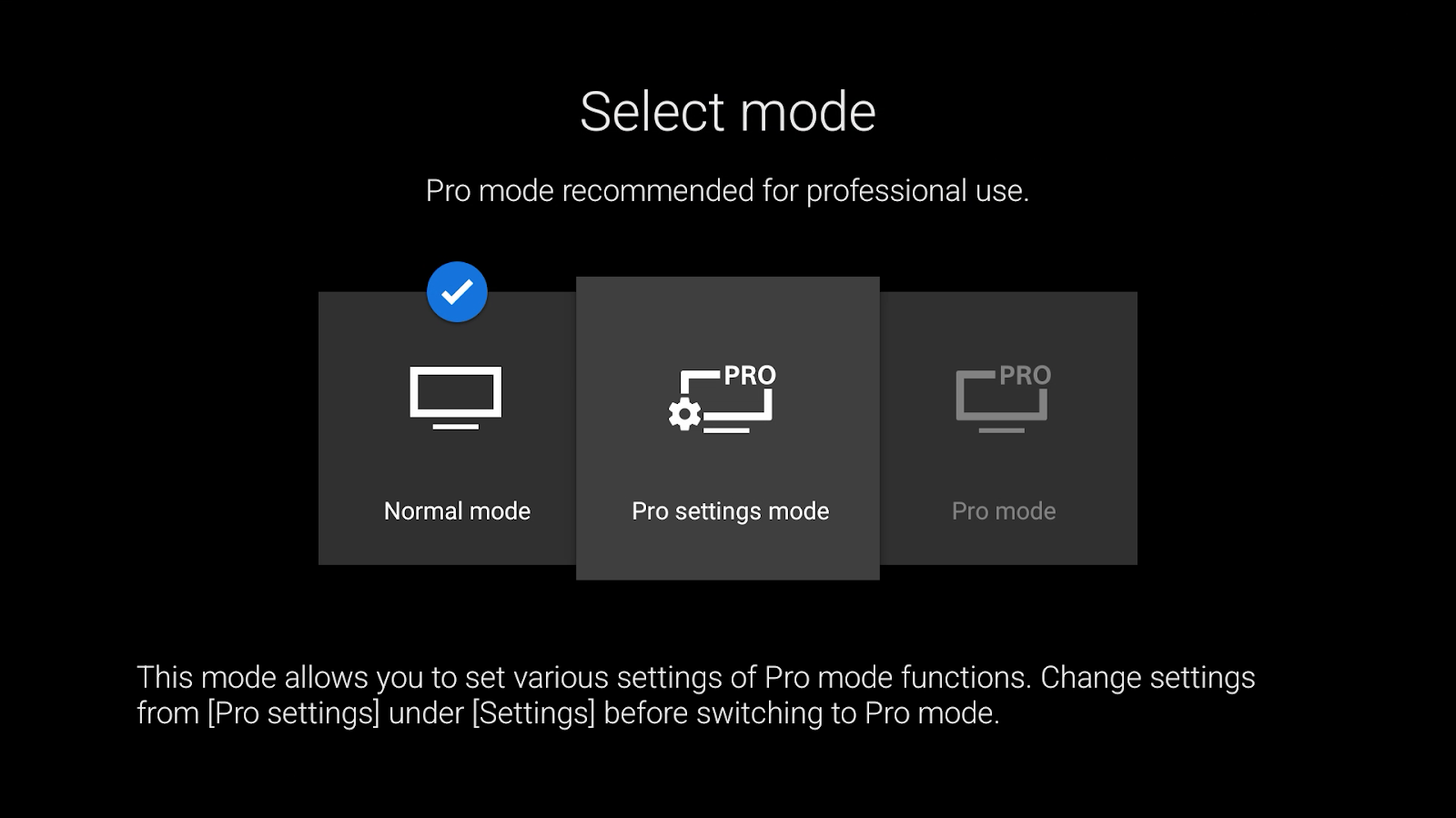
- Select Pro settings mode.
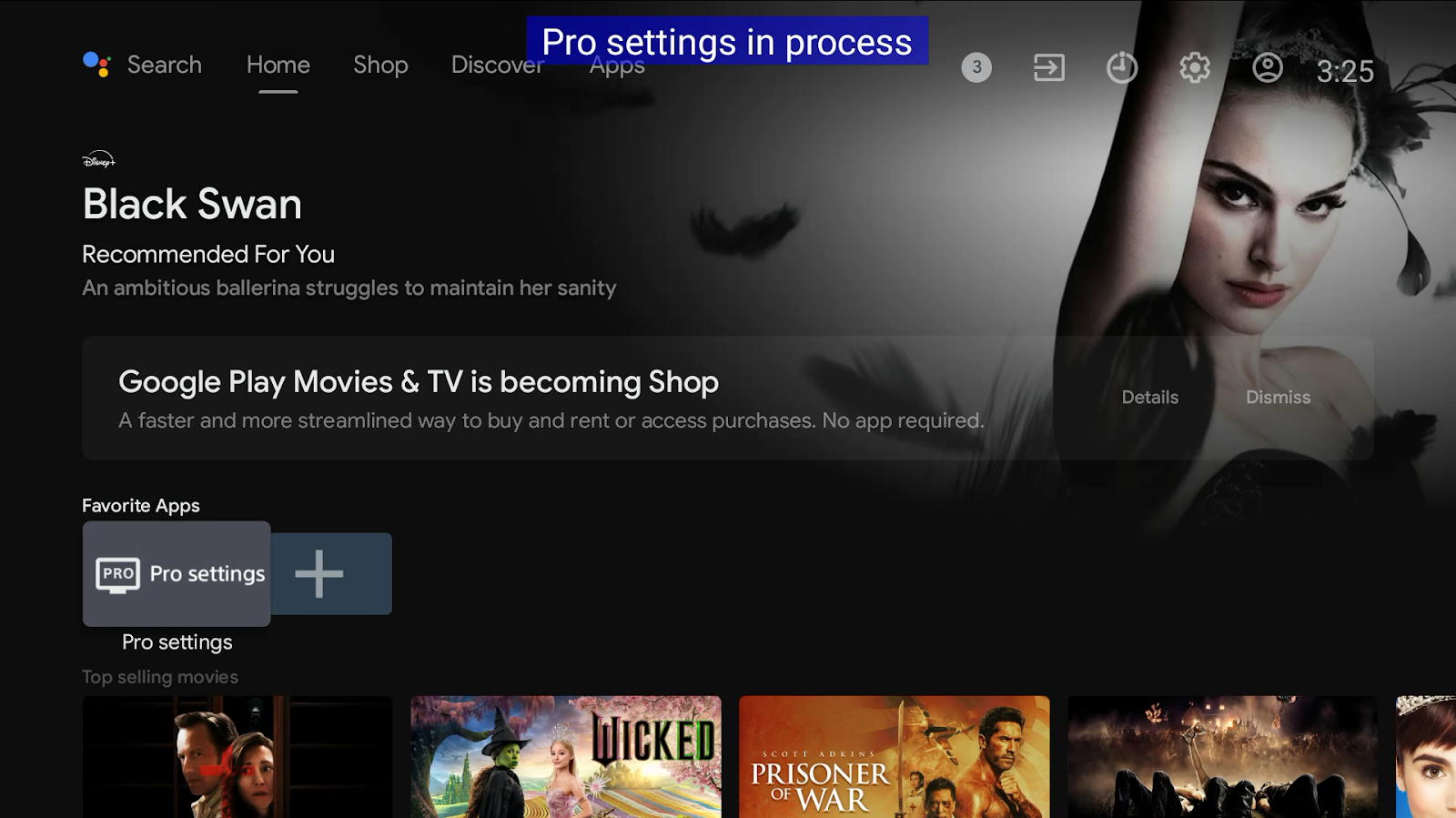
- After switching modes, a banner will appear indicating that Pro settings mode is active.
Note: You can also put the device into Pro settings mode by entering the following sequence on the remote: Info > Mute > Volume Up > Home.
Settings in the "Pro settings" app
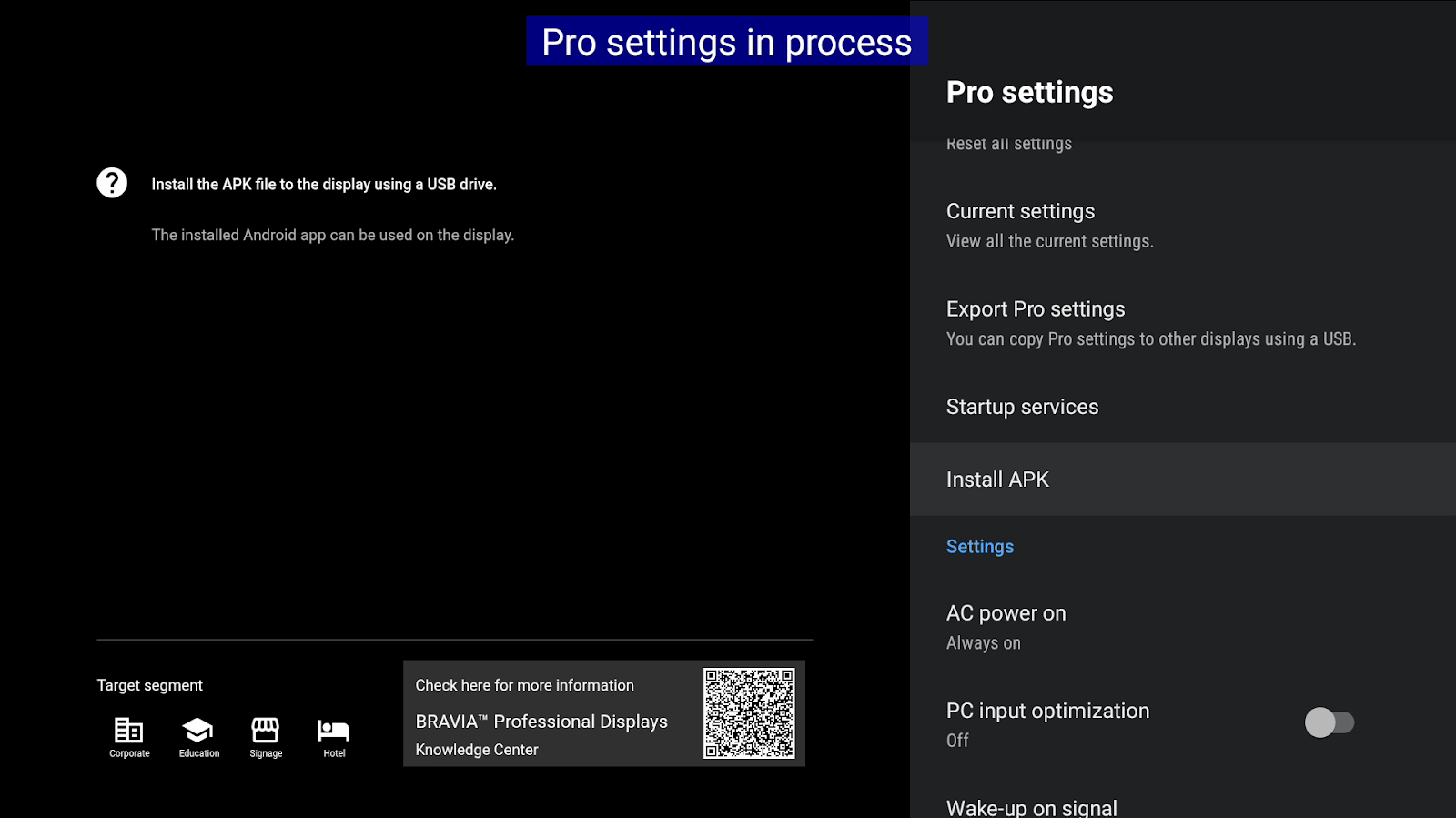
- Connect the USB drive to the Sony device.
- Open the Pro settings app again.
- Select Install APK
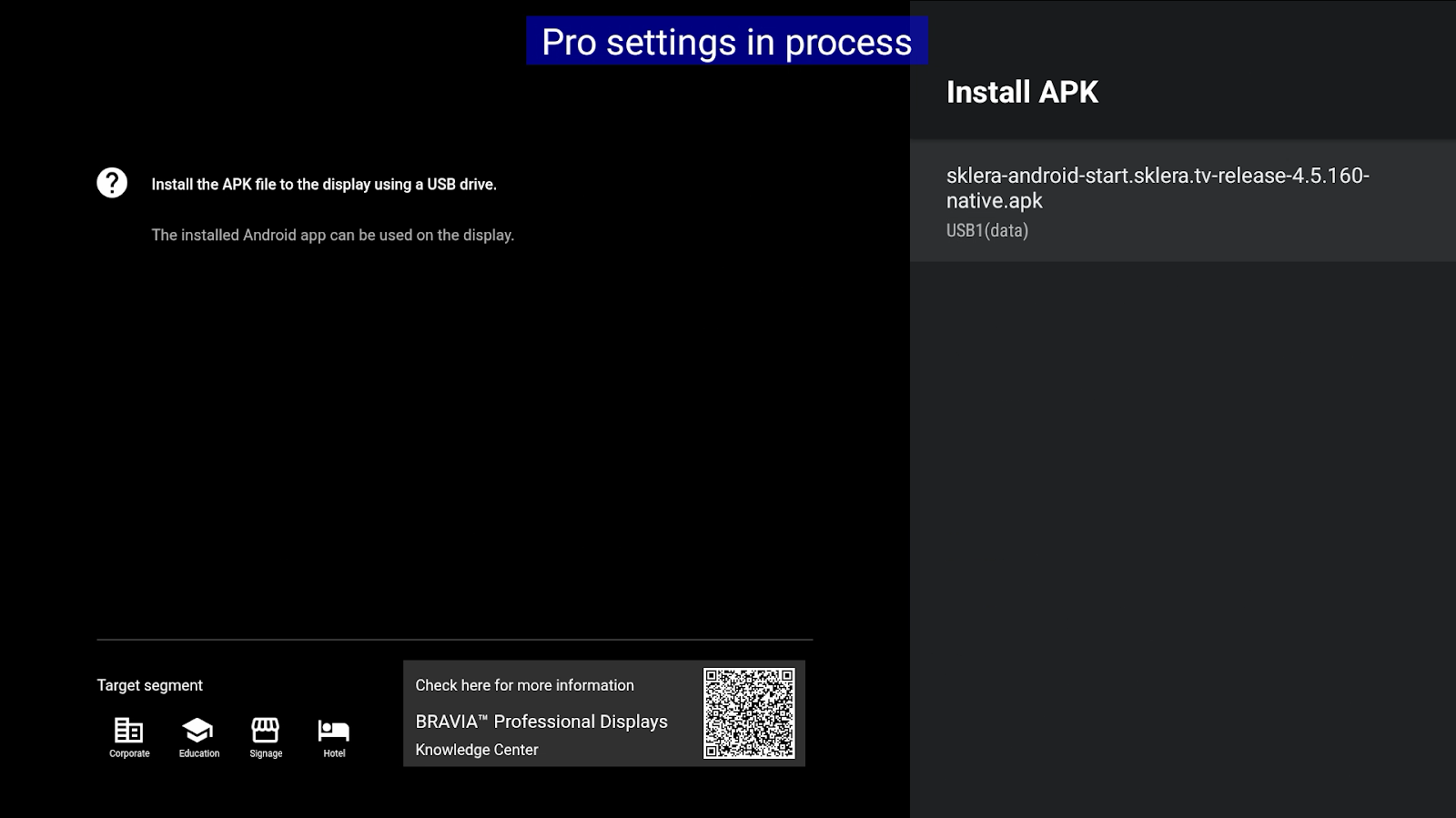
- Choose the APK file on the USB drive.
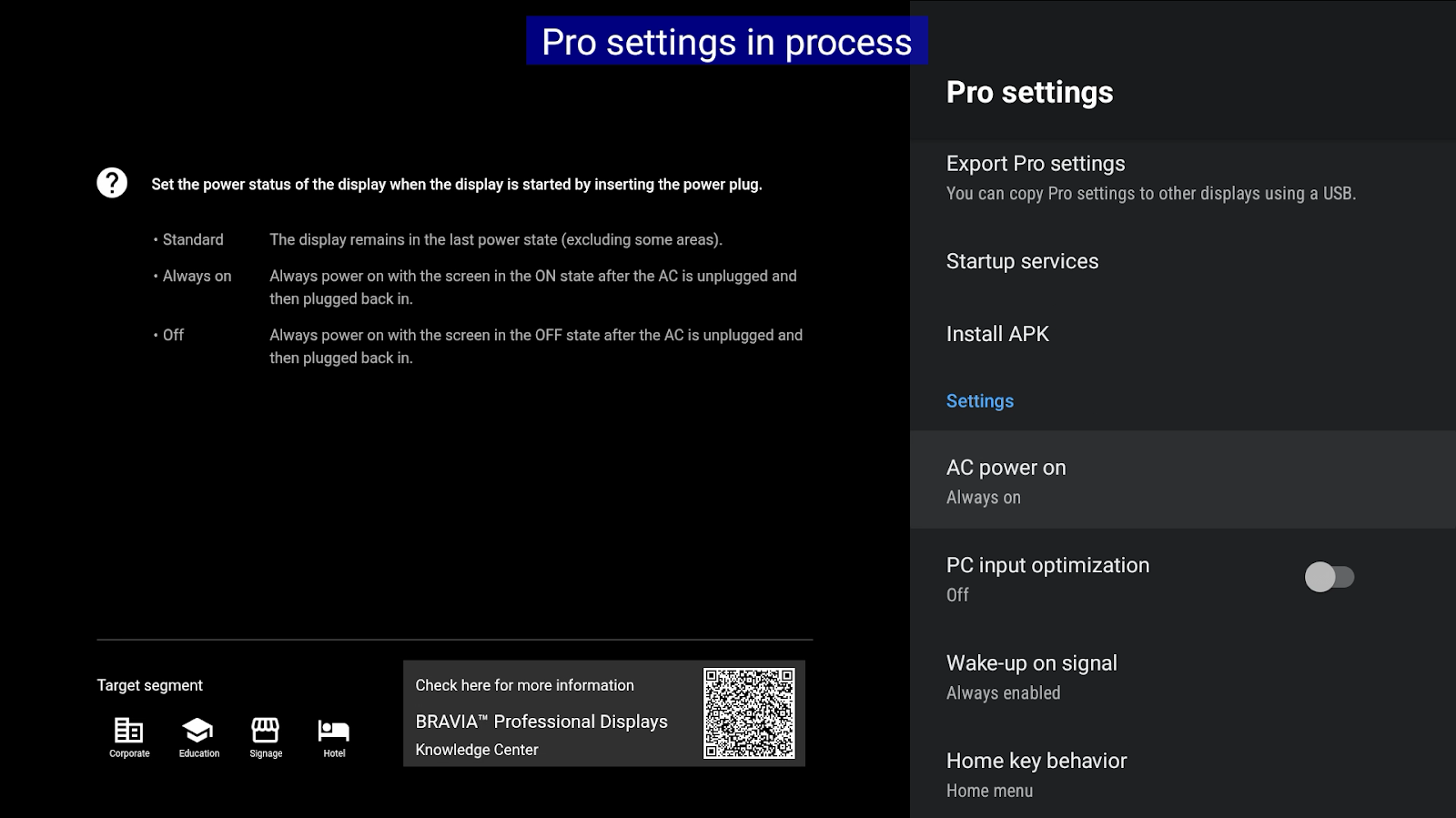
- Set AC power on to Always on.
- (Optional recommended)
Enable Pro mode lock and set a PIN code to prevent unauthorized users from exiting "Pro mode".
- To ensure the sklera app starts automatically after a system reboot, configure it as follows:
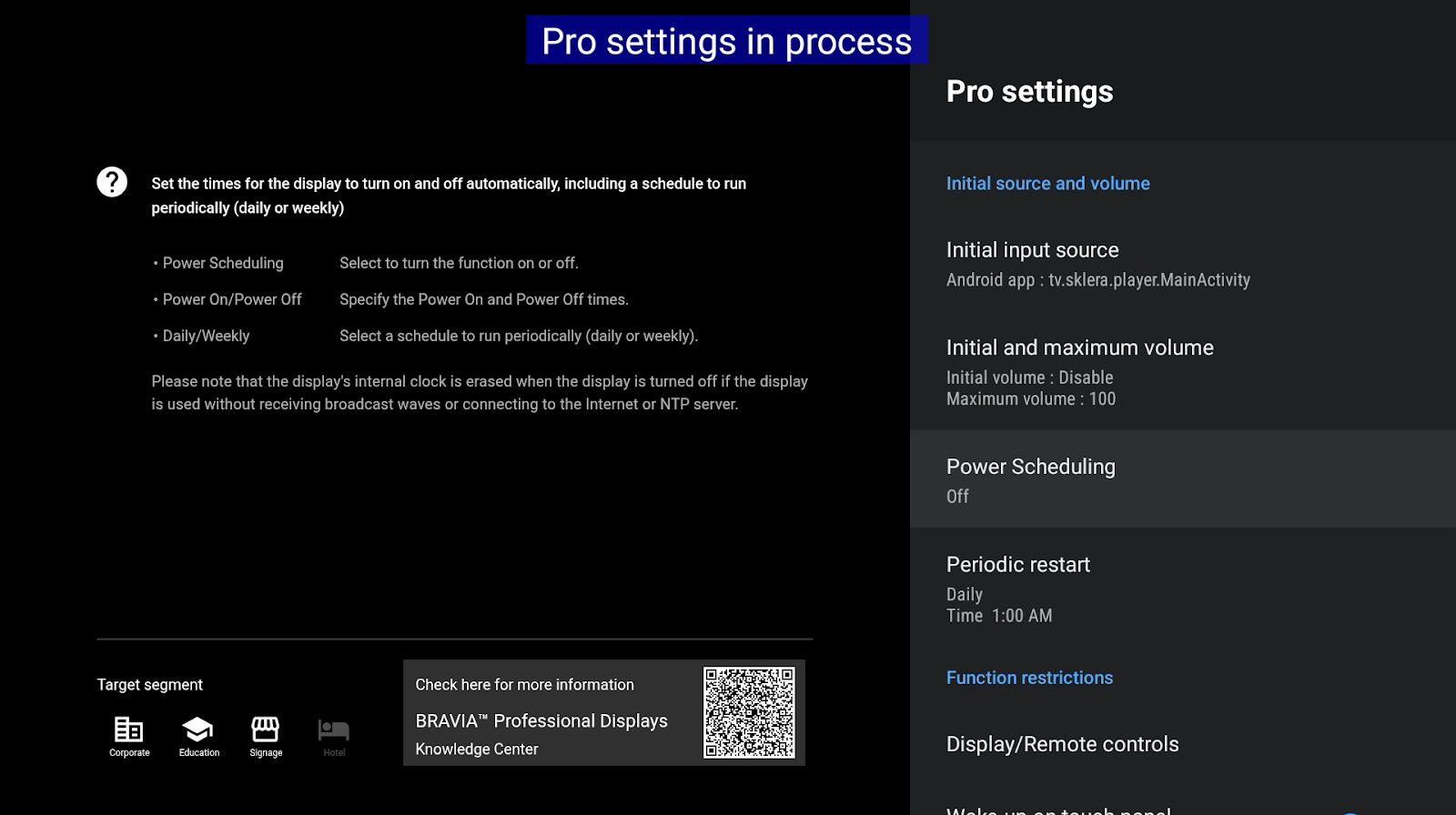
Select the menu item Initial Input Source.
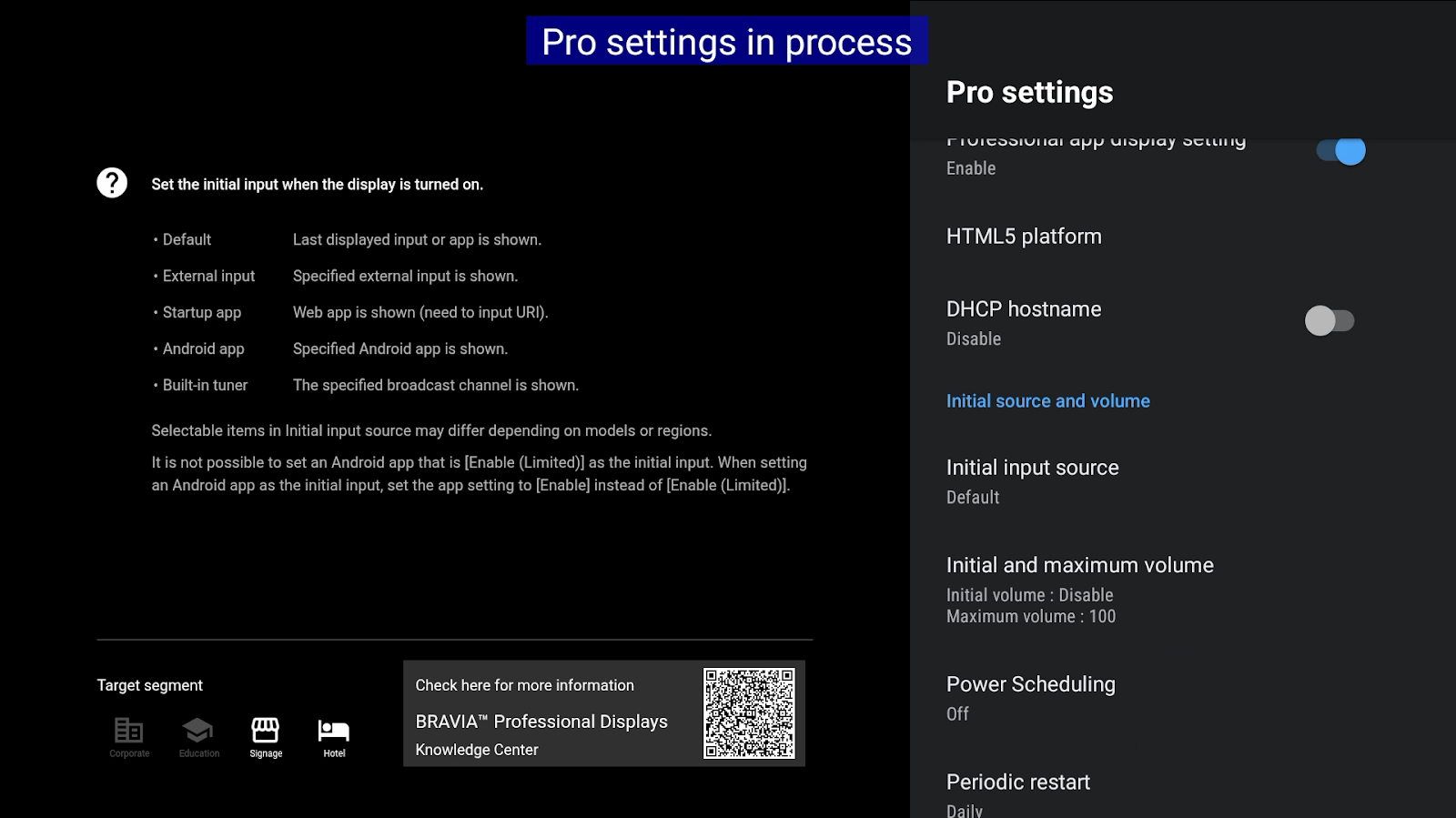
- Select Android app.
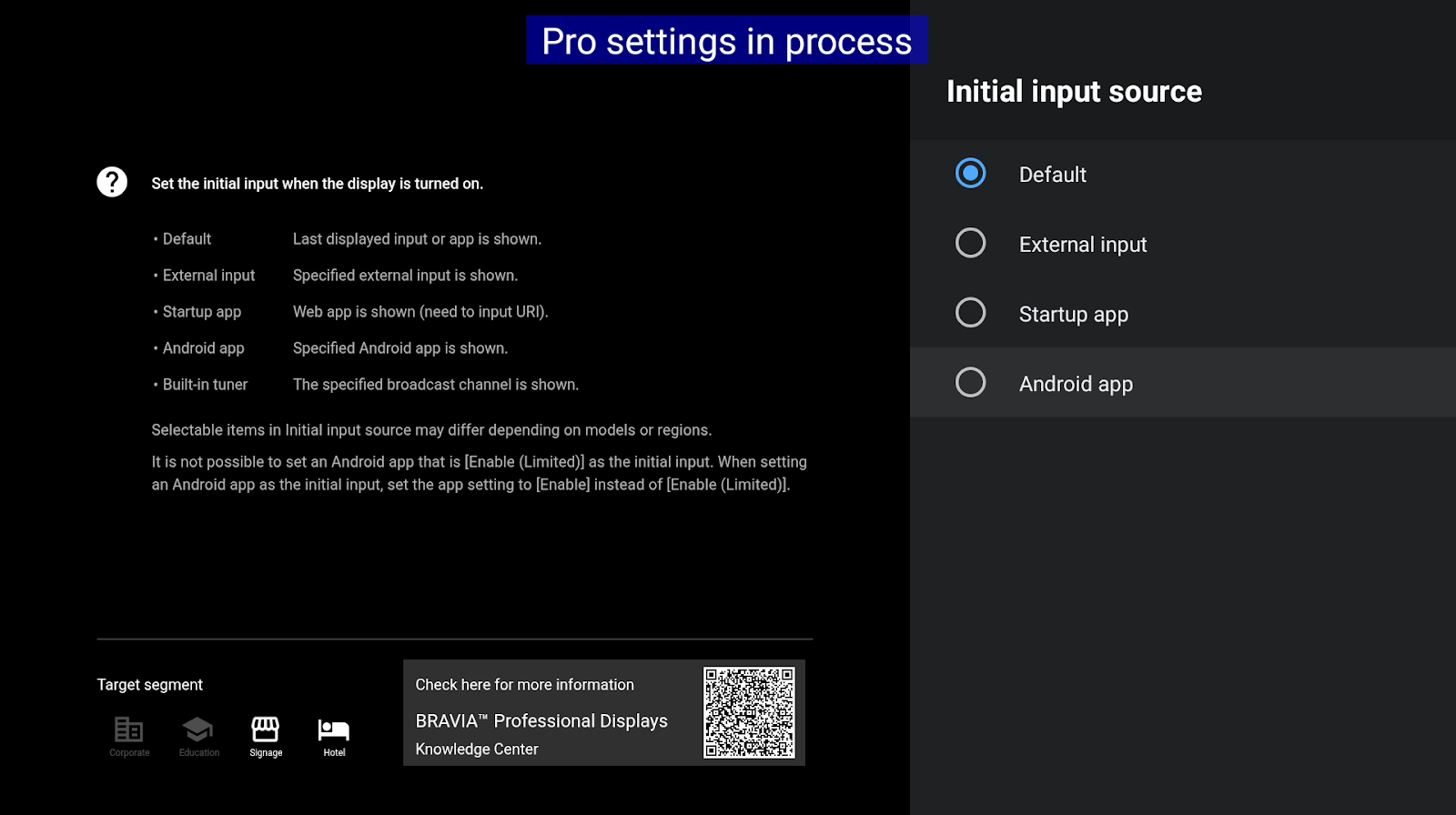
- After choosing this option, a new window will be opened. In this window click on the APPS button (at the top).
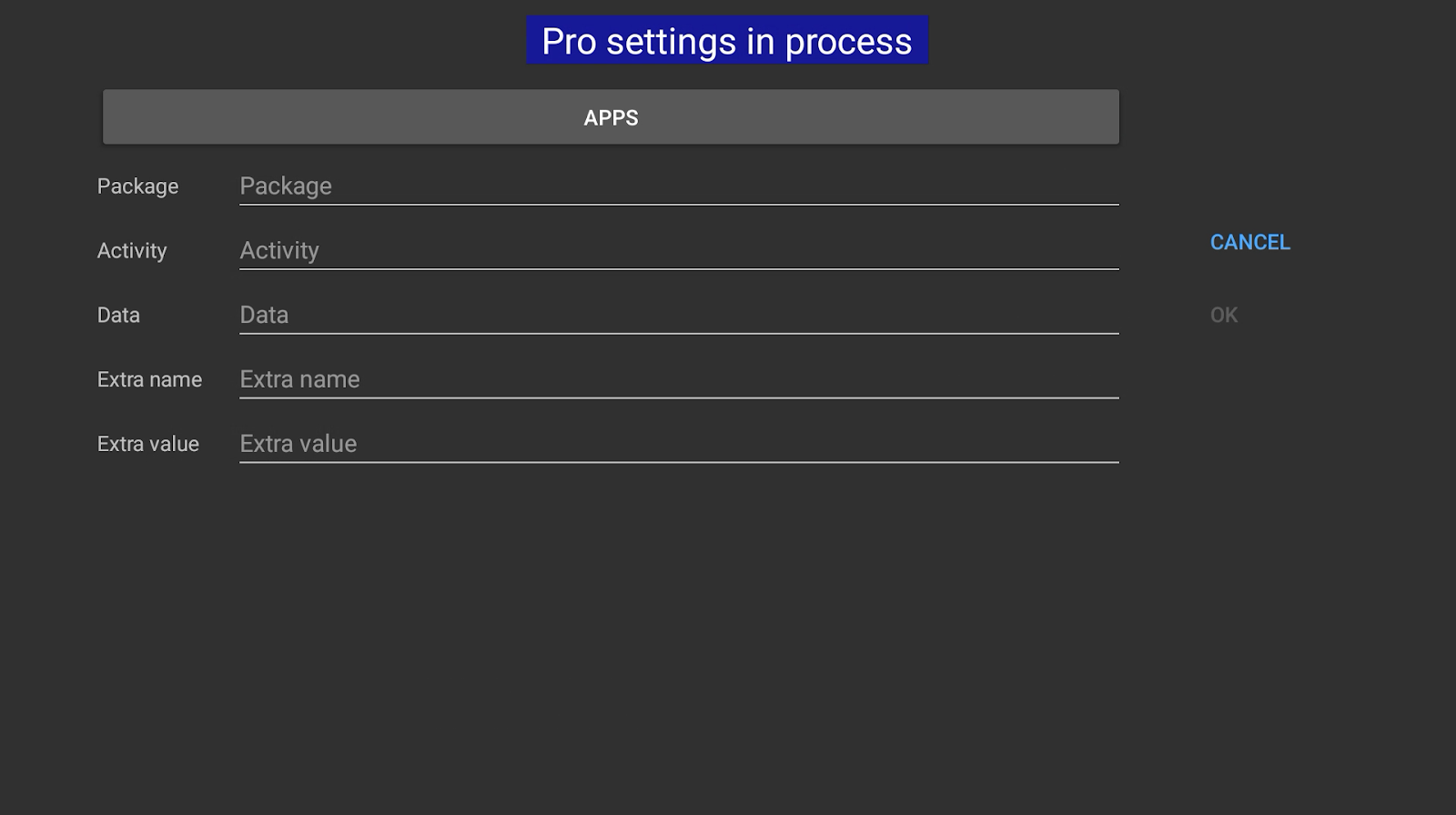
- In the following app picker, select sklera.
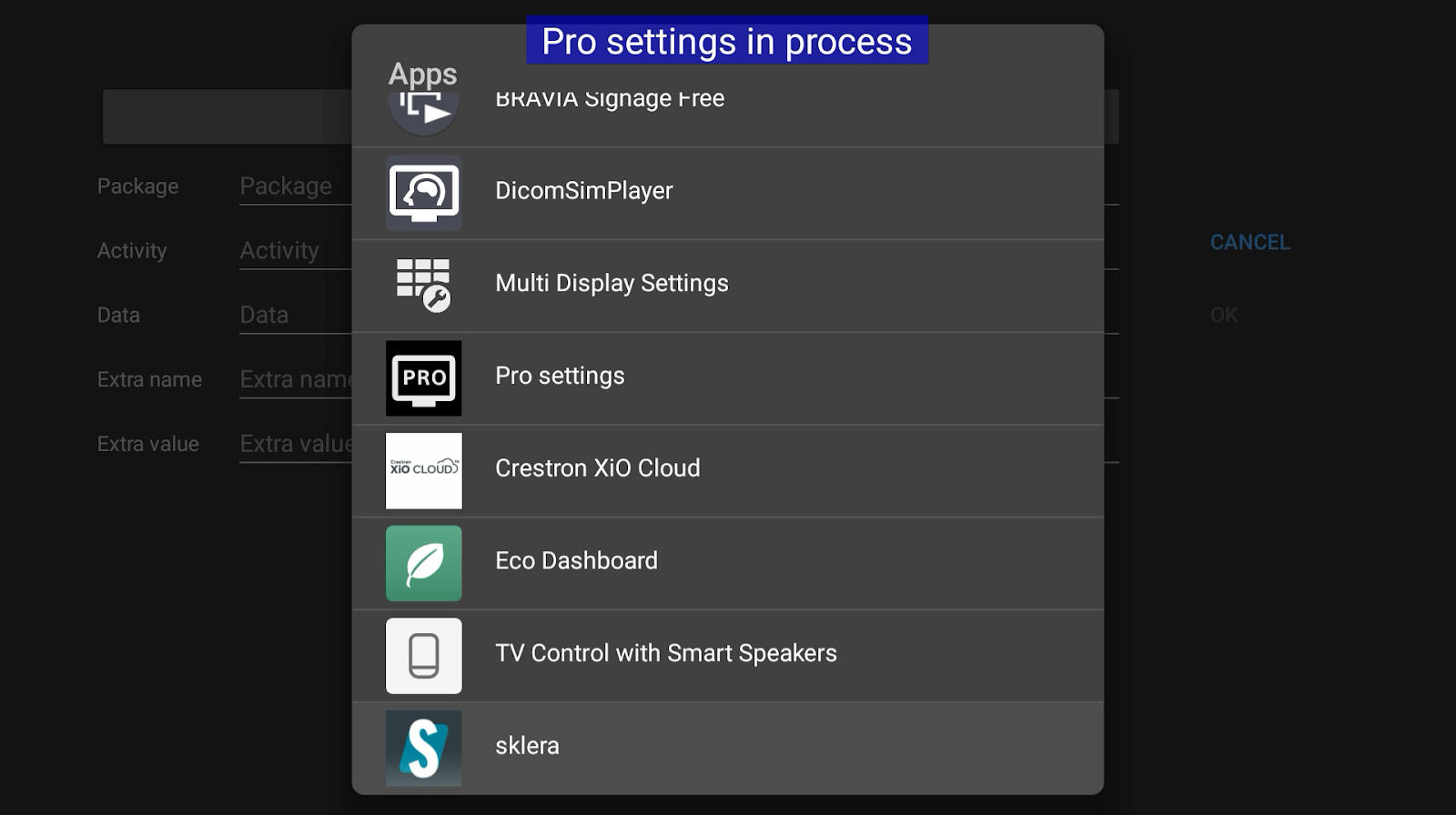
- After picking the app, text fields should be auto-filled.
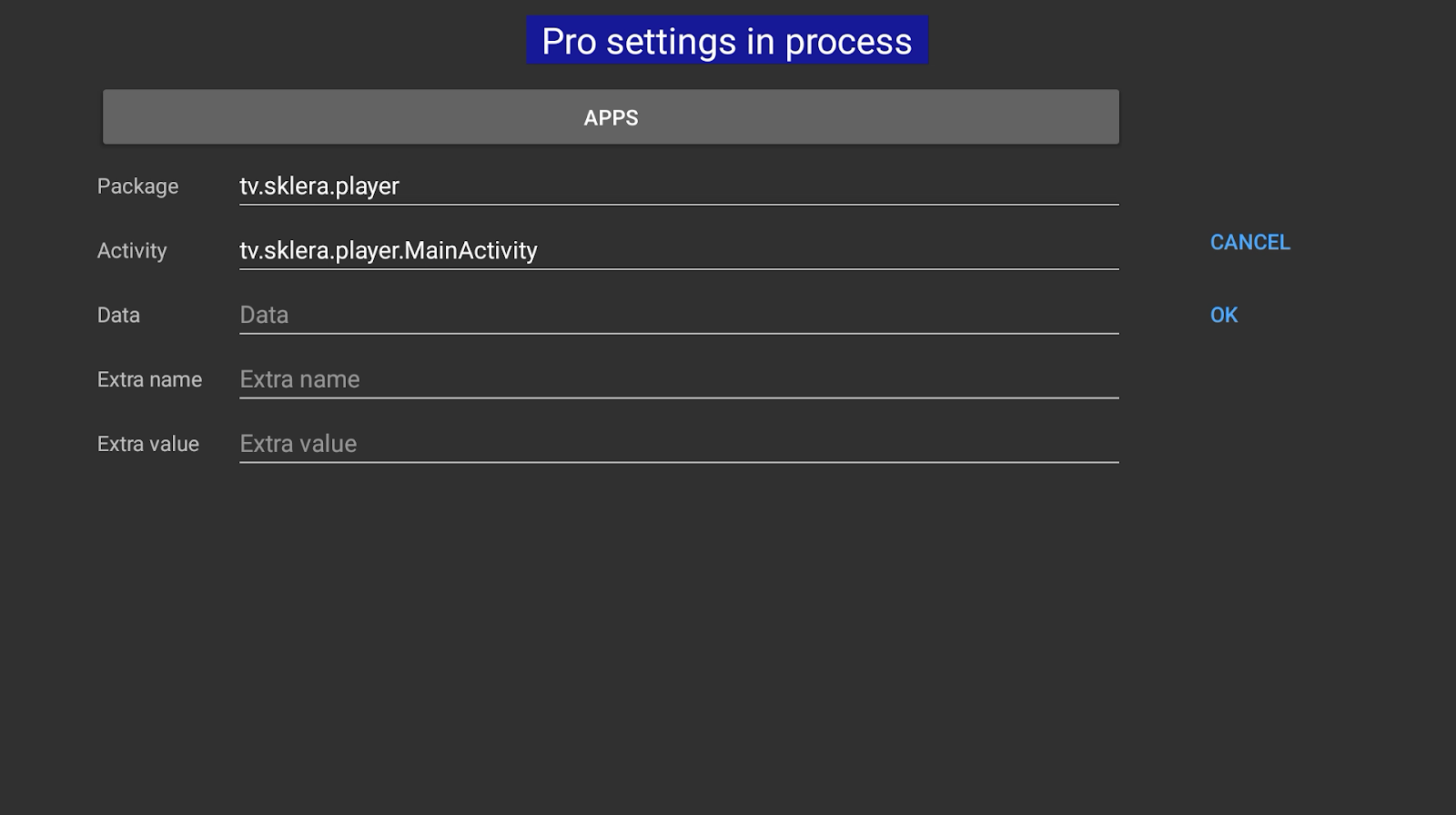
- Click OK
- Ensure that Power Scheduling is set to Off.
Additionally, it is recommended to set a daily restart via the Periodic restart menu item.
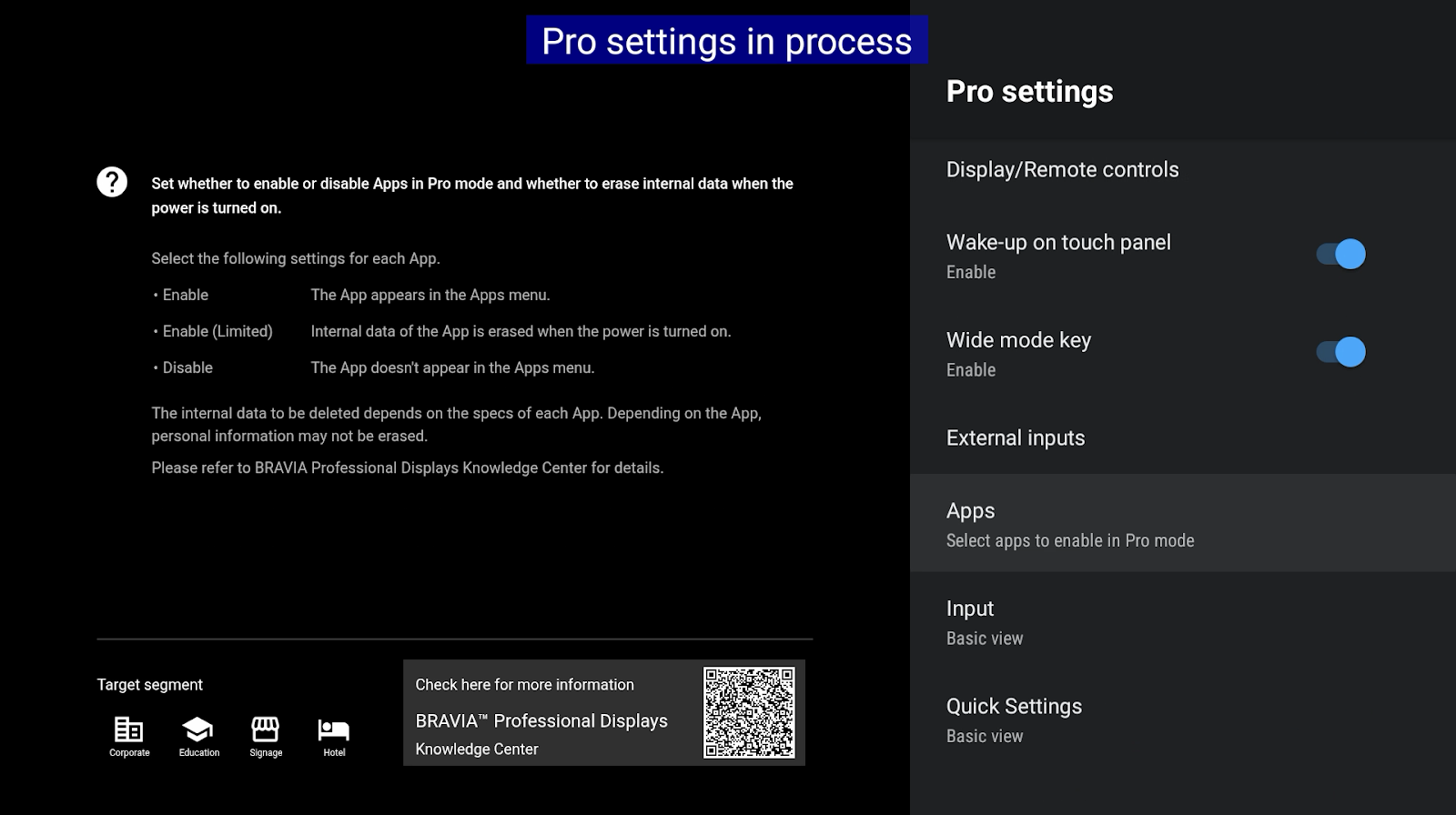
- The sklera app requires permission to run in "Pro Mode".
To allow this, open the Apps menu item, choose the sklera app from the submenu and select the Enable option.
- Exit the Pro settings app using the EXIT button on the remote control.
Additional settings
- Go to Android TV Settings.
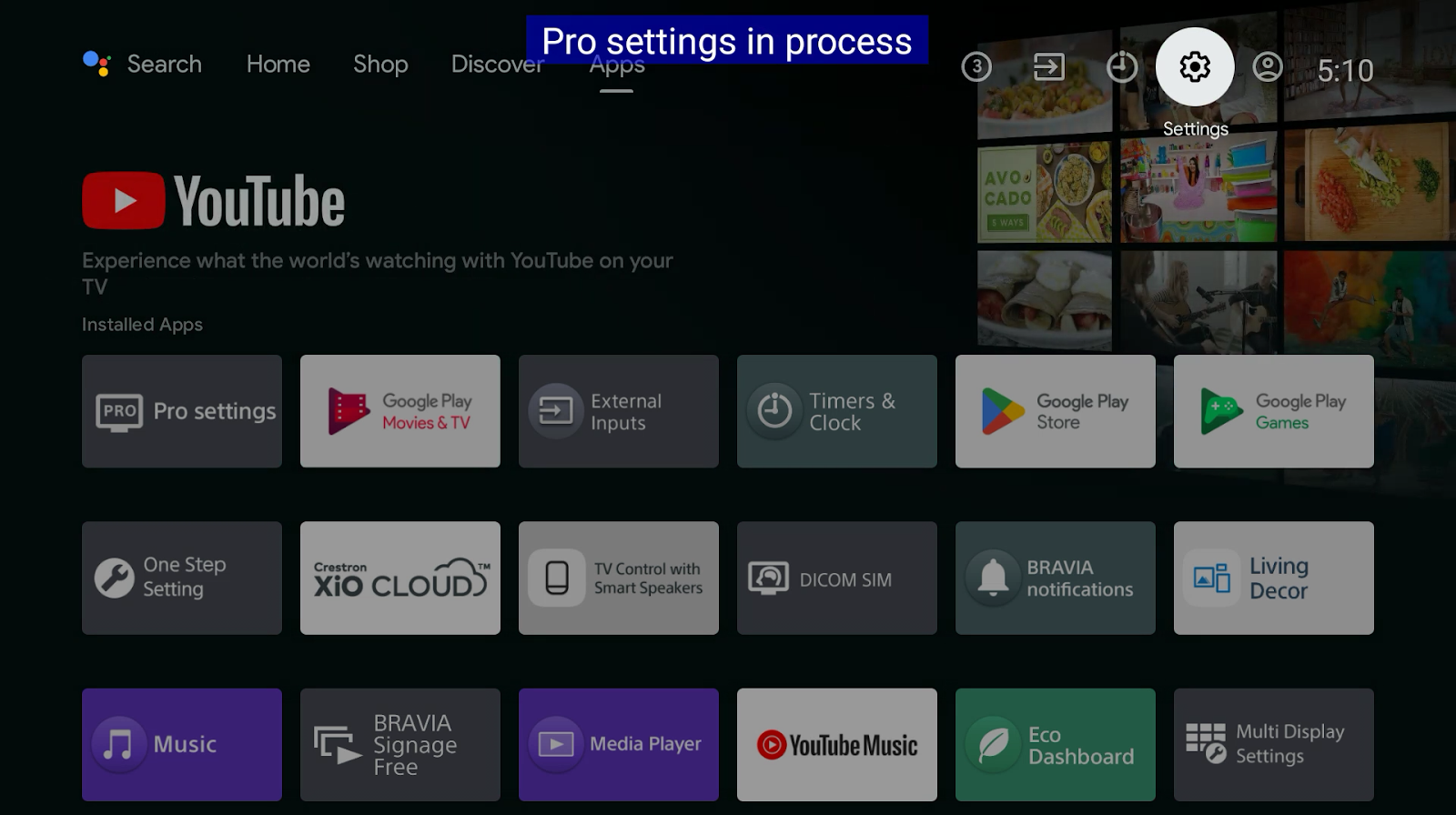
- Select Network & Internet.
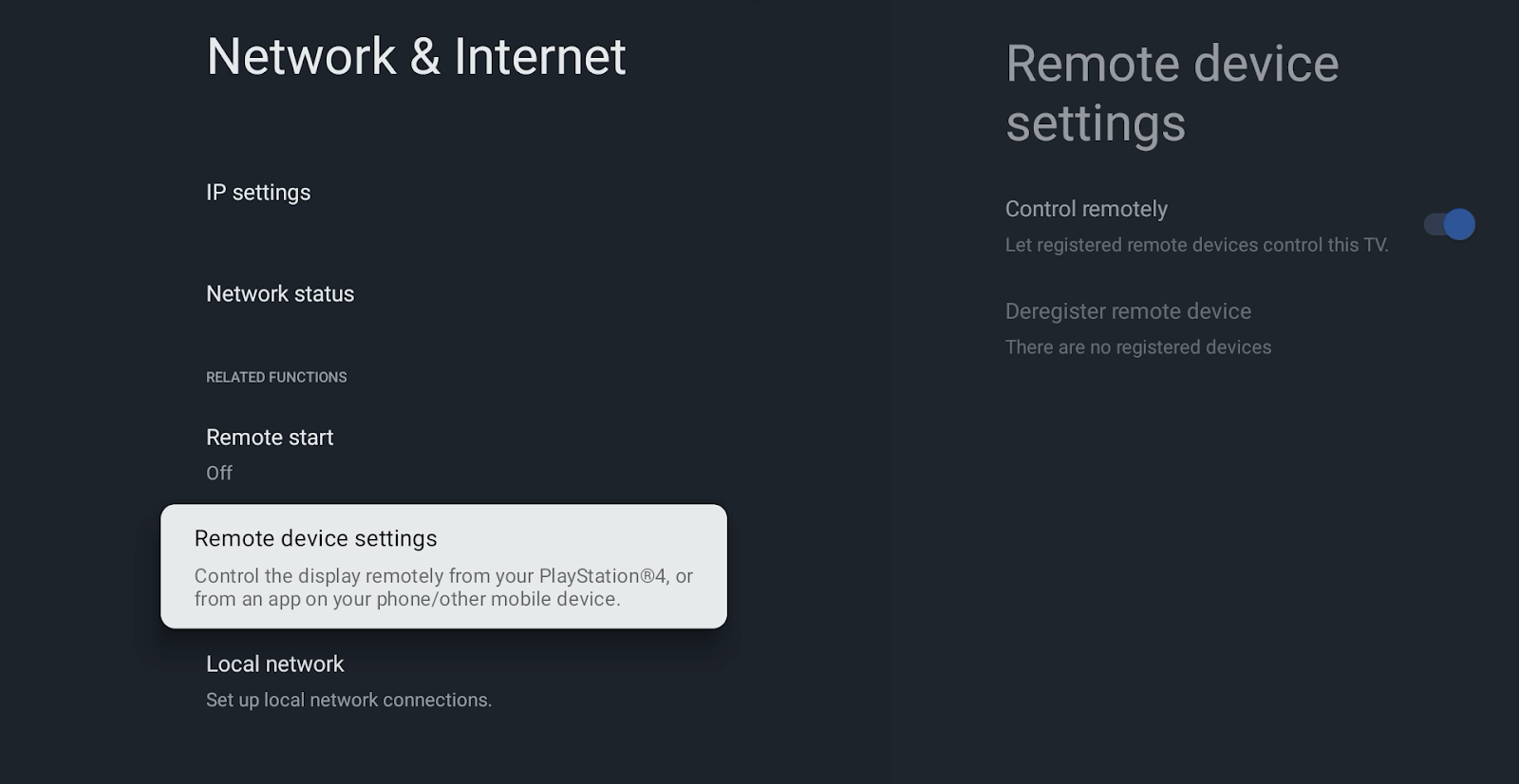
- Scroll down, select Network & Internet, then go to Remote device settings and enable the option Control remotely.
- Select Local network > IP control.
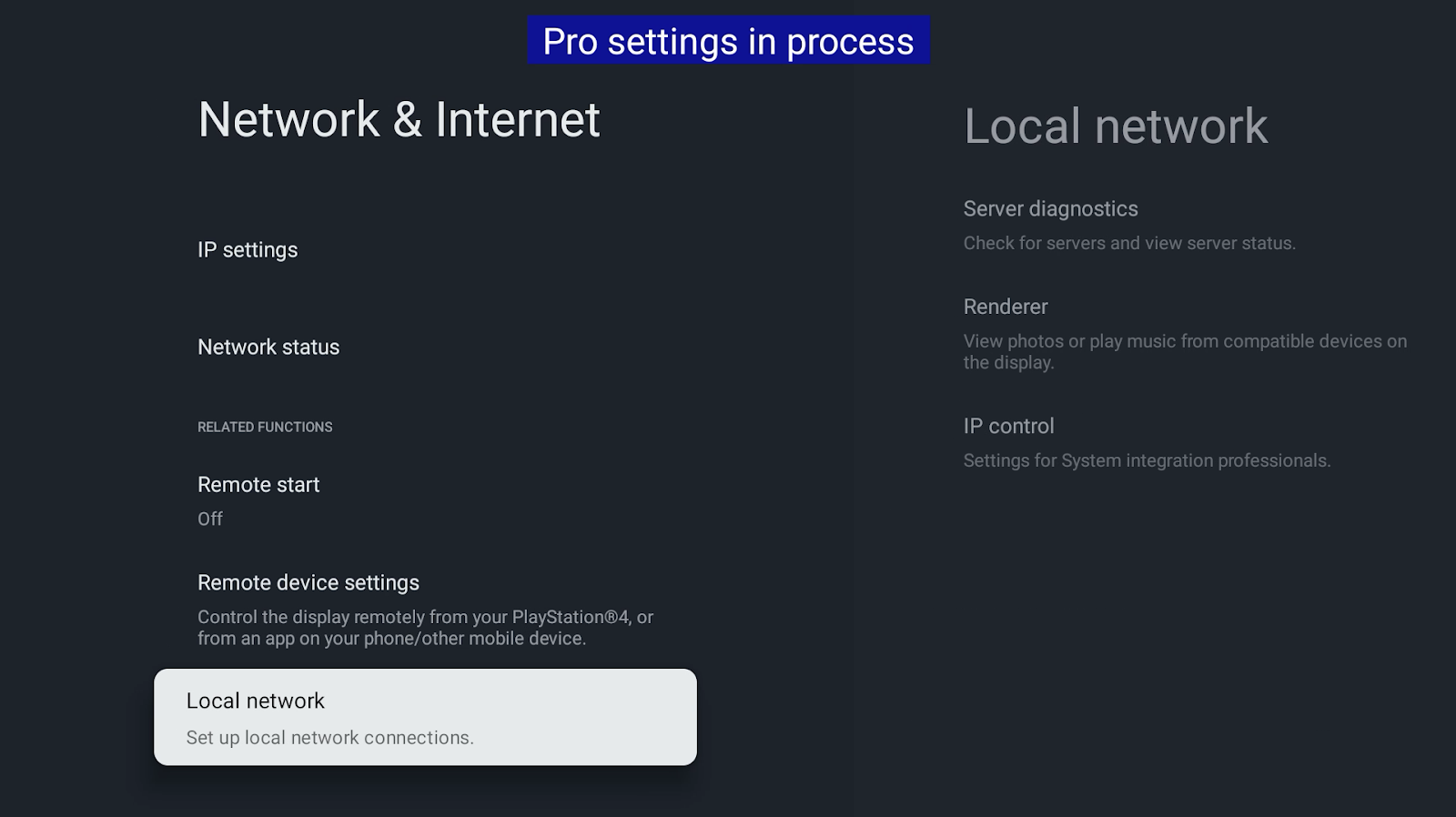
- In the following menu, set Authentication to Pre‑Shared Key or None (not recommended!).
Note: We do not recommend setting the authentication to "None", as this would open access to the device's API for anyone. This makes the device vulnerable to manipulation of system settings, installation of malicious apps, and other security risks.
Newer firmware versions for devices operated in the EU no longer support the "None" setting.
Therefore, in the EU region, authentication via Pre-Shared Key must be used.
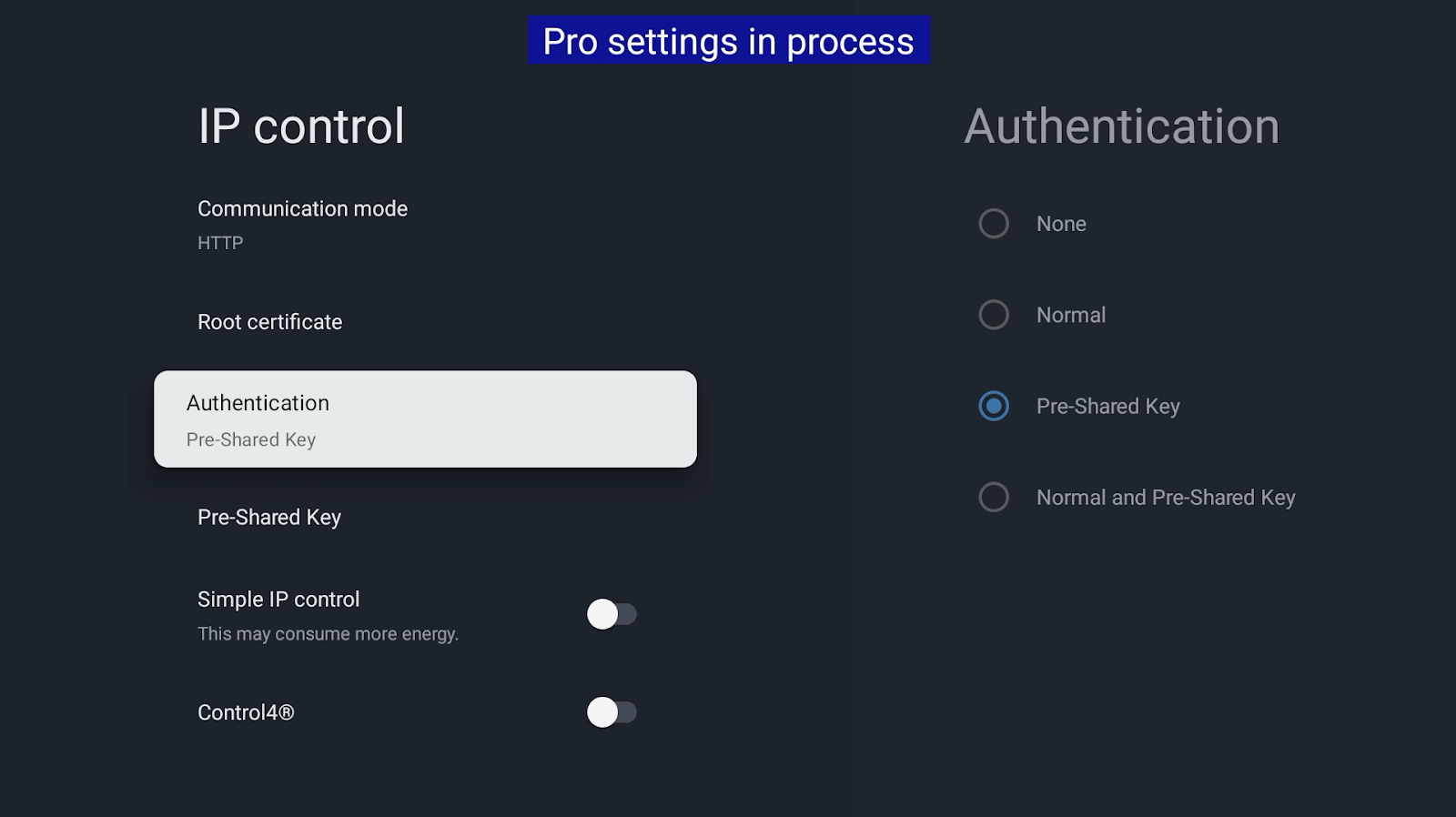
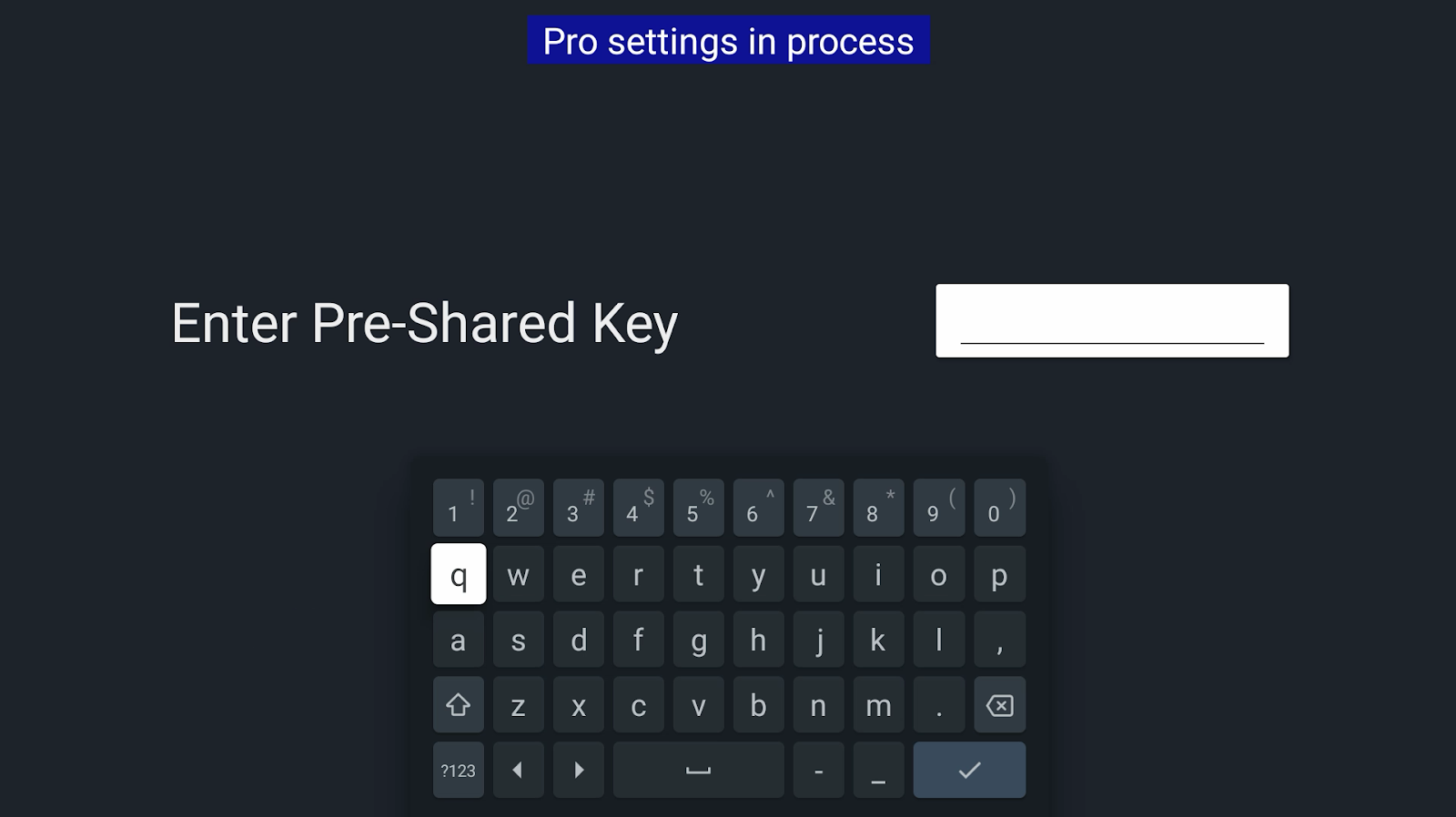
- If you have chosen the authentication method Pre‑Shared Key, select the Pre‑Shared Key option and enter a secret key.
Note: The Pre-Shared Key is used to authorize REST API calls to the device, for example, to retrieve system information, create screenshots, and perform system operations. Make sure to use a strong key (at least 16 characters).
Make a note of the key, as it will be required later in the sklera CMS..
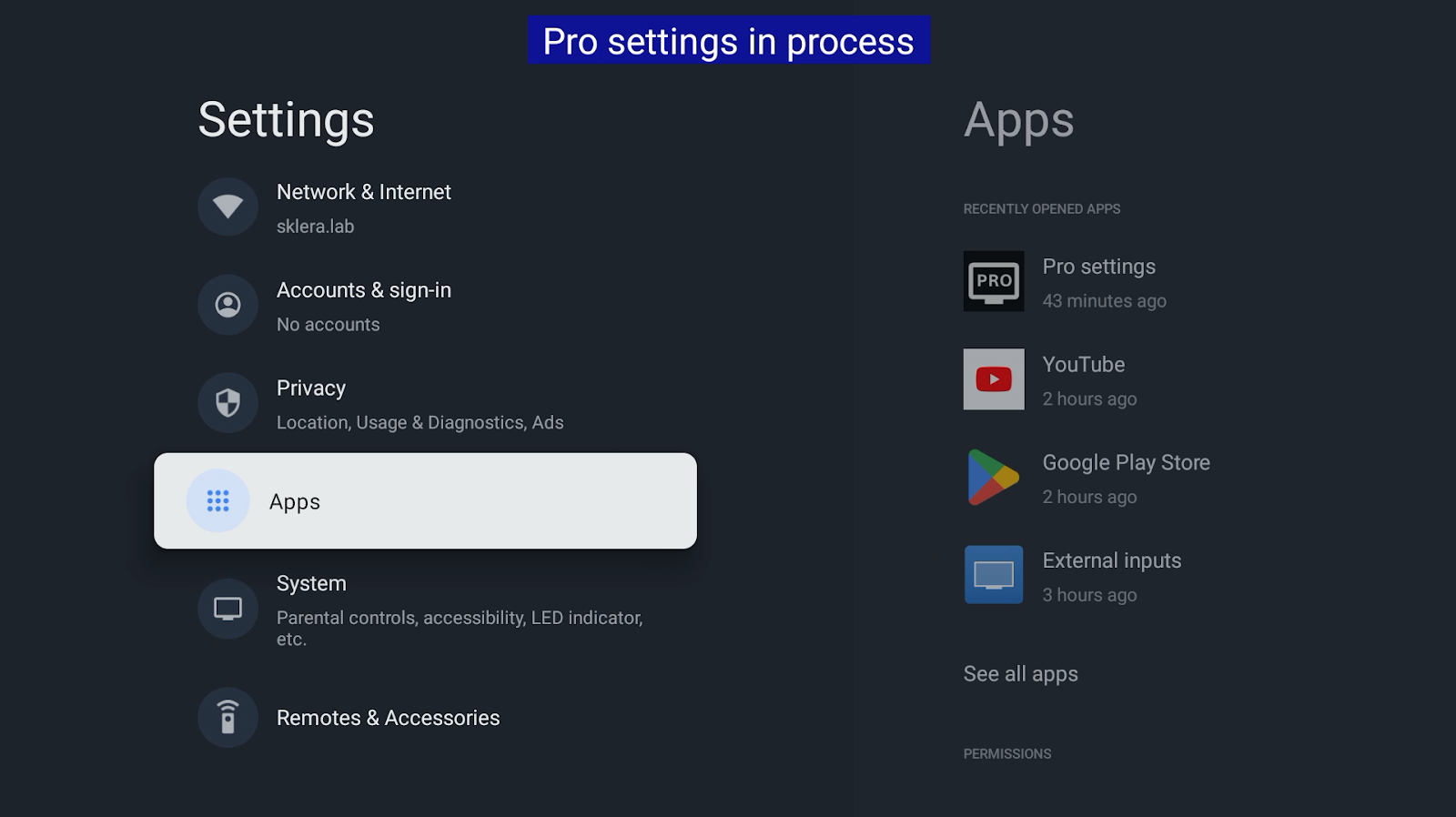
- Go back to the general settings and select the Apps menu item.Then, select the sklera app from the list.
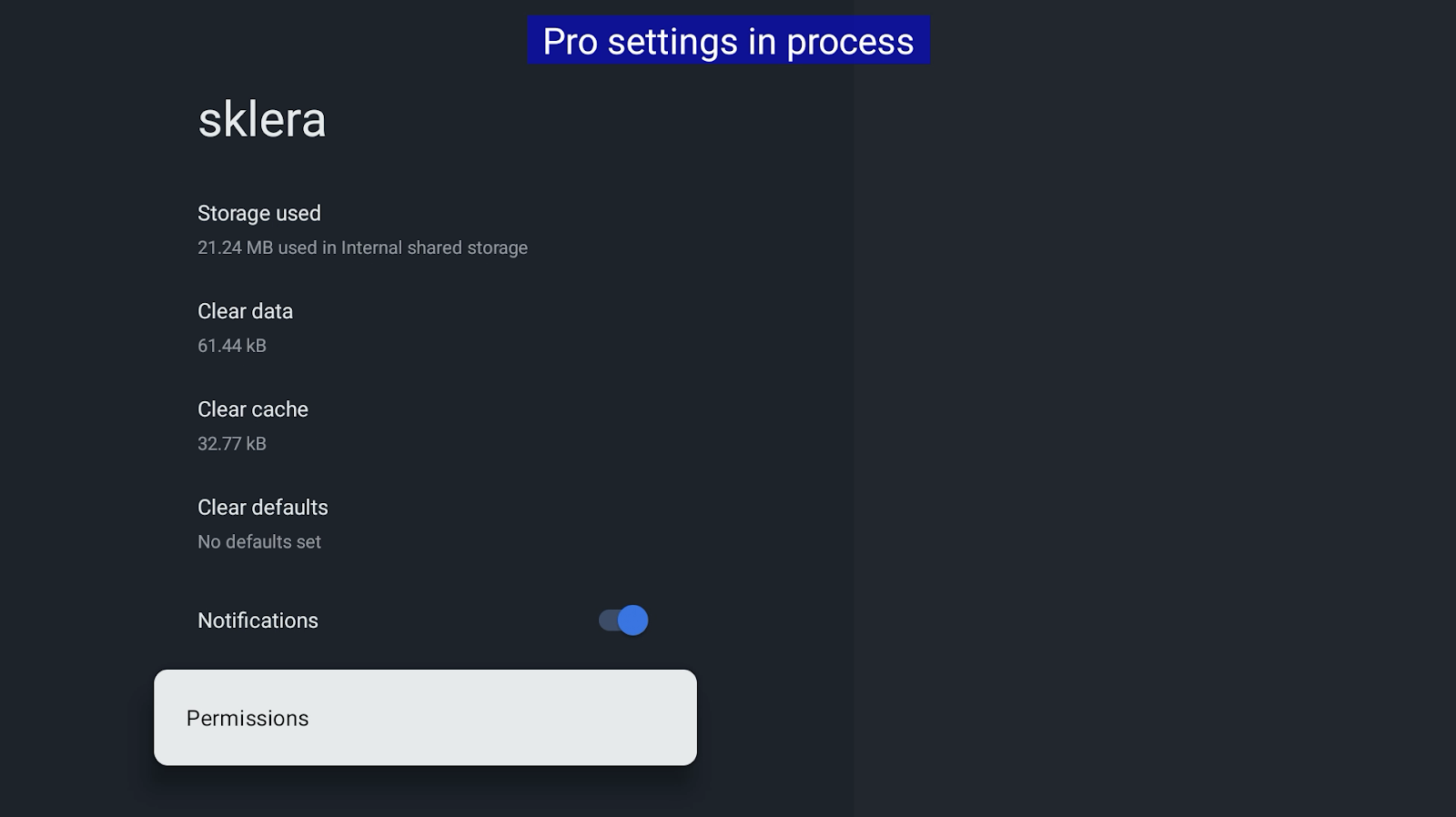
- Select Permissions.
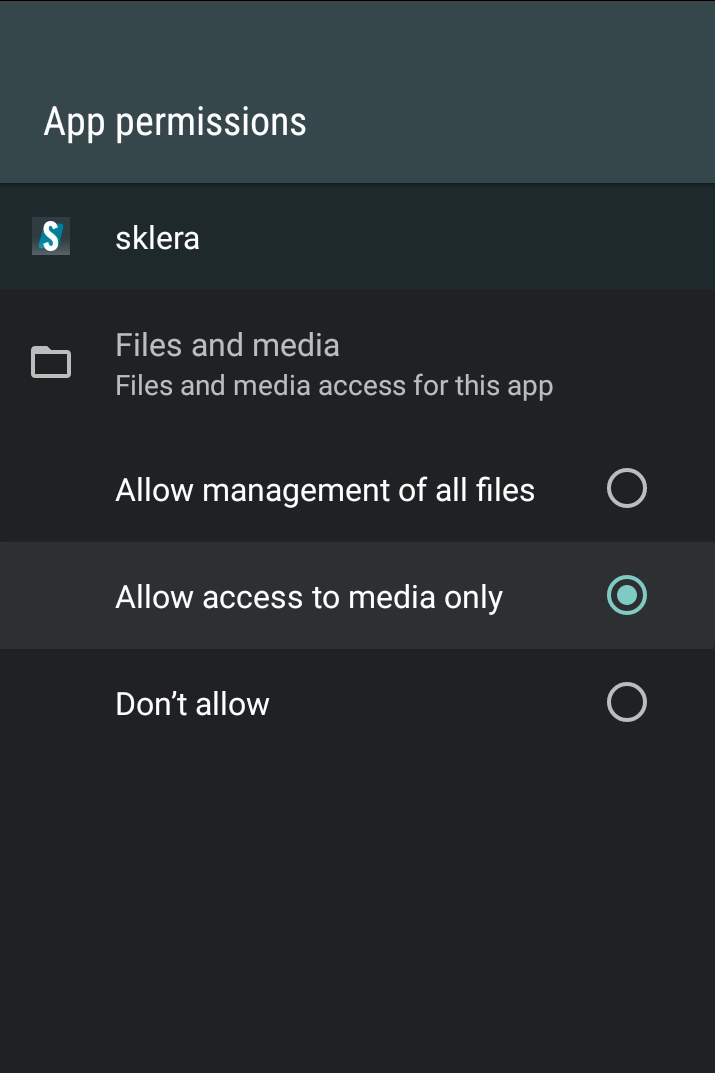
- Then select Files and Media>Allow access to media only or Allow management of all files.
Start "Pro mode"
After all settings have been configured, the "Pro mode" must be started.
- To do this, open the Pro Settings app again and select Start Pro mode.
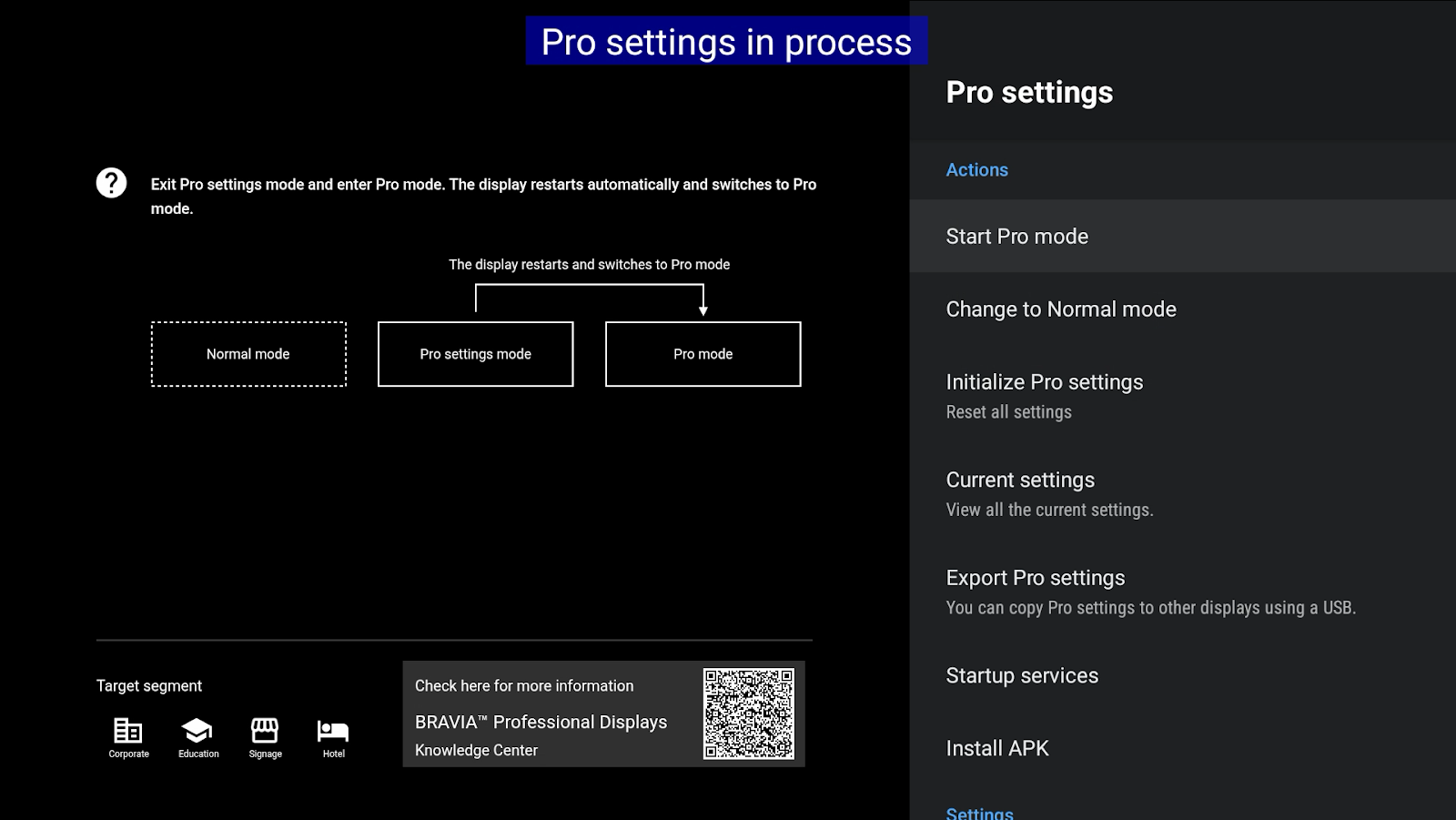
- After switching to "Pro Mode", the sklera app must be launched.
To do this, go to Apps and select the sklera app.
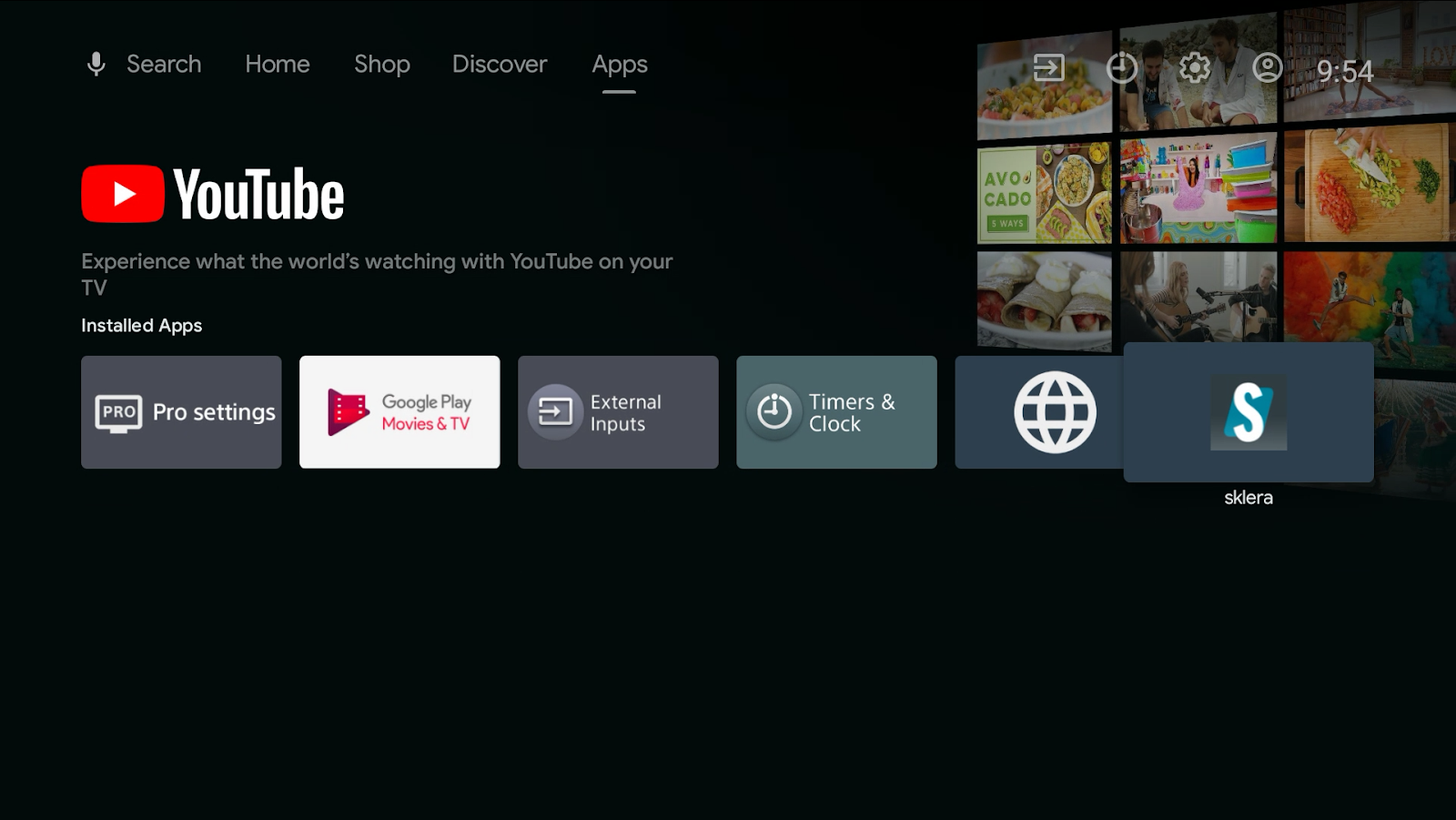
- This completes the configuration on the device.
Now follow the instructions in the sklera app and pair the player with the sklera CMS.
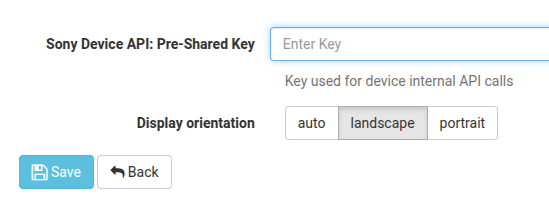
- After the player has been successfully paired with the sklera CMS, the previously created Pre-Shared Key needs to be added in the CMS.
To do this, open the Player-Settings and enter the key in the corresponding field.