INHALTSVERZEICHNIS
1. General
This article describes the settings required to allow users to sign in to the sklera system using their Entra ID credentials.
Note
Entra ID integration is available for the Public Cloud, Private Cloud, and On-Premise hosting variants.
1.1 Configuring Microsoft Entra ID for sklera
1.1.1 Register App
Setting this up requires registering an application in Microsoft Entra ID.
To do this, go to the Microsoft Entra admin center: https://entra.microsoft.com
In the portal, navigate to "Entra ID > App registrations" and click the "New registration" button.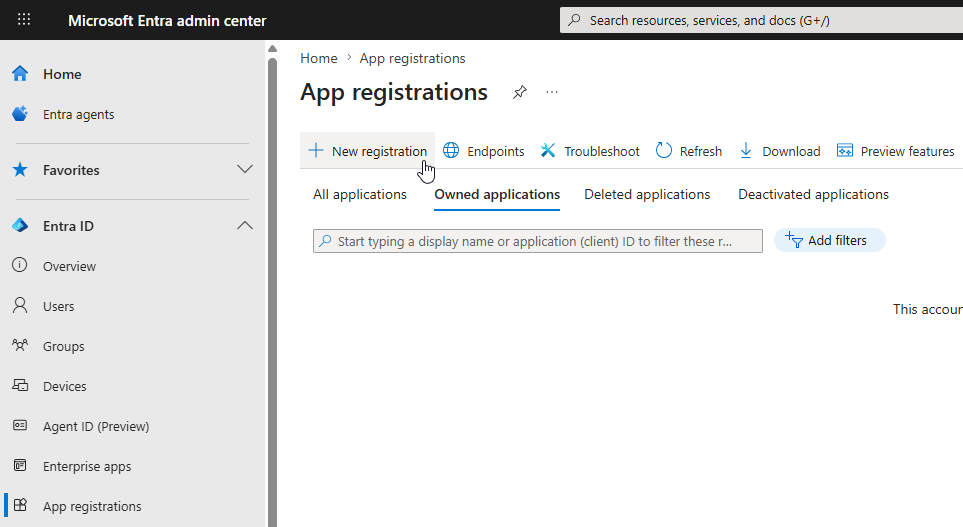
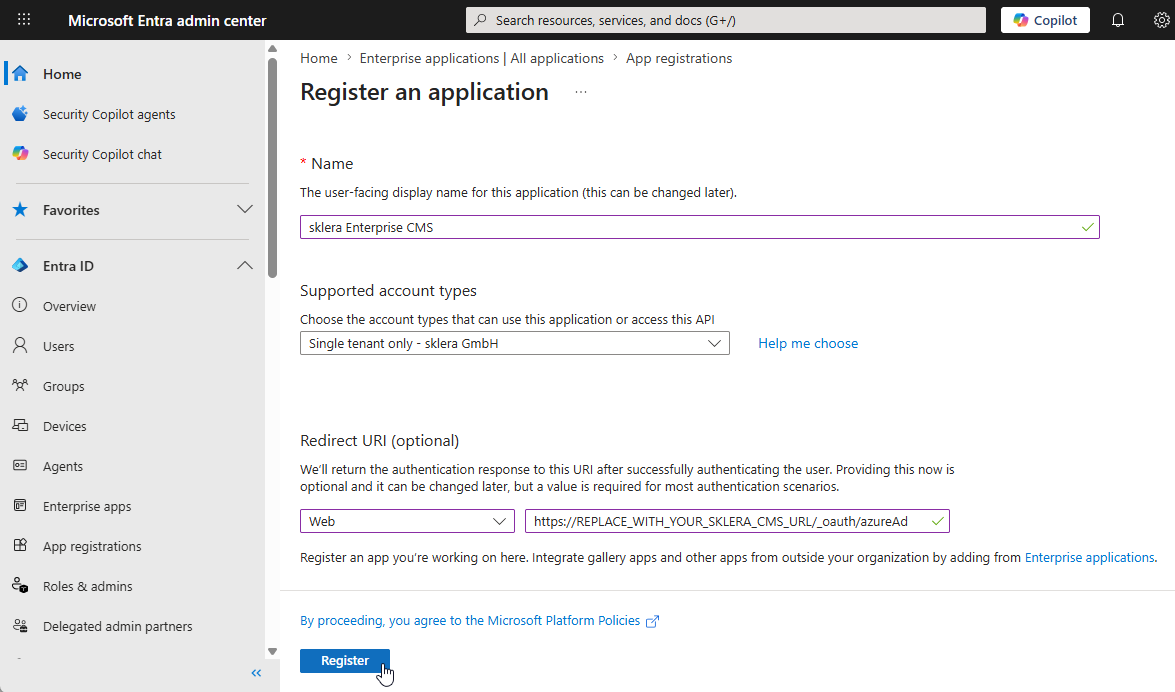
Choose a name for your app and enter the appropriate redirect URI.
Note
Use the following format for the redirect URI:
https://REPLACE_WITH_YOUR_SKLERA_CMS_URL/_oauth/azureAd
Substitue REPLACE_WITH_YOUR_SKLERA_CMS_URL with the actual URL of your sklera CMS instance.
Then click the "Register" button.
1.1.2 Configure branding
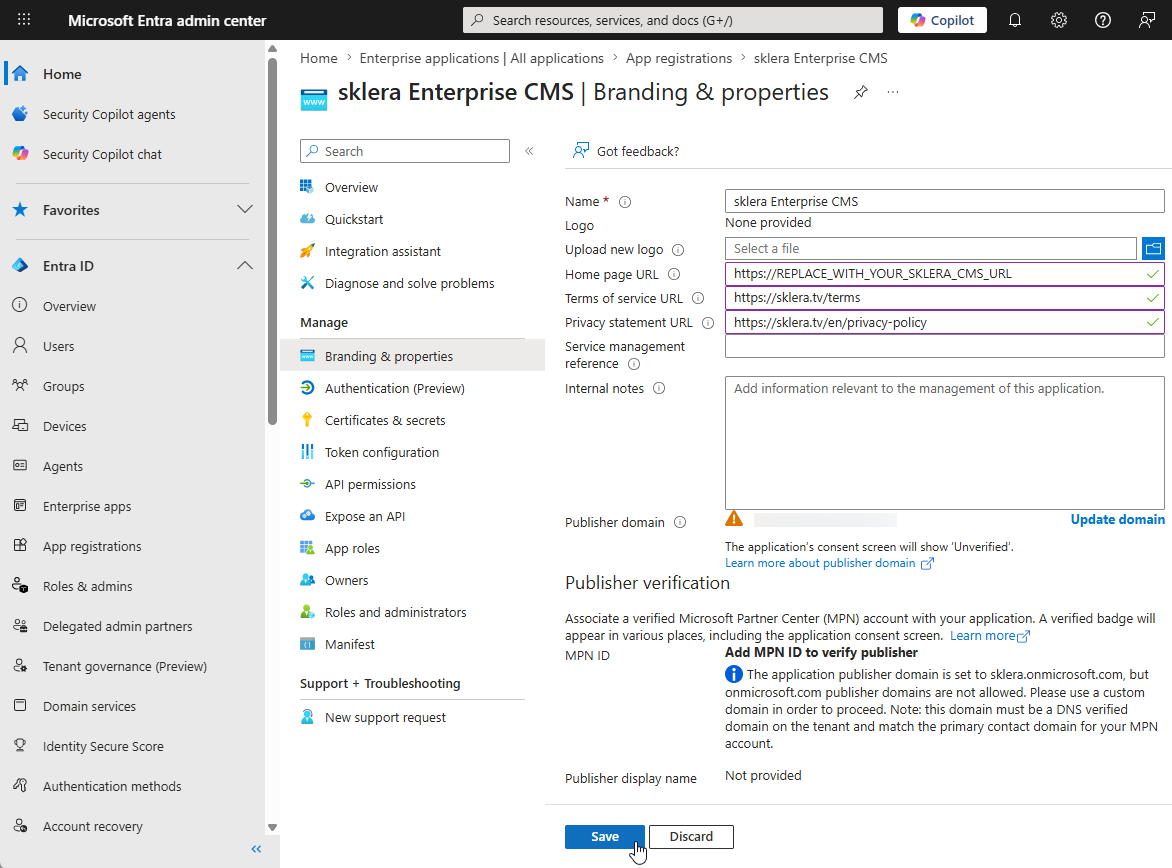
Go to "Branding & Properties" and configure the appearance of the application.
1.1.3 Configure authentication
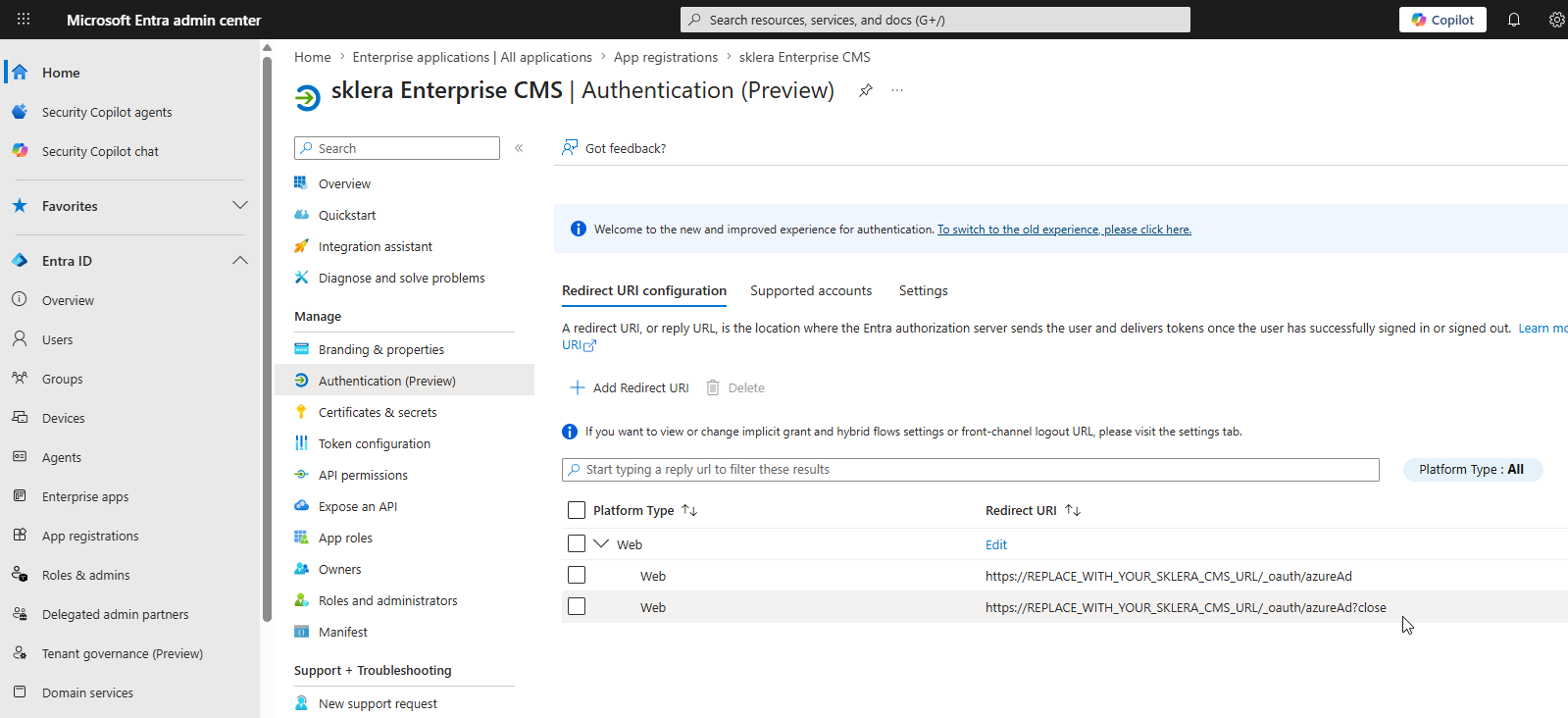
Go to "Authentication" and add an additional redirect URI.
Note
Use the following format for the additional redirect URI:
https://REPLACE_WITH_YOUR_SKLERA_CMS_URL/_oauth/azureAd?close
Substitue REPLACE_WITH_YOUR_SKLERA_CMS_URL with the actual URL of your sklera CMS instance.
1.1.4 Generate a client secret
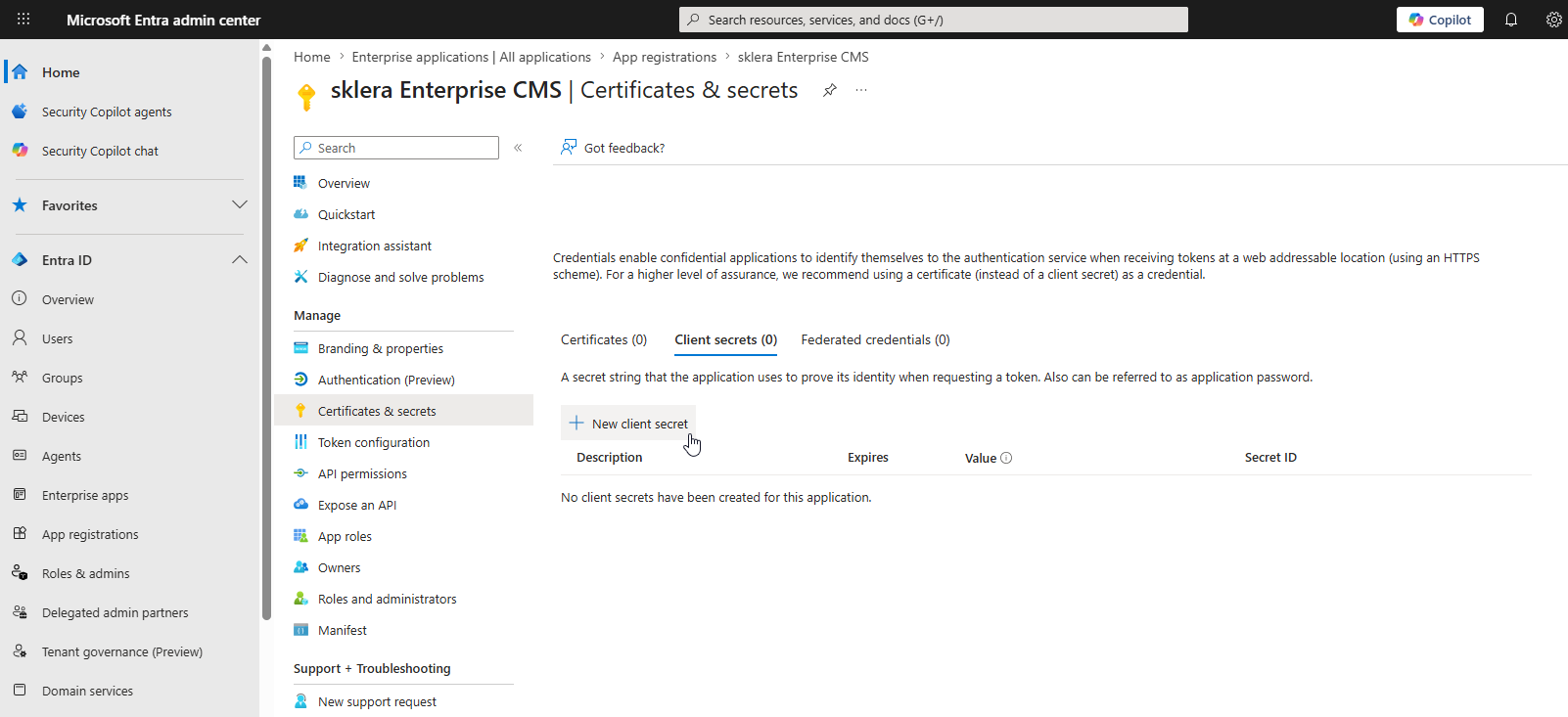
Under "Certificates & secrets", a client secret must be created. To do this, click the "New client secret" button.
1.1.5 Select expiration
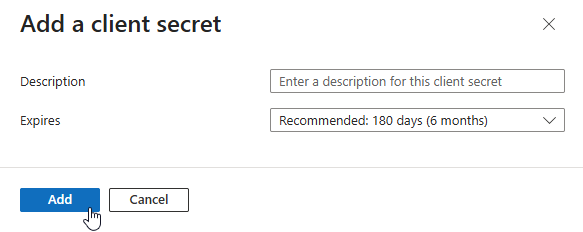
Choose a description (optional) and set the validity perio.
Then click the "Add" button.
1.1.6 Note down the client secret (value)
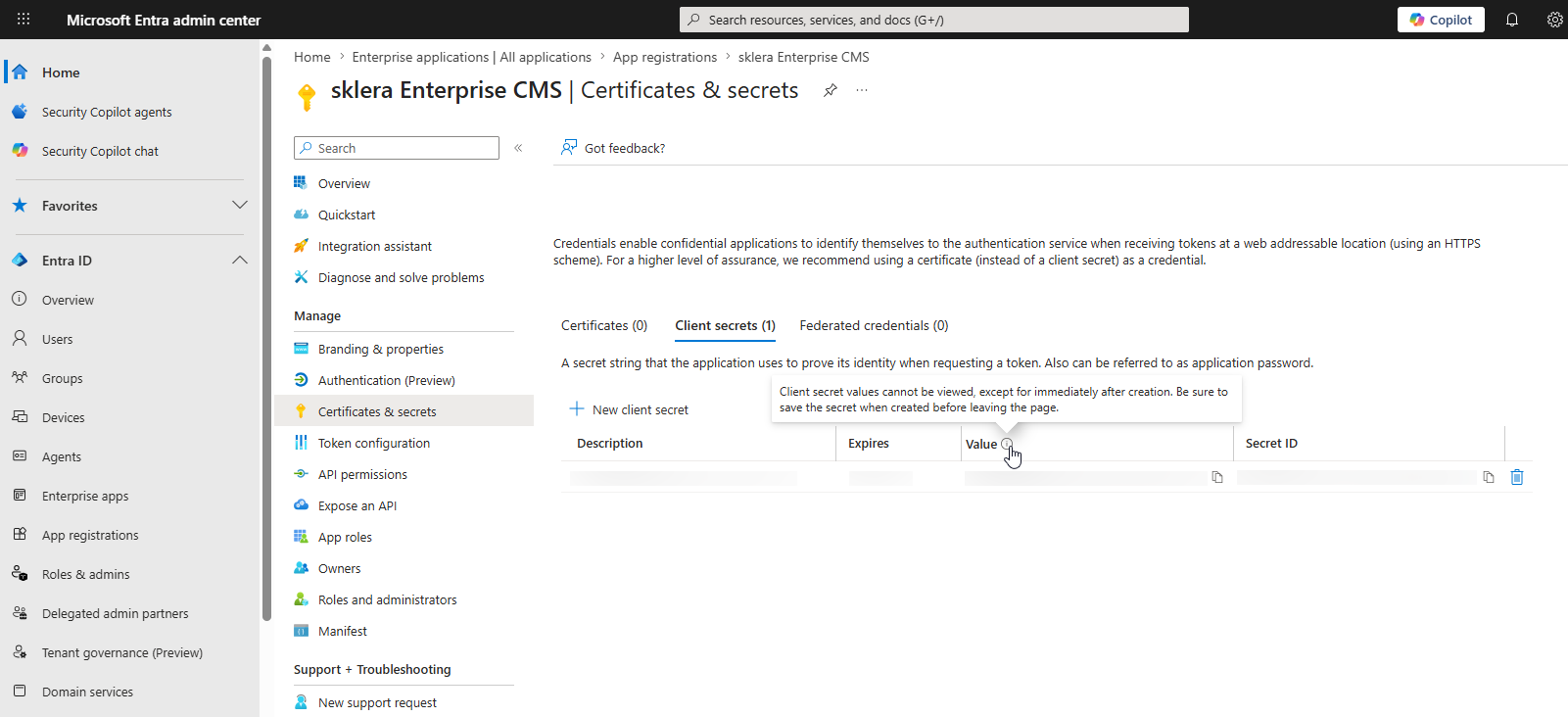
Note down the value of the client secret.
1.1.7 Note down the IDs
Note down the Application (client) ID and the Directory (tenant) ID.
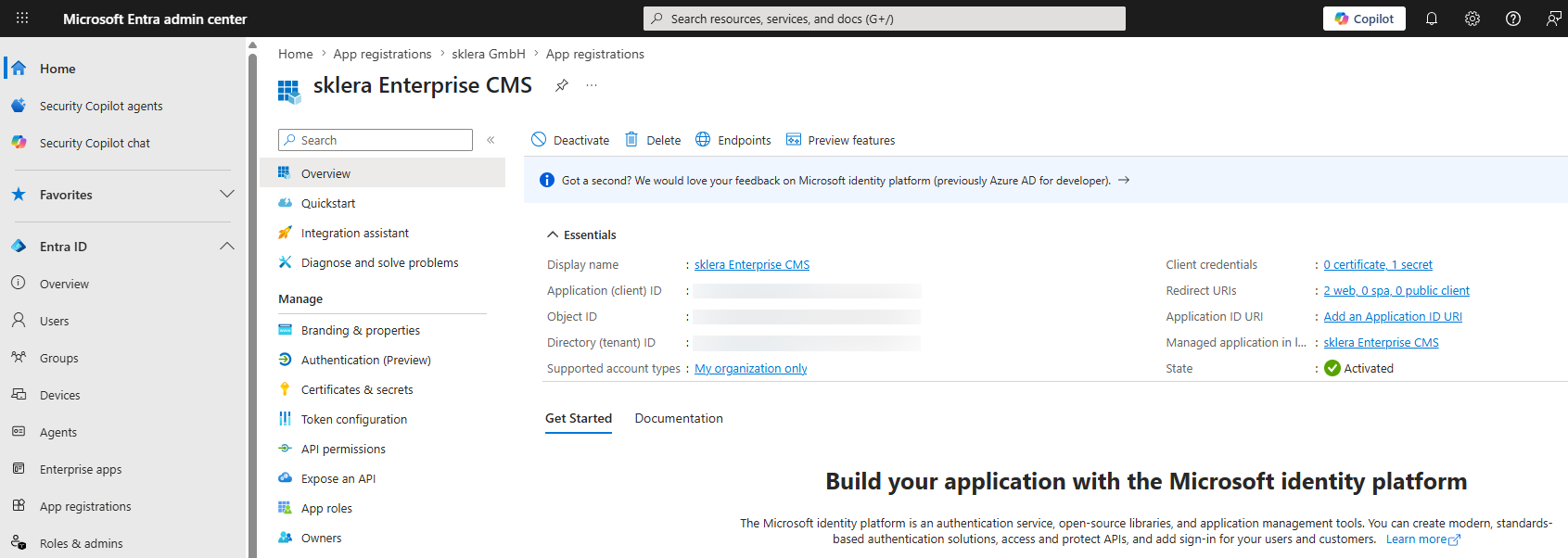
1.1.8 Submit IDs and client secret
Send the following data securely to sklera GmbH <support@sklera.tv>.
- Application (client) ID
- Directory (tenant) ID
- Client secret (Value)
Alternatively, you can use a secure link we provide for transmitting the data.
2. Enable User Group Synchronization
2.1 General
The optional user group synchronization feature allows users to be automatically assigned to user groups in the sklera CMS based on their group memberships in Microsoft Entra ID.
When a user signs in via Microsoft Entra ID (SSO), their group memberships are checked. If the user is a member of a mapped Entra ID group, they are automatically added to the corresponding user group in the sklera CMS.
Prerequisites:
- User group synchronization must be enabled by a sklera administrator.
- The Object ID of the corresponding Microsoft Entra ID group must be stored in the desired sklera user groups.
2.2 Configuration
2.2.1 Note the Object ID of the group
Go to "Groups > All groups" and note down the Object ID of the desired group.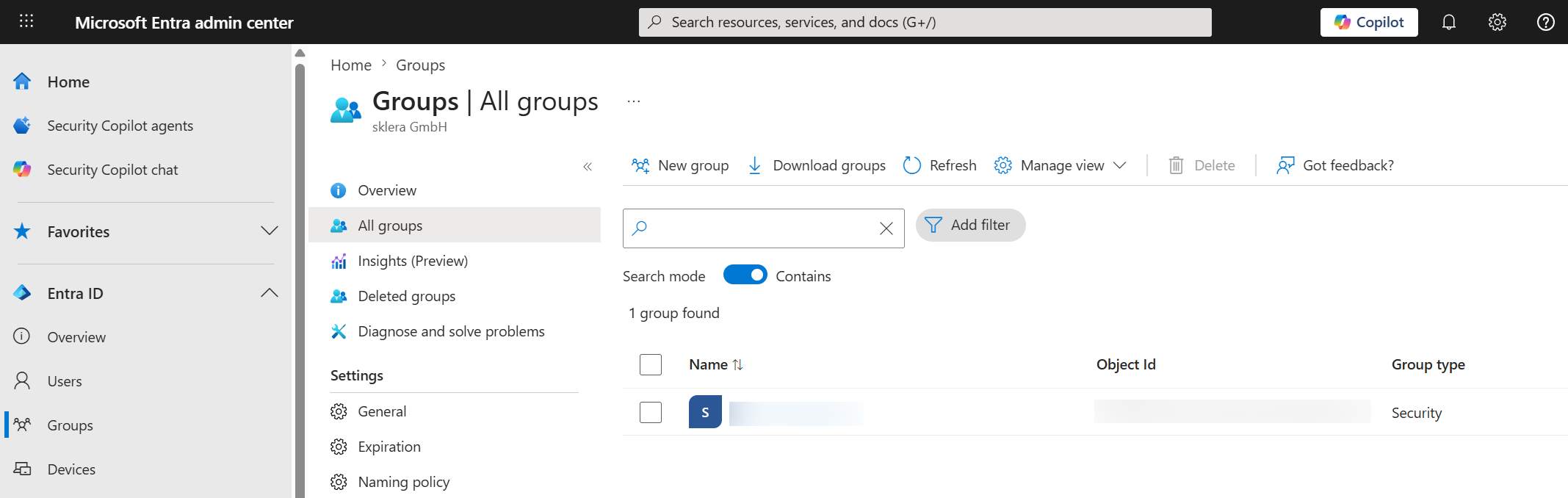
2.2.2 Set the Object ID in the sklera CMS
Switch to the sklera CMS, navigate to "More > User Group" and create or edit the corresponding user group.
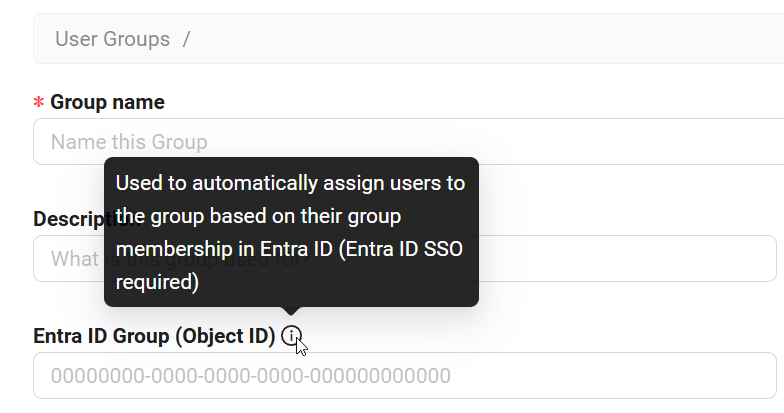
Enter the Object ID in the "Entra ID Group (Object ID)" field, then click "Save".