
TABLE OF CONTENTS
1. General
The following article describes the settings required to allow users to log in to the sklera system using their Active Directory credentials.
Note
AD FS integration is only available for the Private Cloud and On-Premise hosting variants.
AD FS 3.0 and AD FS 4.0 are supported.
2. AD FS 3.0
2.1 General Requirements
- Windows domain with ADFS 3.0 (part of Windows Server 2012 R2 Enterprise).
- The ADFS service must be reachable from the sklera server via HTTPS.
2.2 Installing AD FS
Information on setting up and installing AD FS can be found on Microsoft's TechNet portal at https://technet.microsoft.com/en-us/library/dn452410.aspx.
2.3 Configuring AD FS for sklera
If an AD FS server already exists, the following steps are required to add sklera as an allowed OAuth application:
2.3.1 Open a PowerShell console as administrator.
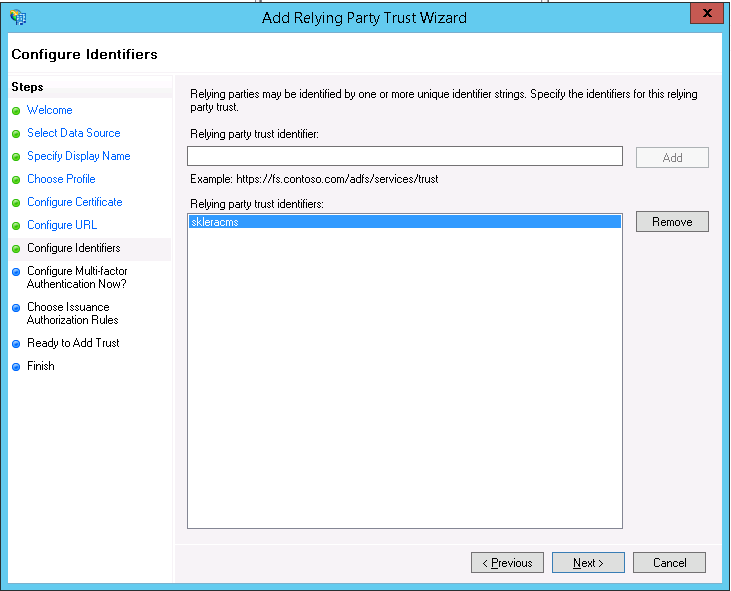
2.3.2 Create an ADFS client ID for the sklera application using the following command, replacing ADMIN_URL with the actual URL through which your sklera server can be reached:
Add-ADFSClient -Name "sklera CMS" -ClientId "skleracms" -RedirectUri "https://ADMIN_URL/_oauth/adfsoauth"
2.3.3 Next, add a Relying Party Trust. To do this, open the "AD FS Management" tool, go to "Trust Relationships > Relying Party Trusts", right-click, and select "Add Relying Party Trust".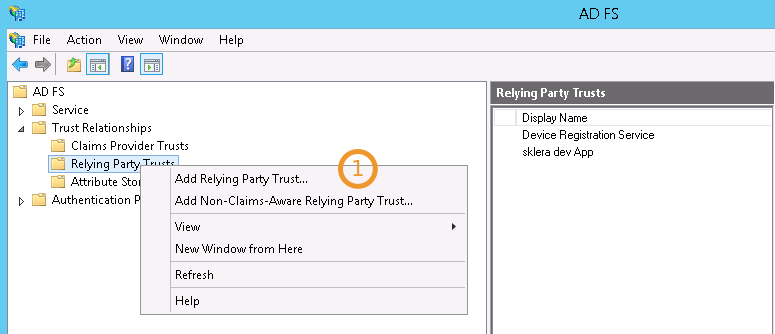
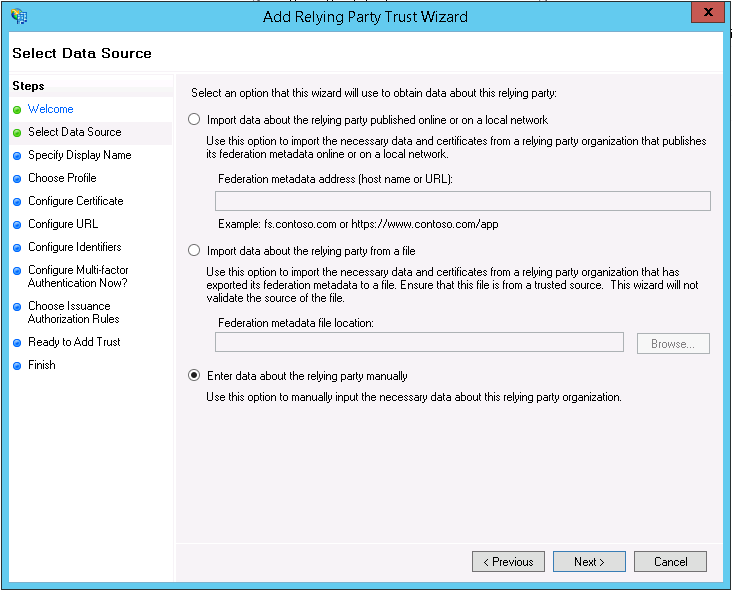
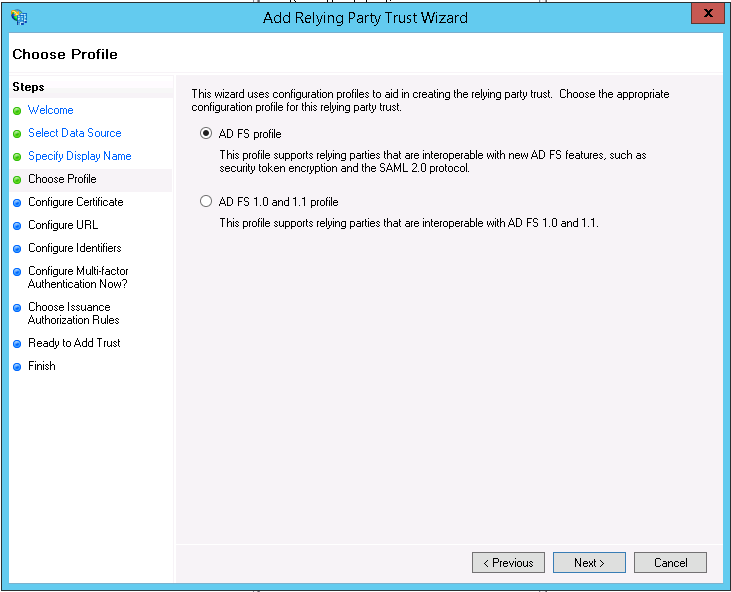
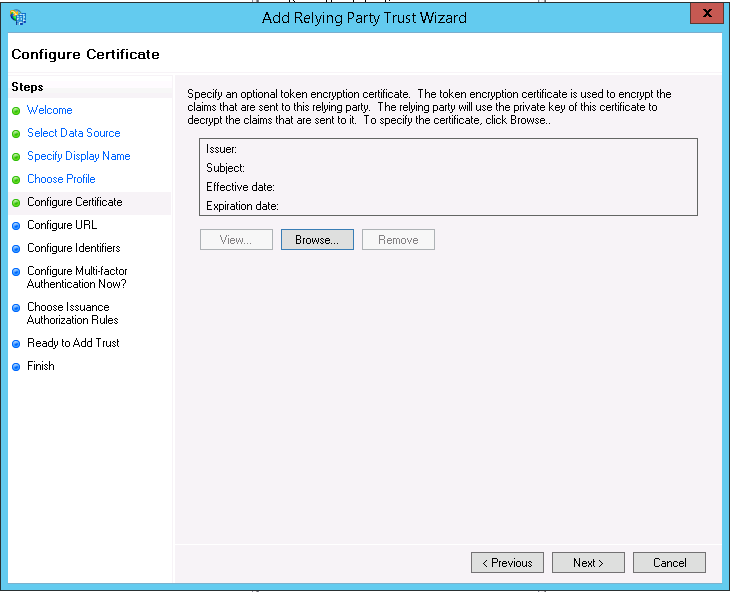
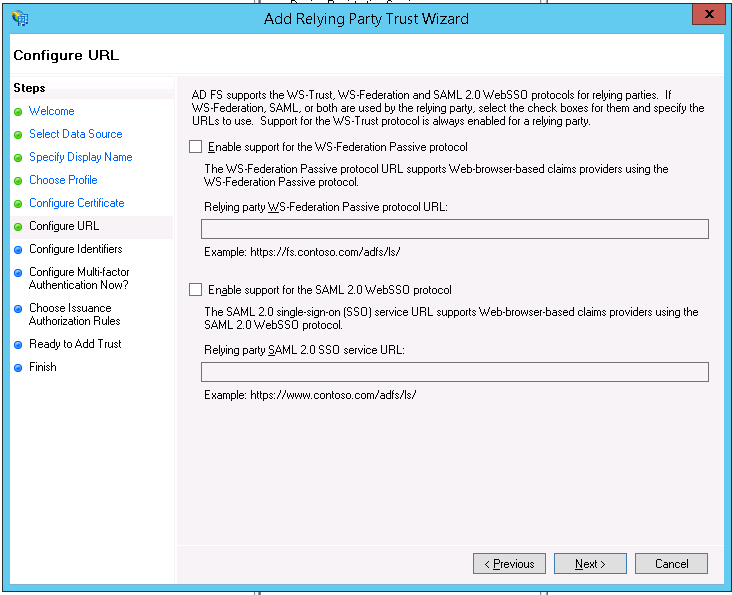
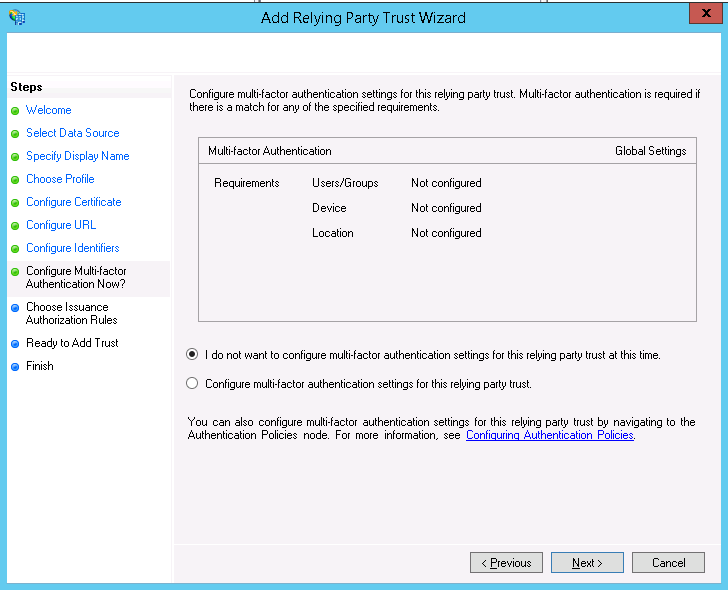
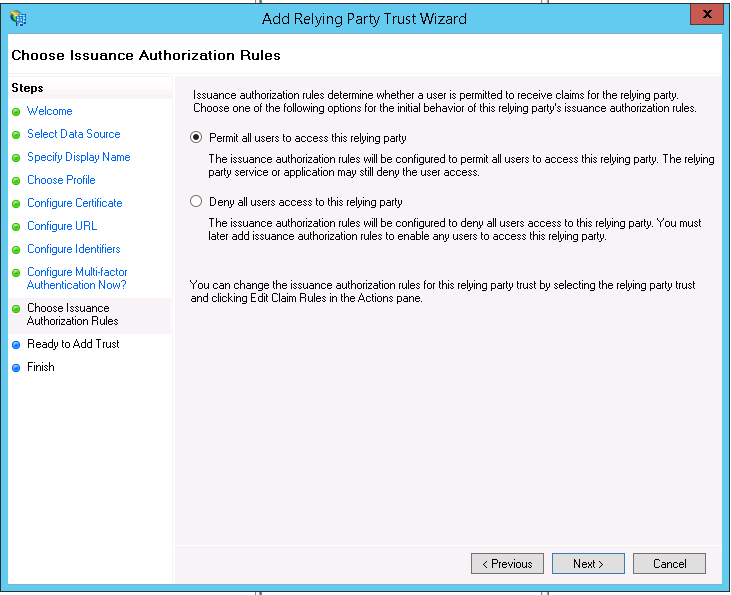
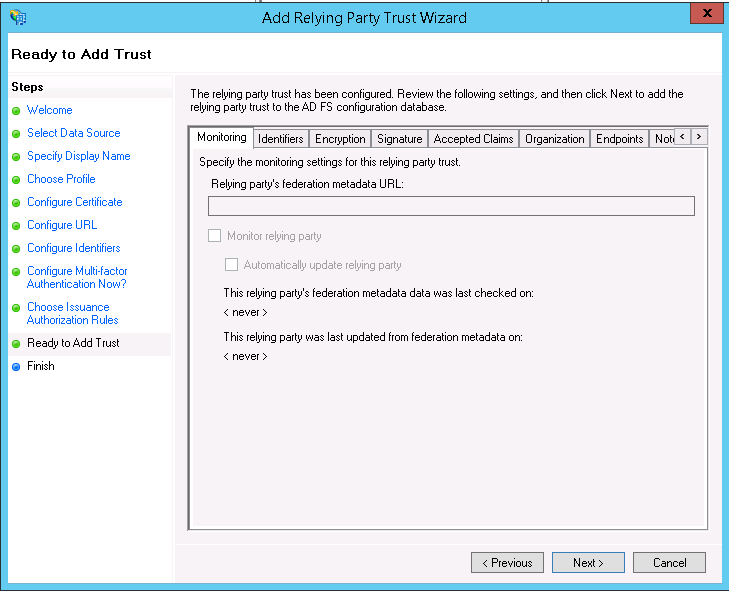
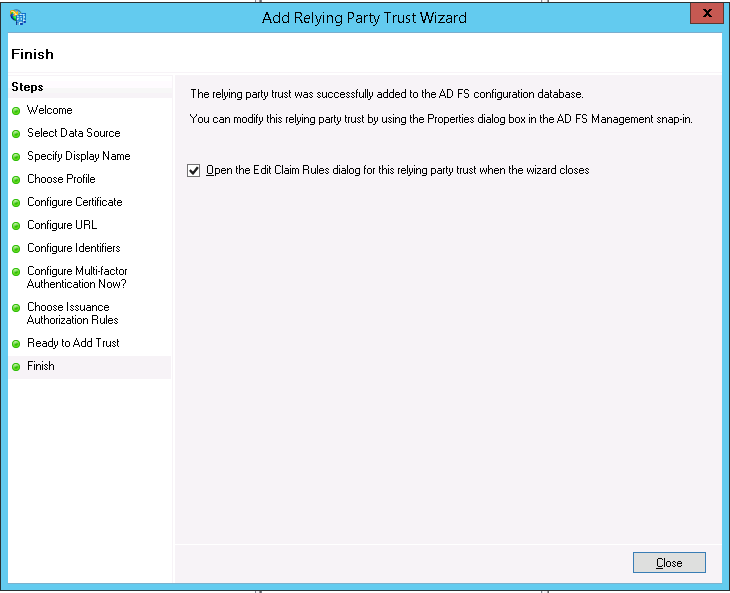
2.3.4 In the wizard, specify the following settings. Summarized, essentially:
- AD FS Profile
- Skip encryption
- Any name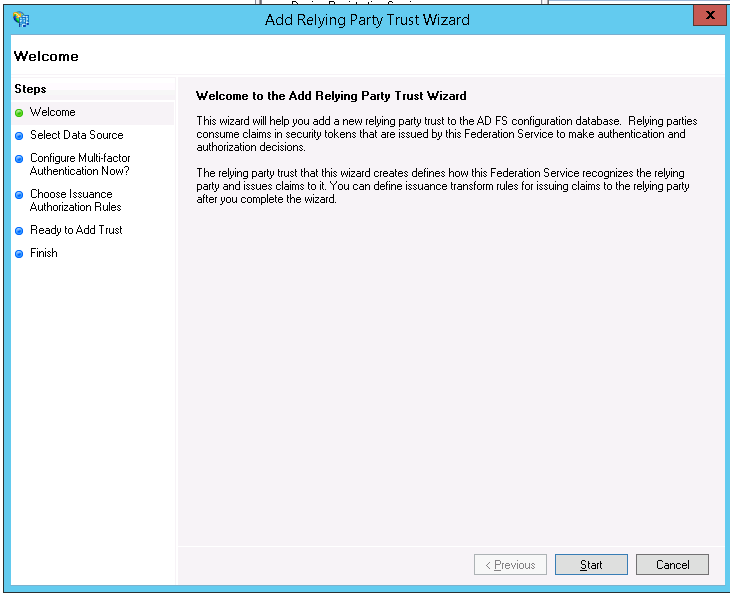
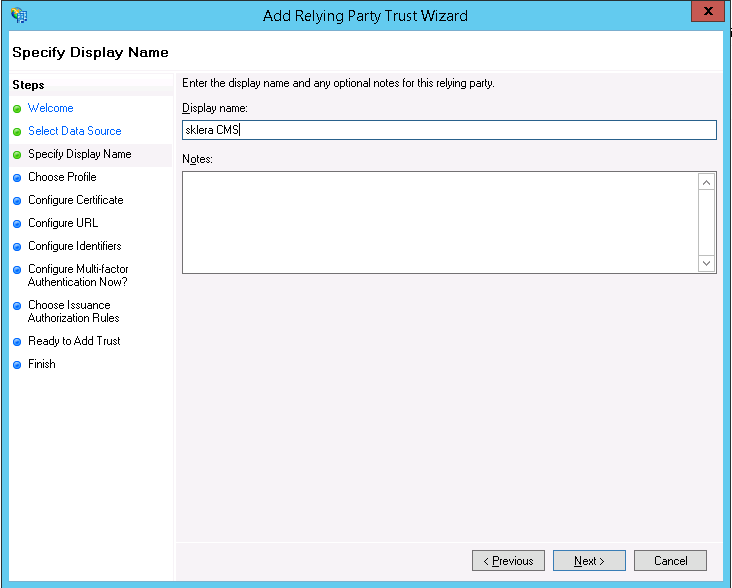
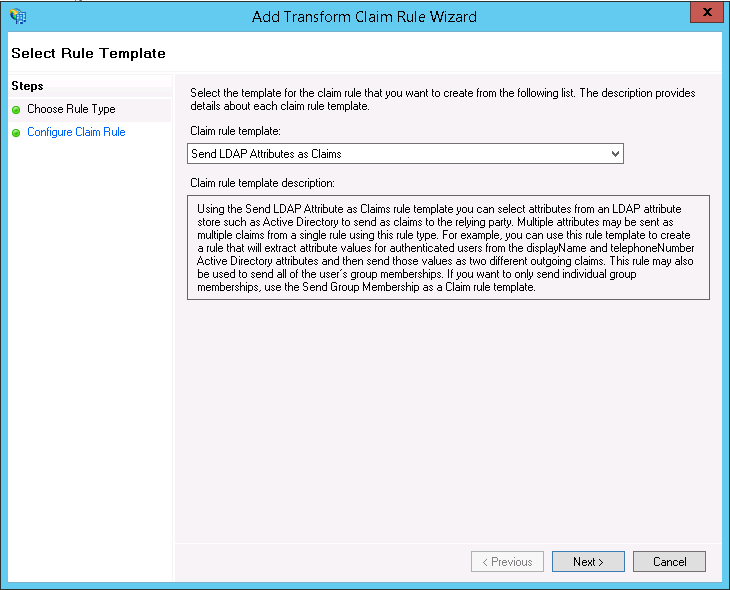
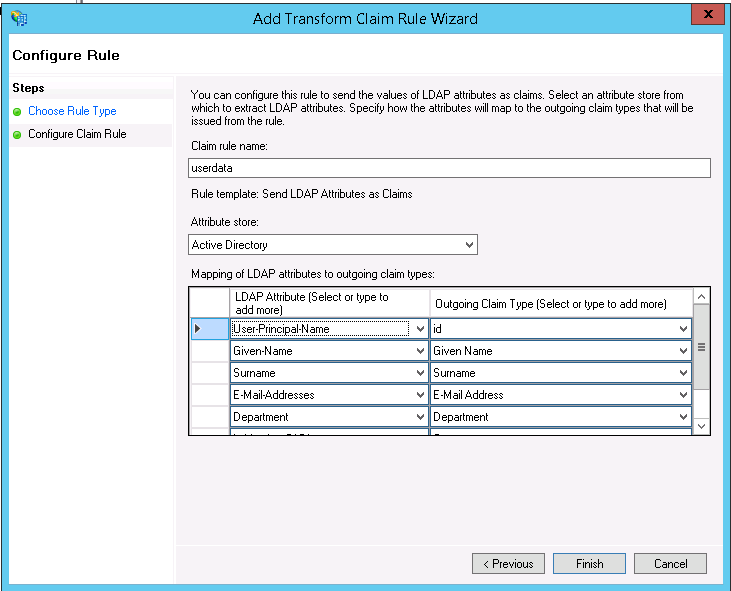
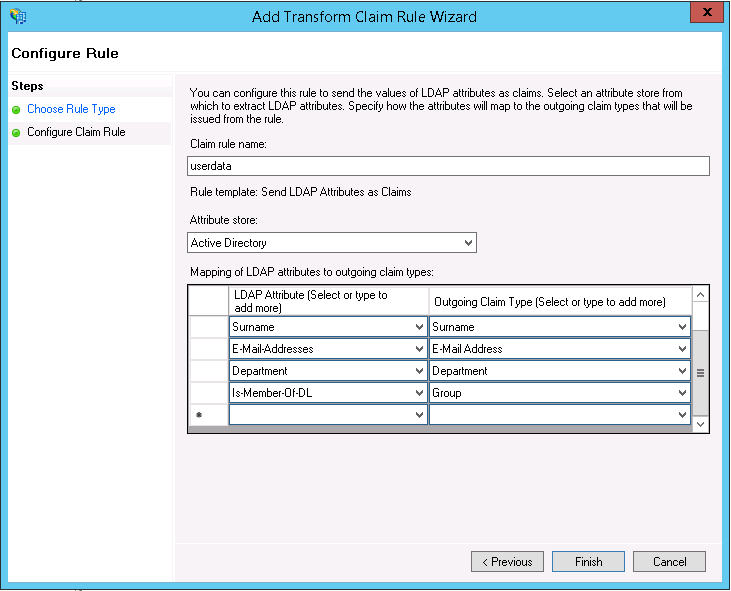
Important
Under Claim Transformation, an outgoing rule with the claim type "id" must be defined (see screenshots).
2.4 Enabling AD FS on the sklera Server
The ADFS server must be registered in the server settings, and the SSL certificate must be stored there. Please contact sklera directly at info@sklera.tv to have this change made.
2.5 AD Login
Once the switch has been completed, a new login button will be available on the sklera server, through which OAuth authentication is initiated.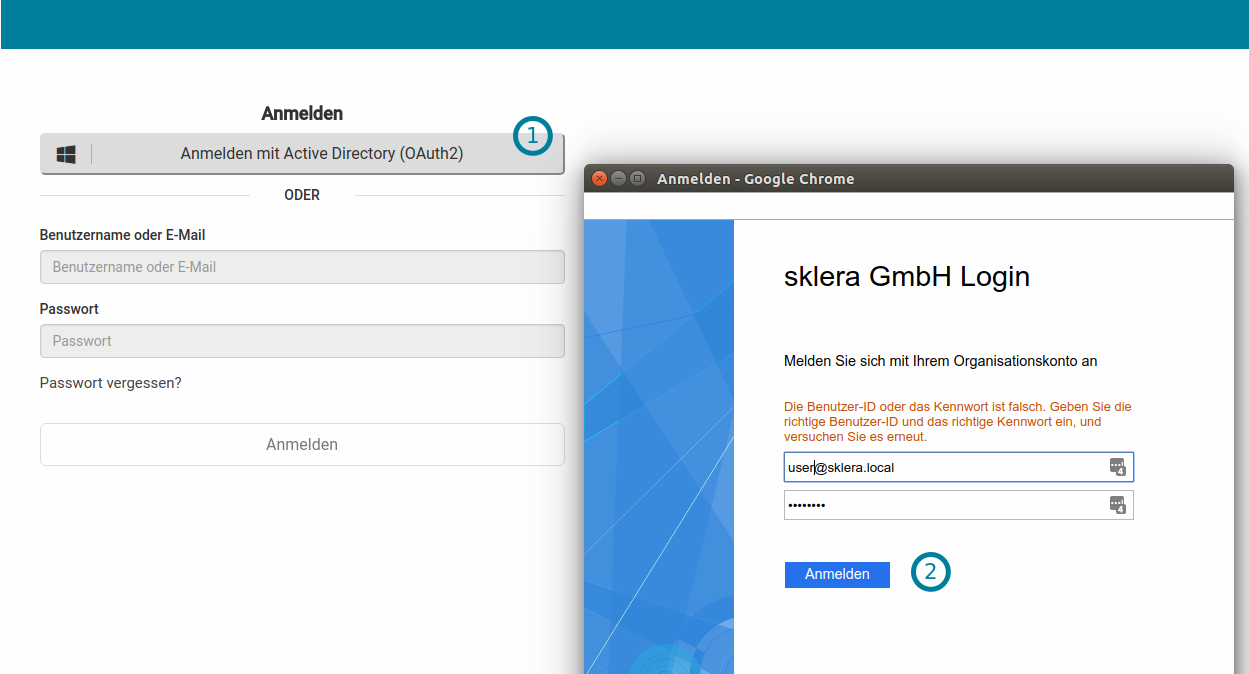 After an AD user logs in for the first time, they can only access channels once an administrator has granted access.
Tip
If you use the invitation feature, the user can access sklera immediately.
3. AD FS 4.0
Steps for configuring ADFS 4.0 on Windows Server 2016 for use with sklera:
3.1 General Requirements
- Windows domain with ADFS 4.0 (part of Windows Server 2016).
- The ADFS service must be reachable from the sklera server via HTTPS.
3.2 Installing AD FS
Information on setting up and installing AD FS can be found from Microsoft at
https://learn.microsoft.com/en-us/windows-server/identity/ad-fs/ad-fs-overview
3.3 Opening AD FS Management and Configuring It for sklera
3.3.1 Make sure the OAuth endpoint is enabled, or enable it if necessary.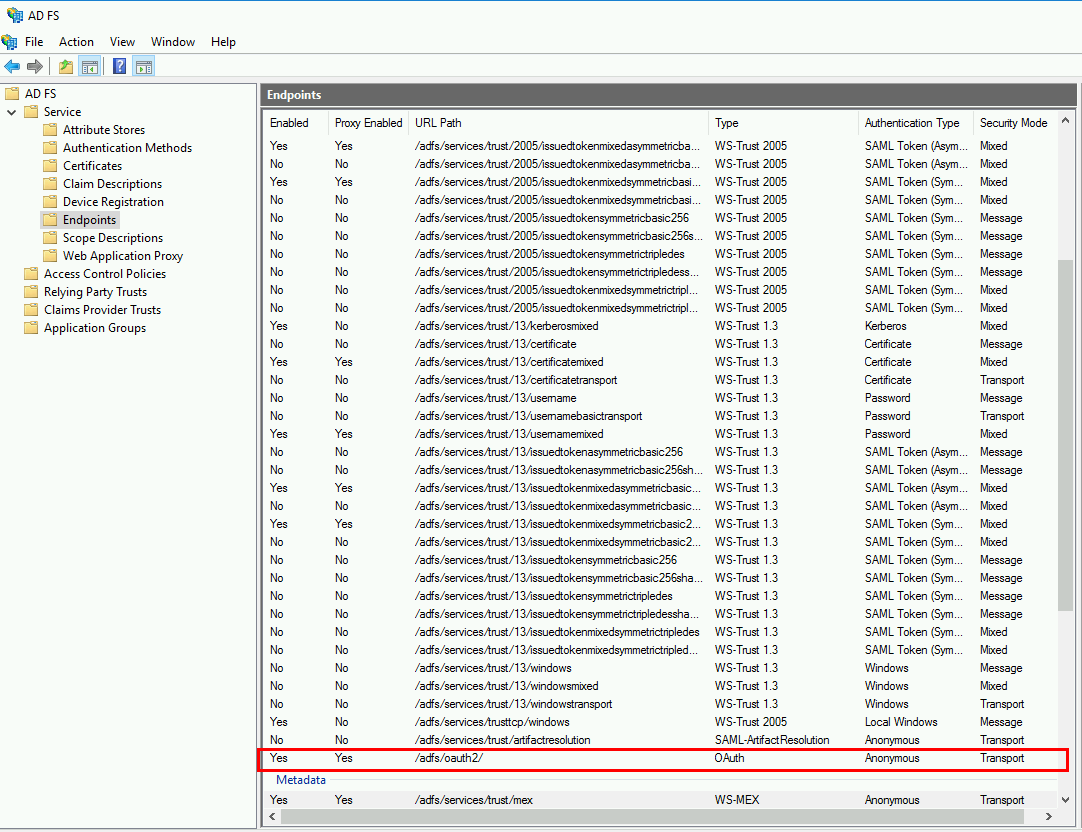
3.3.2 Check the installed certificates to make sure they are valid.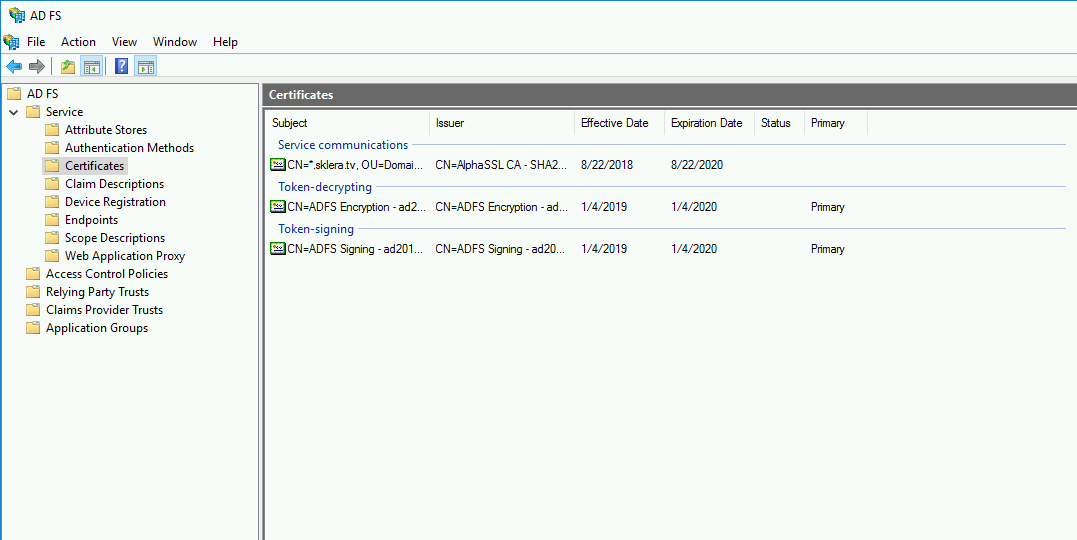
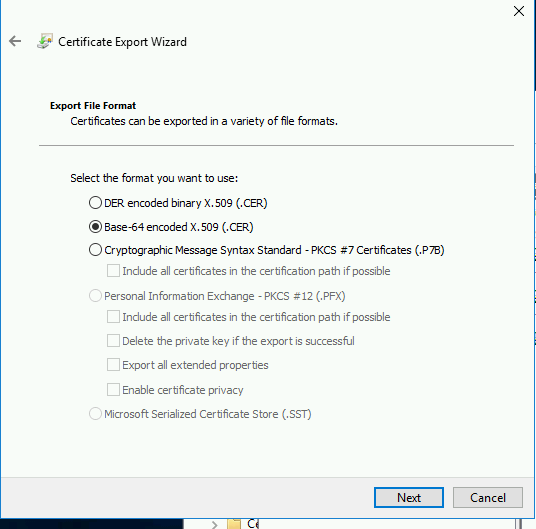
Important
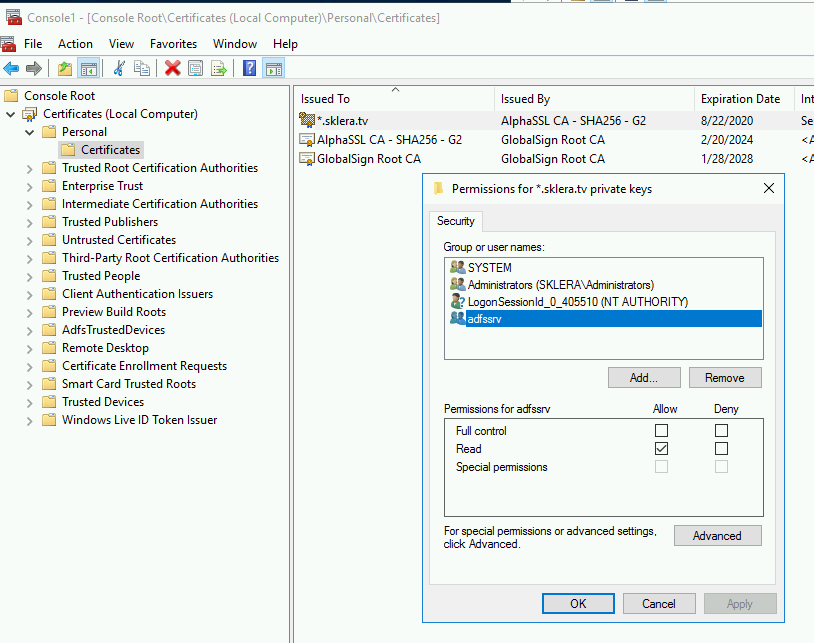
The private key of the certificate used for Service Communication must be accessible by the user account under which the ADFS service is running.
To configure this permission, open the certificate management console, select the corresponding certificate, and grant the ADFS service account permission to read the private key.
Caution
If the certificate has been or is being changed, this must be confirmed using the following PowerShell command - changing it in the GUI alone is not sufficient:
Set-AdfsSslCertificate -Thumbprint XXXXXX…
3.3.3 Create a new application group for sklera using the "Web browser accessing a web application" template.
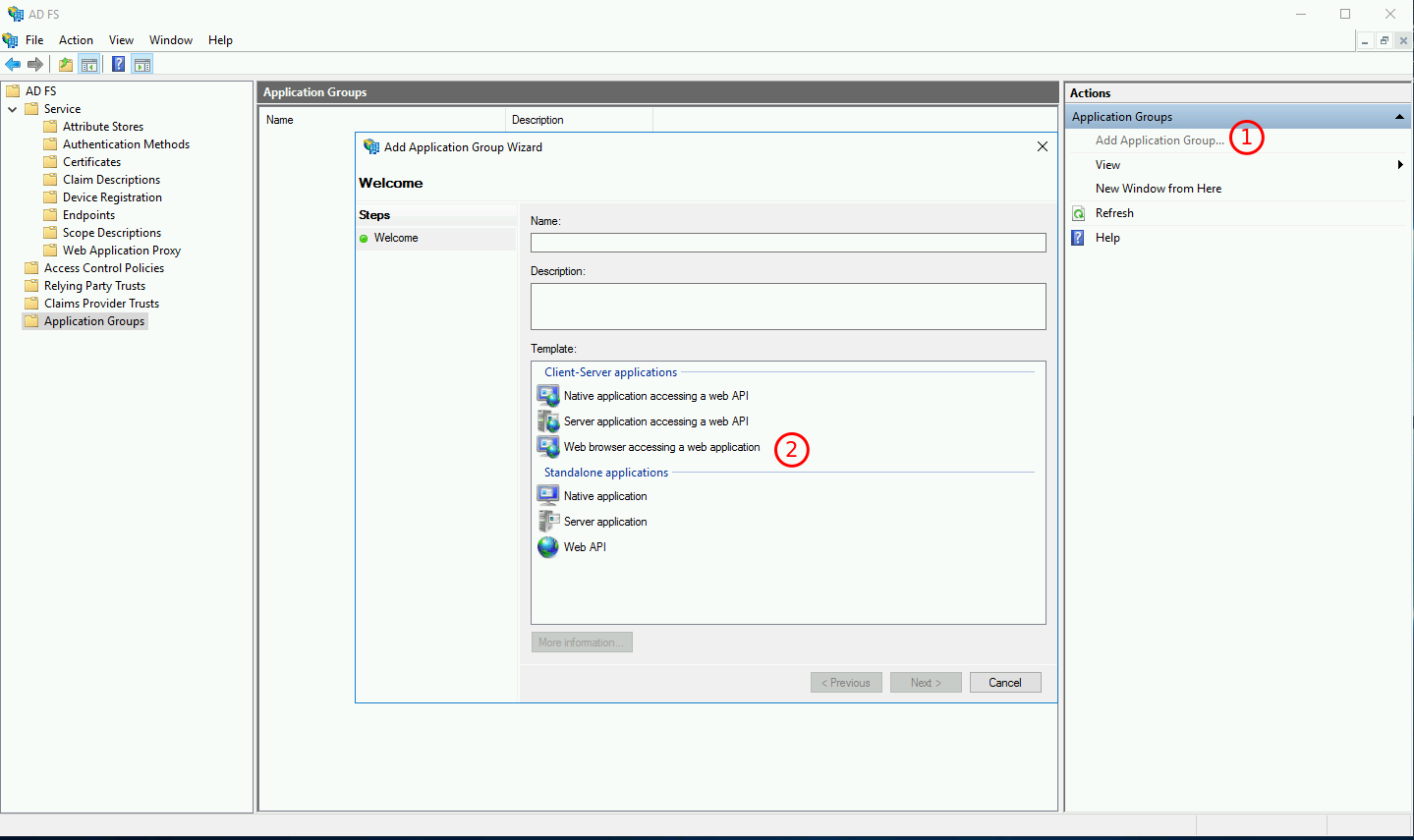
3.3.4 Specify https://ADMINURL/_oauth/adfsoauth as the redirect URL (replace ADMINURL accordingly), leave the other settings at their default values, and copy the client ID.
3.3.5 Open the created application group, edit the web application, switch to the Transform Rules tab, and add a new rule.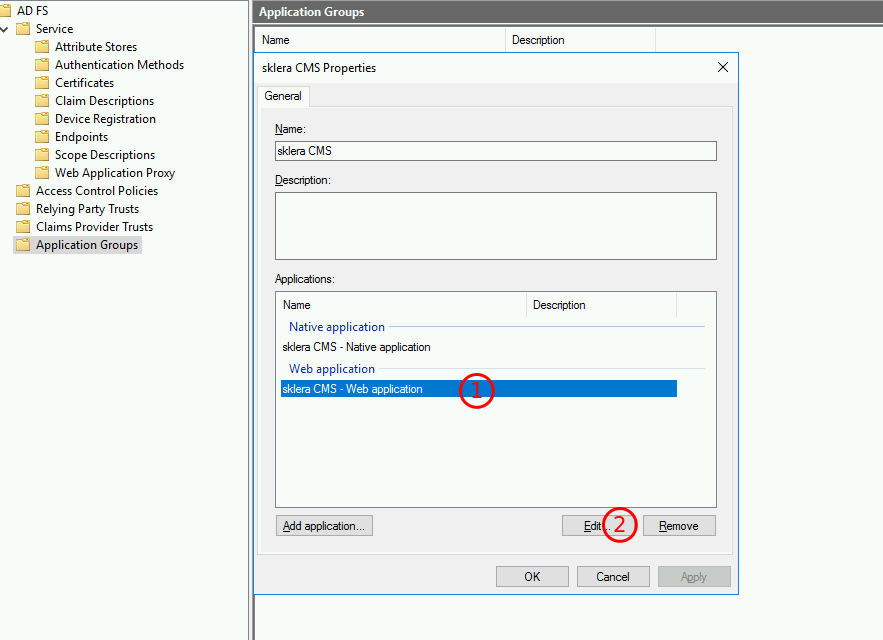
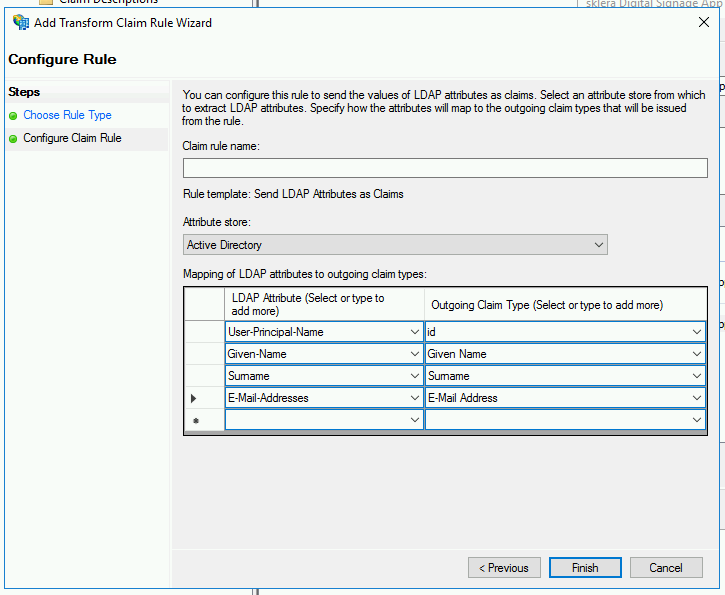
3.3.6 Confirm with OK and restart the ADFS service.
3.4 Enabling AD FS on the sklera Server
Please send the address of the ADFS server, the created client ID of the app, and the signing certificate to sklera GmbH at support@sklera.tv. These are needed to complete the setup on the sklera server.
3.5 AD Login
Once the switch has been completed, a new login button will be available on the sklera server, through which OAuth authentication is initiated.