
TABLE OF CONTENTS
- 1. General
- 2. Migration
- 3. General Information
1. General
Microsoft is gradually phasing out the EWS interface.
To continue using the Room Manager, a migration to the Microsoft Graph API is required. This involves updating the Room Manager configuration as well as making changes in your Microsoft 365 tenant.
2. Migration
The following information from your existing configuration is required for the migration:
| Description | Source | Note |
| Directory (tenant) ID | Entra ID > App registrations > YOUR_APP > Overview. | Unique identifier of your Microsoft Entra ID tenant. |
| Application (client) ID | Entra ID > App registrations > YOUR_APP > Overview. | Unique identifier of your application registered in Microsoft Entra ID |
| Client Secret (Value) | If unknown, a new Client Secret must be created. Entra ID > App registrations > YOUR_APP > Certificates & secrets. | The Value is required - not the Secret ID. |
Object ID of your Enterprise App from the "Enterprise apps" menu | Entra ID > Enterprise apps > YOUR_APP > Overview. | Corresponds to the Object ID of your Service Principal in Exchange Online. |
| Object ID of the Security Group used or | Entra ID > Groups > All Groups. | Instead of a Security Group, a Management Scope can also be configured. |
| Exchange Online (PowerShell) > Get-ManagementScope. | Instead of a Management Scope, a Security Group can also be configured. |
Follow the steps below to complete the migration.
2.1 Microsoft Entra ID
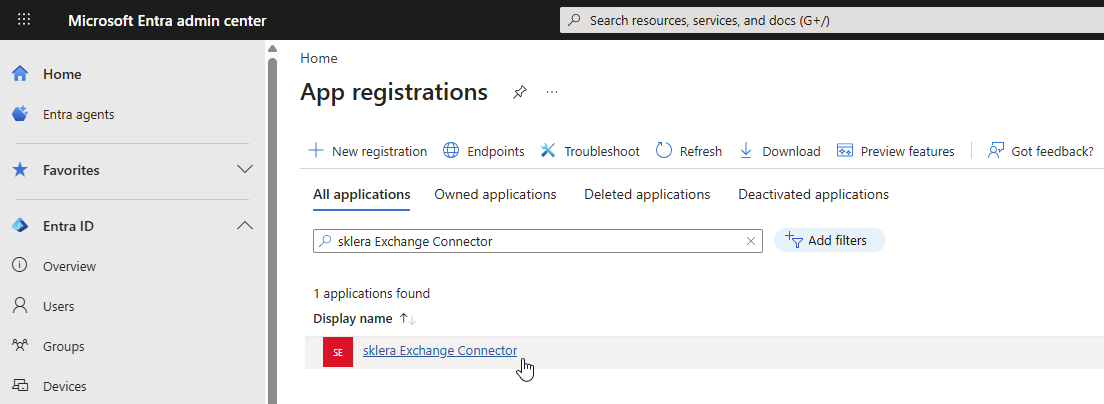
2.1.1 Log in to the Microsoft Entra admin center and edit the existing app
- Go to https://entra.microsoft.com, click on the "App registrations > All Applications" menu item, and select your existing sklera app (e.g., sklera Exchange Connector).
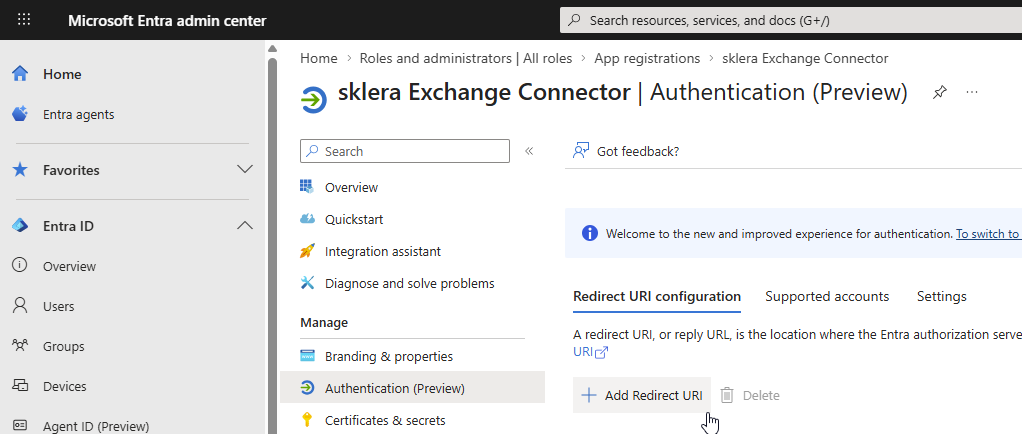
2.1.2 Add Redirect URI
- Navigate to "Authentication (Preview)" and click "Add Redirect URI".
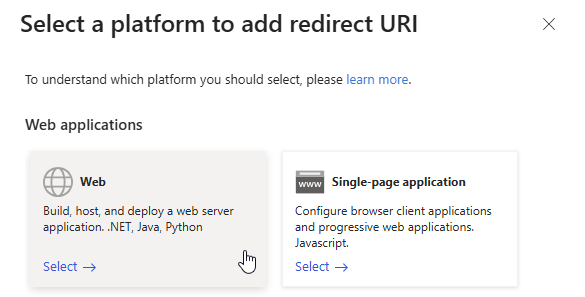
- Select the "Web" option.
- Enter your Redirect URI and then click the "Configure"button to save the configuration.Info
Use the following format for the redirect URI
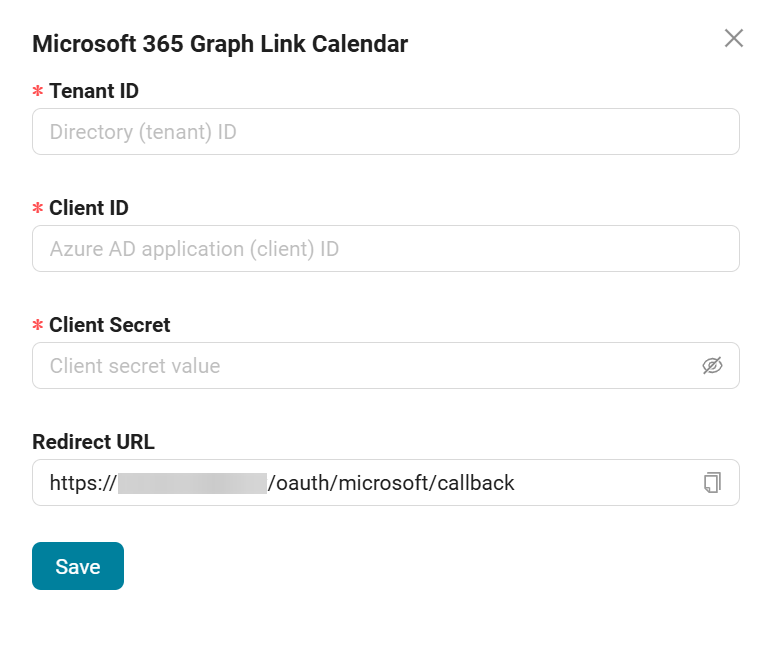
https://REPLACE_WITH_YOUR_SKLERA_CMS_URL/oauth/microsoft/callback
Substitute REPLACE_WITH_YOUR_SKLERA_CMS_URL with the actual URL of your sklera CMS instance.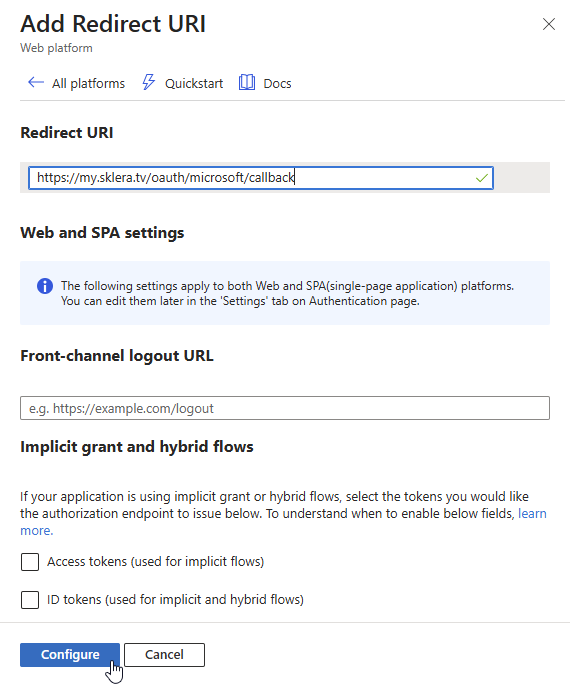
2.1.3 Add API Permission
In order to add rooms graphically in the Room Manager, it requires access to your Room Lists.
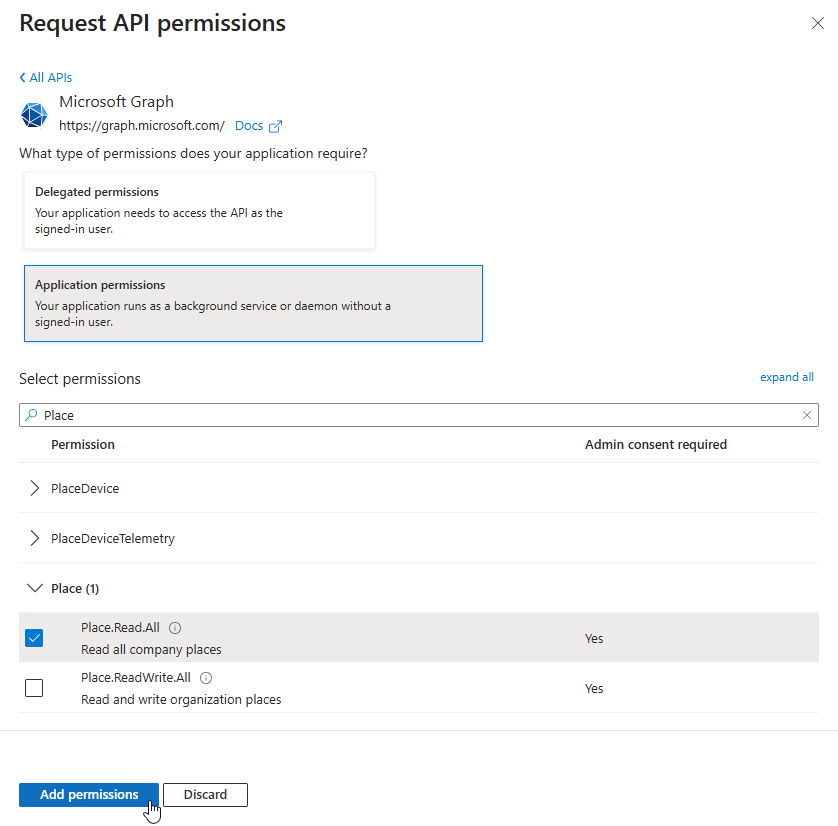
If the required API Permission (Place.Read.All) is not granted, new rooms can only be added by entering the SMTP address (Input Room Address). A graphical selection is not possible in this case.
Example of graphical room selection: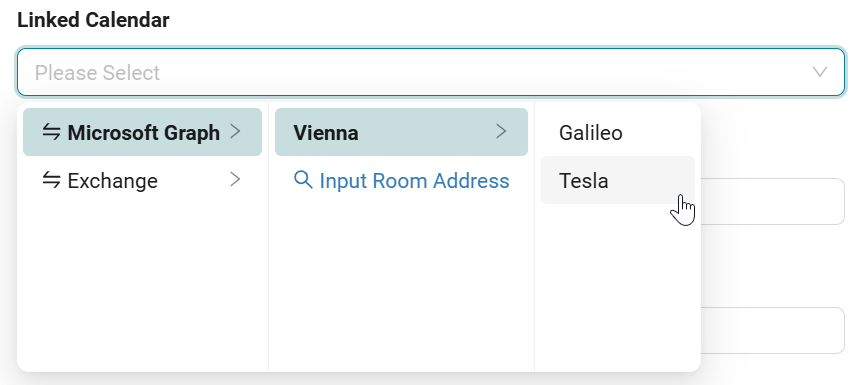
If you do not use Room Lists or do not wish to grant the API permission, you can proceed directly to section 2.2.
Otherwise, complete the following steps to grant the permission:
- Navigate to "API permissions".
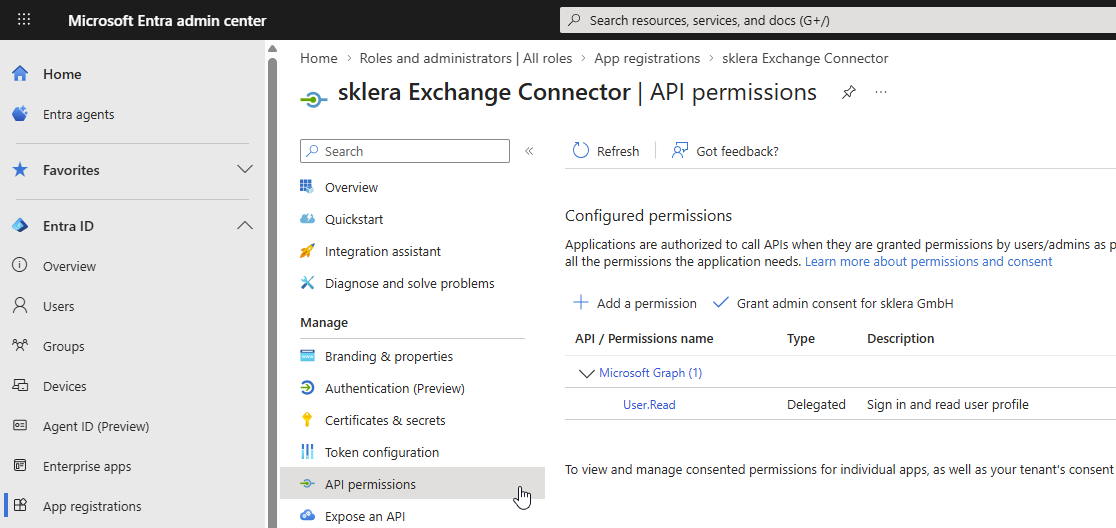
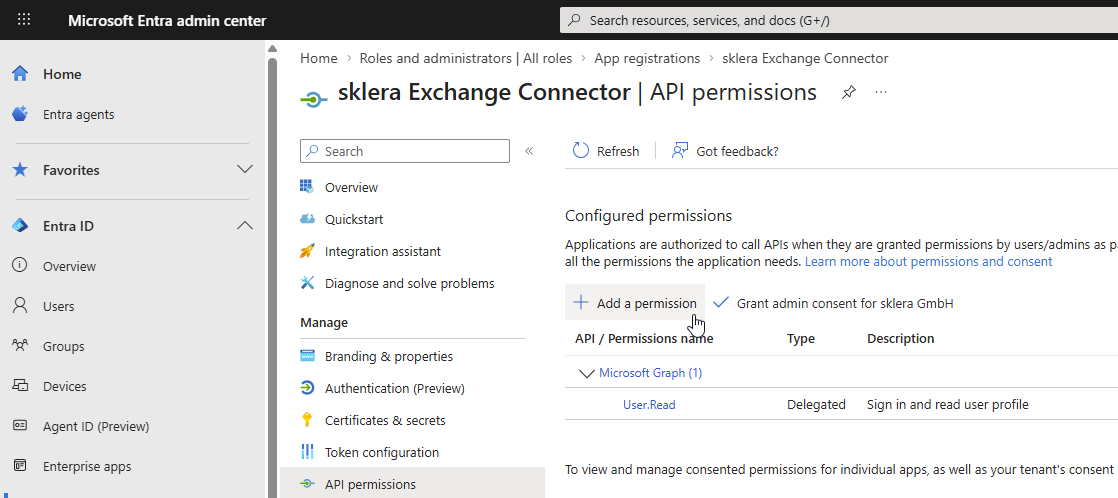
- Click "Add a permission".
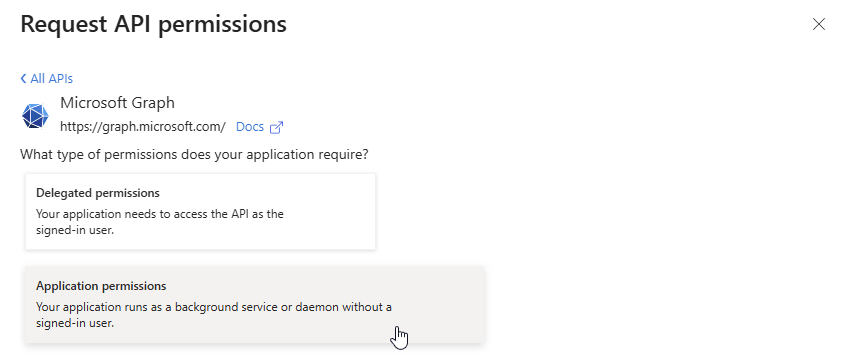
- Select "Microsoft Graph".
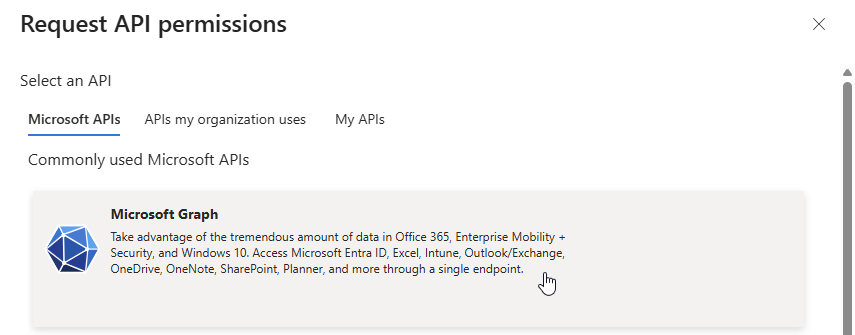
- Select "Application permissions".
- Search for "Place", select "Place.Read.All", and click "Add permissions".
2.2 Exchange Online (PowerShell)
2.2.1 Connect to Exchange Online
- Open PowerShell and connect to Exchange Online
Connect-ExchangeOnline
2.2.2 Configure Access to Room Mailboxes
The Room Manager is granted access exclusively to room mailboxes that are either members of a defined "Security Group" or restricted by a defined "Management Scope". Access to other mailboxes is not possible.
To do this - depending on your previously used solution - create a new "Management Role Assignment" in Variant A or Variant B and specify the desired role.
Attention: It may take several hours for changes or newly created Management Role Assignments to take effect.
| Variant | Description |
| A: Security Group or B: Management Scope | Access permissions are defined via the membership of the rooms in a Security Group. |
Access permissions are defined via a Management Scope based on arbitrary mailbox attributes (e.g., group membership, mailbox type, location). |
Role (Permission) | ||
| Application Calendars.ReadWrite or Application Calendars.Read | Read and write access to calendars | Required if appointments are to be created, modified, or deleted in Exchange by the Room Manager (return channel). |
Read access to calendars | Sufficient if only read access to appointments in Exchange is required (no return channel). |
Variant A: Security Group
Use the following command if you are using a Security Group:
New-ManagementRoleAssignment -App oooooooo-oooo-oooo-oooo-oooooooooooo -Role "Application Calendars.ReadWrite" -RecipientGroupScope ssssssss-ssss-ssss-ssss-ssssssssssss -Name SKLERA_GRAPH_CALENDARS_READWRITE
| Parameter | Description |
| -App | Object ID of your Enterprise App from the "Enterprise apps" menu (corresponds to the Object ID of your Service Principal in Exchange Online). |
| -Role | Application Calendars.ReadWrite or Application Calendars.Read. |
| -RecipientGroupScope | ID of your existing Security Group. |
| -Name | User-defined name for the management role assignment. |
- Variant B: Management Scope
Use the following command if you are using a Management Scope:
New-ManagementRoleAssignment -App oooooooo-oooo-oooo-oooo-oooooooooooo -Role "Application Calendars.ReadWrite" -CustomResourceScope "sklera-allowedRooms-scope" -Name SKLERA_GRAPH_CALENDARS_READWRITE
| Parameter | Description |
| -App | Object ID of your Enterprise App from the "Enterprise apps" menu (corresponds to the Object ID of your Service Principal in Exchange Online). |
| -Role | Application Calendars.ReadWrite or Application Calendars.Read. |
| -CustomResourceScope | Name of your existing Management Scope.
|
| -Name | User-defined name for the management role assignment. |
2.3 sklera CMS
2.3.1 Log in to the sklera CMS
- Log in with a sklera user that has access to the Room Manager module.
2.3.2 Link Microsoft Graph Calendar and Perform Migration
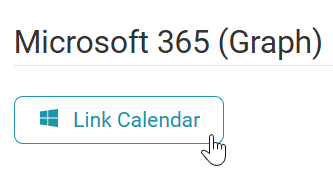
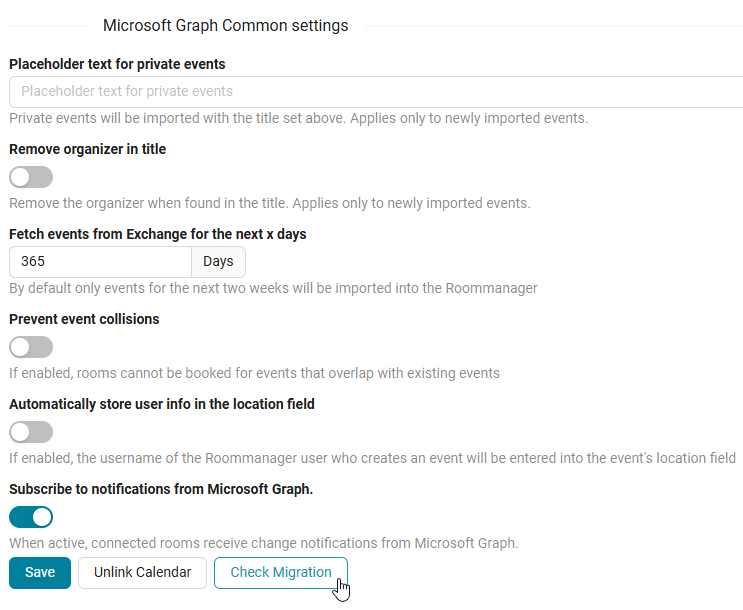
Navigate to "Module > Room Manager" and, in the "Microsoft 365 (Graph)" section, click the "Link Calendar" button.
Enter the Tenant ID, Client ID, and Client Secret, and then click "Save".
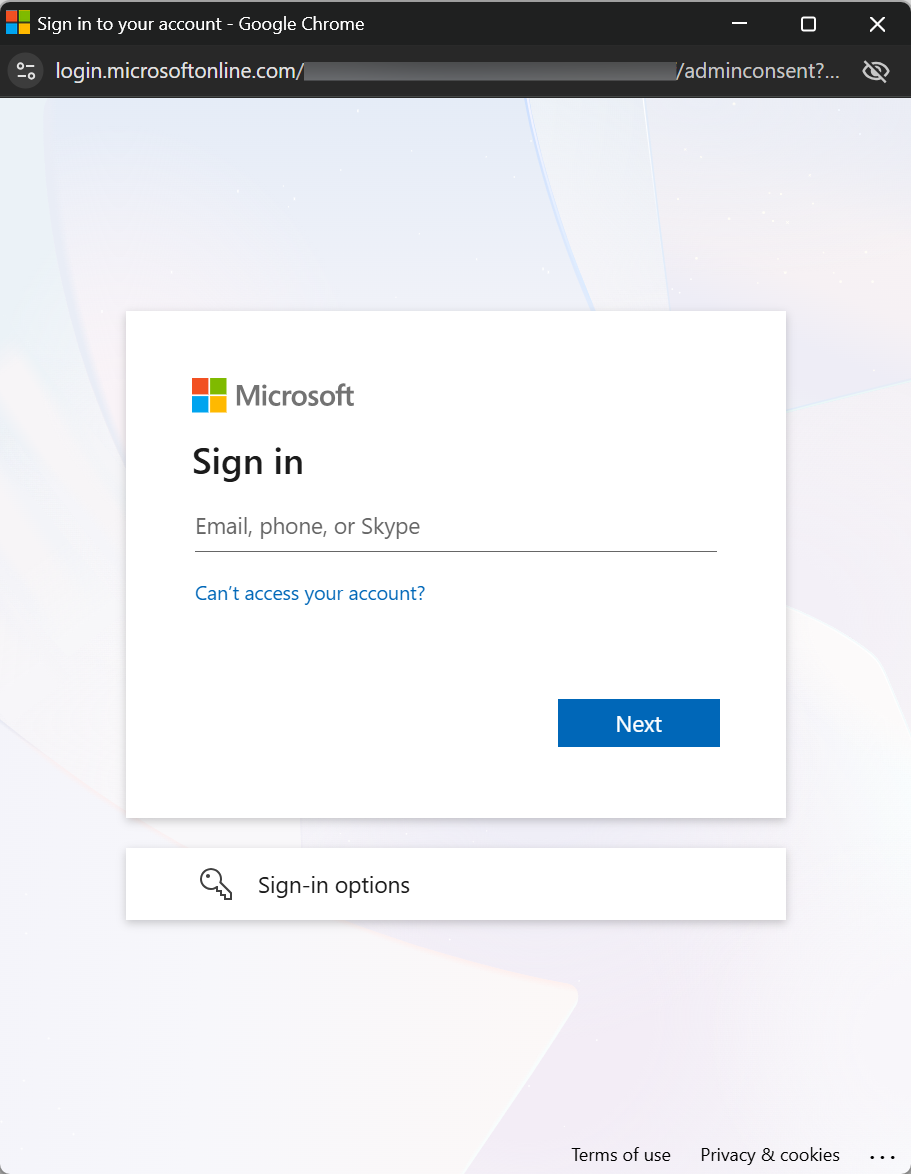
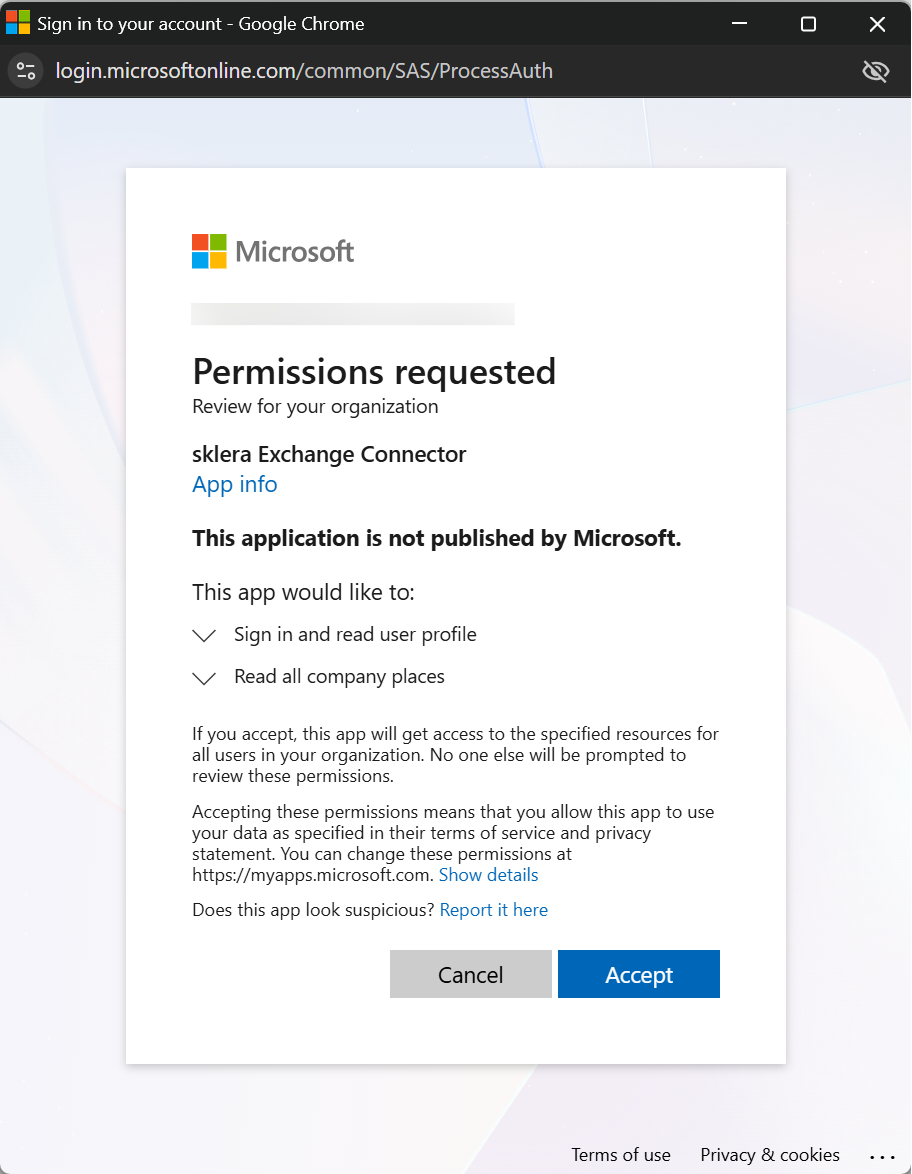
Sign in with your Microsoft administrator account and accept the requested permissions.
Click the "Check Migration" button.
This function checks whether existing rooms in the Room Manager are available that can be migrated to Microsoft Graph.
Start the migration by clicking "Start Migration".
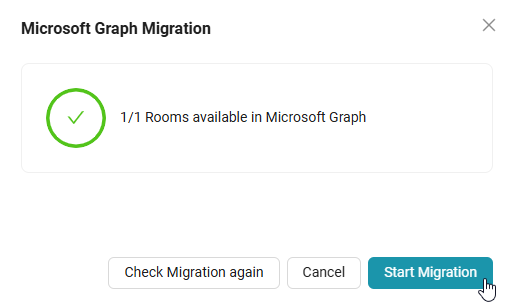
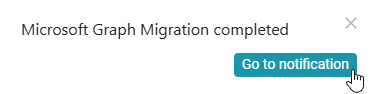
Once the migration is complete, a notification is displayed.
2.4 After the Migration
2.4.1 Remove EWS link
Once the migration has been successfully completed and verified, the EWS link can be removed in the Room Manager.
To do this, go to "Module > Room Manager > Connection & Settings". In the "Exchange / Microsoft 365" section, click "Unlink Calendar".
2.4.2 Remove the Previously Used Management Role Assignment
The previously used Management Role Assignment for the EWS API can be removed.To do so, use the following PowerShell commands:
## 1. List EWS Management Role Assignments ##

Get-ManagementRoleAssignment |
    Where-Object {
        $_.Role -eq "Application EWS.AccessAsApp" -and
        $_.RoleAssigneeType -eq "ServicePrincipal"
    }


## 2. Remove EWS Management Role Assignment ##

Remove-ManagementRoleAssignment -Identity "YOUR_EWS_MANAGEMENT_ROLE_ASSIGNMENT_NAME"
3. General Information
3.1 Subscribe to notifications from Microsoft Graph
In Room Manager, the “Subscribe to Notifications from Microsoft Graph” option can be enabled under “Connections & Settings” for the Microsoft Graph connection.

This feature enables Room Manager to detect and synchronize changes to calendar appointments in near real time.
Note
To receive notifications from Microsoft Graph, the appropriate firewall rules must be configured. Make sure that the required connections are allowed in your network.
For more information, see "Microsoft Graph Change Notifications" in the Microsoft documentation:
https://learn.microsoft.com/en-us/microsoft-365/enterprise/additional-office365-ip-addresses-and-urls?view=o365-worldwide
If you disable the slider, Microsoft Graph Change Notifications are not used, and events stored in Exchange are not synchronized immediately. Instead, synchronization takes place at regular intervals of approximately 3 minutes.