
There is a dedicated player app for the Sharp/NEC PN-ME432.
To set it up, please follow these instructions:
- Follow the First Run Wizard step by step:
- Select a language and click “Next”
- Set the display orientation (portrait or landscape)
- Configure the network settings
- Configure the time settings: Enable automatic date & time, and set the correct time zone
- Confirm the license agreement by scrolling to the end, checking the box, and clicking “Next” - Finish the wizard. You will now be on the device’s home screen
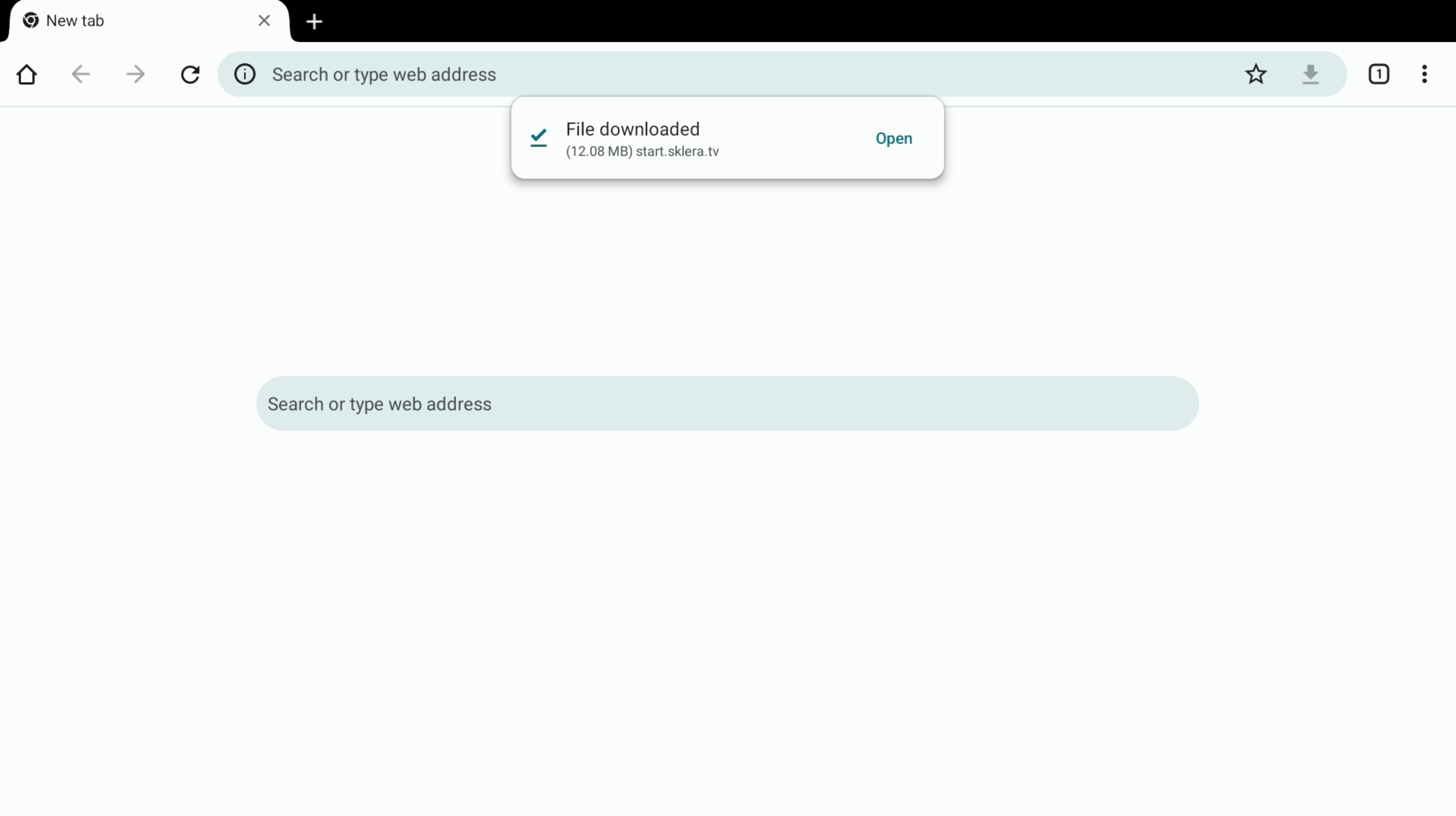
- Open the device’s browser and enter the following URL in the address bar:
https://start.sklera.tv/app/android/nec/download - Once the APK file has been downloaded, confirm by selecting 'Open'
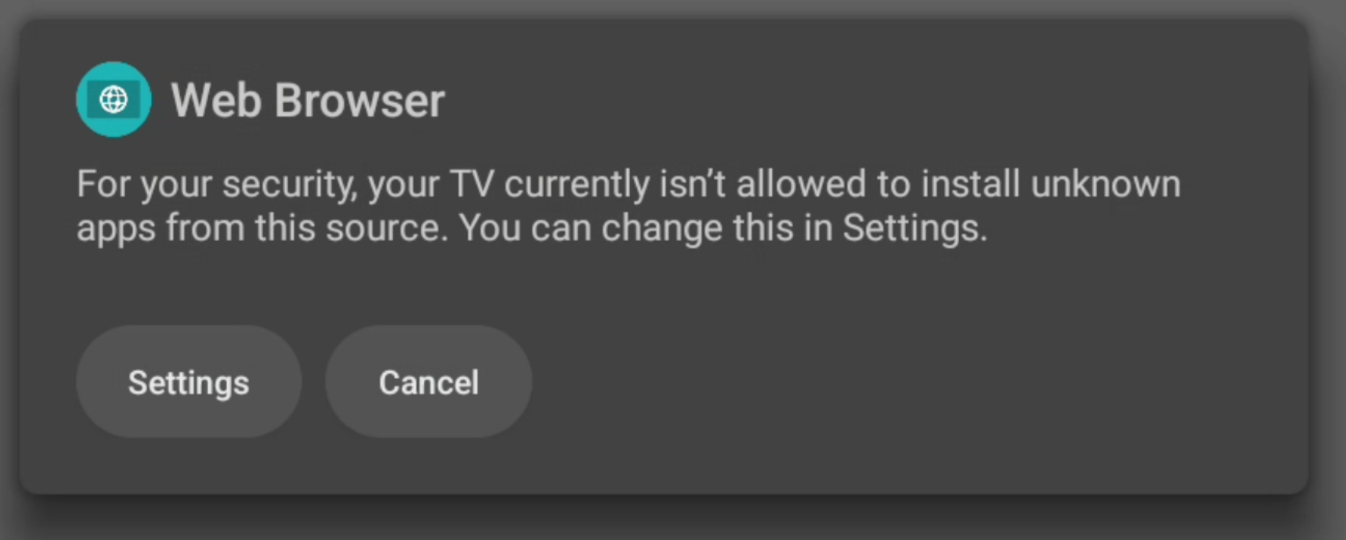
- A warning message will appear stating that, for security reasons, the display is not allowed to install apps from unknown sources. Click on 'Settings'.
- In the pop-up sidebar, enable the toggle for 'Web Browser' (not e-Signage Browser!).
Once this is enabled, you should immediately receive a prompt to install the app. Confirm this by clicking 'Install'.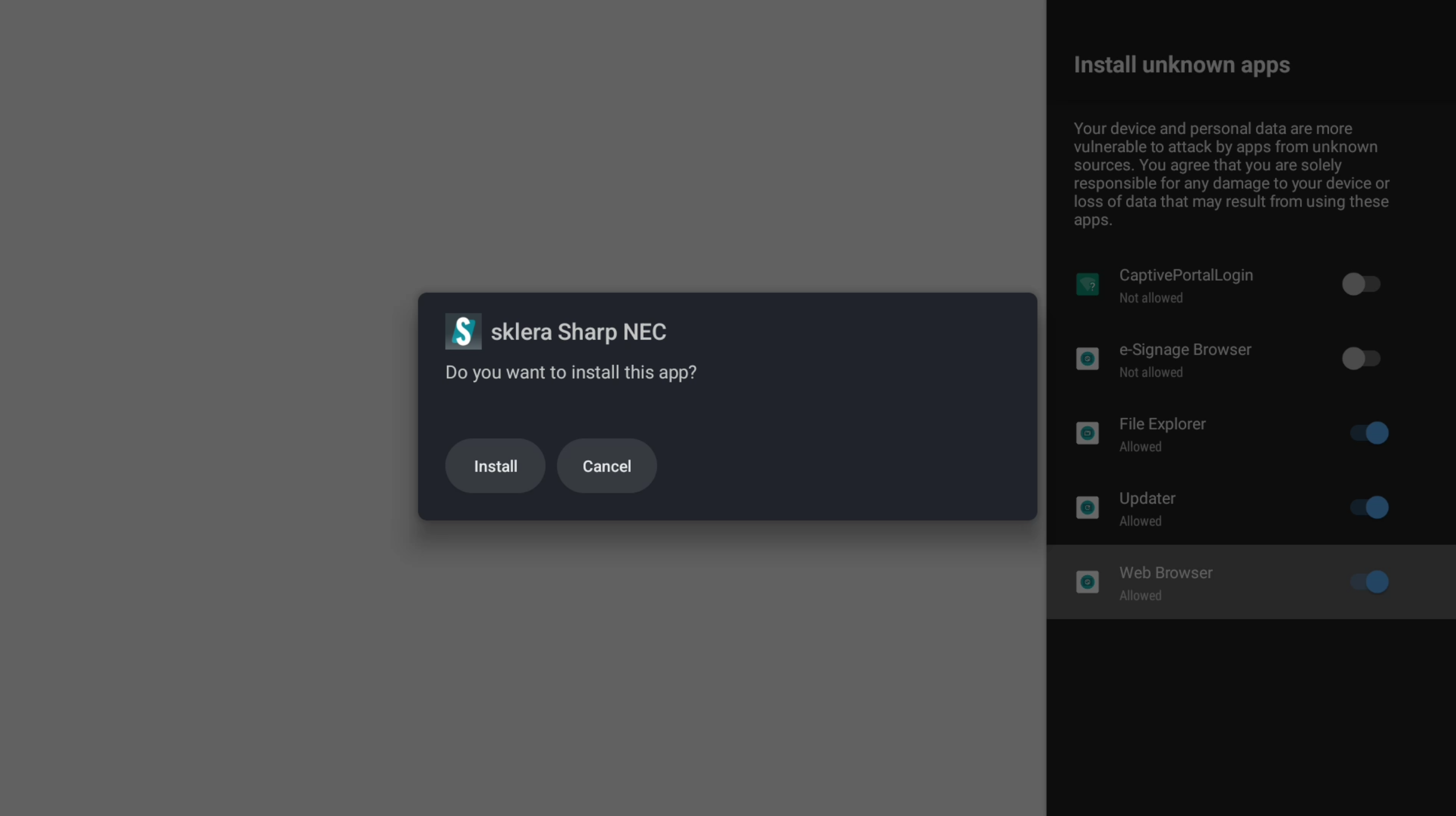
- Click 'Done' once the installation is complete, close the browser, and return to the home screen.
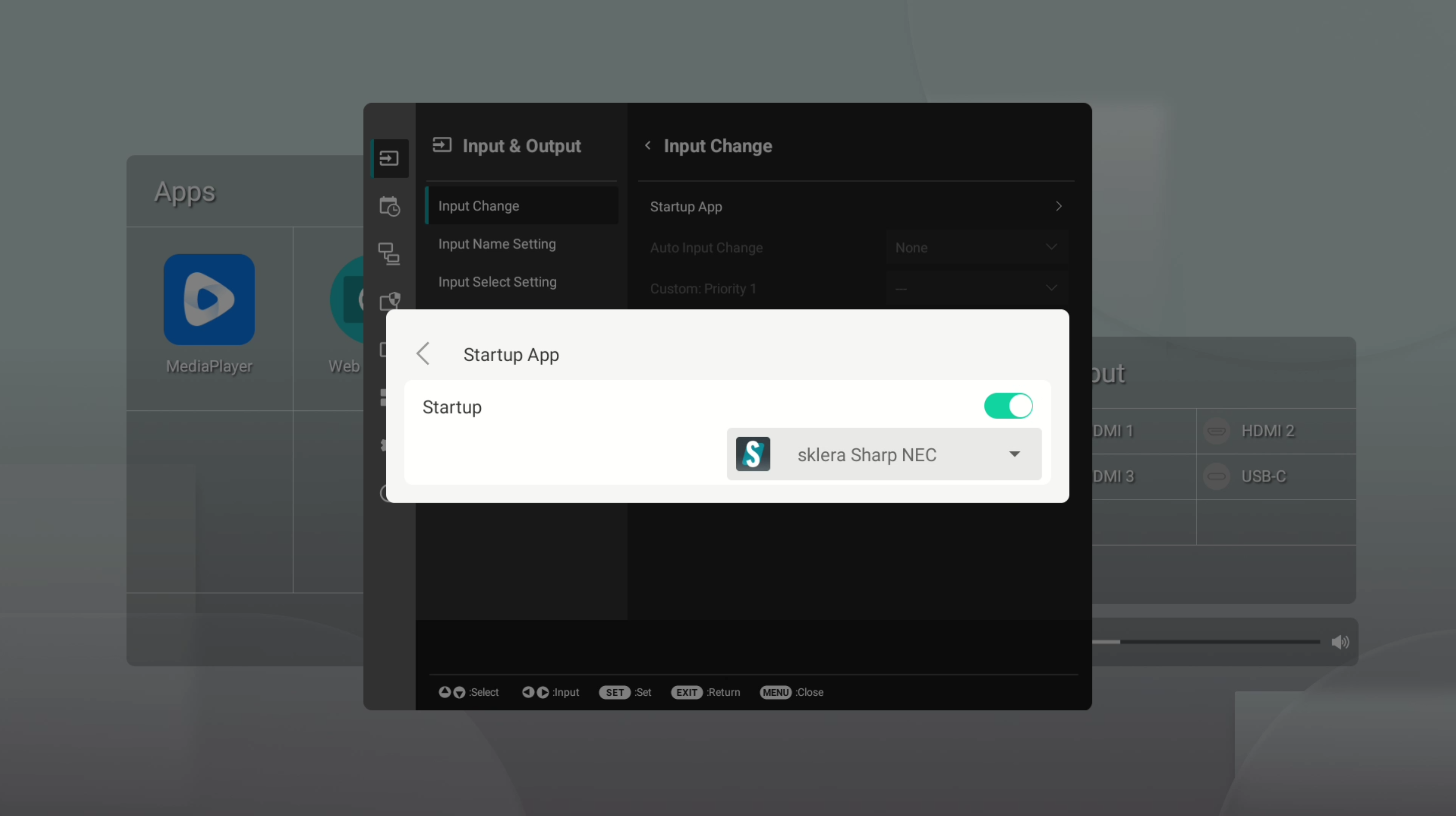
- Click on 'Settings' and, under the Administrator Settings, select 'Input Change'.
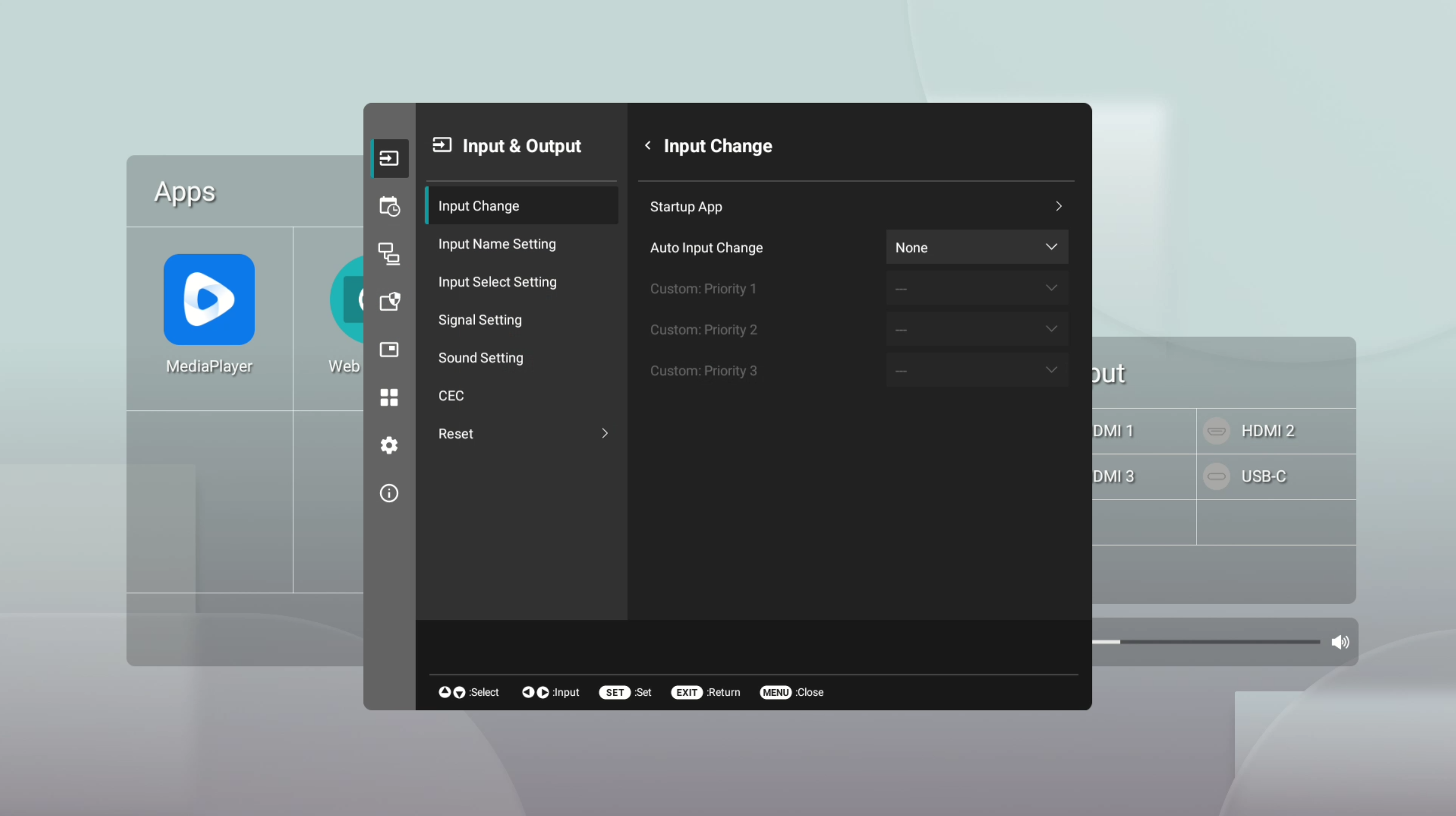
- Select 'Startup App'. In the pop-up window, enable the 'Startup' toggle and choose the app 'sklera Sharp NEC' from the dropdown menu:
- Go back to the home screen and start the sklera Player app by clicking on 'All Apps', then selecting 'sklera Sharp NEC'.
- The Player app will now start and display a pairing code.
- Pair the display with the sklera CMS by going to the Displays page in the sklera CMS, clicking 'Add Display' and entering the pairing code along with a display name.
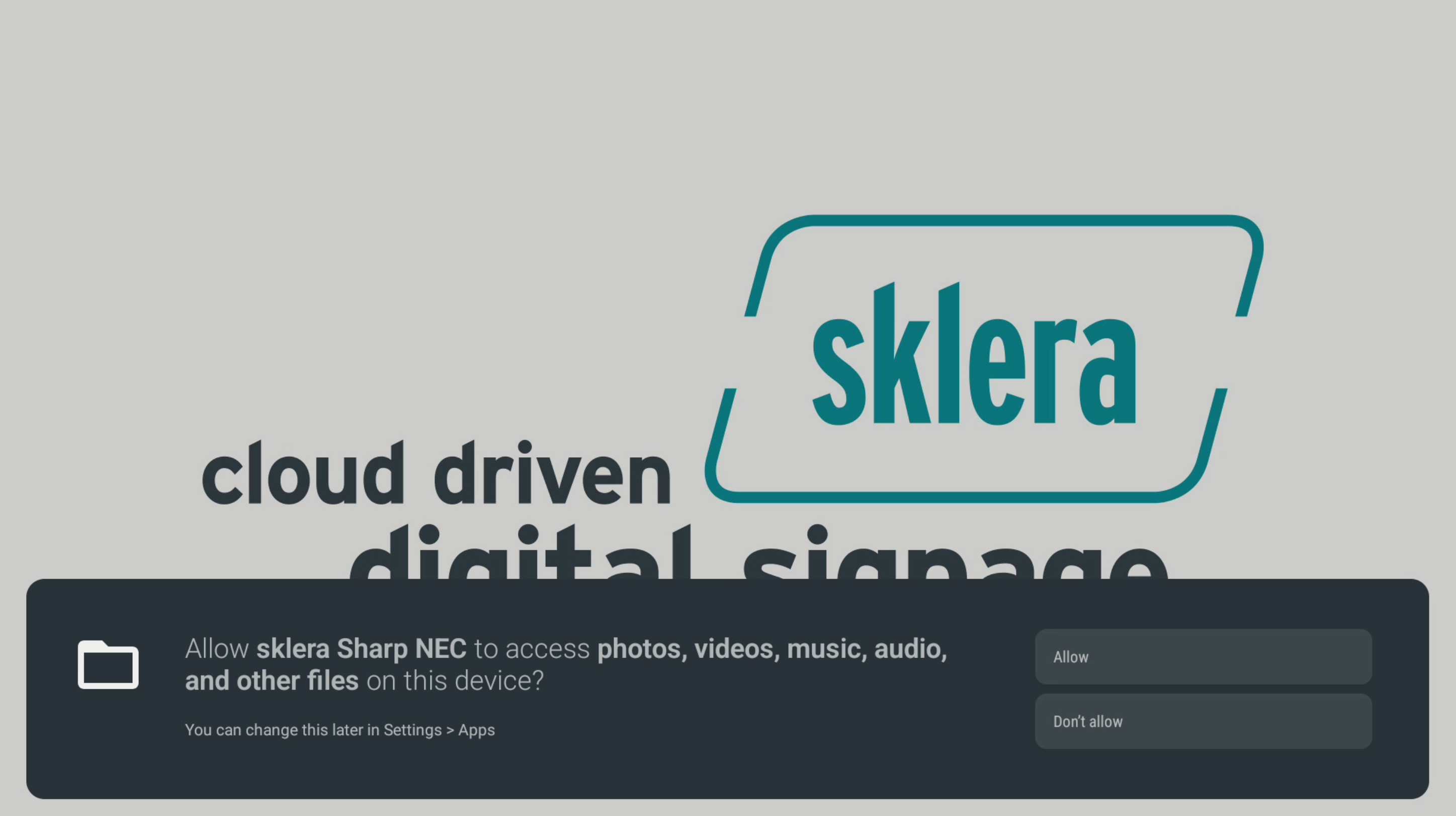
- The display will now show the background image. After a few seconds, a prompt will appear requesting permission to access files and images. Confirm this by selecting 'Allow'.
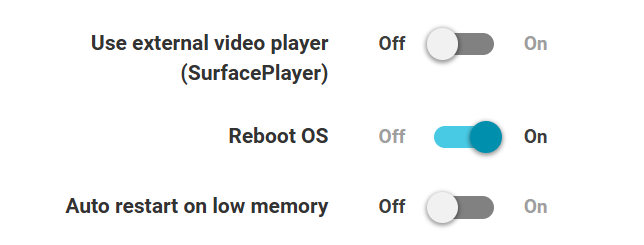
- In the sklera CMS, go to the display settings, then to the 'Settings' tab. Enable the option 'Reboot OS'.
- Configure the operating hours of the device in the display settings as desired.
Done!