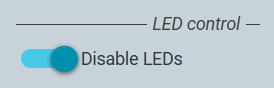
For Philips 10BDL devices, we provide a customized sklera Player app that enables control of the built-in status LEDs.
Prerequisites
- Internet connection
Preparation
Connect the device, switch it on, and then follow the installation wizard.
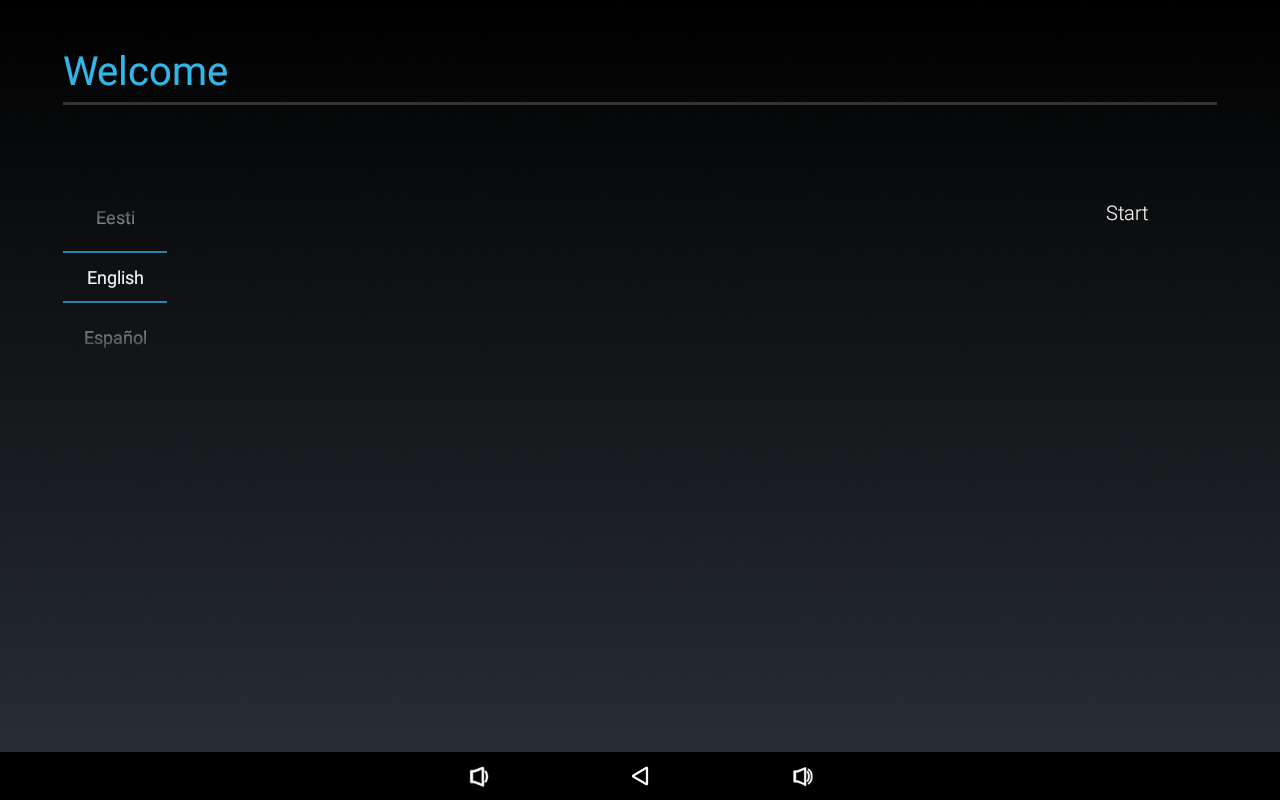
- Select the desired language.
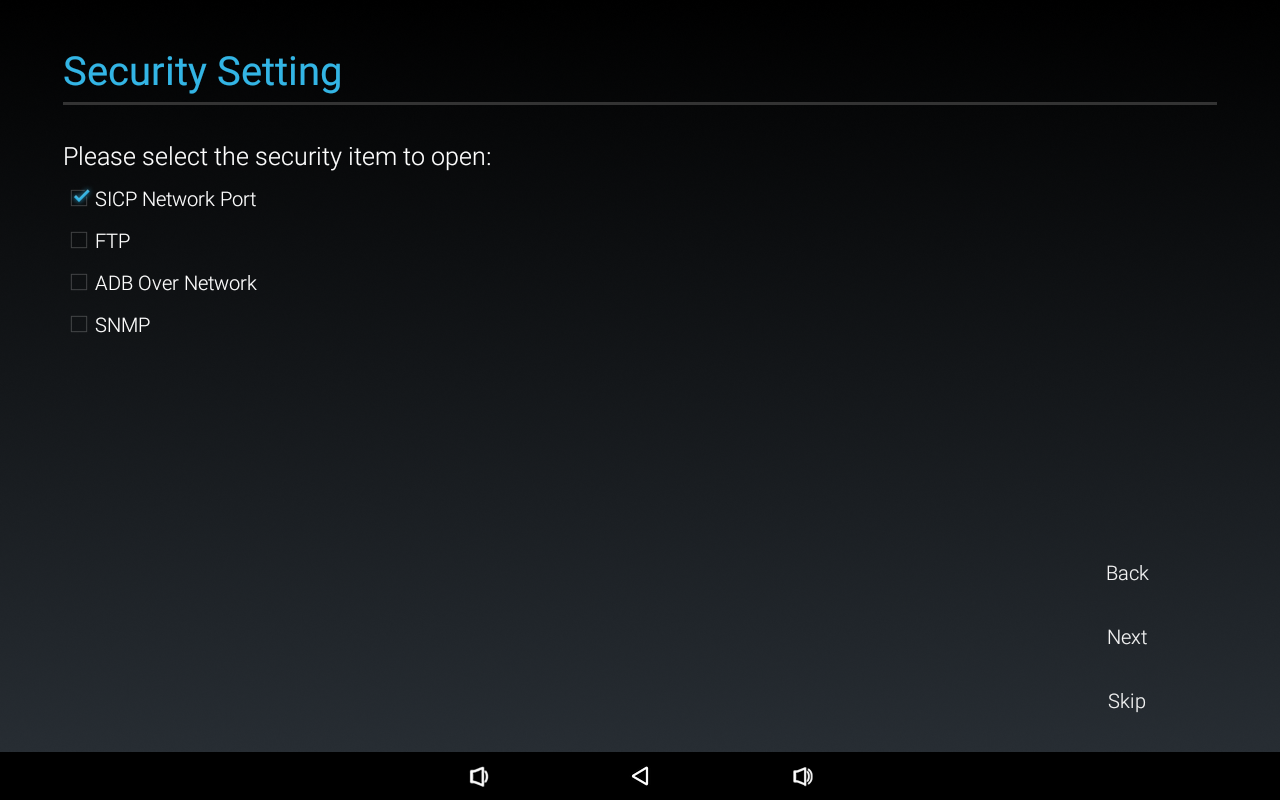
- Enable the SICP network port.
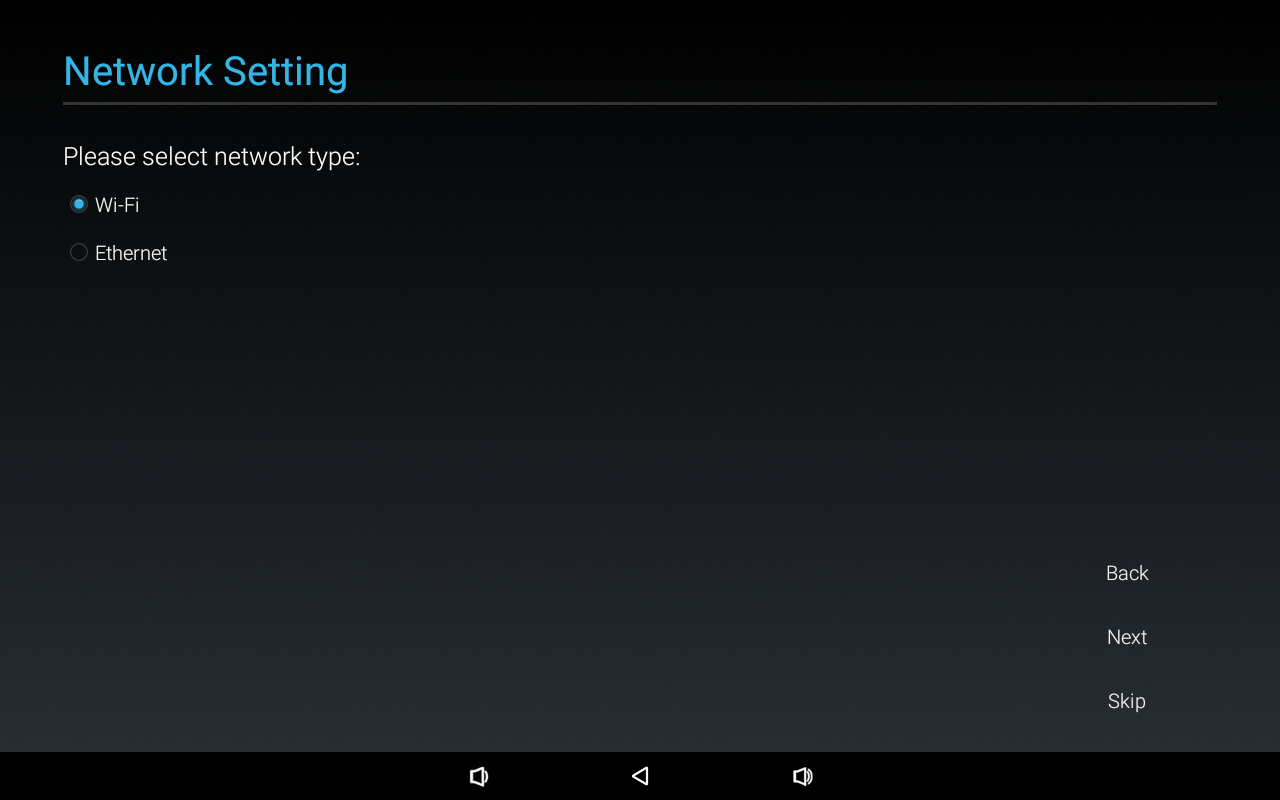
- Select the desired network type and establish the network connection.
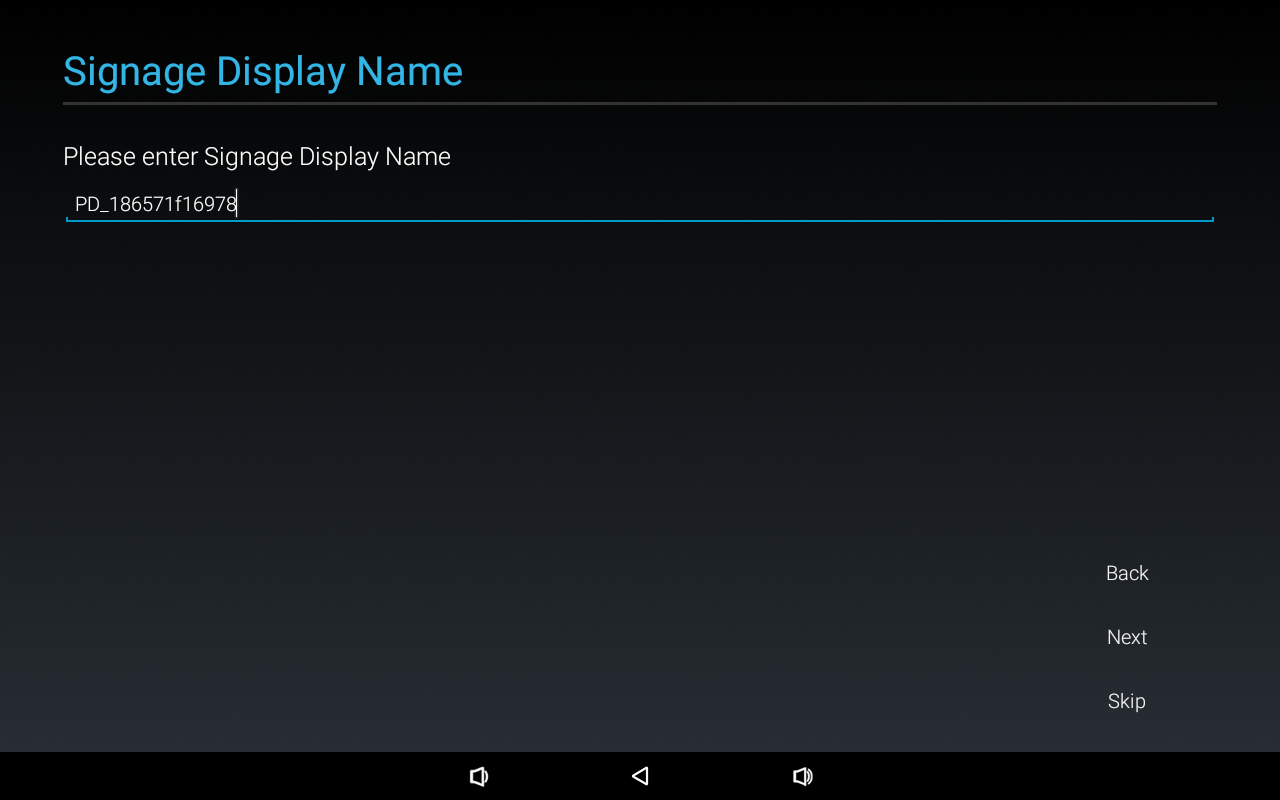
- (Optional) Set a display name.
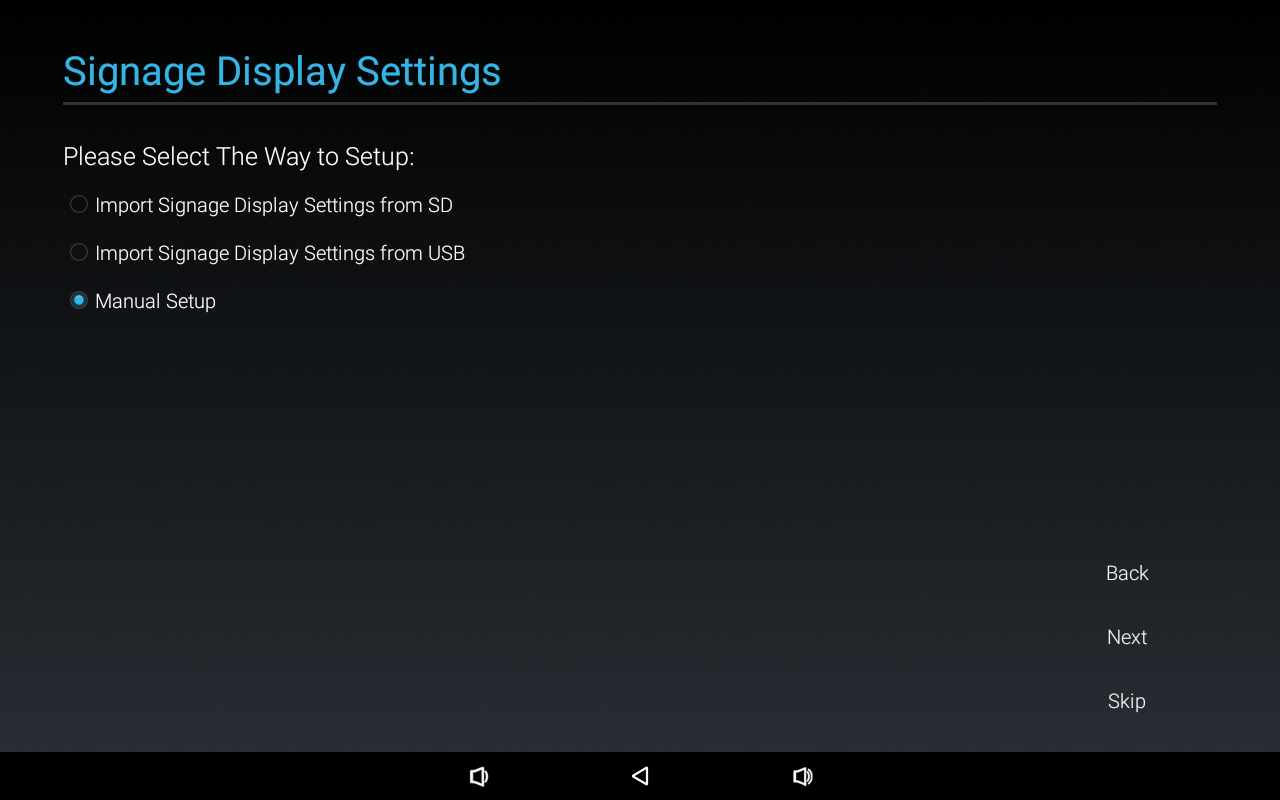
- Select "Manual Setup".
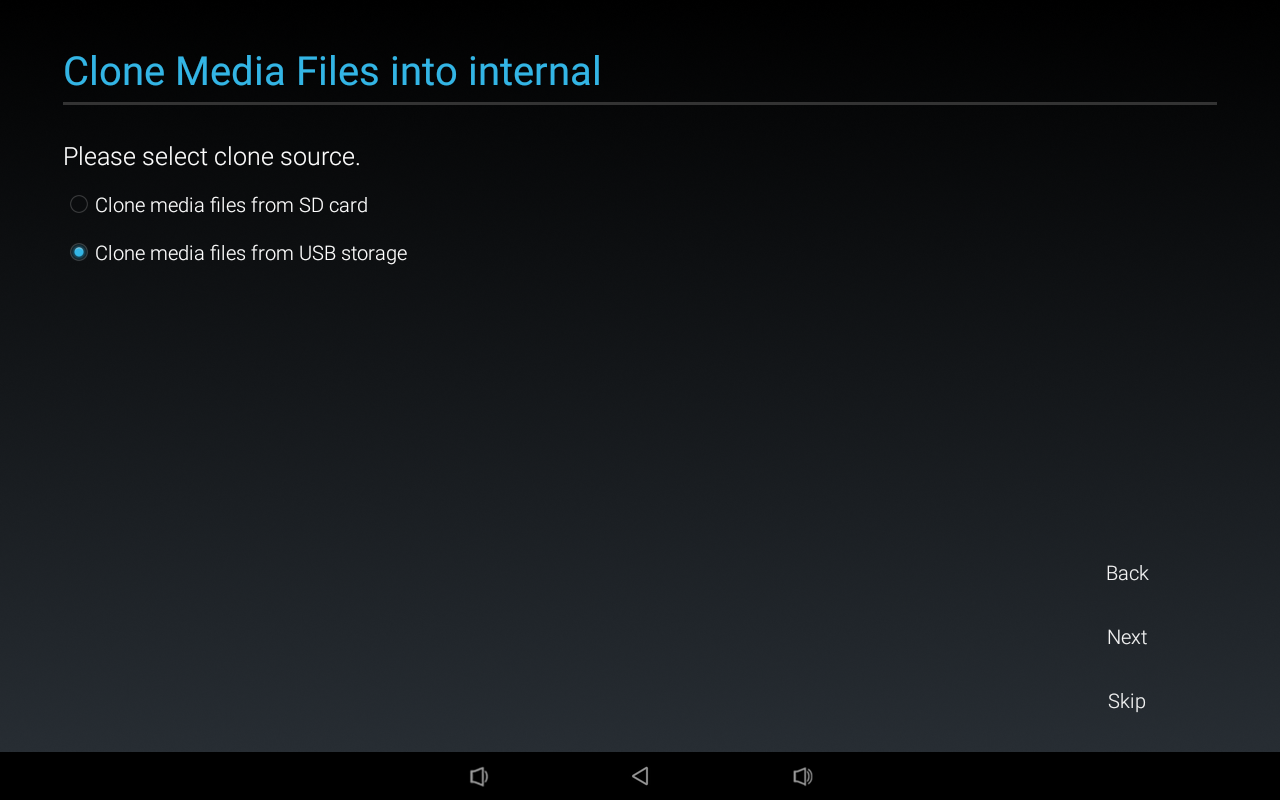
- Skip the "Clone Media Files into Internal" step by clicking "Skip".
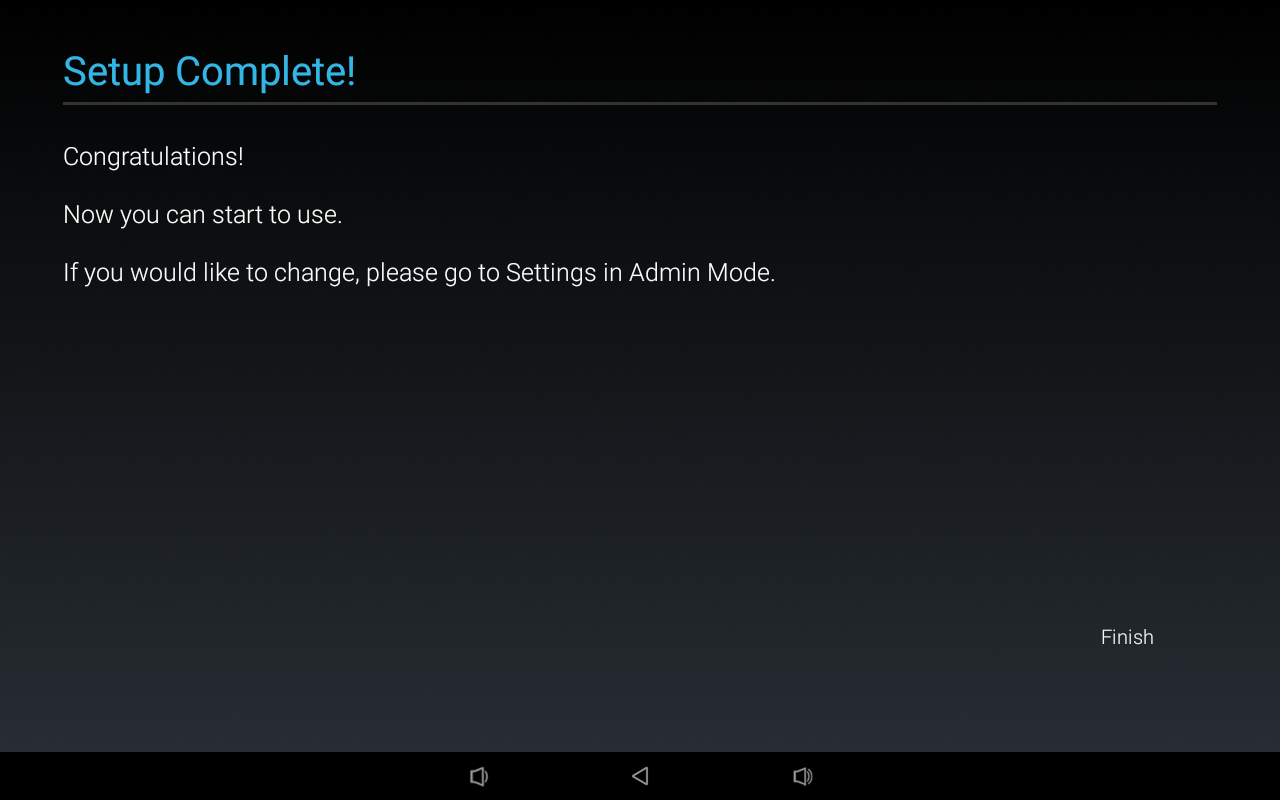
- Click "Finish" to complete the wizard.
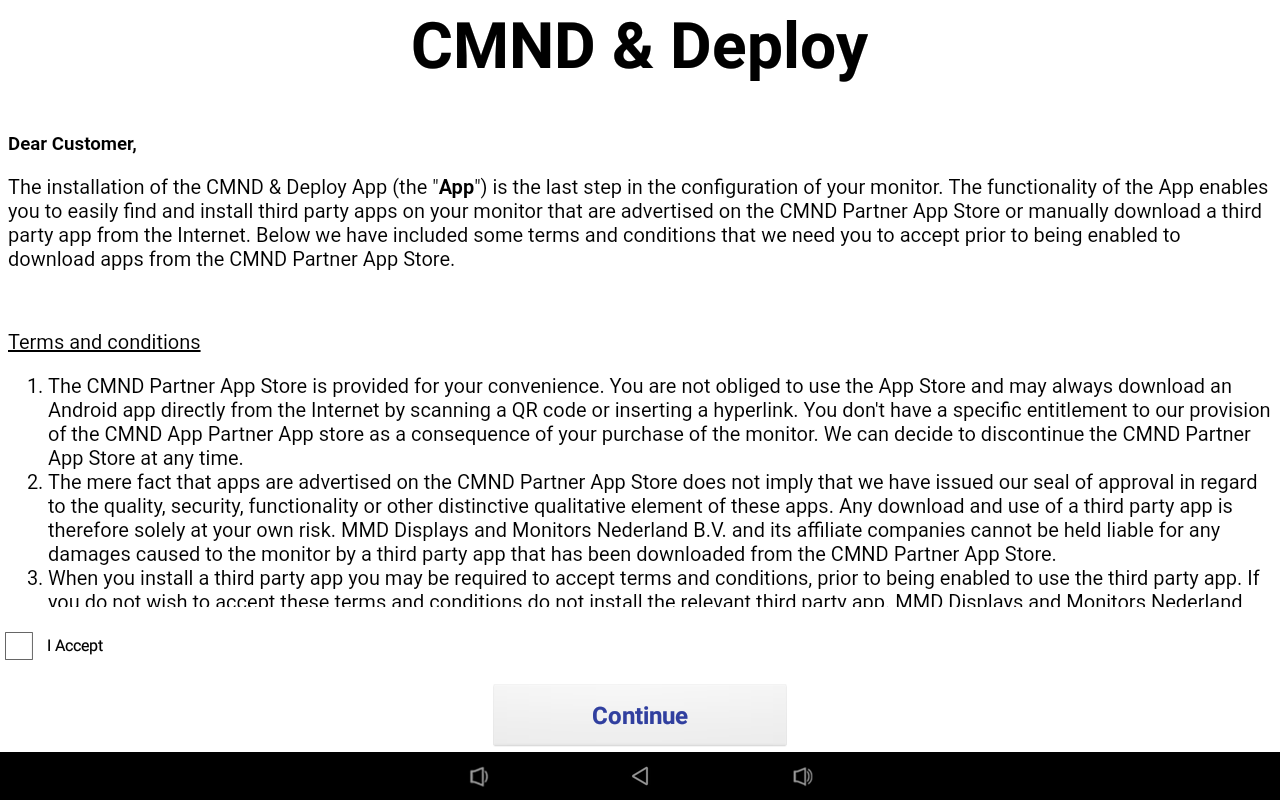
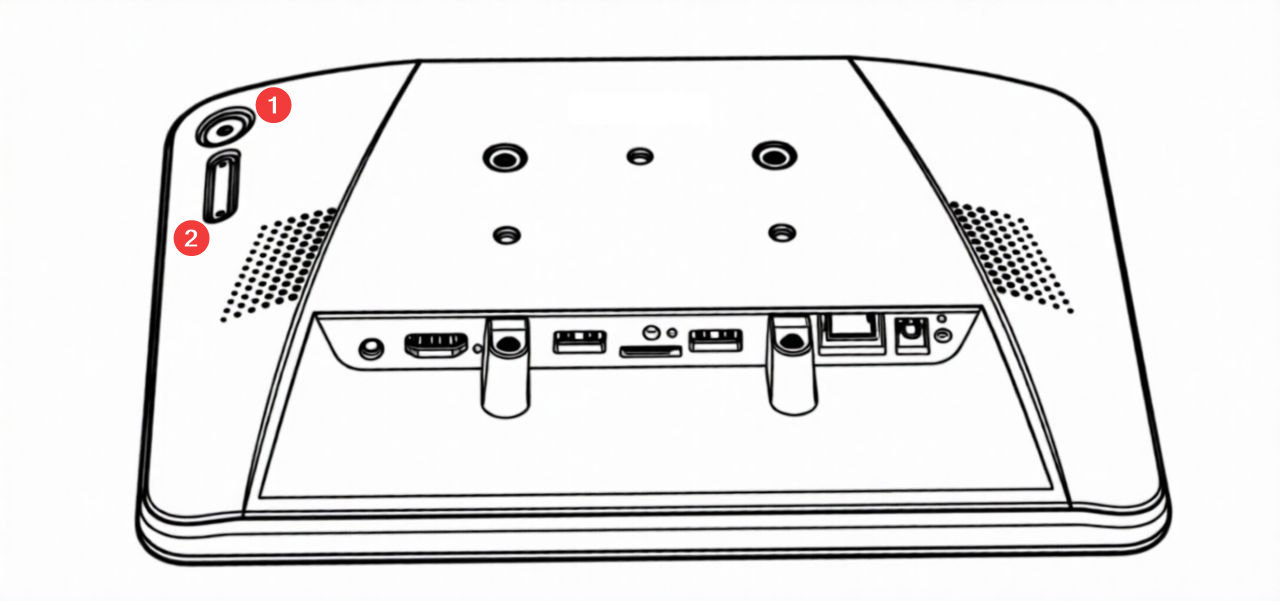
- Ignore the "CMND & Deploy" information and instead navigate to the settings menu. To do this, simultaneously press the round Menu button (1) and the Volume Down button (2) at the top right on the back of the device.
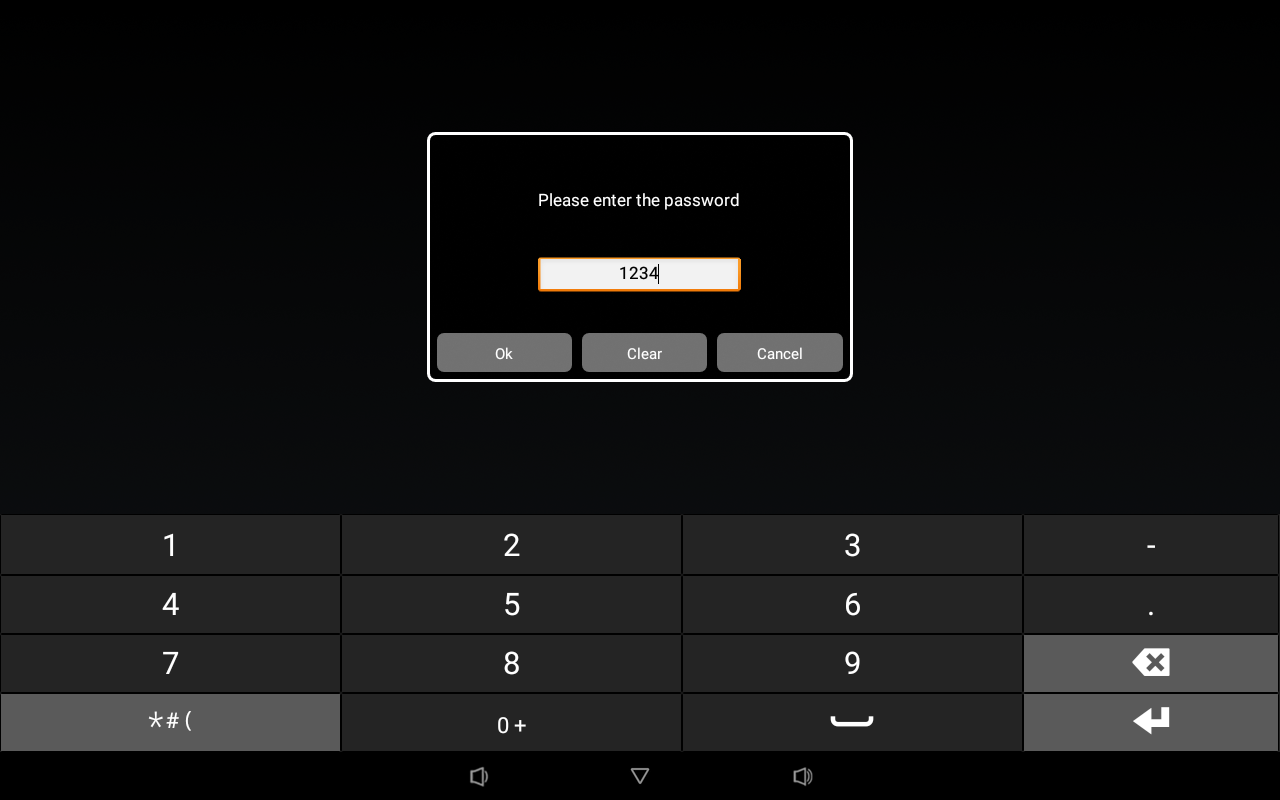
- Enter the password "1234".
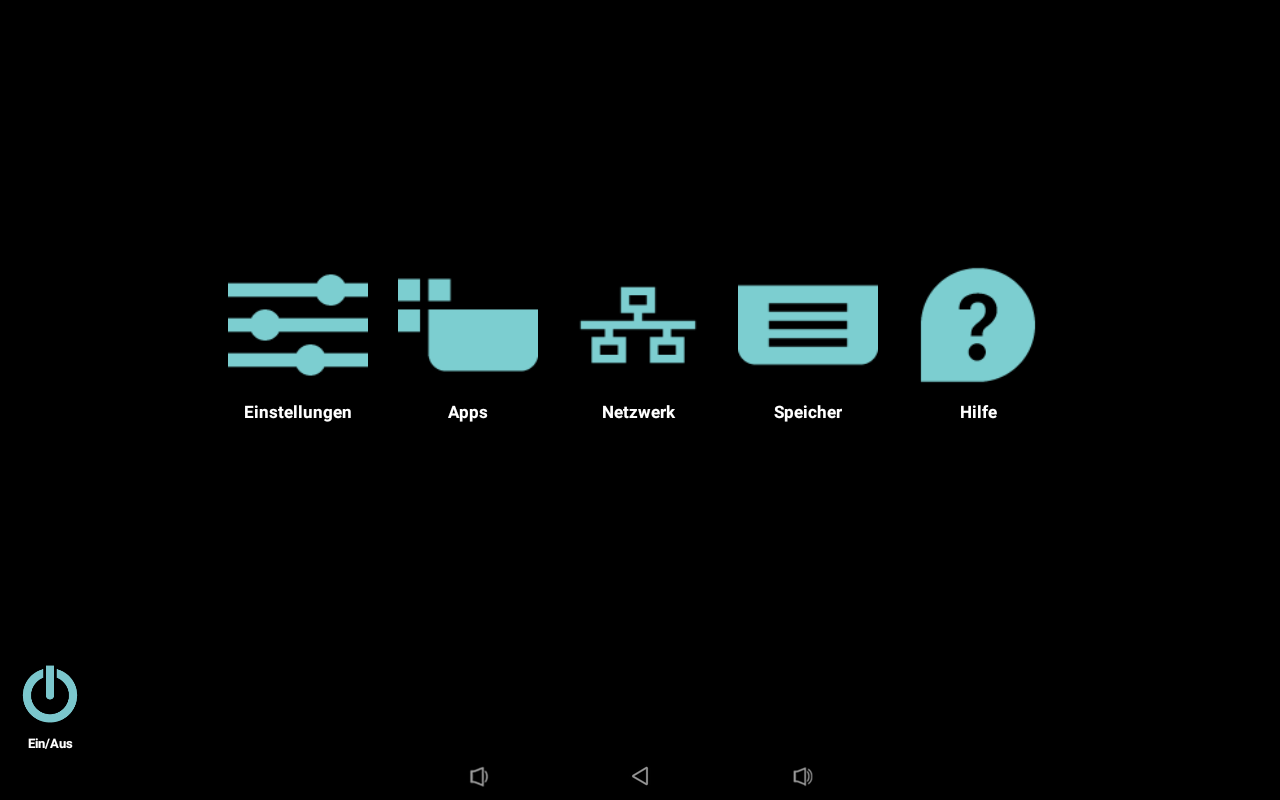
Player App Installation
- Open the Chromium browser by navigating to "Apps" > "Chromium".
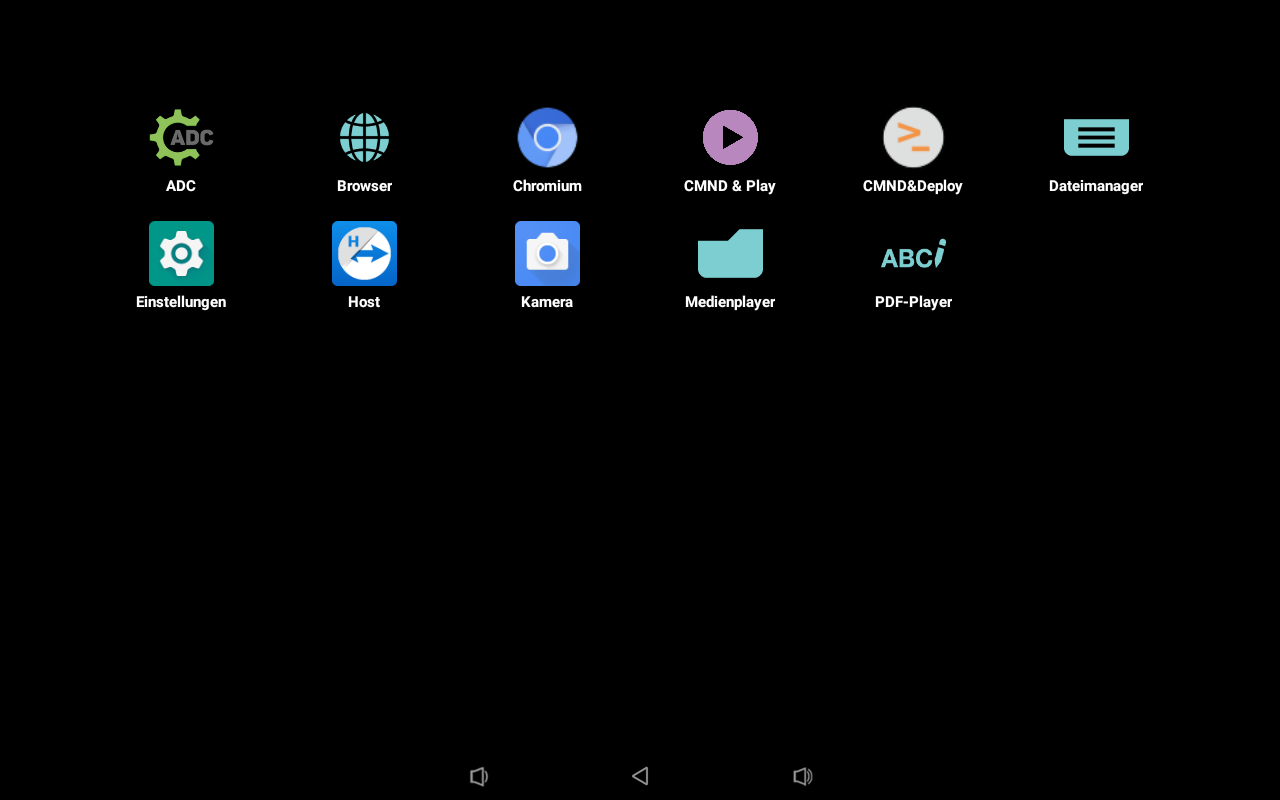
- Go to http://start.sklera.tv/app/android7/philips/download.
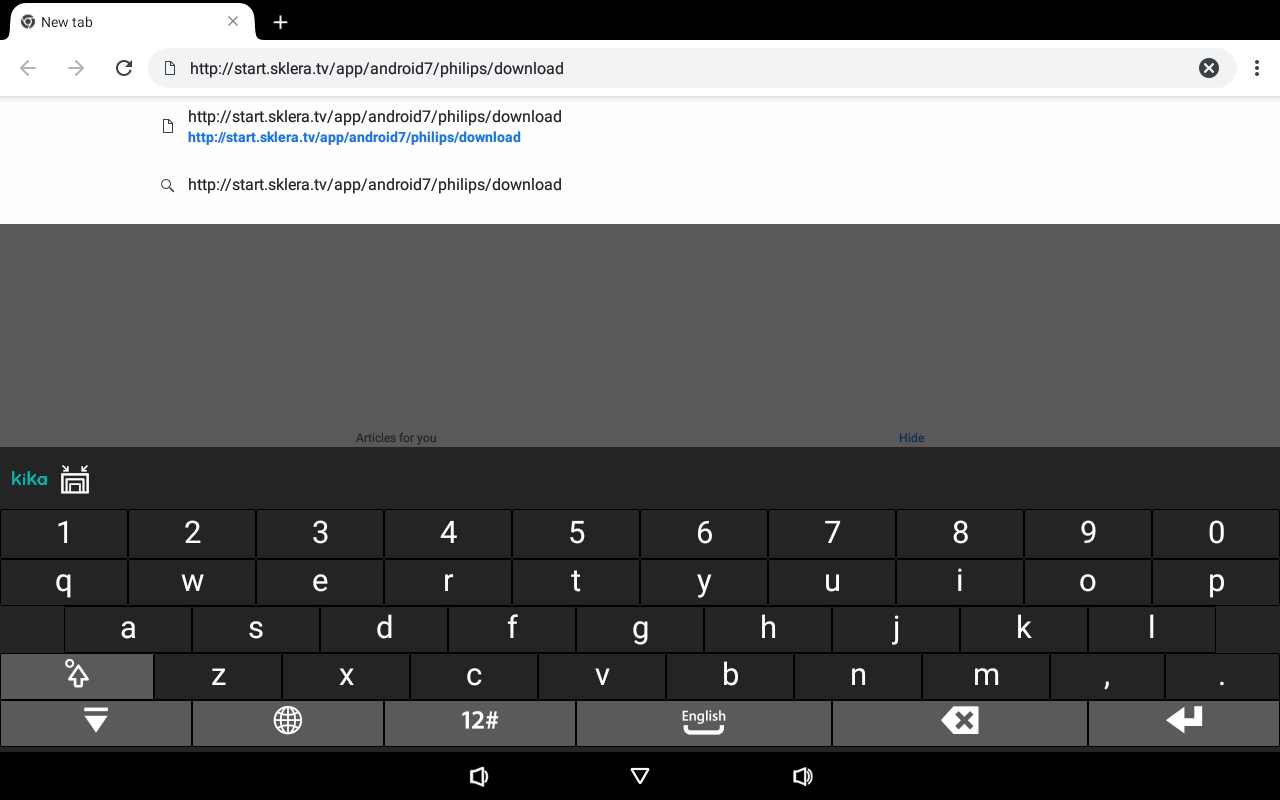
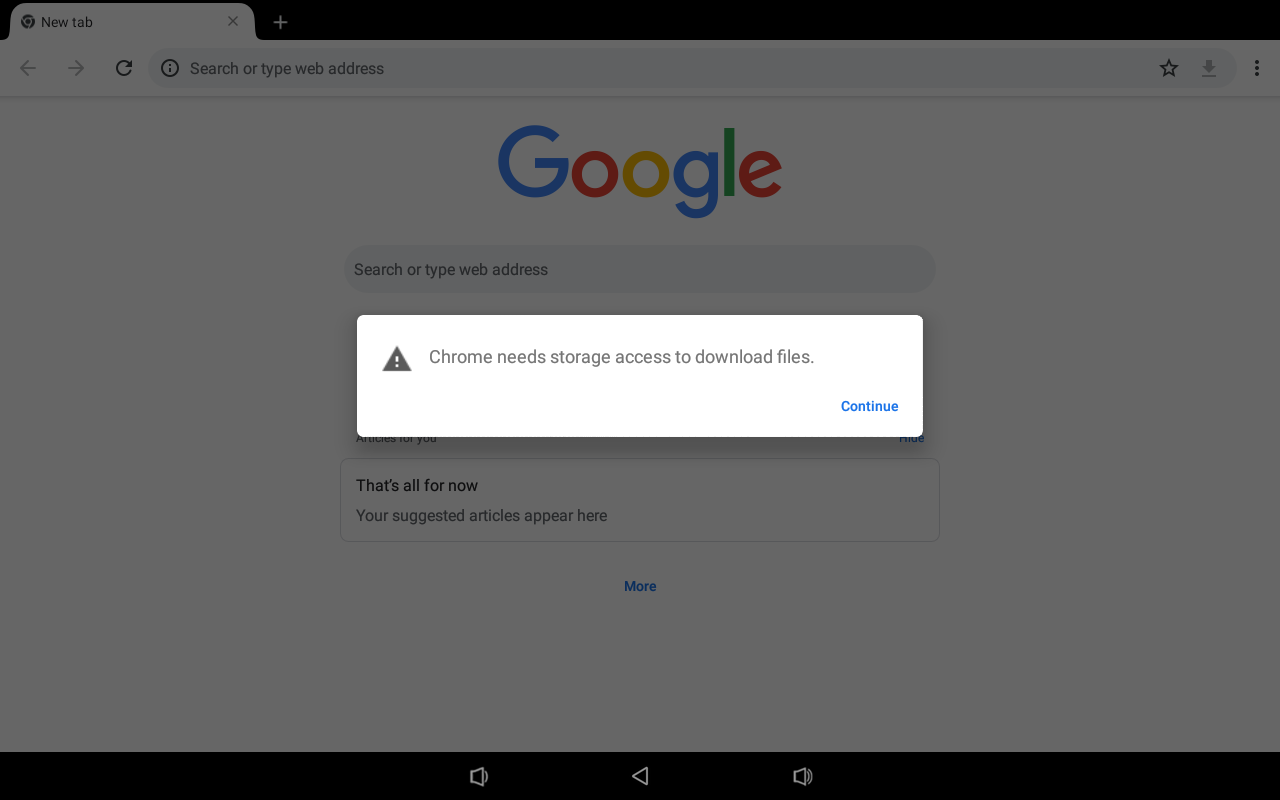
- Click "Continue".
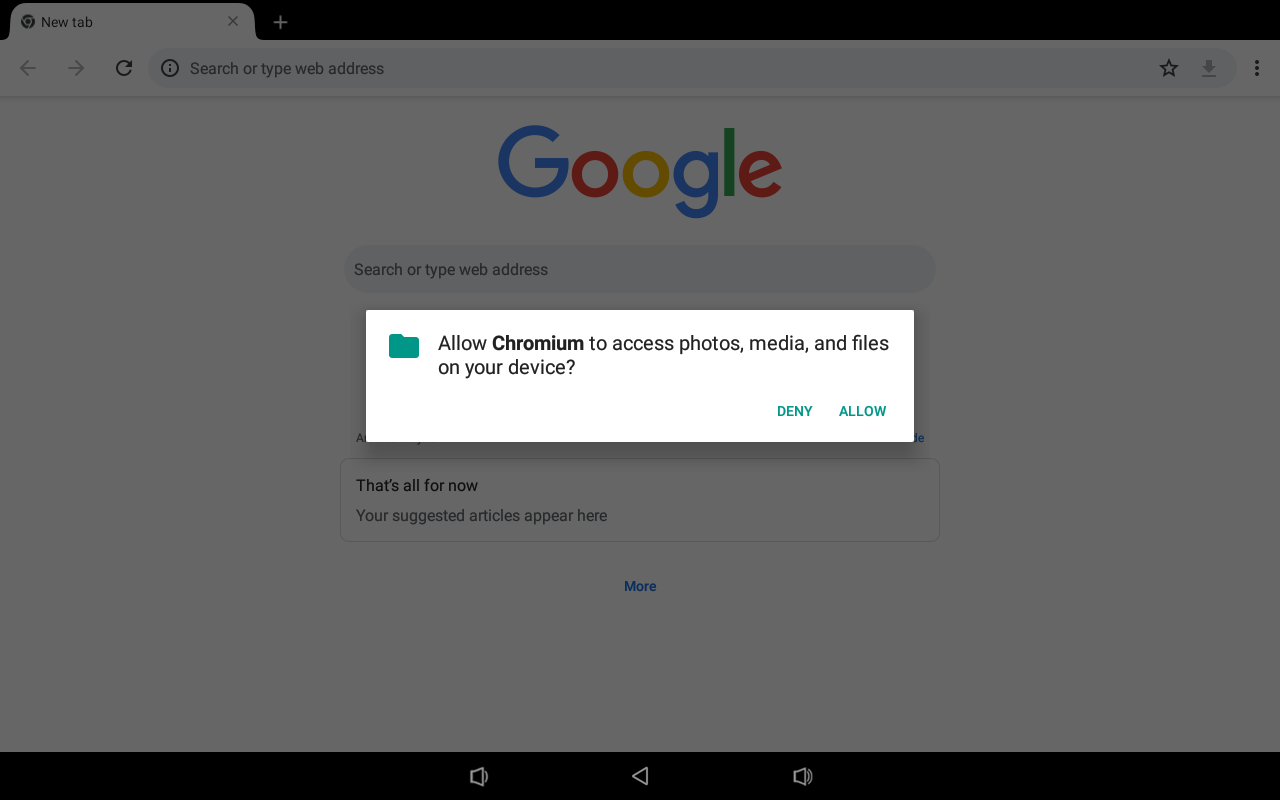
- Allow Chromium to access Photos, Media, and Files.
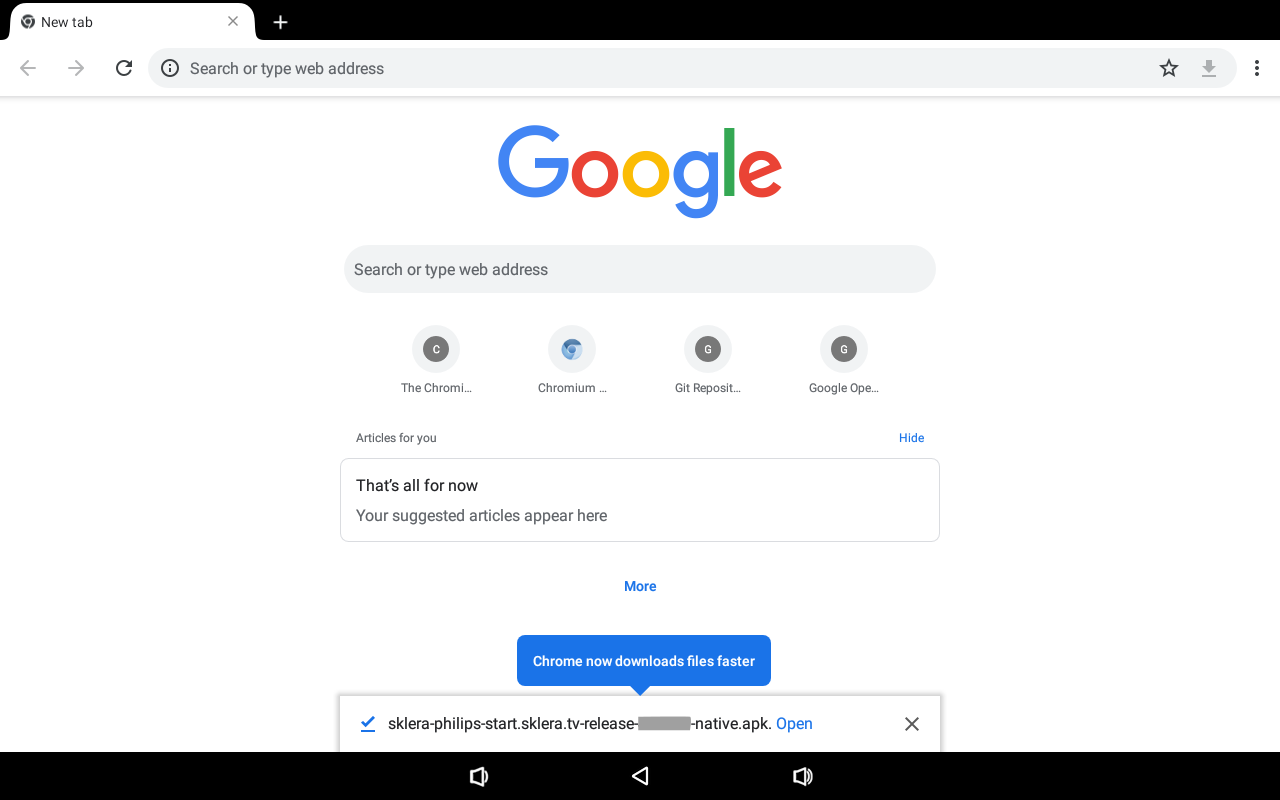
- Open the downloaded file by clicking "Open".
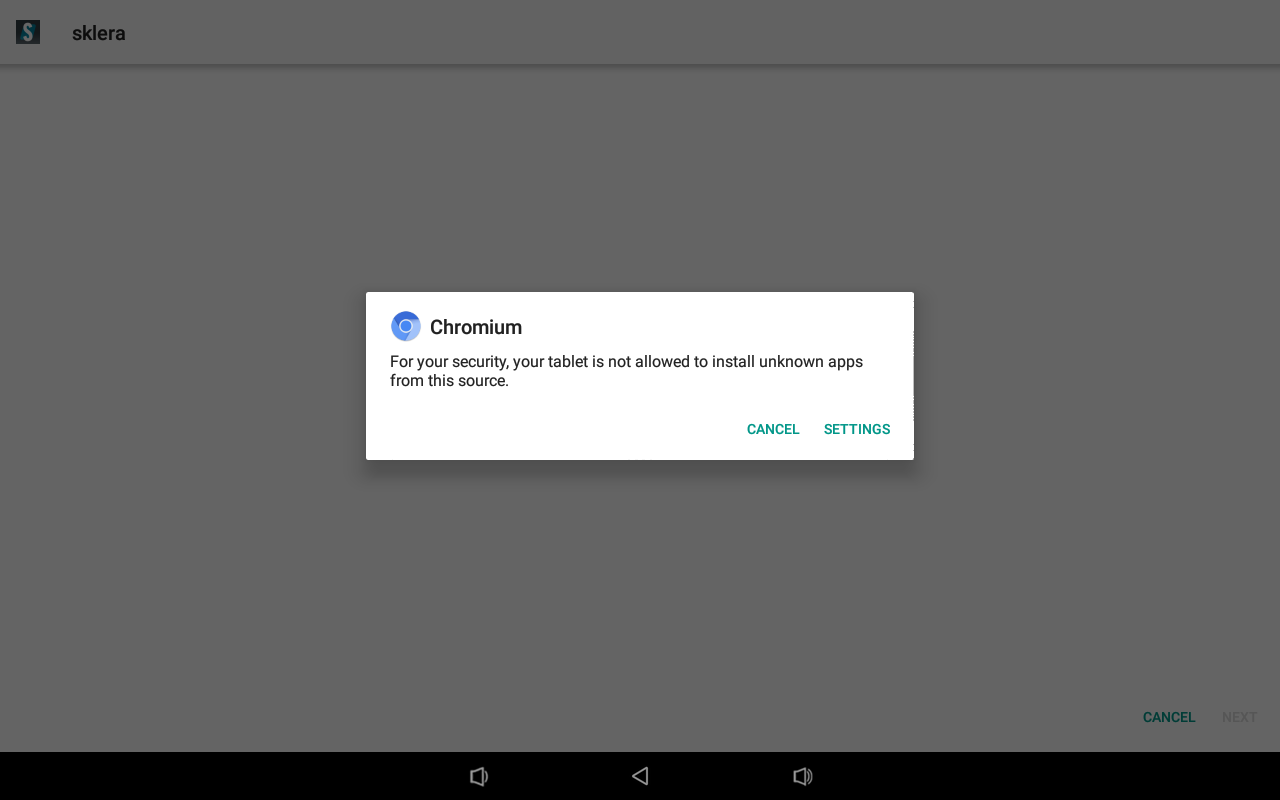
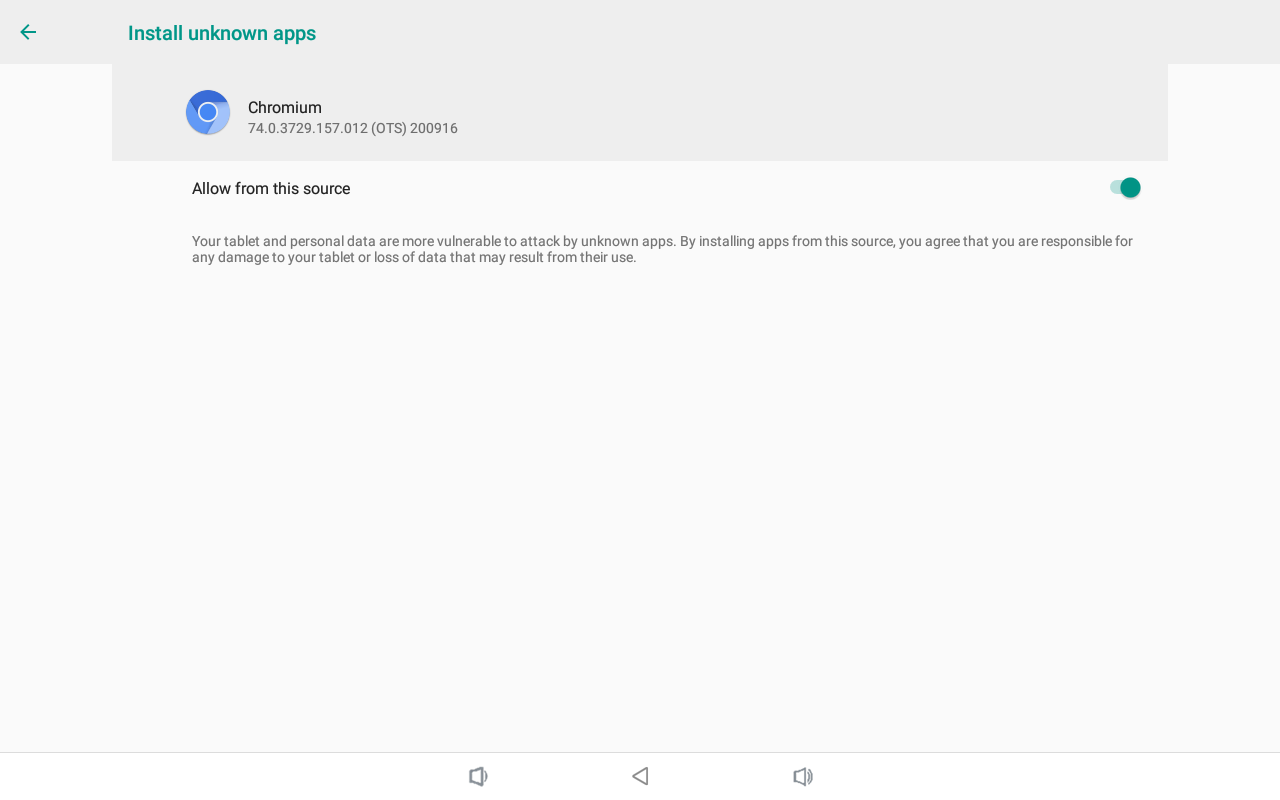
- Allow Chromium to install unknown apps. To do this, click "SETTINGS" and enable the "Allow from this source" slider.
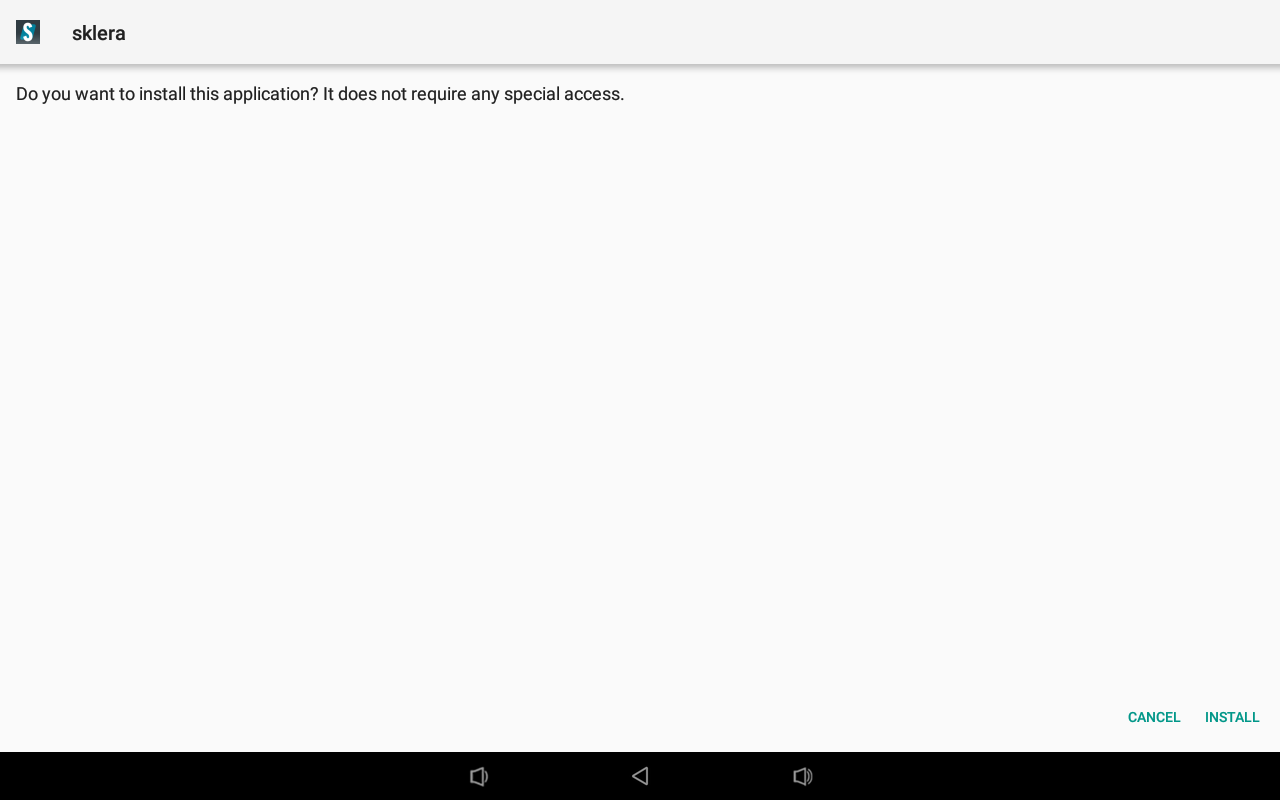
- Install the sklera Player app by clicking "INSTALL".
- Click "DONE".
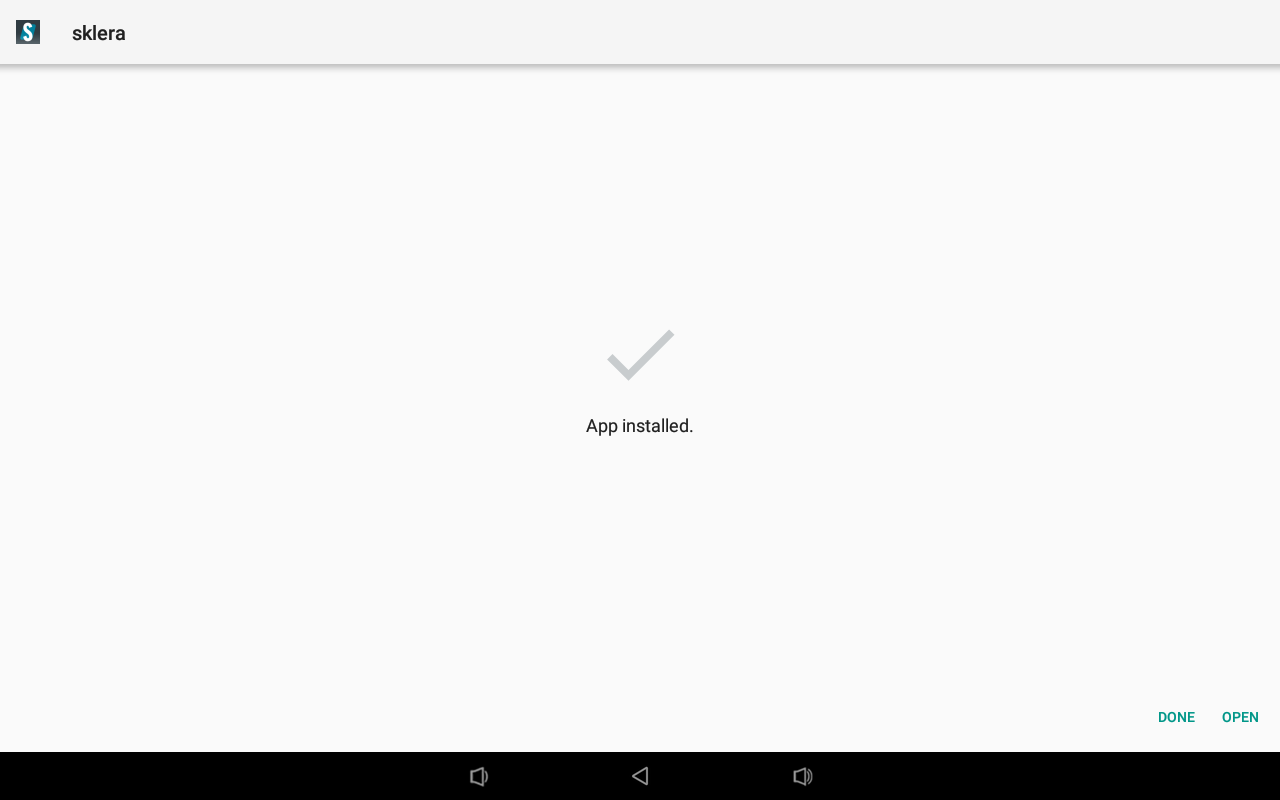
- Switch back from Chromium to the Apps menu by clicking the Back button in the navigation bar.
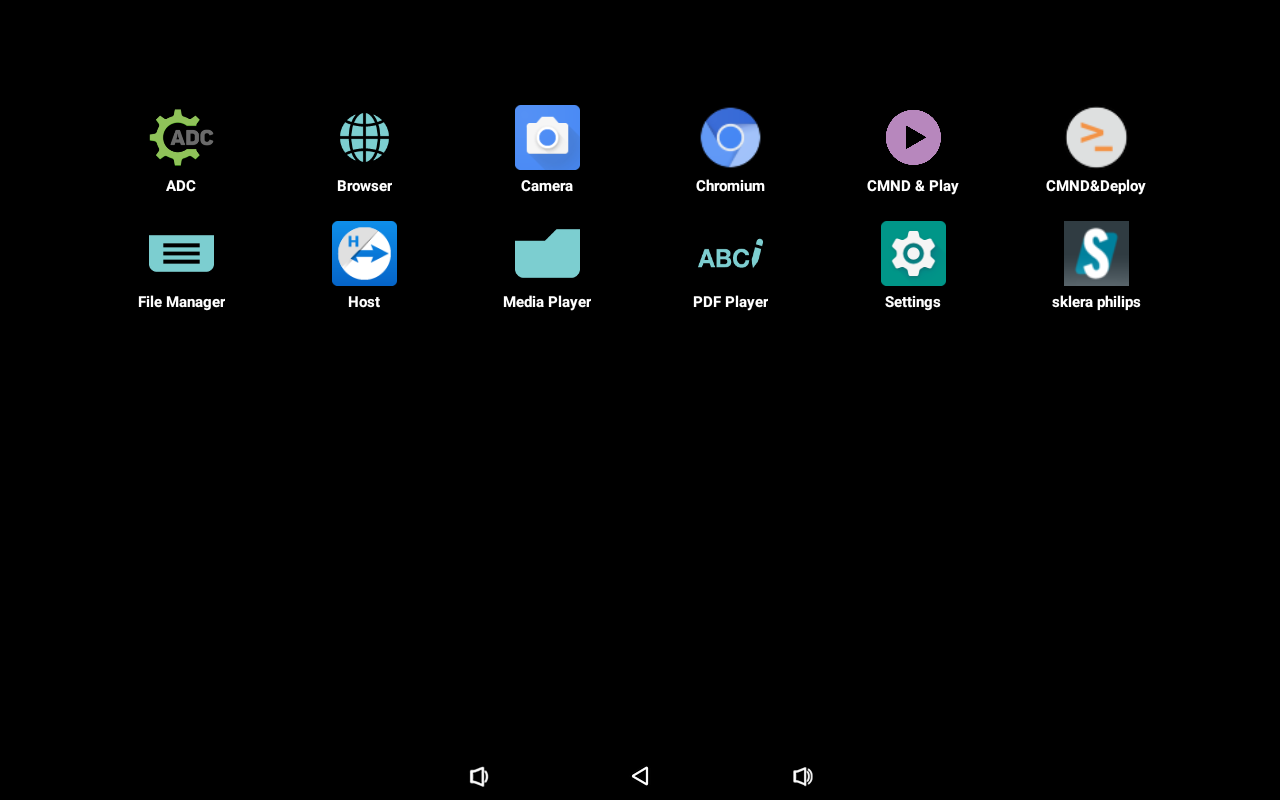
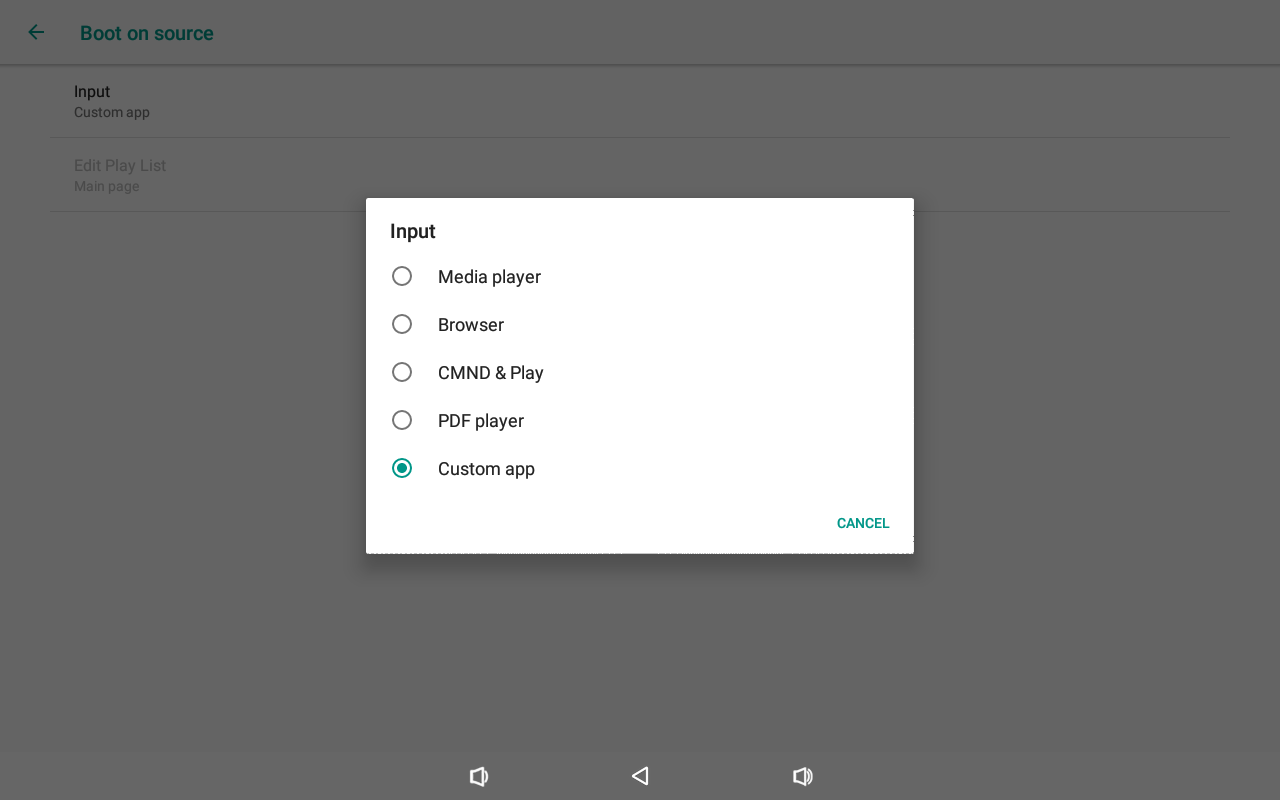
- Configure the automatic launch of the sklera Player app. To do this, navigate to "Settings > Signage Display > General Settings > Boot on source > Input" and select "Custom app".
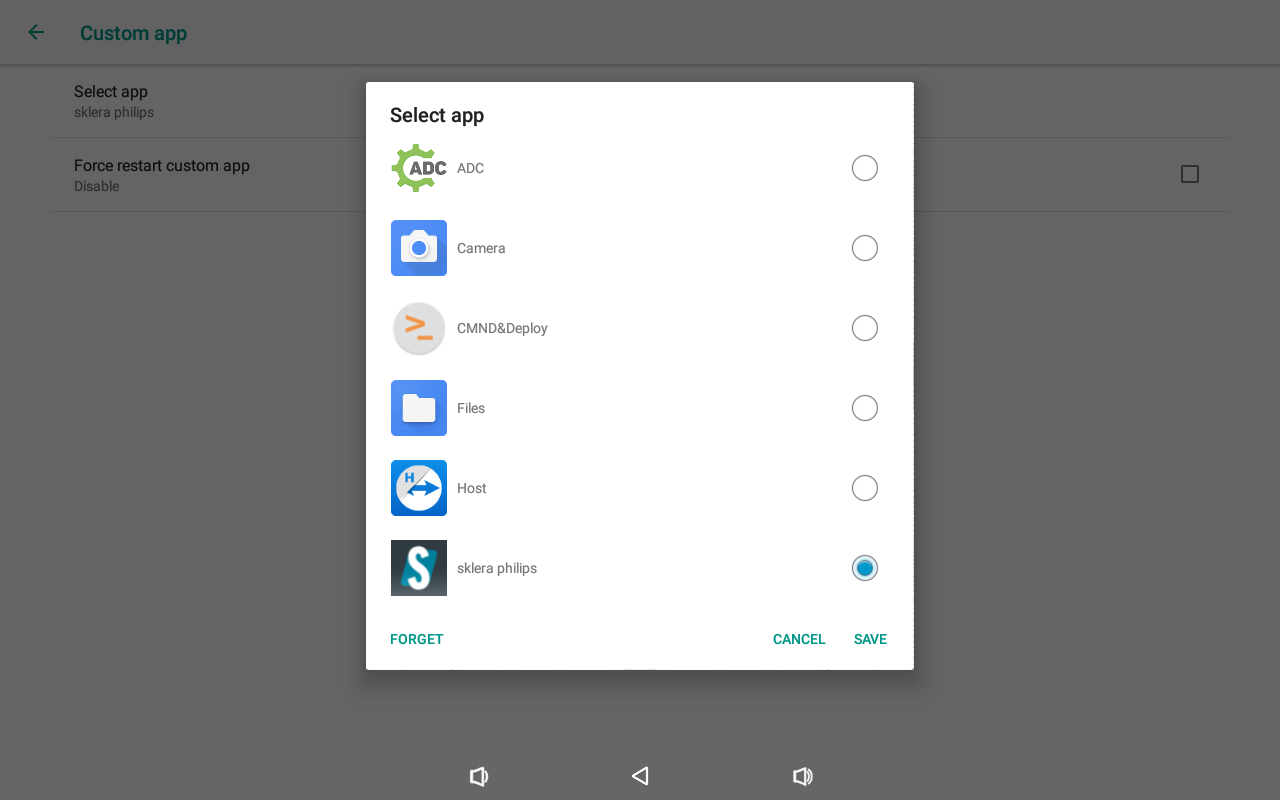
- Go to "Settings > Signage Display > Source Settings > Custom app > Select app", select "sklera philips", and click "SAVE".
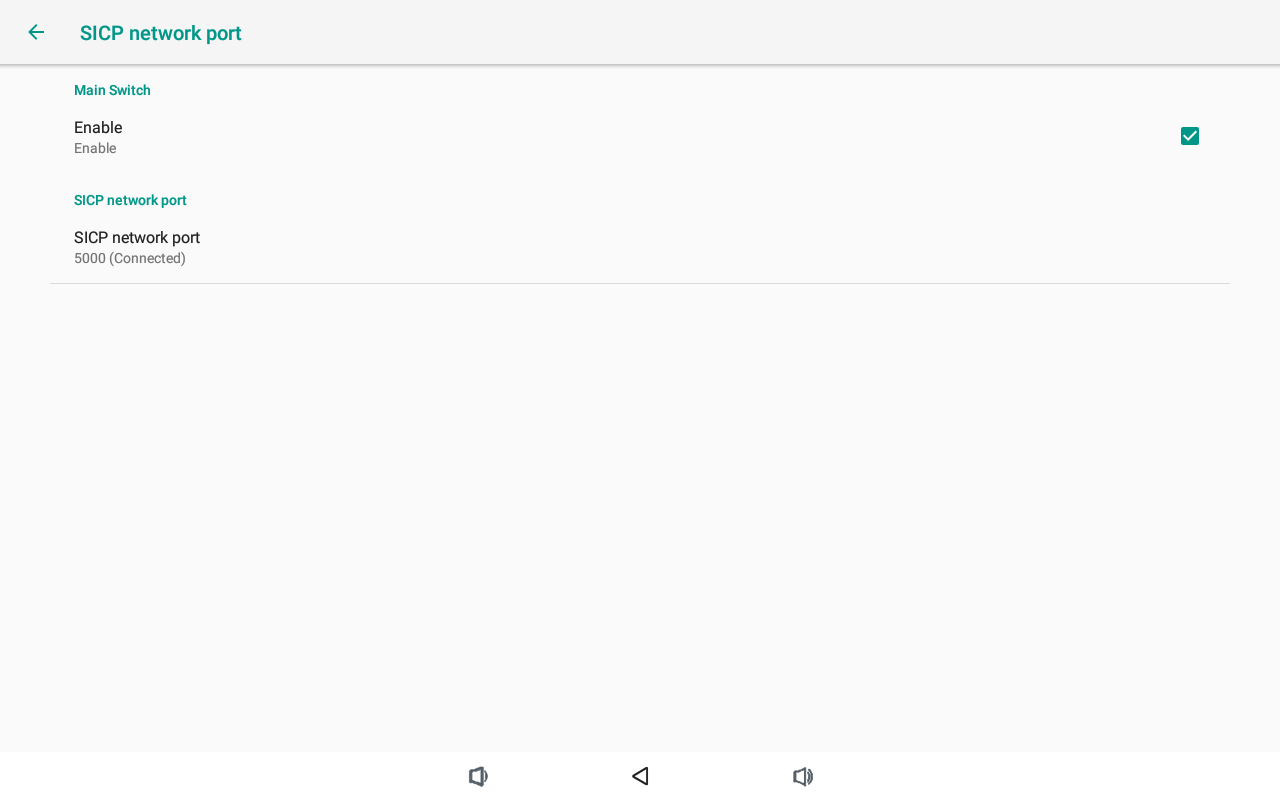
- Check whether the SICP network port is active by navigating to "Settings > Signage Display > Network application > SICP network port". The "Enable" checkbox must be selected.
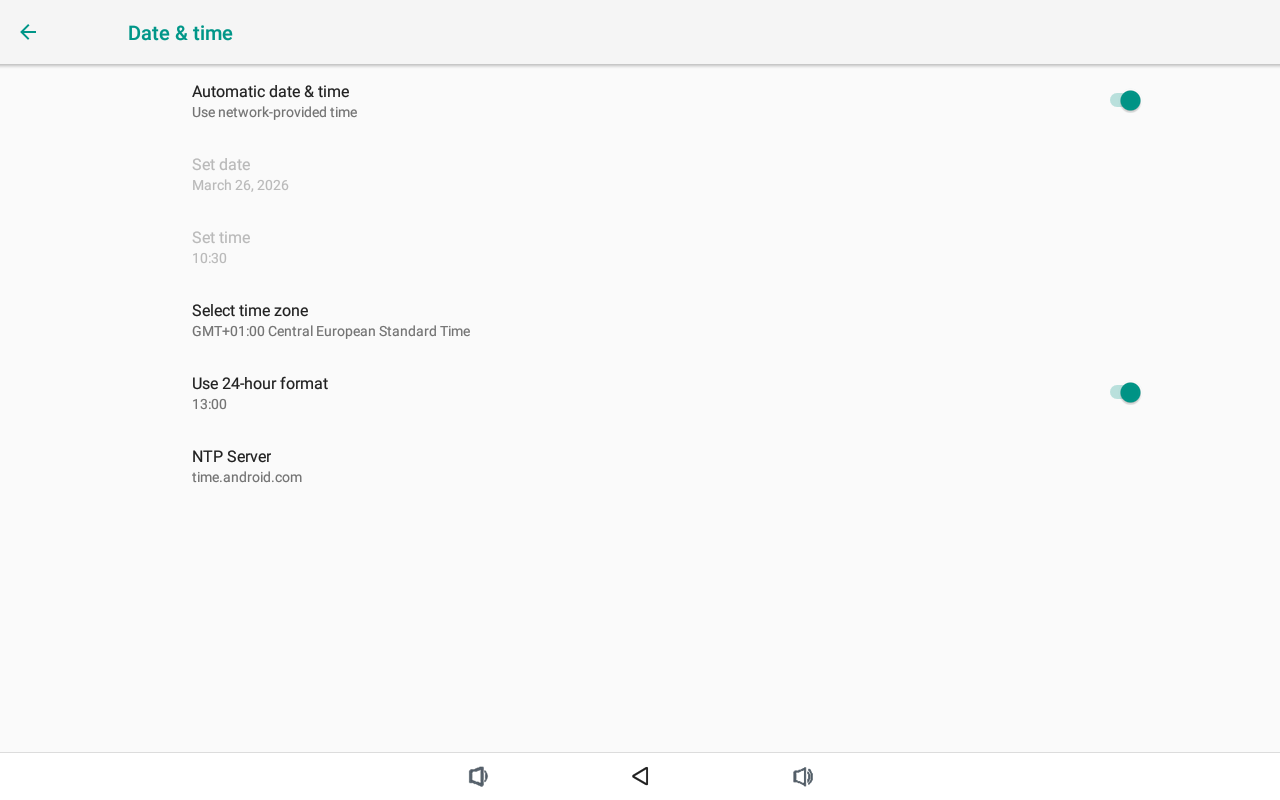
- Navigate to "Settings > System > Date & Time".Select the correct time zone and (optionally) adjust the "NTP Server".
Start the app
- Restart the device. The sklera Player app will launch automatically.
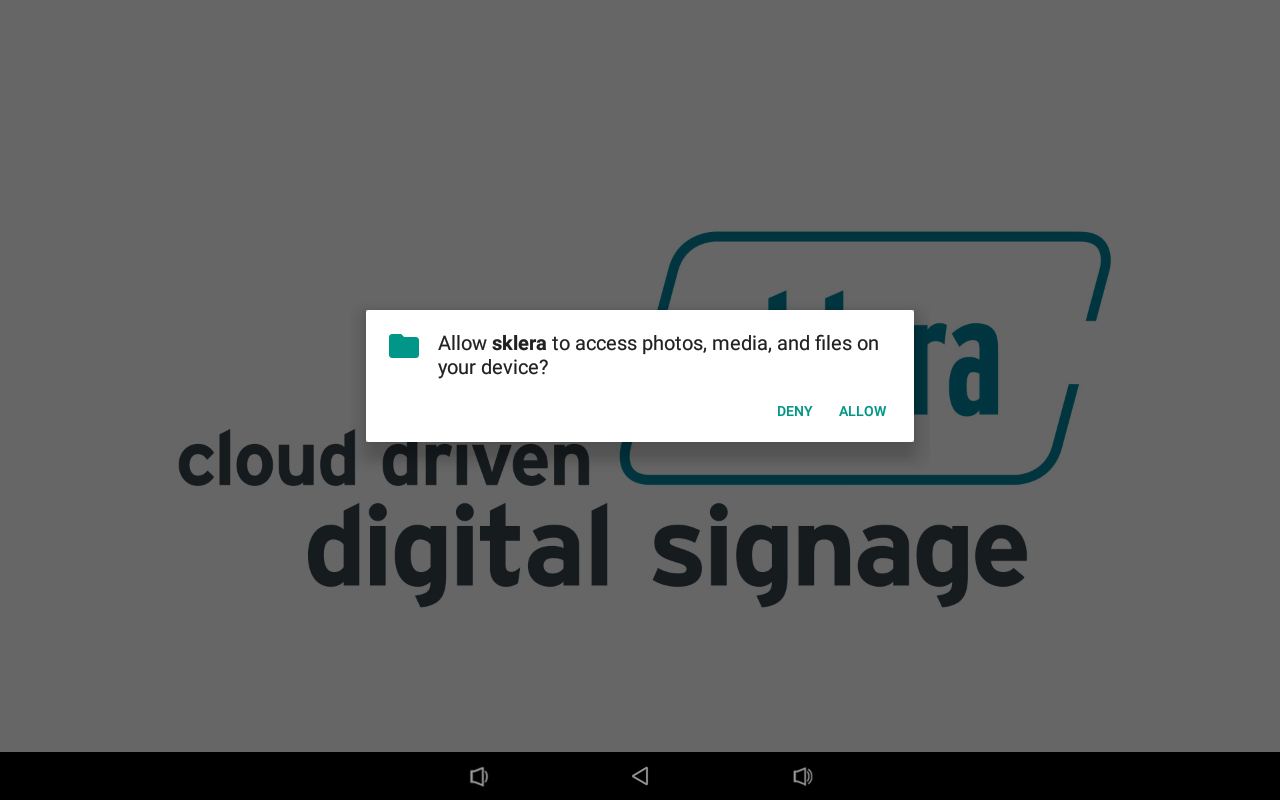
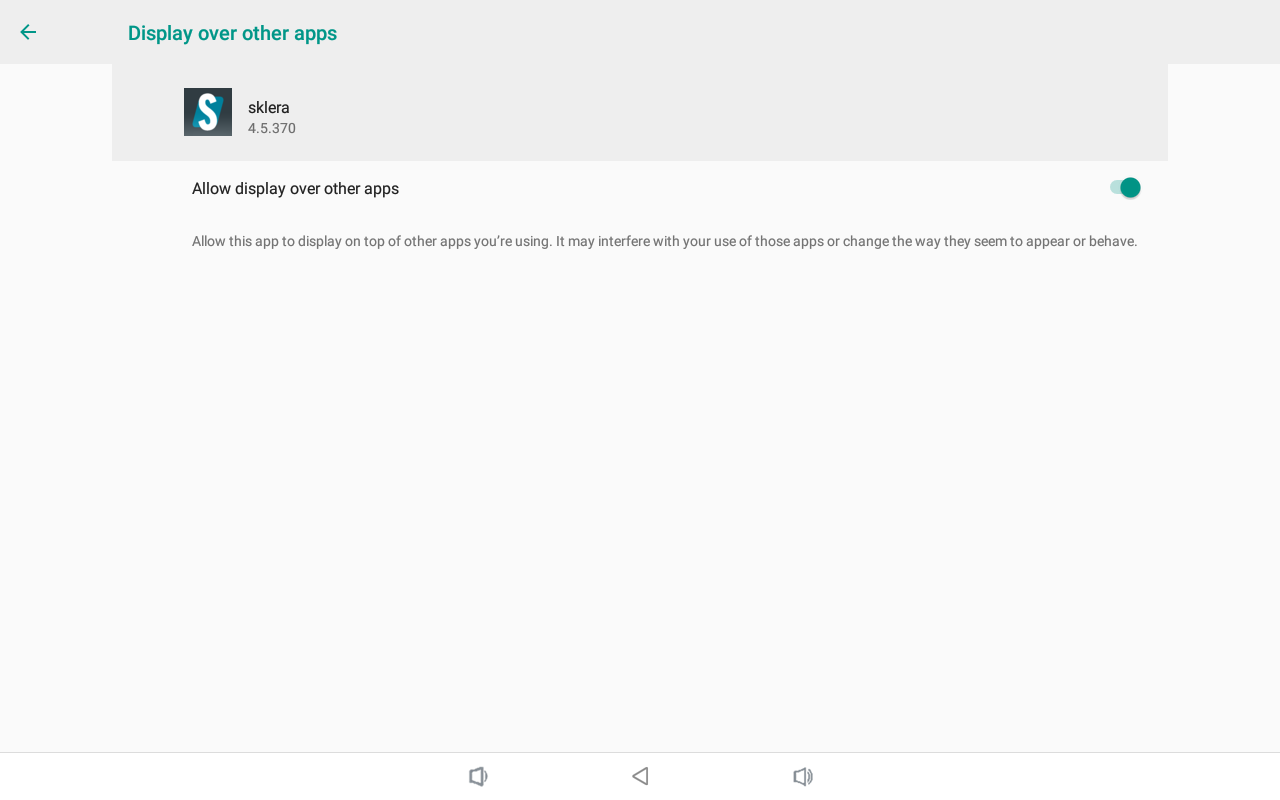
- When the app is launched for the first time, it will request certain permissions. These are required for the app to function properly, for example to enable automatic startup or write data to external storage. Please grant all requested permissions.
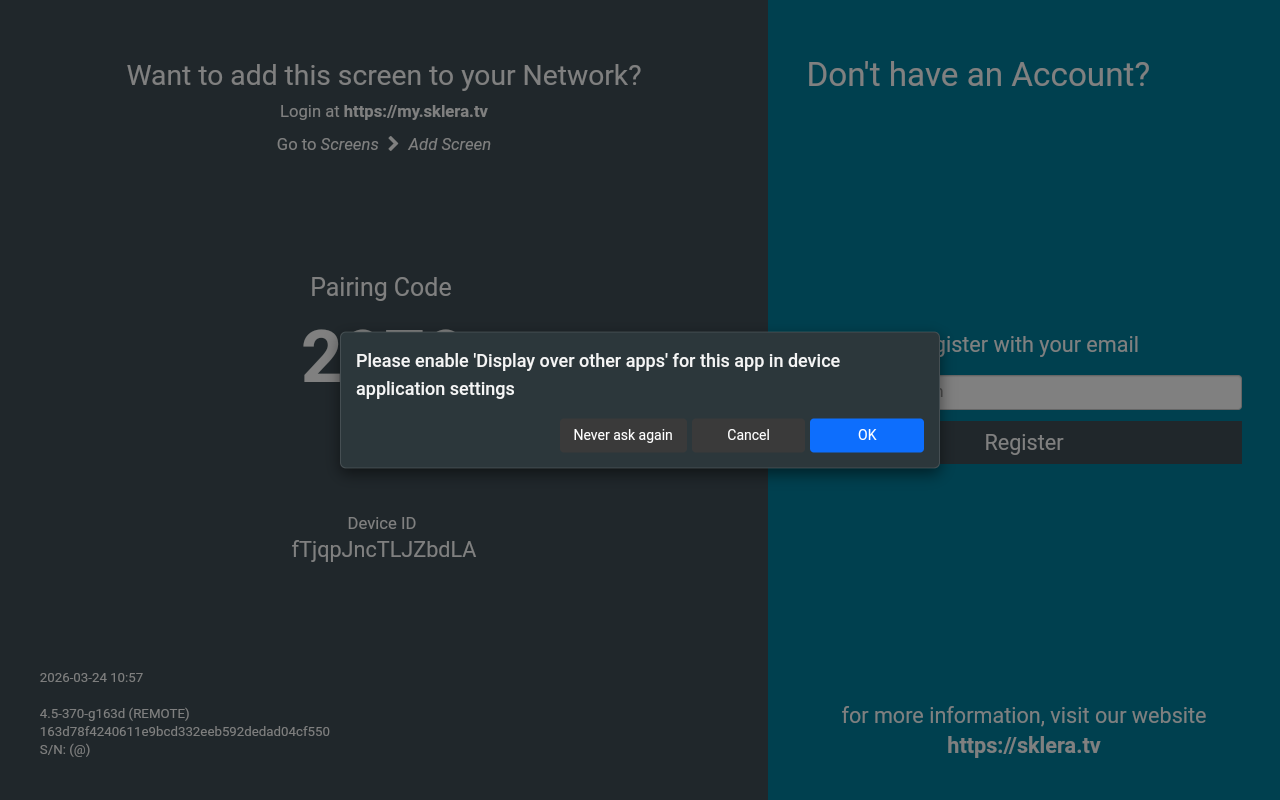
- Follow the on-screen instructions to add the player to your channel.
Post Installation
- (Optional) Change the Player-URL to your own environment.
Click the Pairing Code 8 times, then click on "http://start.sklera.at". Use the "Change Player-URL" button to enter your own Player URL and apply it by clicking "Save & Reload".
Note:
The LEDs can display the following colors:
Red: #FF0000
Green: #00FF00
Blue: #0000FF
Purple: #FF00FF
Cyan: #00FFFF
Yellow: #FFFF00
If you want the display to show different colors than the LEDs, hide the room status widget (which controls the LEDs) in the sklera Layout Designer, and add a second room status widget with your desired border colors. For this second widget, enable the "Disable LEDs" slider.